How to Enable Windows Hello Sign-In for Microsoft Accounts in Windows 11

You enable Windows Hello sign-in for Microsoft accounts in Windows 11 by configuring your sign-in options to require a PIN, fingerprint, or facial recognition instead of a password.
Windows Hello offers a secure and convenient way to sign in to your PC, letting you use a PIN, your face, or your fingerprint to verify who you are.
Using a Microsoft account for Windows 11? You can boost your security by turning off password sign-in.
This means only you can unlock your device with your chosen PIN or biometric method. You won’t need to remember or type passwords anymore, making access quick, personal, and secure.
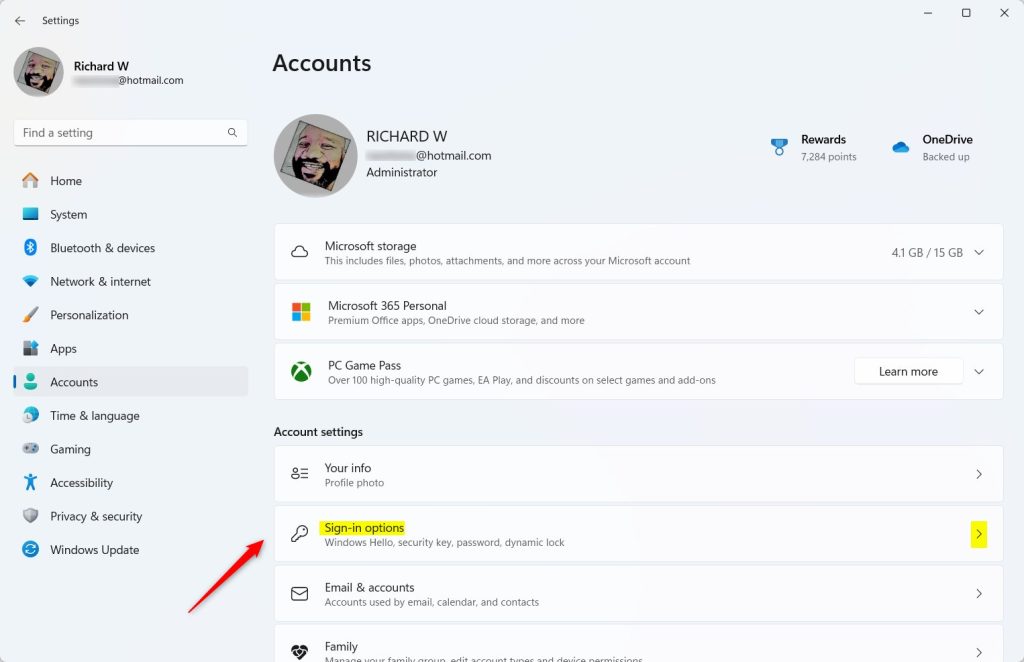
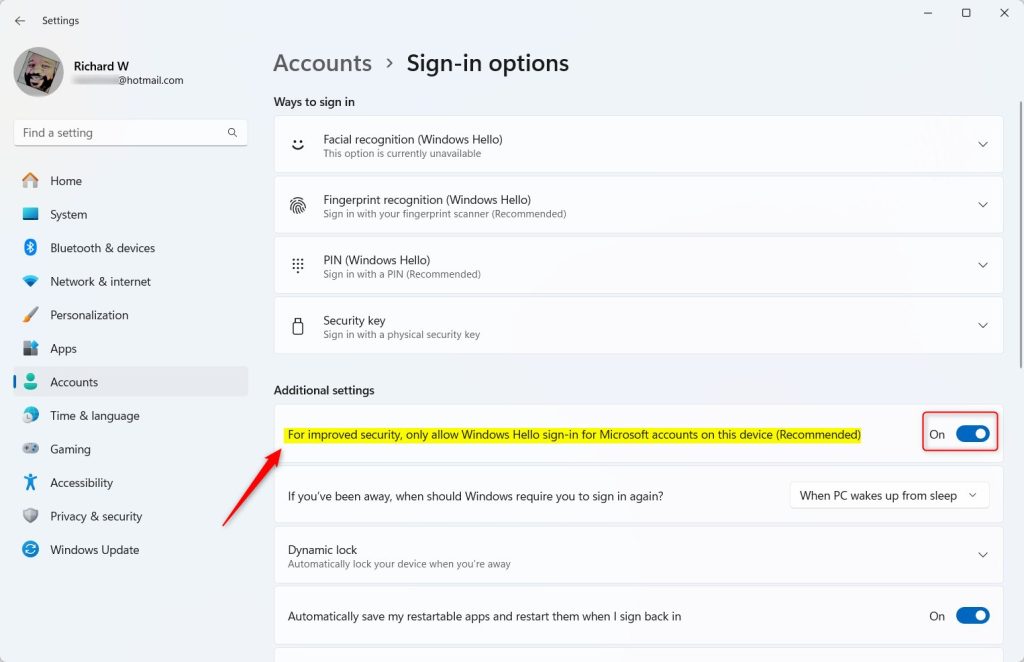
Go to Settings > Accounts > Sign-in options. Under Additional settings, toggle on “For improved security, only allow Windows Hello sign-in for Microsoft accounts on this device.” This lets you use a PIN, fingerprint, or face recognition instead of a password.
How to Enable Windows Hello Sign-In for Microsoft Accounts
Here’s how to turn on this feature:
- Open Windows Settings:
- Click the Start button and select Settings, or
- Press
Windows key + Ion your keyboard.
- In the Settings window, click on Accounts from the left menu.
- Select Sign-in options on the right side.
- Scroll down to the section labeled Additional settings.
- Find the option that says: “For improved security, only allow Windows Hello sign-in for Microsoft accounts on this device” and click the toggle switch to turn it On.
- Close the Settings app.
Here are some helpful pictures showing these steps:
Why Use Windows Hello Only for Microsoft Accounts?
- Better security: Only you can unlock your computer using your face, fingerprint, or PIN.
- No more passwords to remember: Signing in is fast and easy.
- Protects your personal info: Helps keep your data safe from others.
Want to learn more about Windows Hello options? Check out these quick guides:
How to Use Fingerprint Sign-In
That’s it! You’ve made your Windows 11 device safer and easier to use.
Summary
Windows Hello is a quick and secure way to sign in to your Windows 11 computer. By enabling Windows Hello sign-in for your Microsoft account, you can unlock your PC using your face, fingerprint, or PIN instead of typing a password. This takes a few clicks in your Settings app under Accounts > Sign-in options > Additional settings. The benefits include: Stronger security, easier access, and protection for your personal information.
How do I turn off Windows Hello sign in for Microsoft accounts?
Open Settings. Click Accounts. Scroll to the Account Settings section, and click "Sign-in options" (Windows Hello, …). Under the "Additional settings" section, turn off the "For improved security, only allow Windows Hello sign-in for Microsoft account on this device" switch.
Why can't I sign in with Windows Hello?
If you can't sign in using fingerprint recognition, sign in with a PIN or password instead, and then re-register your fingerprints. Tips: Ensure your device's fingerprint reader is clean and dry. If needed, re-register your fingerprints, making sure to capture different angles of your finger.
Was this guide helpful?

About the Author
Richard
Tech Writer, IT Professional
Richard, a writer for Geek Rewind, is a tech enthusiast who loves breaking down complex IT topics into simple, easy-to-understand ideas. With years of hands-on experience in system administration and enterprise IT operations, he’s developed a knack for offering practical tips and solutions. Richard aims to make technology more accessible and actionable. He's deeply committed to the Geek Rewind community, always ready to answer questions and engage in discussions.




No comments yet — be the first to share your thoughts!