How to Turn On or Off Wi-Fi in Windows 11

Let’s walk through how to turn your Wi-Fi on or off in Windows 11.
Access Quick Settings by pressing Windows key + A and click the Wi-Fi button. Alternatively, open Settings by pressing Windows key + I, navigate to Network & internet, and toggle the Wi-Fi switch.
What is Wi-Fi?
Wi-Fi lets your computer connect to the internet without wires, using radio waves. Think of it as invisible waves carrying your internet signal to your device.
Why Turn Wi-Fi Off?
- Save Battery: Turning off Wi-Fi when you don’t need it saves energy.
- Stay Secure: It’s safer to turn off Wi-Fi when not in use to avoid unwanted connections.
Ways to Turn Wi-Fi On or Off in 🪟 Windows 11
Option 1Use a Wi-Fi Button or Switch on Your PC
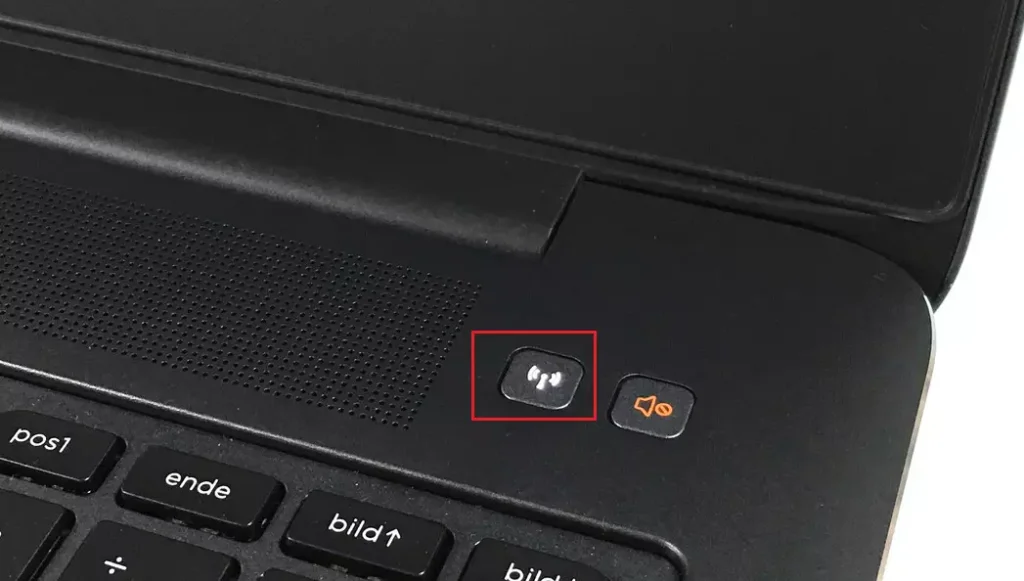
Many laptops have a special key or switch to quickly turn Wi-Fi on or off.
- Look for a key with a wireless symbol (usually on the F-keys at the top of your keyboard) or a physical switch on the side.
Option 2Use Quick Settings on the Taskbar
- Press
Windows key + Ato open Quick Settings. - Find the Wi-Fi button.
- Click the left side of the Wi-Fi button to turn Wi-Fi on or off.
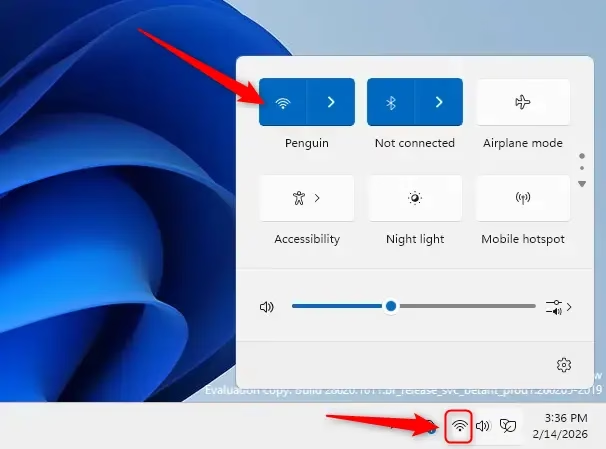
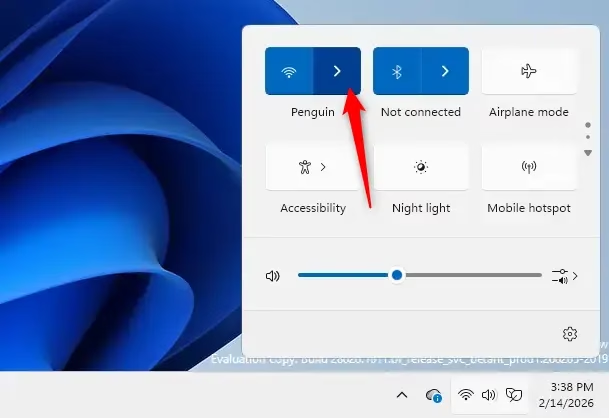
Bonus tip: Clicking the right side of the Wi-Fi button lets you set a schedule for Wi-Fi to turn back on automatically.
Option 3Turn Wi-Fi On or Off in Settings
- Press
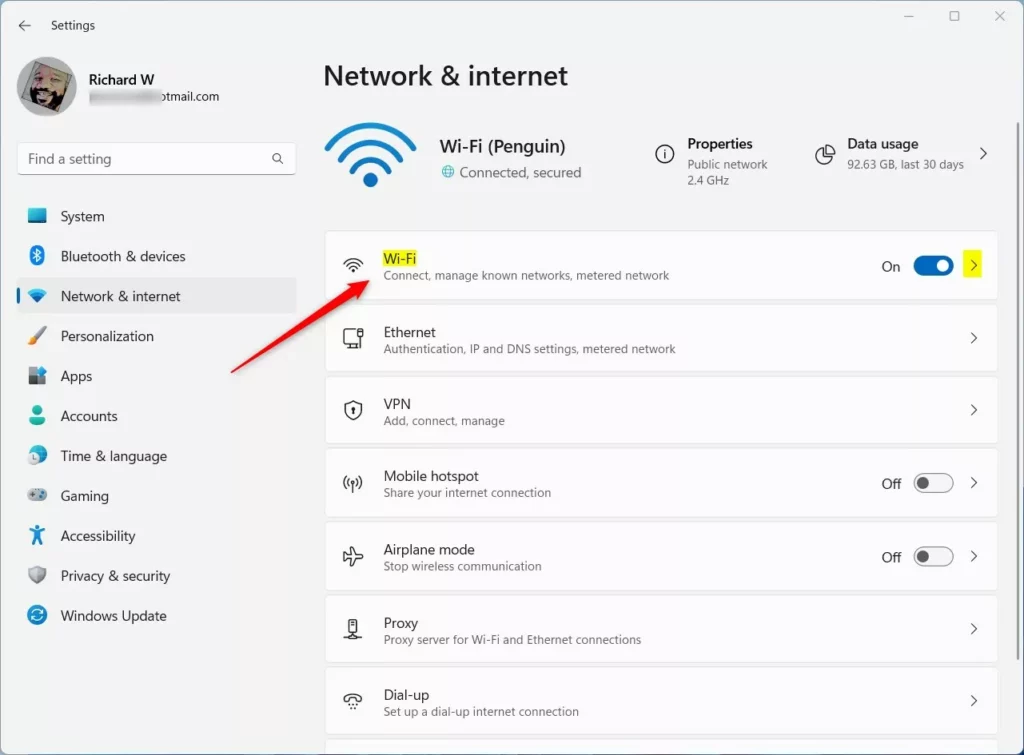
Windows key + Ito open Settings. - Click Network & internet from the menu on the left.
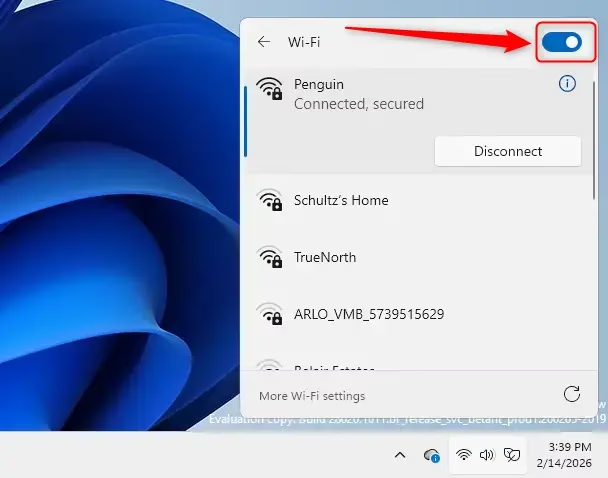
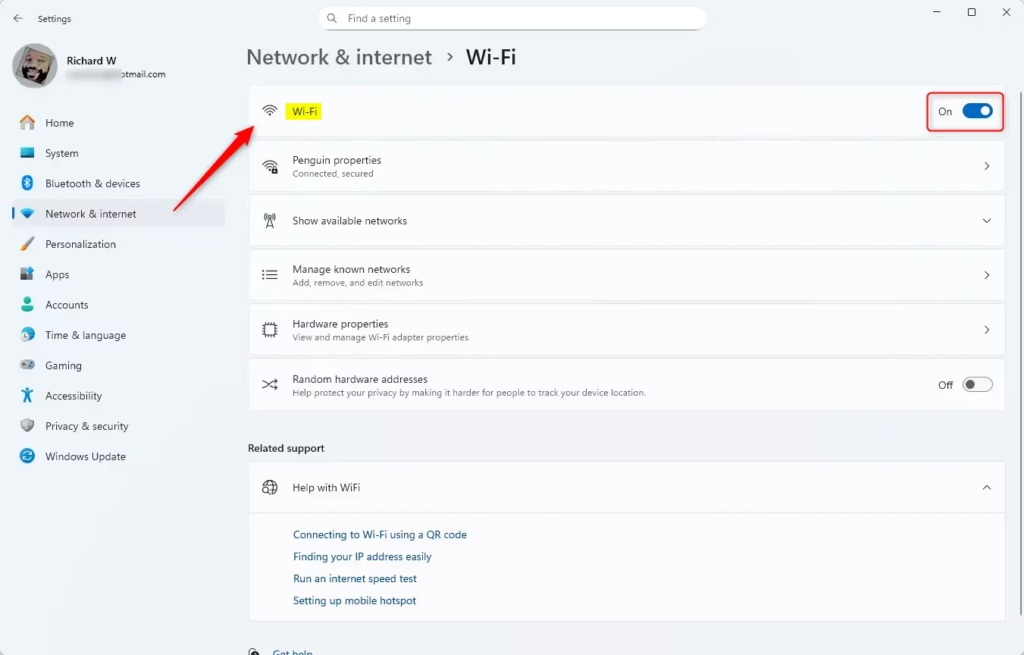
- On the right side, toggle the switch next to Wi-Fi to turn it on or off.
You can easily turn your Windows 11 WiFi on or off using the main Settings app.
If Wi-Fi is off, click on Wi-Fi to choose a schedule for it to turn back on.
Option 4Use Airplane Mode Settings
- Press
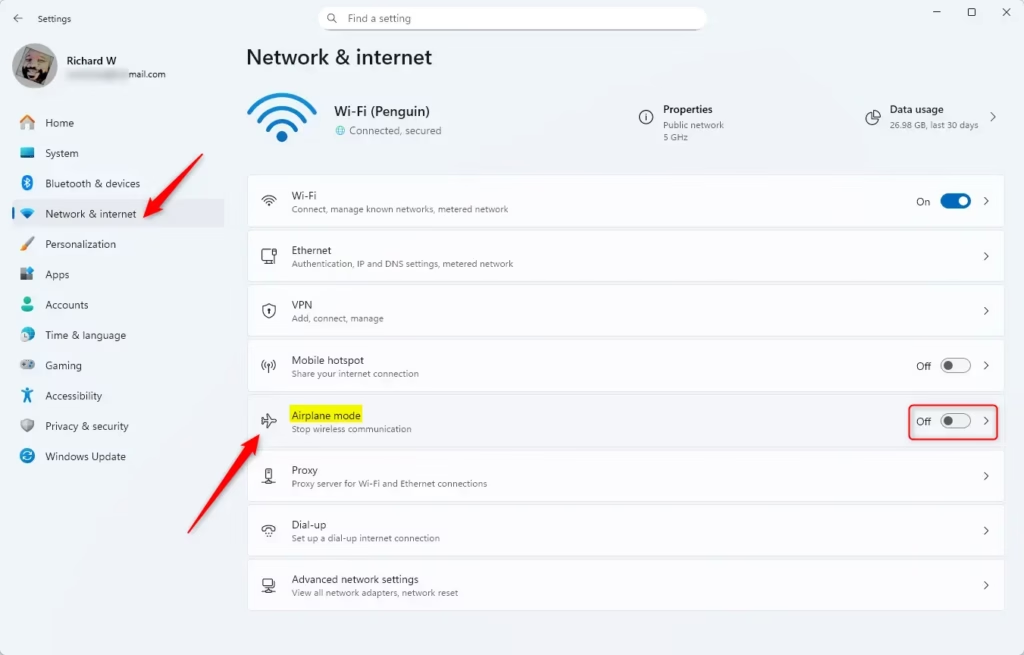
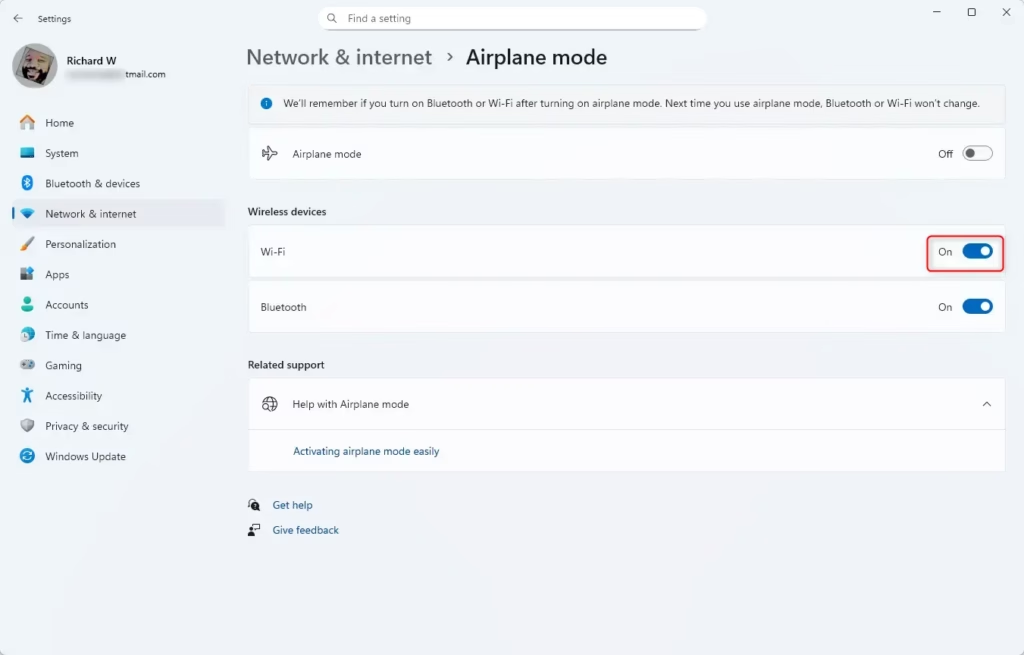
Windows key + Ito open Settings. - Click Network & internet on the left, then Airplane mode on the right.
- Under Wireless devices, turn Wi-Fi on or off.
Accessing Airplane Mode Settings
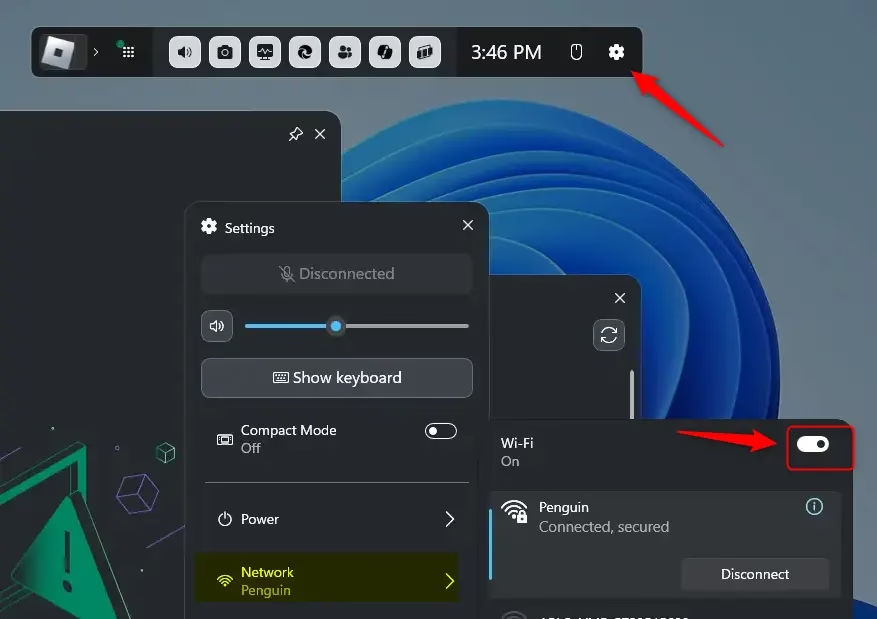
Option 5Use the Game Bar
- Press
Windows key + Gto open the Game Bar. - Click the Settings (gear) icon on the top bar.
- Go to the Network tab.
- Turn Wi-Fi on or off.
Summary
Turning your Windows 11 WiFi on or off is simple and can be done in a few easy ways, like using your keyboard, quick settings, or the main Settings app.- You can turn Wi-Fi on or off in many easy ways – using a button on your keyboard, quick settings, the main Settings app, airplane mode, or even the Game Bar.
- Turning off Wi-Fi saves battery and helps keep your PC safe from unwanted connections.
- Windows 11 supports new Wi-Fi technology for faster and safer internet.
- For more info about the latest Wi-Fi features in Windows 11, visit the official Microsoft page: Faster and more secure Wi-Fi in Windows – Microsoft Support
How do I turn Wi-Fi back on manually 🪟 Windows 11?
Right- click Start and select Settings. Select Network & Internet. Select Wi-Fi/Status and click Change adapter options. Right-click Wireless Network Connection and select Enable.
Was this guide helpful?

About the Author
Richard
Tech Writer, IT Professional
Richard, a writer for Geek Rewind, is a tech enthusiast who loves breaking down complex IT topics into simple, easy-to-understand ideas. With years of hands-on experience in system administration and enterprise IT operations, he’s developed a knack for offering practical tips and solutions. Richard aims to make technology more accessible and actionable. He's deeply committed to the Geek Rewind community, always ready to answer questions and engage in discussions.



No comments yet — be the first to share your thoughts!