
In Windows 11, the Notification Center shows you all your alerts and messages in one place. It’s easy to open and helps you stay updated right from your taskbar.
Learn more about opening Notification Center.
What is the Notification Center?
The Notification Center is a small panel that slides out from the right side of your screen. It shows notifications like new emails, app alerts, calendar reminders, and more.
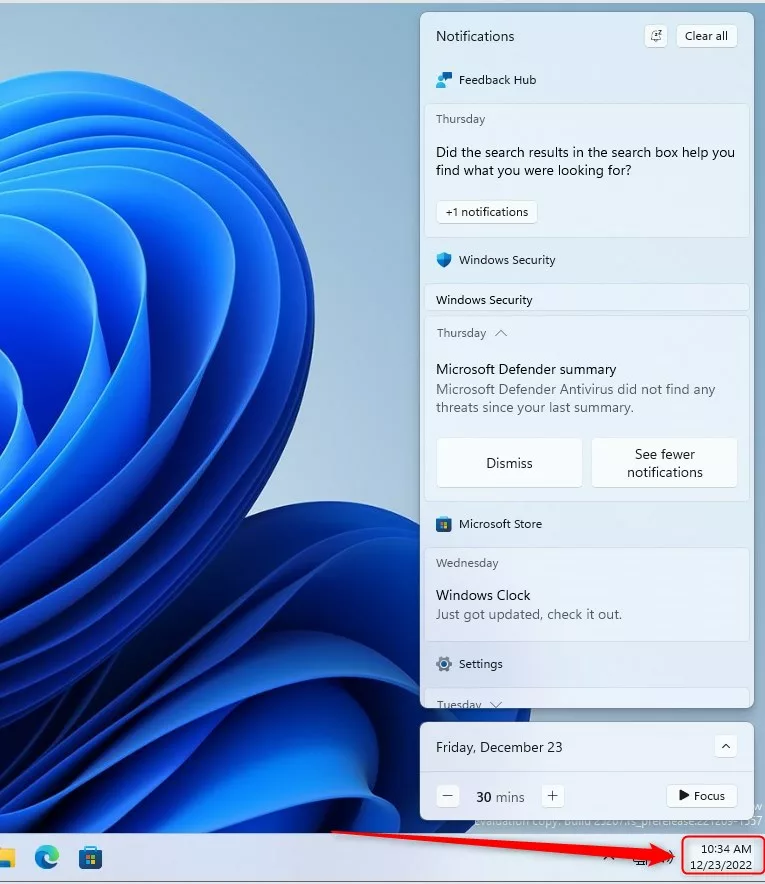
You can open it by:
- Clicking the clock area on the taskbar (bottom right of your screen).
- Swiping in from the right edge if you have a touchscreen.
- Pressing Windows key + N on your keyboard.
Notifications will pop up automatically unless you have Do Not Disturb mode turned on.
How to Turn Off or Turn On the Notification Center
If you want to hide or show the Notification Center, you can do it in two ways: using the Local Group Policy Editor or the Windows Registry Editor. Don’t worry, we’ll guide you step-by-step!
Method 1: Using Local Group Policy Editor (Easy if available)
- Click the Start Menu button and type Edit group policy in the search box.
- Click on Edit group policy from the search results.
- In the window that opens, on the left side, click to open:
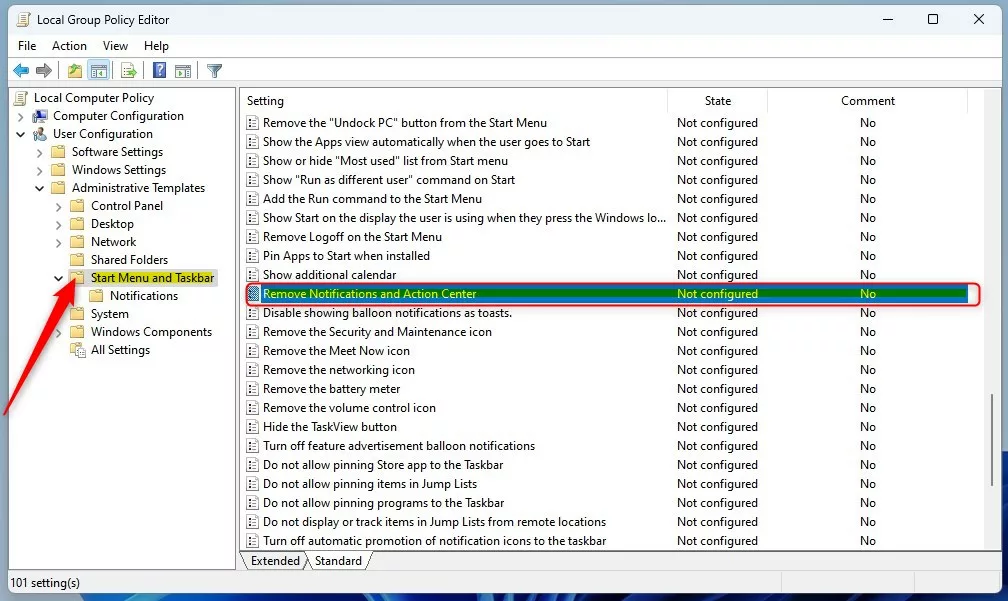
User Configuration > Administrative Templates > Start Menu and Taskbar
- On the right side, find and double-click Remove Notifications and Action Center.
- Choose one of the options:
- Not Configured – Notification Center works normally (default).
- Enabled – Turns off the Notification Center (you won’t see it).
- Disabled – Same as Not Configured, Notification Center is on.
- Click OK to save.
- Restart your computer for the changes to take effect.
Method 2: Using Windows Registry Editor (If Group Policy Editor is not available)
Warning: Editing the registry can cause problems if not done carefully. Follow these steps exactly and consider backing up your registry first.
- Press Windows key + R, type
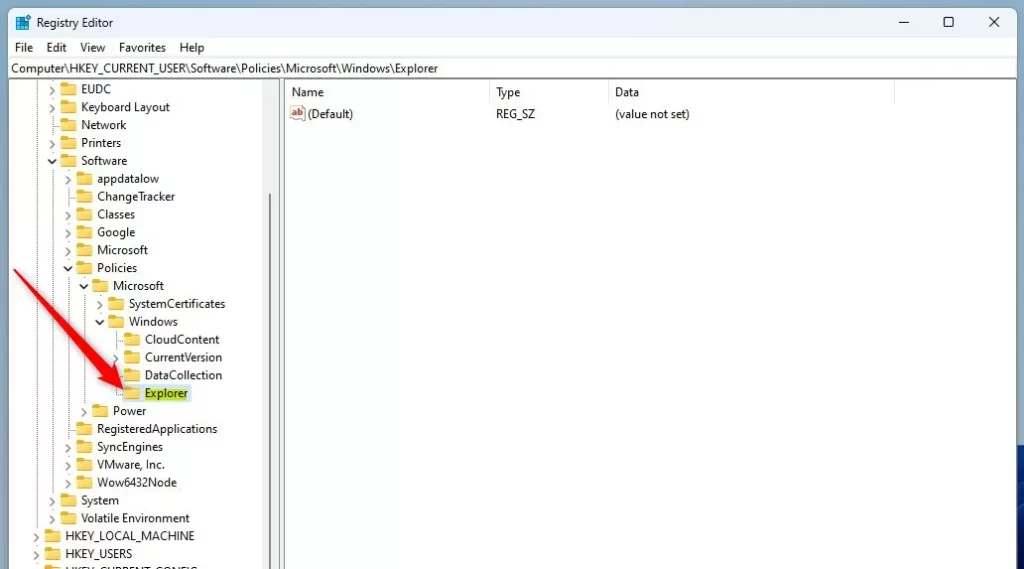
regedit, and press Enter to open the Registry Editor. - Navigate to this folder path:
HKEY_CURRENT_USER\Software\Policies\Microsoft\Windows\Explorer
- If you don’t see the Explorer folder, right-click on Windows, select New > Key, and name it Explorer.
- In the Explorer folder, right-click on the right side, choose New > DWORD (32-bit) Value, and name it DisableNotificationCenter.
- Double-click DisableNotificationCenter and set its value:
- 1 = Turn off Notification Center
- 0 = Turn on Notification Center
- Click OK and close the Registry Editor.
- Repeat the same steps for this path:
HKEY_LOCAL_MACHINESOFTWAREPoliciesMicrosoftWindowsExplorer
- Restart your computer to apply the changes.
Summary
- The Notification Center helps you see all alerts in one place.
- You can turn it on or off using the Local Group Policy Editor or the Registry Editor.
- Follow the steps above carefully and restart your computer for changes to work.
- This lets you control how you receive notifications on your Windows 11 PC.
If you want to learn more about managing notifications, check out these helpful guides:
Leave a Reply Cancel reply