
Do you use more than one language or keyboard layout on your Windows 11 PC? You might have seen the Language Bar. This bar usually appears on the right side of your taskbar or on the sign-in screen. Why would you use it? It helps you quickly switch between different languages or keyboard setups.
If you want to add a new language to Windows 11, Windows will automatically add a keyboard for that language. When you have more than one language or keyboard, the Language Bar shows up.
Here’s a simple way to turn the Language Bar on or off:
Steps to Show or Hide the Language Bar in Windows 11
- Open Windows Settings: You can do this by pressing Windows key + I on your keyboard at the same time. Or click the Start button and then click Settings.

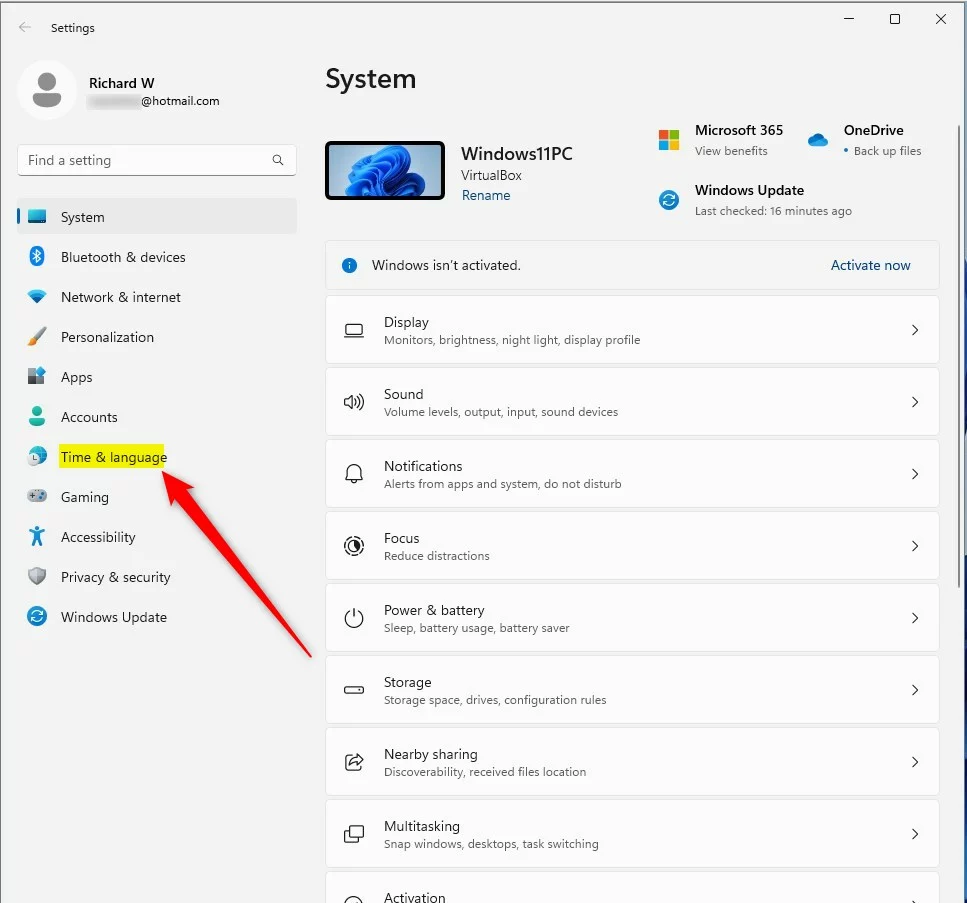
- In the Settings window, click on Time & language from the left menu.
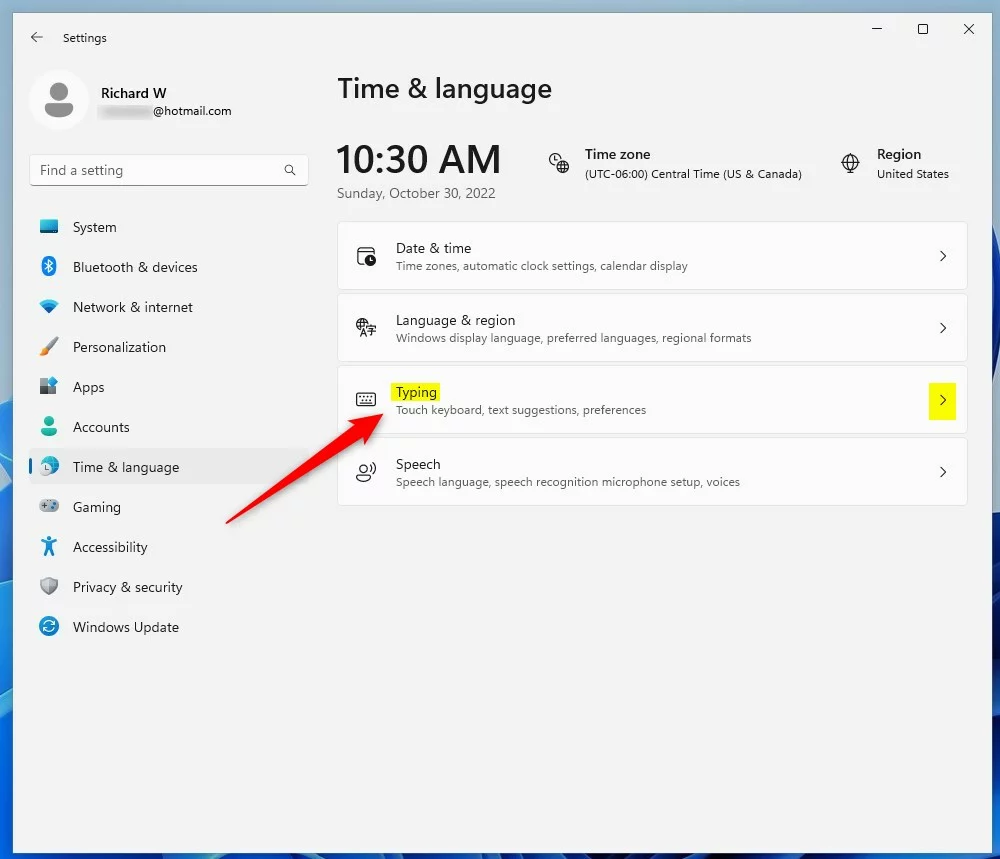
- On the right side, click on the Typing section.
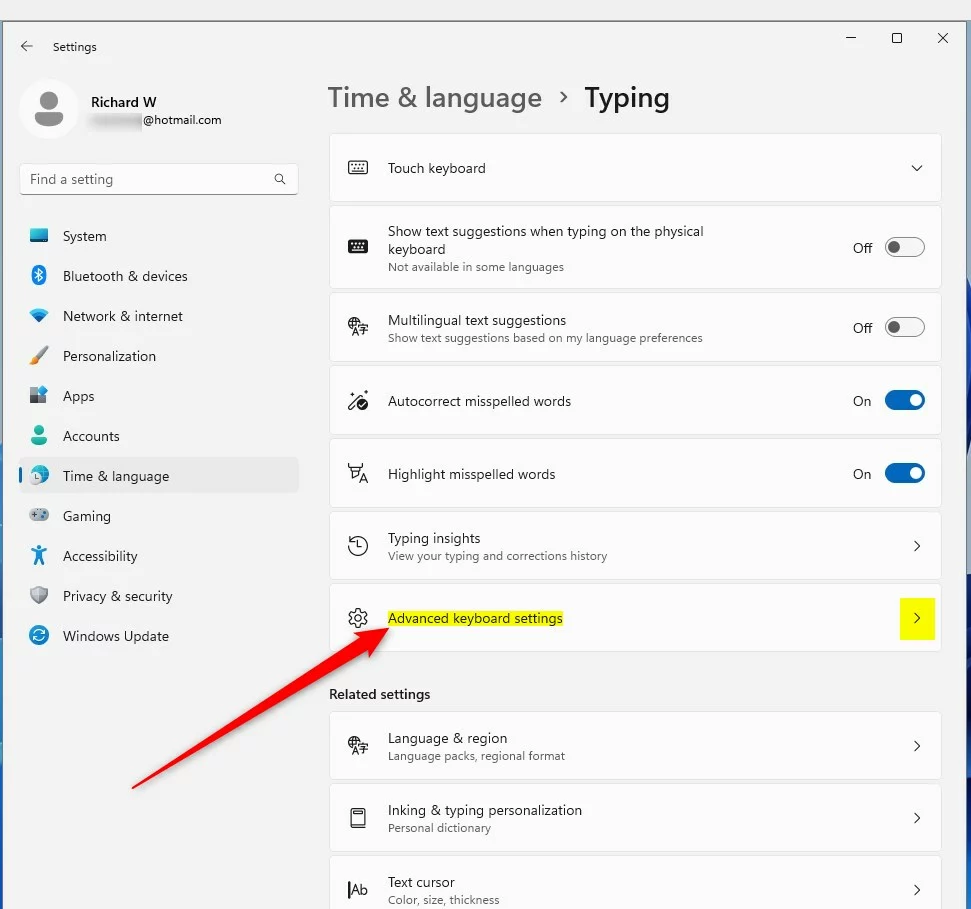
- Next, click Advanced keyboard settings.
- Look for the section called Switching input methods. Check the box that says: “Use the desktop language bar when it’s available”.
- Below that, click on the link Language bar options.
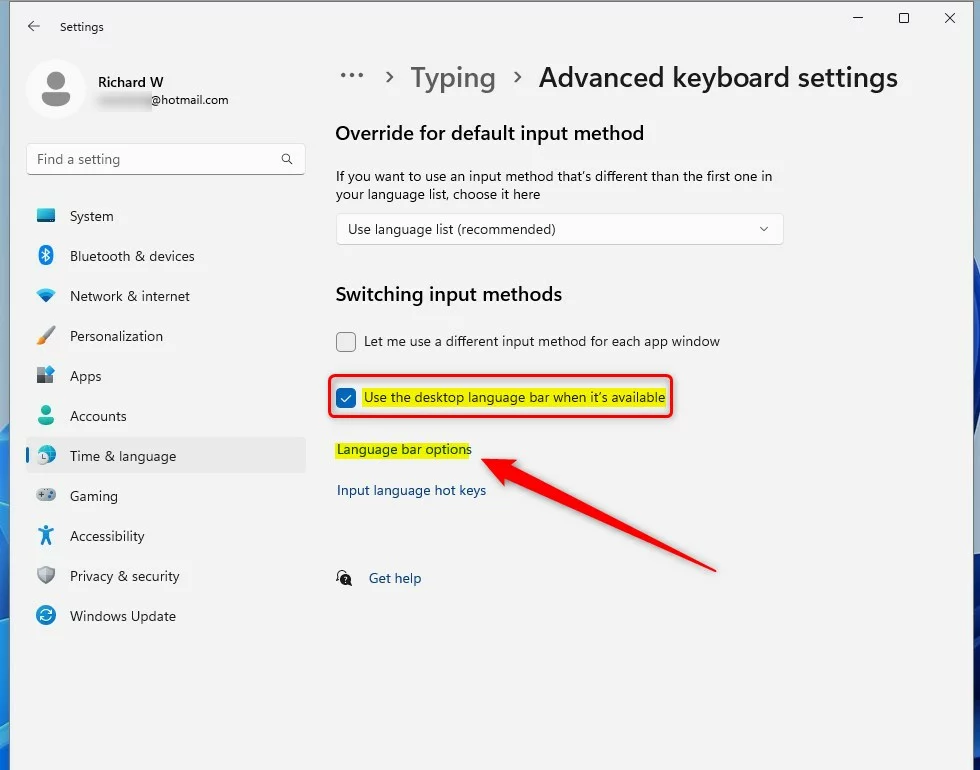
- A new window called Text Services and Input Languages will open. Under Language Bar, choose one of these options:
- Floating On Desktop – this shows the Language Bar as a small floating window you can move around your screen.
- Hidden – this hides the Language Bar completely.

- Click OK to save your choice. Close the Settings window.
What Happens Next?
If you chose Floating On Desktop, you will see the Language Bar when you have more than one language or keyboard set up. You can click it anytime to switch languages easily.
If you picked Hidden, the Language Bar won’t show. But you can still change languages using the taskbar or keyboard shortcuts.
Summary
- Open Settings with Windows key + I or via Start menu.
- Go to Time & language > Typing > Advanced keyboard settings.
- Check “Use the desktop language bar when it’s available”.
- Click Language bar options and pick either Floating On Desktop or Hidden.
- Save and close.
If you want to learn how to add new languages to your PC, check out this guide.



Leave a Reply