
This guide will help you turn on or off text suggestions on your Windows 11 computer. Text suggestions can help you type faster by guessing the word you want as you type.
What Are Text Suggestions?
When you type on your keyboard, Windows can show you word suggestions right above where you’re typing. For example, if you start typing “hel”, it might suggest “hello” or “help”. You can pick the suggestion to finish the word quickly.
This works in many places — like writing emails, chatting, or filling out forms.
How to Use Text Suggestions
To pick a suggestion, you can:
- Click on it with your mouse or tap it if you have a touch screen.
- Use your keyboard arrows: Press the Up arrow to open suggestions, then Left and Right to choose, and Enter to select.
If you don’t want to use any suggestion, just click outside the suggestion box or press Esc.
Turn On or Off Text Suggestions Using Settings
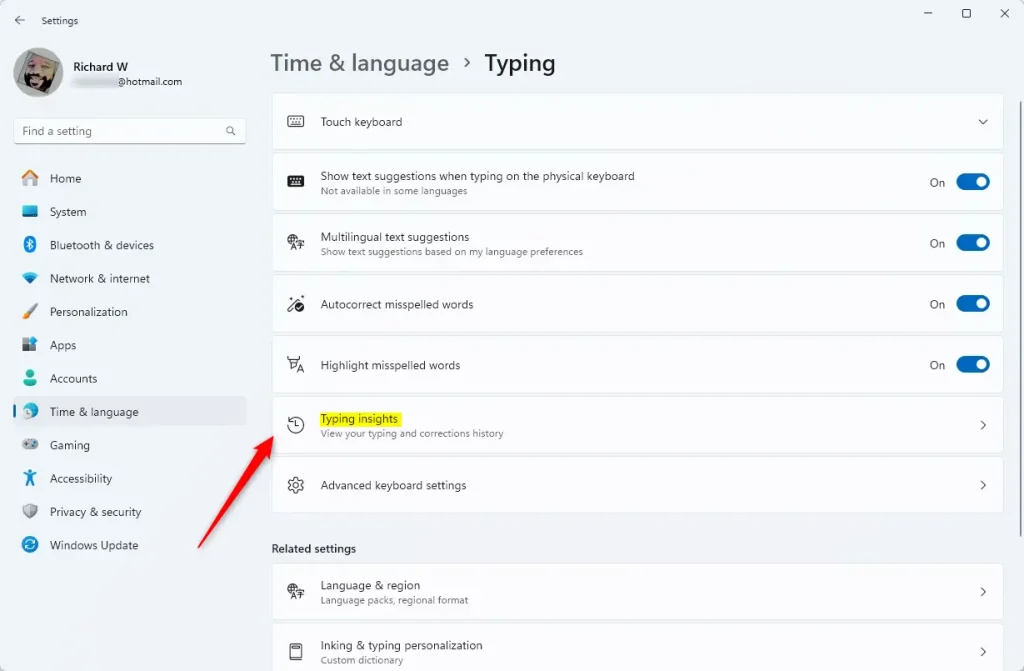
- Open Settings by pressing Win + I on your keyboard.
- Click on Time & language in the left menu.
- Choose Typing on the right.
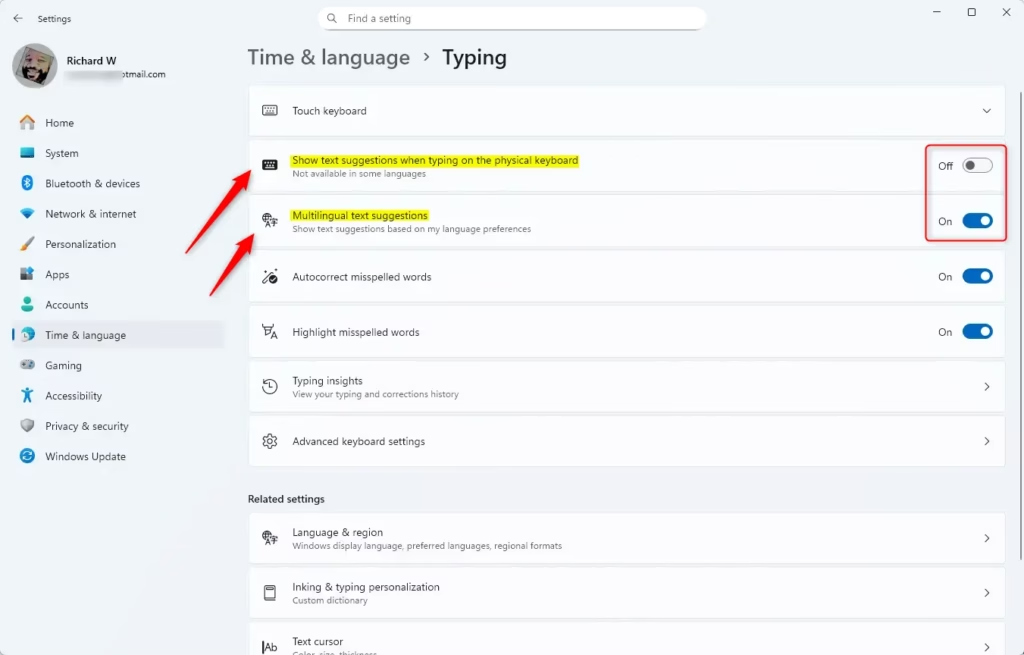
- Find Show text suggestions when typing on the physical keyboard and turn it On or Off depending on what you want.
- You can also turn on Multilingual text suggestions if you want suggestions in multiple languages. (Note: This only works if text suggestions are turned on.)
You can also open Typing settings directly by clicking this link (it will open your Settings app): Open Typing Settings
Turn On or Off Text Suggestions Using Registry (Advanced)
Note: Changing the Registry can affect your computer. Be careful and consider backing up your Registry first.
To Turn On Text Suggestions:
reg add "HKEY_CURRENT_USER\Software\Microsoft\Input\Settings" /v EnableHwkbTextPrediction /t REG_DWORD /d 1 /f
To Turn On Multilingual Text Suggestions:
reg add "HKEY_CURRENT_USER\Software\Microsoft\Input\Settings" /v MultilingualEnabled /t REG_DWORD /d 1 /fRemember: Multilingual suggestions only work if the main text suggestions feature is turned on.
To Turn Off Text Suggestions (default):
reg add "HKEY_CURRENT_USER\Software\Microsoft\Input\Settings" /v EnableHwkbTextPrediction /t REG_DWORD /d 0 /f
To Turn Off Multilingual Text Suggestions:
reg add "HKEY_CURRENT_USER\Software\Microsoft\Input\Settings" /v MultilingualEnabled /t REG_DWORD /d 0 /f
Summary
- Text suggestions help you type faster and make fewer mistakes.
- You can easily turn them on or off in the Windows Settings.
- If you want, you can also manage text suggestions by changing the Windows Registry (only if you are comfortable doing this).
- Multilingual suggestions are available but depend on the main text suggestion feature.
- Feel free to switch these features on or off whenever you want!
More Help
For official details from Microsoft, visit their support page: Enable text suggestions in Windows – Microsoft Support


Leave a Reply