
This guide shows you how to turn on or off tap twice and drag on your touchpad to multi-select in Windows 11.
If your Windows 11 device has a built-in precision touchpad, you can control its tap settings. This feature lets you choose what works best for you.
Reference:
Precision touchpad tuning (touchpad-tuning-guidelines) – This page has information about touchpad tuning in Windows 10 and newer versions.
Option One
Turn On or Off Tap Twice and Drag Using Settings
- Open Settings by pressing
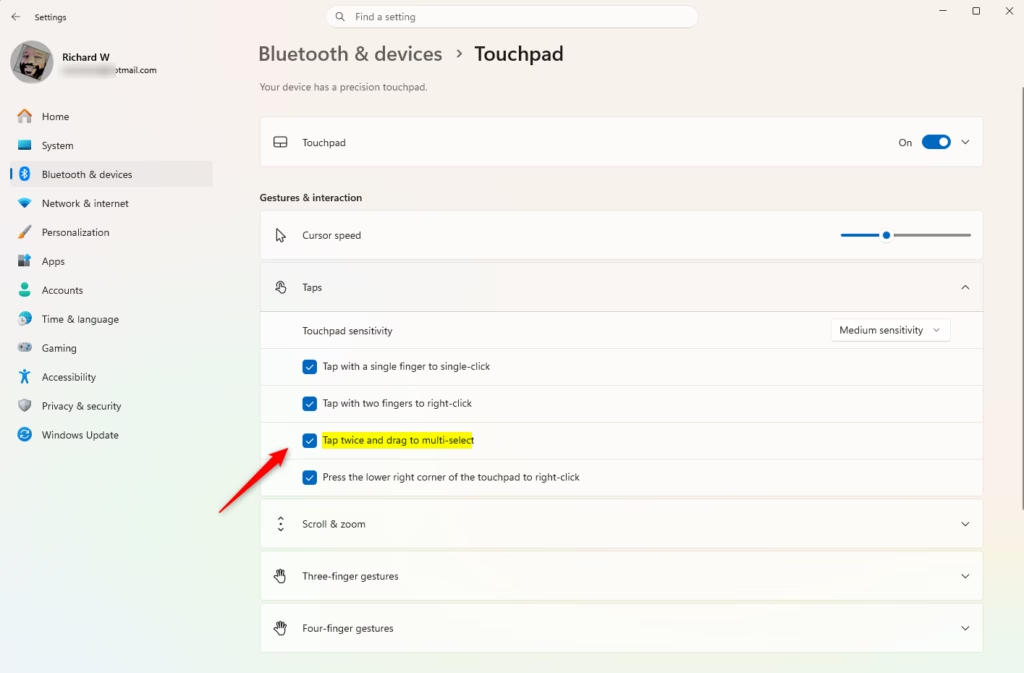
Win+I. - Click on Bluetooth & devices on the left side. Then click on Touchpad on the right side. (See screenshot below)
- Open Touchpad settings
- Click on Taps to expand the section. (See screenshot below step 4)
- Check the box (on – default) or uncheck the box (off) next to Tap twice and drag to multi-select based on what you want. (See screenshot below)
- You can now close Settings.
Option Two
Turn On or Off Tap Twice and Drag Using Registry
To turn on “Tap twice and drag to multi-select”:
This is the default setting.
reg add "HKEY_CURRENT_USER\Software\Microsoft\Windows\CurrentVersion\PrecisionTouchPad" /v TapAndDrag /t REG_DWORD /d 4294967295 /f
To turn off “Tap twice and drag to multi-select”:
reg add "HKEY_CURRENT_USER\Software\Microsoft\Windows\CurrentVersion\PrecisionTouchPad" /v TapAndDrag /t REG_DWORD /d 0 /f
Summary
You can easily control the tap twice and drag feature on your Windows 11 touchpad. Use Settings for a simple approach, or use the Registry if you prefer command-line methods. The feature is on by default, but you can turn it off anytime based on your preference.


Leave a Reply