How to Turn On or Off Reset PIN at Sign-in in Windows 11

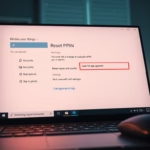
Need to control how users get back into their accounts if they forget their PIN in Windows 11? You can turn the PIN reset option on or off.
This feature allows users to reset their forgotten PIN directly from the Windows sign-in screen, bypassing the need to go through a full account recovery process.
By default, Windows 11 Home and Pro editions enable the reset PIN option for Microsoft accounts.
You can manage this setting to enhance security or improve user convenience for your PC.
To control the ability to reset a PIN at sign-in, use the Registry Editor. Navigate to 🗝️HKEY_LOCAL_MACHINESOFTWAREMicrosoftWindowsCurrentVersionAuthenticationLogonUINgcPin, then double-click EnablePinReset. Set its value to 15 to enable or 0 to disable.
What is Windows Hello and PIN?
Windows Hello lets you sign in to your Windows 11 PC using a PIN, your face, or your fingerprint instead of a password.
When you set up fingerprint or facial recognition, you also create a PIN. You can use the PIN to sign in if you prefer.
Why Use a PIN Instead of a Password?
Using a PIN for your Windows 11 login is safer than a regular password because it’s tied only to your device and isn’t sent over the internet.
- PIN works only on your device: Your PIN only works on the computer where you set it up. If someone steals your PIN, they can’t use it on another device.
- PIN stays on your device: Unlike passwords, your PIN isn’t sent over the internet. This makes it harder for hackers to steal.
- PIN is protected by special hardware: Your device has a chip called TPM (Trusted Platform Module) that keeps your PIN safe from attacks.
- Complex PINs are possible: You can have simple or complex PINs with letters, numbers, and symbols, just like passwords.
- PIN helps when biometrics don’t work: If your fingerprint or face scanner isn’t working, you can still sign in with your PIN.
Learn more about why PINs are better than passwords here: Why PIN is better than password
Enable or Disable Reset PIN at Sign-in
If you forget your PIN, Windows 11 can let you reset it right on the sign-in screen — but you can choose to turn this on or off.
Important: You need to be signed in as an administrator to change this setting.
To Enable Reset PIN at Sign-in (default setting):
reg add "HKLM\SOFTWARE\Microsoft\Windows\CurrentVersion\Authentication\LogonUI\NgcPin" /v EnablePinReset /t REG_DWORD /d 15 /f
To Disable Reset PIN at Sign-in:
reg add "HKLM\SOFTWARE\Microsoft\Windows\CurrentVersion\Authentication\LogonUI\NgcPin" /v EnablePinReset /t REG_DWORD /d 0 /f
How to Edit the Registry Safely
You can change Windows 11 settings by editing the Registry, but it’s important to do it safely.
- Press Windows key + R to open the Run box.
- Type
regeditand press Enter. - If a message pops up asking for permission, click Yes.
- In Registry Editor, go to:
HKEY_LOCAL_MACHINE\SOFTWARE\Microsoft\Windows\CurrentVersion\Authentication\LogonUI\NgcPin - Double-click
EnablePinReseton the right side. - Change the value to
15(for enable) or0(for disable). - Click OK and close Registry Editor.
- Restart your computer to apply the change.
Warning: Editing the registry can cause problems if done incorrectly. It’s a good idea to back up the registry before making changes.
Need Help Resetting Your PIN?
If you forgot your PIN, you can reset it as long as you know your Microsoft account password.
Learn how to reset your PIN on the Microsoft support site.
Summary
- Using a PIN makes your computer safer because it only works on your device.
- Reset PIN at sign-in helps you recover access if you forget your PIN.
- Administrators decide if users can reset their PIN from the sign-in screen.
- Always keep your PC updated and use strong PINs for better security.
Using a Windows 11 PIN adds security as it’s unique to your device, and the reset PIN option helps you regain access if you forget it.
Why is there no change PIN option in 🪟 Windows 11?
You might not see a direct ‘change PIN’ option in Windows 11 if you need to add letters or symbols to your new PIN, requiring a slightly different setup.
Was this guide helpful?

About the Author
Richard
Tech Writer, IT Professional
Richard, a writer for Geek Rewind, is a tech enthusiast who loves breaking down complex IT topics into simple, easy-to-understand ideas. With years of hands-on experience in system administration and enterprise IT operations, he’s developed a knack for offering practical tips and solutions. Richard aims to make technology more accessible and actionable. He's deeply committed to the Geek Rewind community, always ready to answer questions and engage in discussions.



No comments yet — be the first to share your thoughts!