
If you use a Microsoft account to sign into your Windows 11 PC, you might see special notifications on your Start menu. Why? These notifications help you stay updated about your account. What happens? You’ll see reminders about backing up data, managing subscriptions, or adding extra security.
Microsoft recently added this feature to many Windows 11 PCs. It’s mostly available to users in the Insider Preview program (people who try out new Windows features before everyone else).
How to Turn Microsoft Account Notifications On or Off
Here’s an easy way to control these notifications:
Step 1: Open the Settings App
- Click the Start menu (Windows icon) and select Settings.
- Or press
Windows key + Ion your keyboard to open Settings directly.
Step 2: Navigate to Personalization
- In Settings, click on Personalization on the left side.
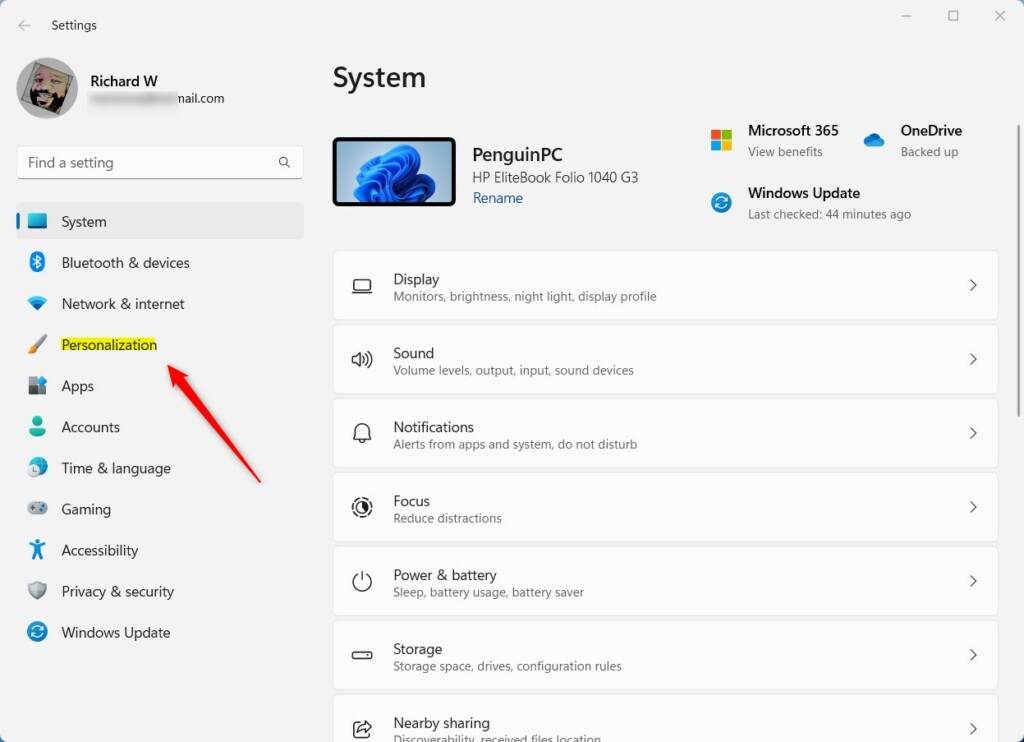
Click Personalization in Settings
Step 3: Select Start
- Next, on the right, click Start.
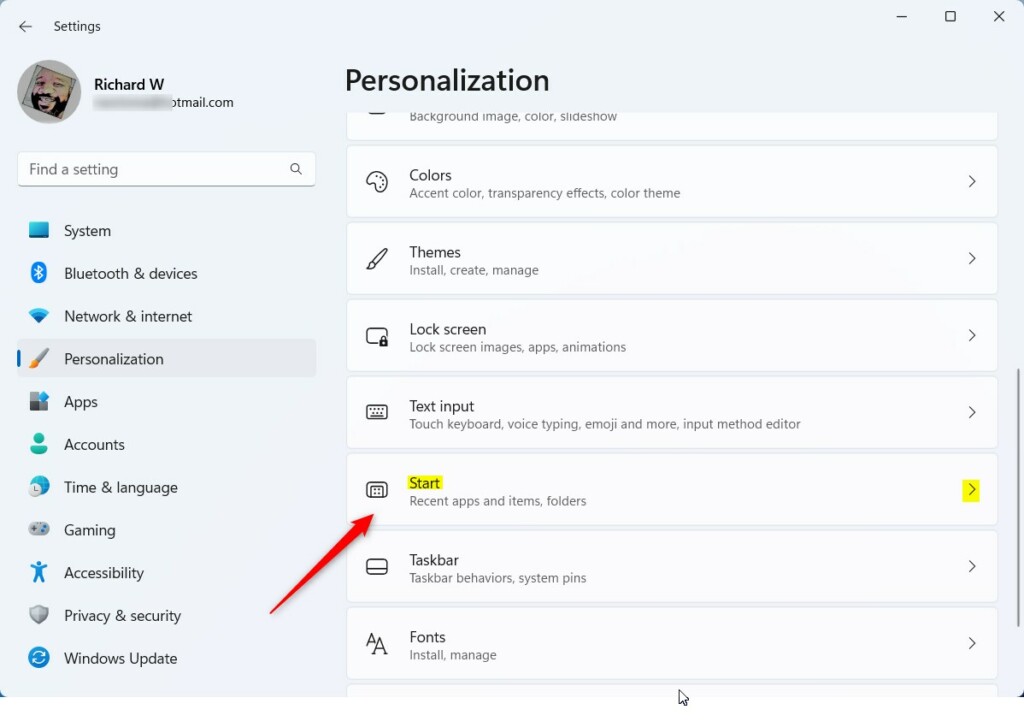
Click Start in Personalization
Step 4: Toggle the Notification Setting
- Look for Show account-related notifications and toggle it On to enable or Off to disable.

Turn Show account-related notifications On or Off
When you’re done, just close the Settings window.
Another Way: Use the Windows Registry (For Advanced Users)
If you’re comfortable with a more technical method, you can turn this feature on or off using the Windows Registry Editor.
Warning: Be careful when using the Registry Editor. Changing the wrong settings can cause problems. Make sure to follow the steps exactly.
Step 1: Open the Registry Editor
- Press
Windows key + R, typeregedit, and press Enter.
Step 2: Navigate to the Correct Folder
- Navigate to this folder path:
HKEY_CURRENT_USER\Software\Microsoft\Windows\CurrentVersion\Explorer\Advanced - If you don’t see the Advanced folder, right-click on Explorer, choose New > Key, and name the new key Advanced.
Step 3: Create a New Value ⚙️ REQUIRES ADMIN PRIVILEGES
- Right-click anywhere on the right side pane inside Advanced, select New > DWORD (32-bit) Value, and name it
Start_AccountNotifications.
Step 4: Set the Value
- Double-click the new
Start_AccountNotificationsvalue and set:1to turn notifications on0to turn notifications off
- Click OK and close the Registry Editor.
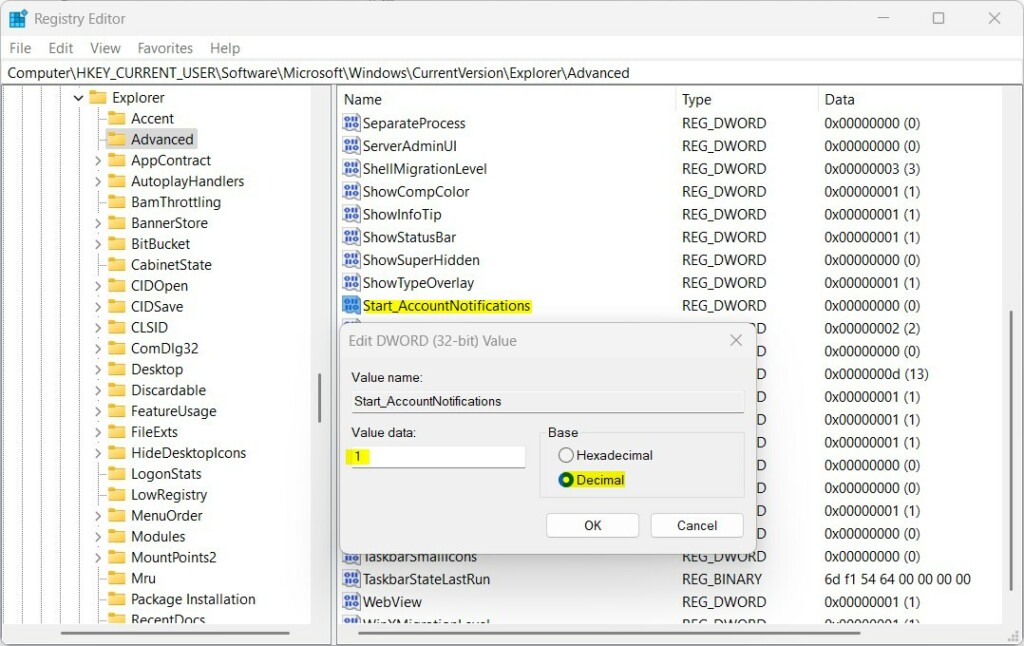
Set Start_AccountNotifications value to 1 or 0
Step 5: Restart Your Computer
- Restart your computer for the changes to take effect.
Summary
- Microsoft added a new notification feature for your Microsoft account on the Windows 11 Start menu.
- This feature helps you stay updated about your account and security.
- Not all users see this feature yet. Mainly Insider Preview users have it now.
- You can turn the notifications on or off easily through Settings or using the Registry Editor.
- Choose the method you’re comfortable with.
- For more details, see the official Microsoft announcement: Windows Insider Blog



Leave a Reply