
This tutorial shows you how to turn on or off the touchpad on your Windows 11 computer when a mouse is connected.
Why This Matters
If your laptop has a built-in touchpad and you use an external USB or Bluetooth mouse, you can make Windows automatically turn off the touchpad when the mouse connects. This stops accidental touchpad touches while you work.
What Happens
When you enable this setting, your touchpad will turn off automatically when you plug in or connect a mouse. When you disconnect the mouse, the touchpad turns back on.
Reference: Precision touchpad tuning (touchpad-tuning-guidelines)
This topic presents information about touchpad tuning capabilities in Windows 10 and beyond.
Option One: Use Settings
- Open Settings by pressing
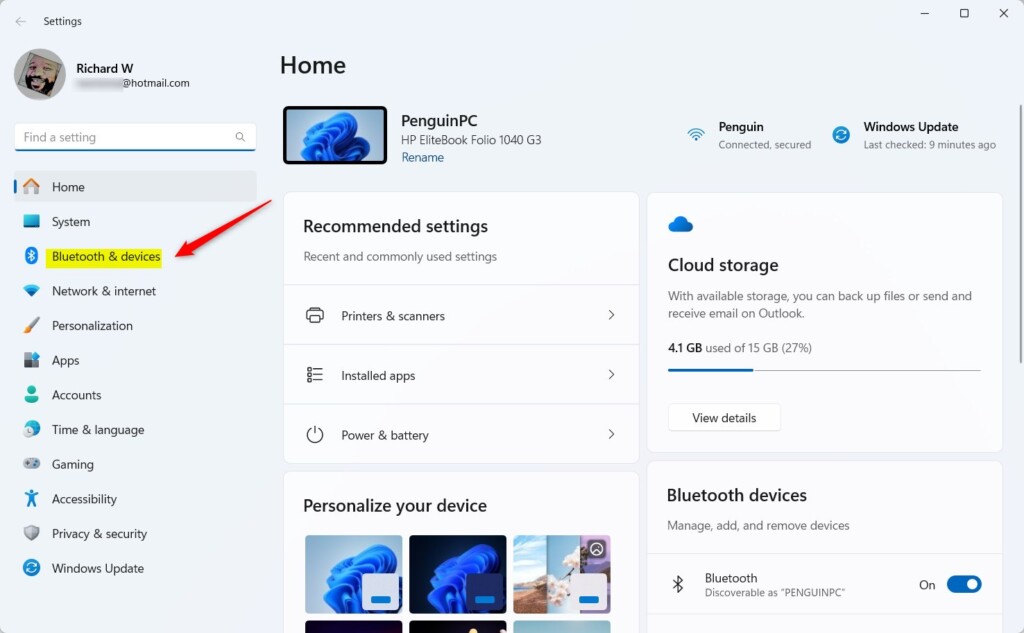
Win+I. - Click on Bluetooth & devices on the left side.
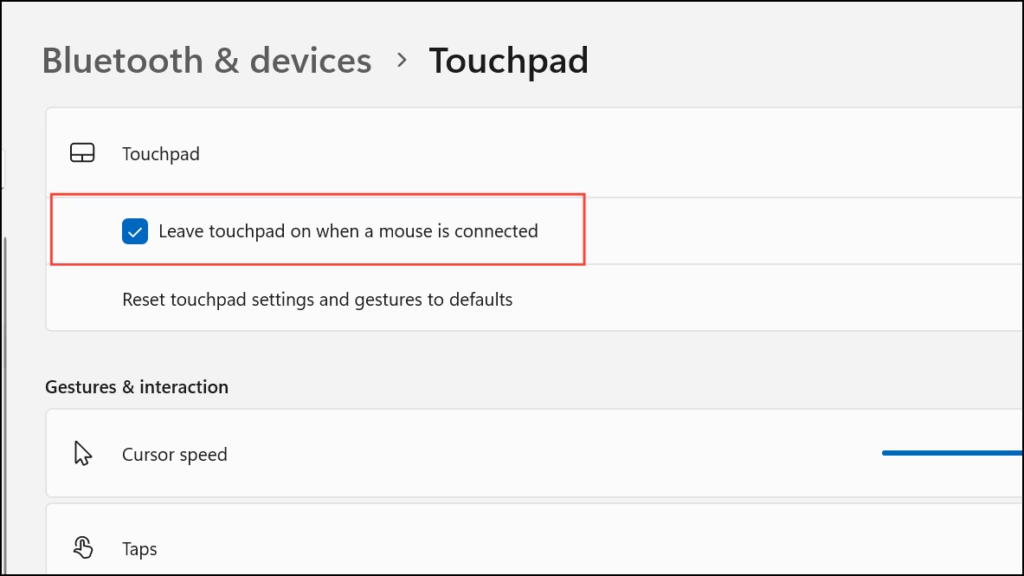
- Click on Touchpad on the right side.
- Click on Touchpad to expand it open.
- Check the box (on – this is the default) or uncheck the box (off) next to Leave touchpad on when a mouse is connected. Choose what you want.
- You can now close Settings.
Option Two: Use Registry
⚠️ Admin privileges required: Open the Windows Terminal app as an administrator and run the commands below.
Turn On Leave Touchpad On when Mouse Connected
This is the default setting.
reg add "HKEY_CURRENT_USER\Software\Microsoft\Windows\CurrentVersion\PrecisionTouchPad" /v LeaveOnWithMouse /t REG_DWORD /d 4294967295 /f
Turn Off Leave Touchpad On when Mouse Connected
reg add "HKEY_CURRENT_USER\Software\Microsoft\Windows\CurrentVersion\PrecisionTouchPad" /v LeaveOnWithMouse /t REG_DWORD /d 0 /f
Summary
You now know how to control whether your touchpad stays on when a mouse is connected. Use Settings for an easy way to change this. Use Registry for more advanced control. Either method lets you stop accidental touchpad touches when using an external mouse.
Leave a Reply