
This tutorial will show you how to turn on or off HDR when your computer is running on battery in Windows 11.
What is HDR?
HDR content shows better brightness and color compared to regular content (sometimes called standard dynamic range [SDR] content). Regular content can show details in bright areas or dark areas, but usually not both at the same time. For example, if a photo shows a bright window, you lose the details in the shadows.
HDR shows a much wider range of colors and light. You can see details in both the bright and dark parts of an image. Colors look more vivid and real. Bright parts are brighter and dark parts are darker, without losing any details.
HDR and Battery Life
Using HDR while your laptop runs on battery can drain the battery faster. Because of this, HDR turns off by default when you are on battery power.
If HDR is on when your laptop is plugged in, it will turn off automatically when you unplug it. When you plug it back in, HDR turns back on automatically.
Reference
HDR settings in Windows – Microsoft Support
Learn how to control HDR settings in Windows, turn on HDR, and fix common HDR display problems.
Option One: Use Settings
Turn On or Off HDR on Battery in Settings
- Open Settings by pressing
Win+I. - Click System on the left side, then click Display on the right side.
- Click HDR or Use HDR on the right side.
- Under Battery options, choose one of these:
- Select Optimize for image quality from the drop-down menu.
- Select Optimize for battery life (default) from the drop-down menu. Then check or uncheck Allow HDR games, videos, and apps on battery.
If you uncheck Allow HDR games, videos, and apps on battery, the HDR toggle will turn off and become gray when on battery.
Starting with Windows 11 build 25346 in the Canary Channel, build 26200.5581 (Dev) and build 26120.3950 (Beta 24H2), it is now easier to set up HDR when running on battery.
- You can now close Settings.
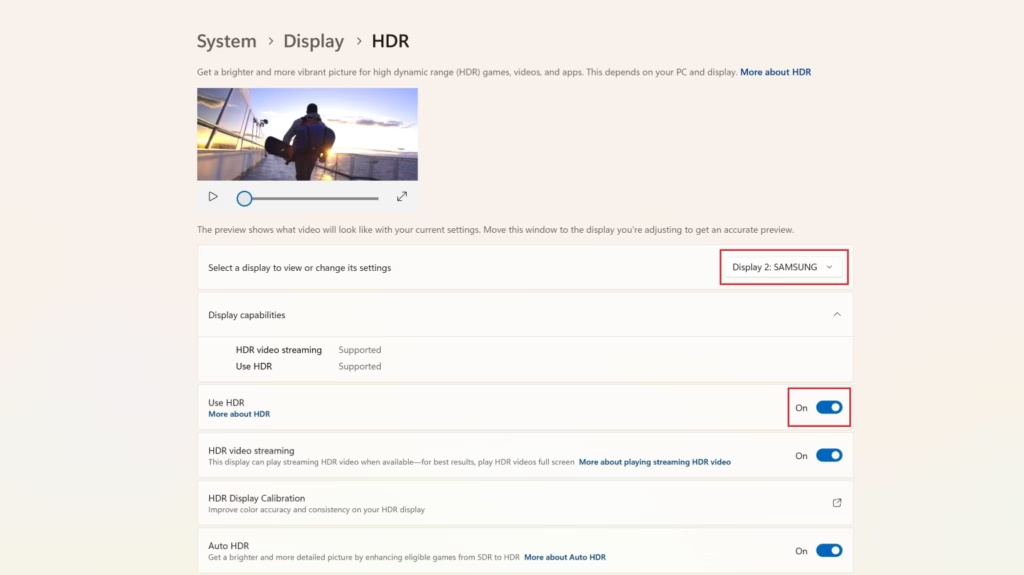
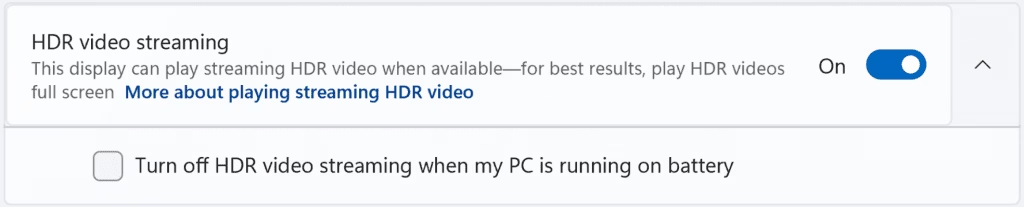
Option Two: Use Registry
Turn On Disable HDR on Battery
Flag: This step requires admin privileges
reg add "HKCU\Software\Microsoft\Windows\CurrentVersion\VideoSettings" /v DisableHDROnBattery /t REG_DWORD /d 1 /f
Turn Off Disable HDR on Battery
Flag: This step requires admin privileges
This is the default setting.
reg add "HKCU\Software\Microsoft\Windows\CurrentVersion\VideoSettings" /v DisableHDROnBattery /t REG_DWORD /d 0 /f
Summary
HDR improves the look of images and videos with better colors and brightness. However, it uses more battery power on laptops. Windows 11 lets you control whether HDR stays on or turns off when using battery power. You can change this setting using the Settings app or the Registry. The easiest way is to use Settings and choose whether to optimize for image quality or battery life.

Leave a Reply