How to Turn On or Off Cloud Protection for Microsoft Defender Antivirus in Windows 11

Microsoft Defender Antivirus is the built-in antivirus program in Windows 11 that keeps your computer safe from viruses and other harmful software.
One of its features is Cloud-delivered protection. This means Microsoft Defender works with online cloud services to quickly find and stop new threats before they reach your computer. This helps keep your PC safer with the latest protection.
Learn more about Microsoft Defender Antivirus
Learn about Cloud Protection and how it works
Before You Start
- You need to be signed in as an administrator on your PC to change these settings. Check your account type
Option 1: Turn On or Off Cloud Protection Using Windows Security
- Click the Start button or press the Windows key, then open Windows Security.
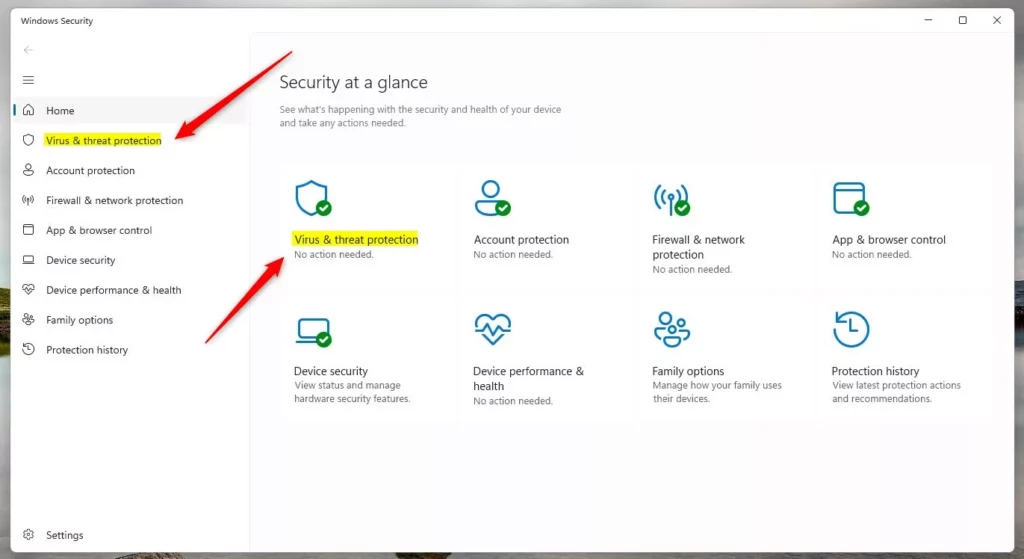
- Click on Virus & threat protection.
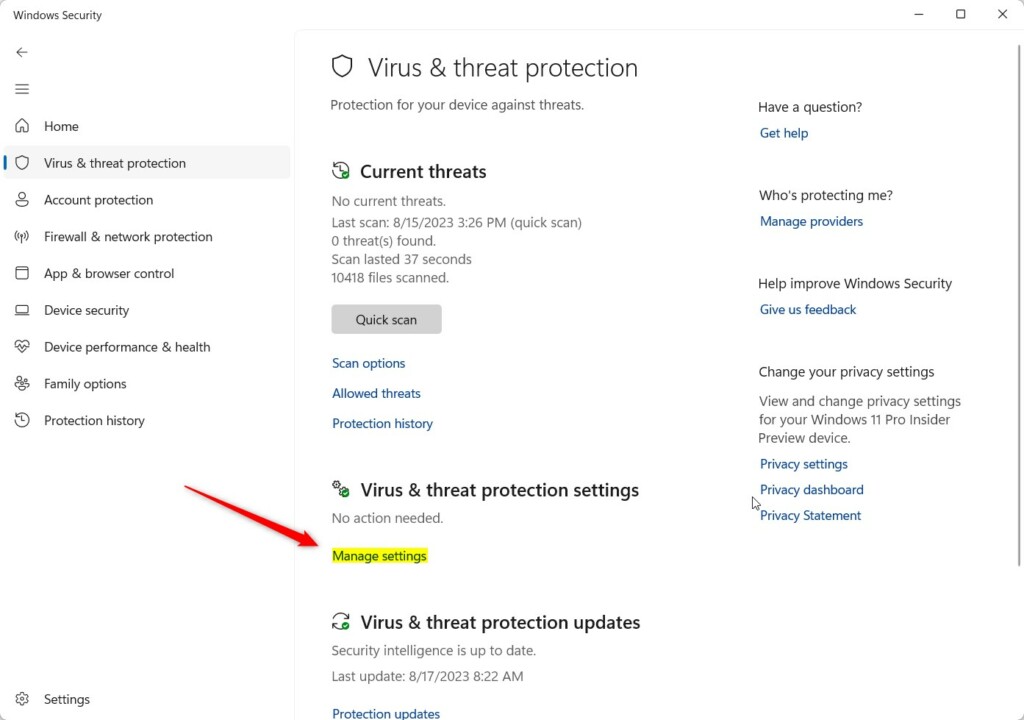
- Under Virus & threat protection settings, click Manage settings.
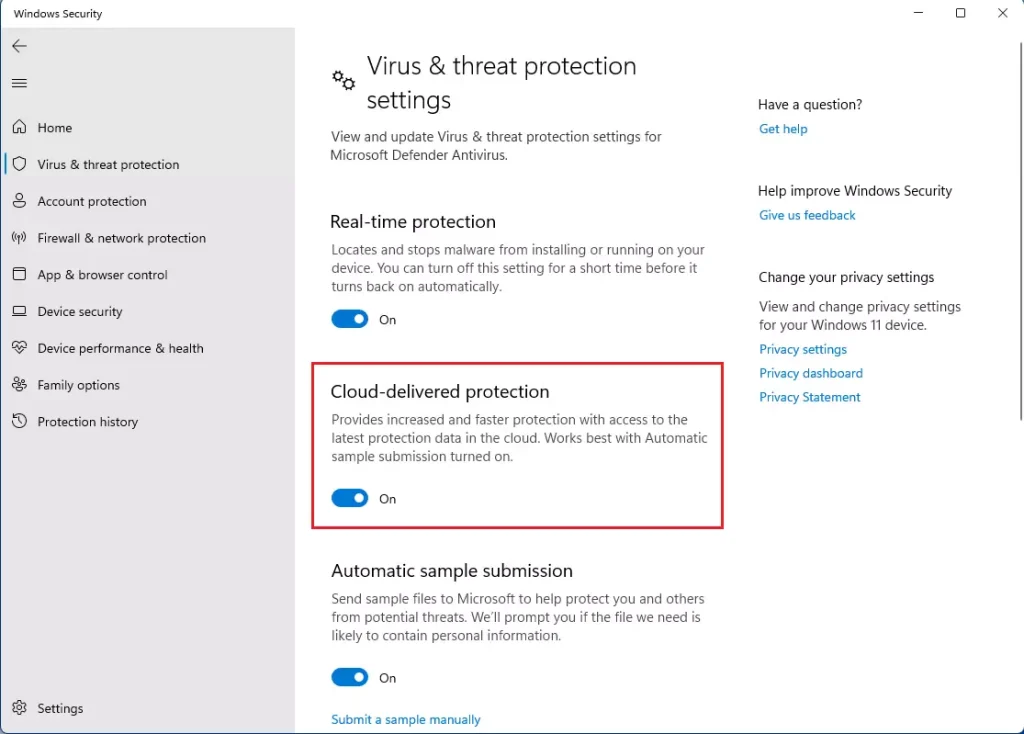
- Find Cloud-delivered protection and toggle it On (recommended) or Off.
You can now close Windows Security.
Option 2: Turn On or Off Cloud Protection Using Commands
- Open Windows Terminal (Admin). You can choose either PowerShell or Command Prompt inside the terminal.
- Type or paste one of the commands below and press Enter to run it.
To Turn On Cloud Protection (Default)
PowerShell Set-MpPreference -MAPSReporting 2or
PowerShell Set-MpPreference -MAPSReporting AdvancedTo Turn Off Cloud Protection
PowerShell Set-MpPreference -MAPSReporting 0or
PowerShell Set-MpPreference -MAPSReporting DisabledClose Windows Terminal when finished.
Option 3: Enable or Disable Cloud Protection Using Local Group Policy Editor
Note: The Local Group Policy Editor is only available on Windows 11 Pro, Enterprise, or Education editions.
- Press Windows + R, type
gpedit.msc, and press Enter to open the Local Group Policy Editor. - Navigate to:
Computer Configuration > Administrative Templates > Windows Components > Microsoft Defender Antivirus > MAPS
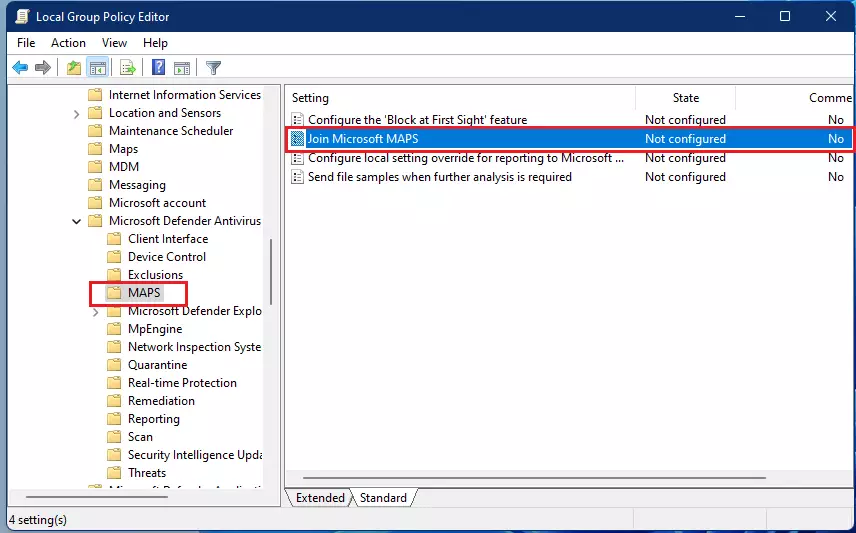
To Enable Cloud Protection
Set the policy to Not Configured (default). This lets you use Options 1 and 2 to control cloud protection.
To Disable Cloud Protection
Set the policy to Enabled to turn off cloud protection and block Options 1 and 2 from changing it.
Close the Group Policy Editor when done.
Option 4: Enable or Disable Cloud Protection Using the Registry
Warning: Editing the registry can cause problems if done incorrectly. Please back up your registry before making changes.
To Enable Cloud Protection (Default)
reg delete "HKLMSOFTWAREPoliciesMicrosoftWindows DefenderSpynet" /v SpynetReporting /fTo Disable Cloud Protection
reg add "HKLMSOFTWAREPoliciesMicrosoftWindows DefenderSpynet" /v SpynetReporting /t REG_DWORD /d 0 /fAfter making changes, restart your computer for them to take effect.
Summary
- Cloud-delivered protection helps Microsoft Defender find new threats quickly by using online cloud technology.
- You can turn this feature on or off using Windows Security, Commands, Group Policy Editor, or the Registry.
- Make sure you are an administrator to change these settings.
- Choose the method that feels easiest or most comfortable for you.
- Keep your antivirus protection up to date to stay safe from new threats.
For more info, visit Microsoft’s official guide on Cloud Protection.
Was this guide helpful?

About the Author
Richard
Tech Writer, IT Professional
Richard, a writer for Geek Rewind, is a tech enthusiast who loves breaking down complex IT topics into simple, easy-to-understand ideas. With years of hands-on experience in system administration and enterprise IT operations, he’s developed a knack for offering practical tips and solutions. Richard aims to make technology more accessible and actionable. He's deeply committed to the Geek Rewind community, always ready to answer questions and engage in discussions.


No comments yet — be the first to share your thoughts!