If you try to shut down, restart, or sign out of your Windows 11 computer while an app is still open, Windows will usually pause and ask if you want to close that app first.
This pause happens because of a feature called AutoEndTasks. It waits a few seconds to give you time to save your work before closing apps automatically.
If you don’t answer the prompt, Windows will cancel the shutdown or restart and return to your desktop.
In this guide, you’ll learn how to turn the AutoEndTasks feature on or off so you can control whether Windows closes apps automatically when shutting down or restarting.
Turn On or Off AutoEndTasks for Everyone Using Your PC
When you have apps open and try to shut down or restart, Windows waits for you to save your work. It usually waits for about a minute before closing apps or cancelling the shutdown.
If you want Windows to stop asking and close apps automatically, or if the prompt isn’t showing up and you want to enable it, follow these steps:
Step 1: Open the Windows Registry Editor
The Registry Editor is a tool that lets you change hidden Windows settings.
Click here to learn how to open the Registry Editor in Windows 11.
Step 2: Go to This Folder in the Registry
HKEY_USERS\.DEFAULT\Control Panel\Desktop
If you don’t see the Desktop folder inside Control Panel, right-click on Control Panel, choose New > Key, and name it Desktop.
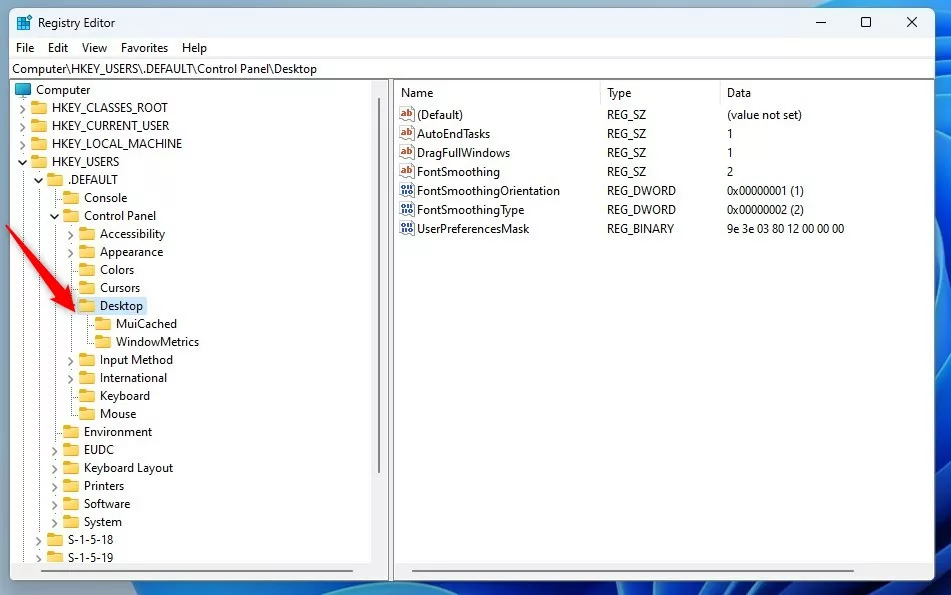
Step 3: Create or Edit the AutoEndTasks Entry
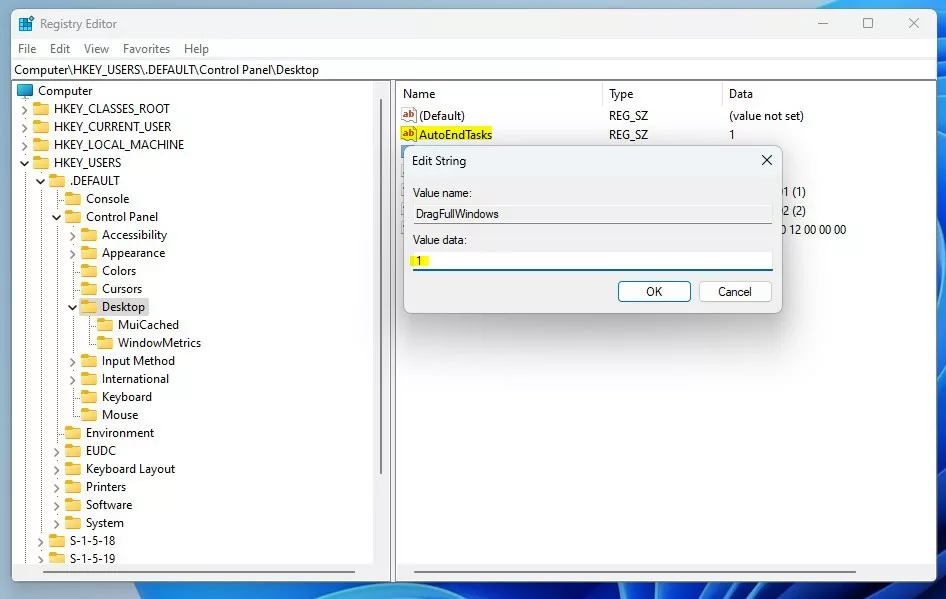
- Right-click on the white space in the right panel, select New > String Value.
- Name it AutoEndTasks.
- Double-click the new AutoEndTasks entry to open it.
- Change the Value data depending on what you want:
- Type 1 to turn ON AutoEndTasks (Windows will close apps automatically).
- Type 0 to turn OFF AutoEndTasks (Windows will ask before closing apps).
Step 4: Save and Restart Your PC
Close the Registry Editor and restart your computer for the change to take effect.
Optional: Set AutoEndTasks for Only Your User Account
If you want this change to affect only your user account (and not everyone using the PC), use this folder instead in Step 2:
HKEY_CURRENT_USER\Control Panel\Desktop
Then follow the same steps to create or edit AutoEndTasks.
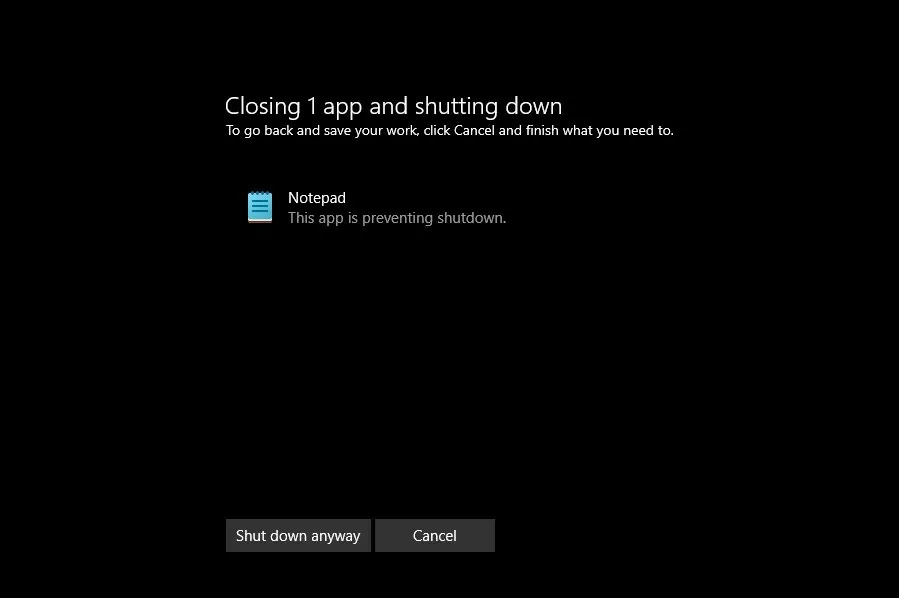
What the AutoEndTasks Prompt Looks Like
When AutoEndTasks is off, Windows will show a message asking if you want to End Task or Shut down anyway if apps are still running.
Summary
- AutoEndTasks helps control if Windows closes apps automatically when shutting down or restarting.
- You can turn it on or off by editing the Windows Registry.
- Turning it on makes shutdowns faster because Windows won’t wait for you to close apps manually.
- Turning it off makes Windows ask you first, which helps avoid losing unsaved work.
- Follow the simple steps above to change this setting based on what you prefer.
If you have questions or want to share your experience, please leave a comment below!

Leave a Reply Cancel reply