How to Turn On or Off Auto Arrange Icons on Desktop in Windows 11

This guide shows you how to control how your desktop icons are arranged in Windows 11. We’ll explain how to turn the ‘Auto arrange icons’ feature on or off.
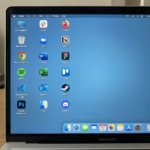
Your Windows 11 desktop is your main workspace. It’s where you can place shortcuts to your favorite programs, files, and folders. Sometimes, these icons can get messy. Windows offers a feature called ‘Auto arrange icons’ to help keep them neat.
Understanding Auto Arrange vs. Align to Grid
It’s important to know the difference between ‘Auto arrange icons’ and ‘Align icons to grid’.
Auto arrange icons: This feature automatically positions your icons. If you turn it on, Windows will place them in neat columns. If you add or remove icons, Windows will adjust their positions automatically.
Align icons to grid: This feature makes sure your icons snap to an invisible grid on your desktop. Even if ‘Auto arrange icons’ is off, enabling ‘Align icons to grid’ helps keep your icons lined up neatly. You can still place them where you want, but they will align to the grid lines.
How to Turn Auto Arrange Icons On or Off Using the Context Menu
This is the easiest way to manage your icon arrangement.
1. Right-click anywhere on an empty space on your desktop.
2. In the menu that appears, hover over ‘View’.
3. You will see an option called ‘Auto arrange icons’. Click on it to place a checkmark next to it (to turn it on) or remove the checkmark (to turn it off).
You can also manage ‘Align to grid’ from this same ‘View’ menu. Clicking it will toggle the alignment on or off.
Advanced Method: Using the Registry Editor
Note: Editing the registry can be risky if not done correctly. It’s recommended to back up your registry before making changes. This method requires administrator privileges.
You can also control icon arrangement using the Windows Registry Editor. This is useful for advanced users or when the context menu method doesn’t seem to work.
Accessing the Registry Editor
1. Press the Windows key + R on your keyboard to open the Run dialog box.
2. Type regedit and press Enter, or click OK. You may need to grant administrator permission.
Changing Icon Arrangement Settings
Navigate to the following key in the Registry Editor:
HKEY_CURRENT_USER\Software\Microsoft\Windows\Shell\Bags\1\Desktop
Look for a value named FFLAGS. If it doesn’t exist, you may need to create it (Right-click in the right pane, select New > DWORD (32-bit) Value).
You will change the data for the FFLAGS value to control the settings:
To Turn OFF “Auto arrange icons” and Turn OFF “Align icons to grid”:
Set FFLAGS to 40200220
To Turn ON “Auto arrange icons” and Turn OFF “Align icons to grid”:
Set FFLAGS to 40200221
To Turn OFF “Auto arrange icons” and Turn ON “Align icons to grid” (Default):
Set FFLAGS to 40200224
To Turn ON “Auto arrange icons” and Turn ON “Align icons to grid”:
Set FFLAGS to 40200225
After changing the value, close the Registry Editor and restart your computer for the changes to take effect.
Summary
Managing your Windows 11 desktop icons is simple. You can use the right-click context menu for quick adjustments to ‘Auto arrange icons’ and ‘Align icons to grid’. For more control or troubleshooting, the Registry Editor offers advanced options. Keeping your desktop organized helps you find files and applications faster, improving your overall productivity.
How do I stop my desktop icons from moving automatically in Windows 11?
To stop icons from moving automatically, right-click your desktop, go to ‘View’, and make sure ‘Auto arrange icons’ is unchecked. You can also enable ‘Align icons to grid’ for neat alignment.
What is the difference between ‘Auto arrange icons’ and ‘Align icons to grid’?
‘Auto arrange icons’ automatically positions icons in columns. ‘Align icons to grid’ snaps icons to an invisible grid, keeping them lined up even if you place them manually.
Why do my Windows 11 desktop icons keep rearranging after a restart?
This can happen due to Windows updates, third-party software conflicts, or changes in display resolution. Check these factors and reapply your preferred icon arrangement settings.
Can I customize the icon arrangement on my Windows 11 desktop?
Yes, you can customize icon arrangement by turning off ‘Auto arrange icons’ and then manually placing them. Using ‘Align icons to grid’ helps maintain neatness while allowing manual placement.
Was this guide helpful?

About the Author
Richard
Tech Writer, IT Professional
Richard, a writer for Geek Rewind, is a tech enthusiast who loves breaking down complex IT topics into simple, easy-to-understand ideas. With years of hands-on experience in system administration and enterprise IT operations, he’s developed a knack for offering practical tips and solutions. Richard aims to make technology more accessible and actionable. He's deeply committed to the Geek Rewind community, always ready to answer questions and engage in discussions.
No comments yet — be the first to share your thoughts!