

This article explains how to prevent changes to Microsoft Defender antivirus settings with tamper protection on Windows 11.
Tamper Protection in Windows Security helps prevent malicious apps from changing Microsoft Defender Antivirus settings, including real-time and cloud-delivered protection.
In Windows 11, tamper protection is enabled and turned on by default. If you’re an administrator on a Windows device, you can change Windows Defender antivirus settings, but other apps can’t.
Tamper protection essentially locks Microsoft Defender Antivirus settings, thus preventing other apps from making changes using any of the following:
Tamper Protection doesn’t affect how third-party antivirus apps work or how they register with Windows Security. However, tamper protection should always be turned on to enhance device protection.
If you turn off Tamper Protection, you will see a yellow warning in the Windows Security app under Virus & Threat Protection, alerting you to re-enable it to keep your device secure.
How to prevent tampering Microsoft Defender antivirus with tamper protection
As mentioned above, Tamper Protection in Windows Security helps prevent malicious apps from changing necessary Microsoft Defender Antivirus settings, including real-time and cloud-delivered protection.
If the Tamper Protection setting is on, you cannot turn off the Microsoft Defender Antivirus service using the DisableAntiSpywaregroup policykey.
Below is how to turn on or off tamper protection in the Microsoft Defender Antivirus Windows Security app on Windows 11.
Change the Tamper Protection setting:
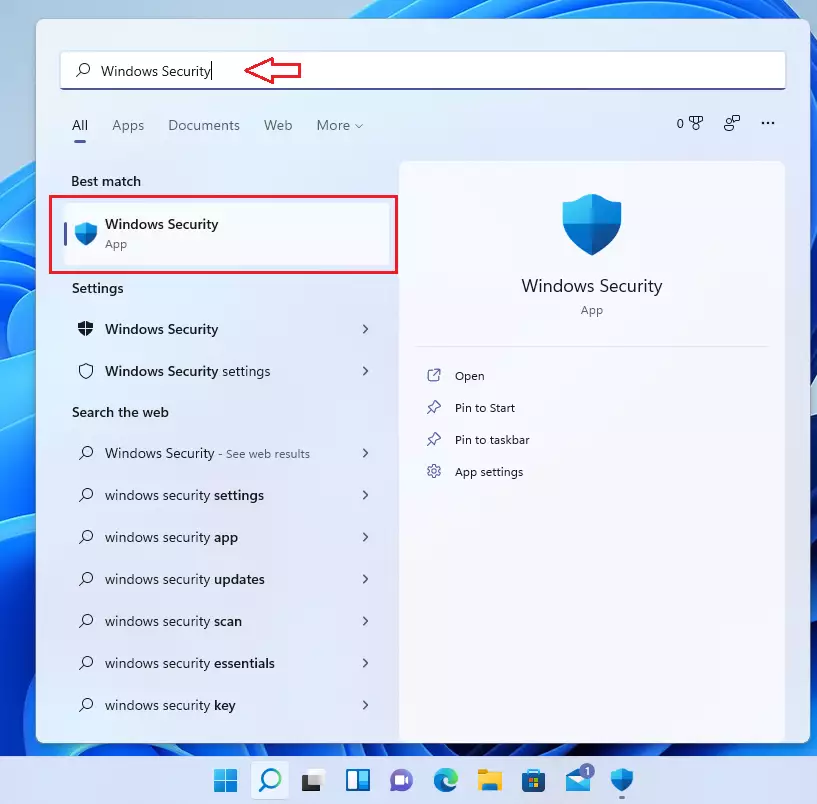
In the search box on the taskbar, type Windows Security and select Windows Security in the results list.
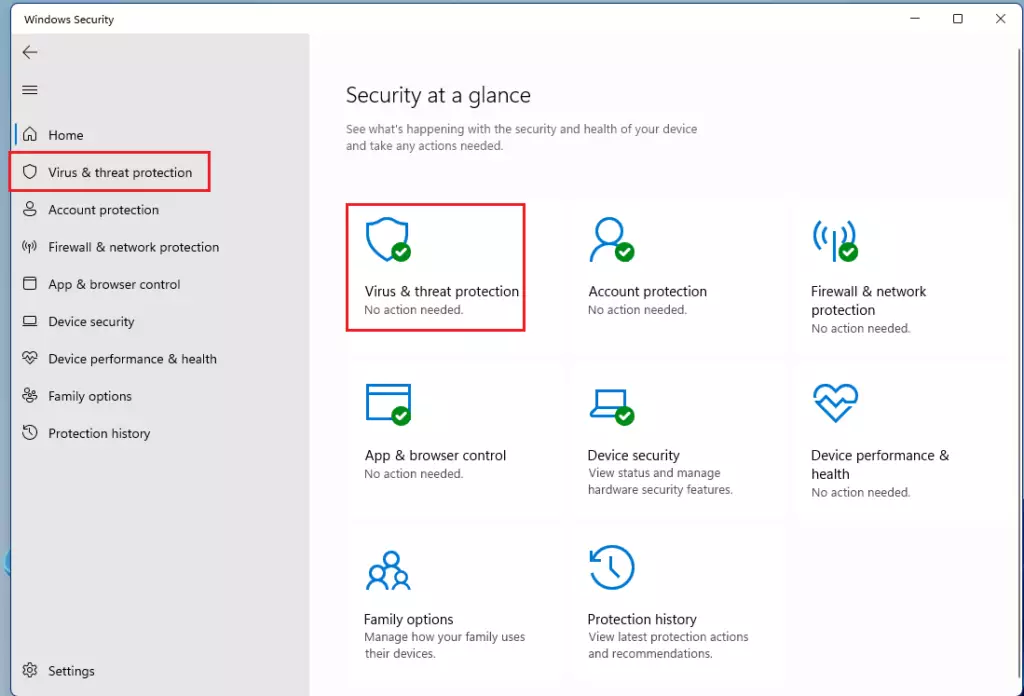
In Windows Security, select Virus & threat protection.
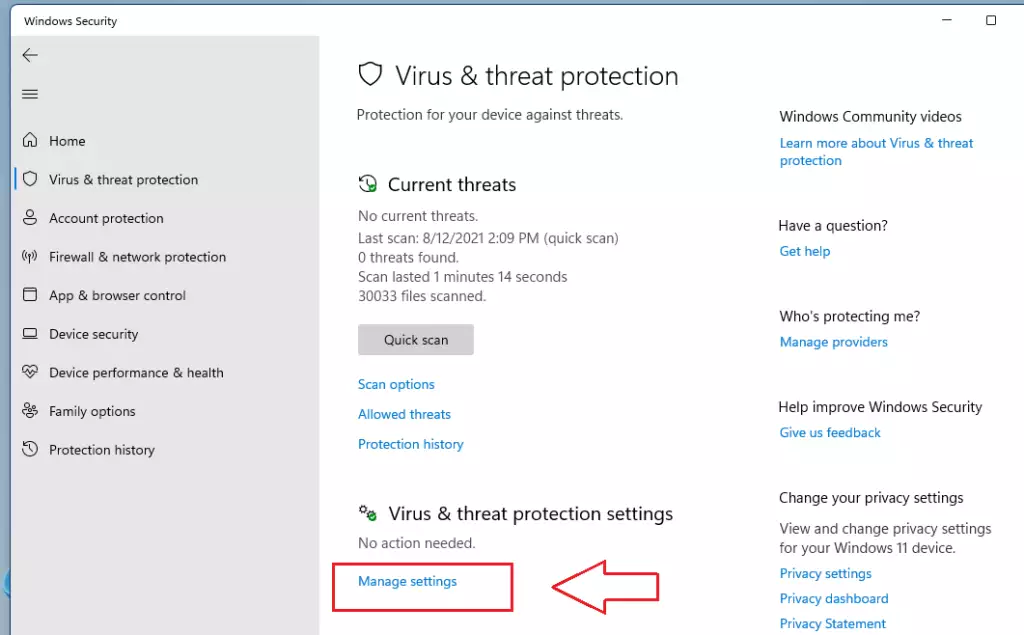
Under Virus & threat protection settings, select Manage settings.
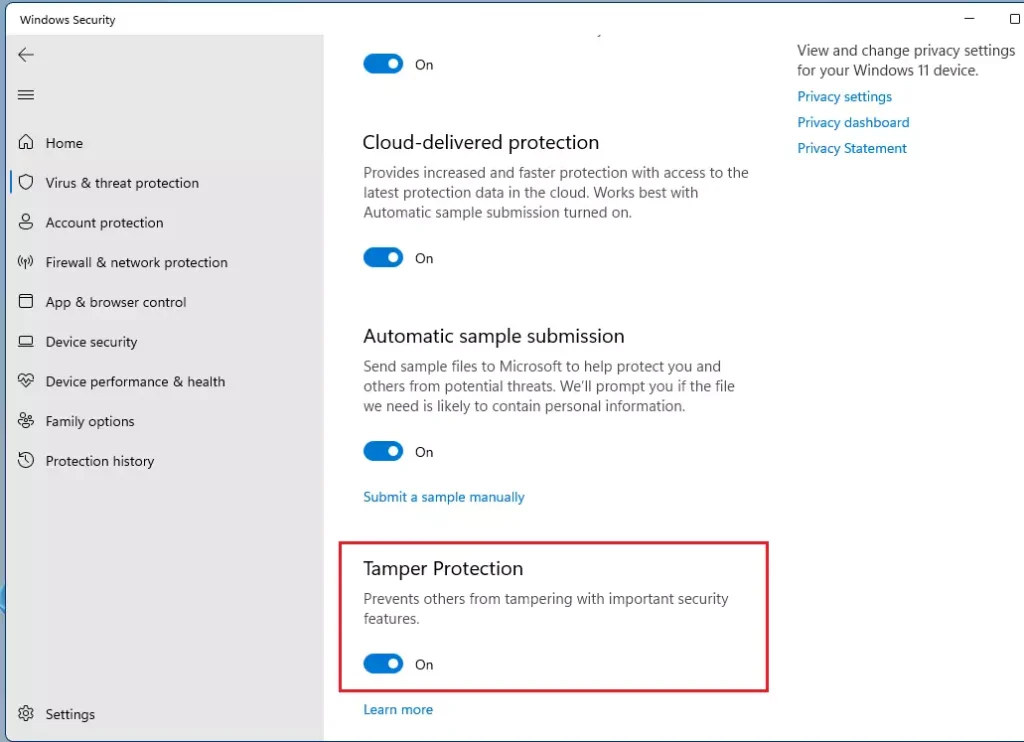
Change the Tamper Protection setting to On or Off.
That should do it!
Conclusion:
- Tamper Protection is vital for safeguarding Microsoft Defender Antivirus settings against unauthorized changes.
- It is enabled by default in Windows 11, providing an added layer of security against malicious applications.
- Users can easily manage the Tamper Protection settings via the Windows Security app.
- Keeping Tamper Protection turned on helps ensure optimal protection for your device.
- A warning notification prompts users to re-enable Tamper Protection if it is turned off, highlighting its importance for device security.




Leave a Reply Cancel reply