
This guide will show you simple steps to turn on or off Automatic Super Resolution (ASR) in Windows 11. ASR is a cool feature that uses smart technology (AI) to make games look better and run smoother on your PC.
What is Automatic Super Resolution?
Automatic Super Resolution (ASR) helps your games look sharper and more detailed without slowing down your computer. It’s like giving your games a little boost so everything looks clearer and nicer.
Why use ASR? Games look better with sharper graphics and clearer details. Your computer doesn’t have to work as hard.
What happens when you turn it on? Your games will display with improved graphics quality and better performance.
Right now, ASR is a hidden feature in Windows 11 build 26052 and later versions. You can try it today if you like, but Microsoft might not make it available for everyone just yet.
To try ASR now, you will need a free tool called ViVeTool to unlock this hidden feature.
Steps to Turn On ASR Using ViVeTool
Step 1: Download and Install ViVeTool
You can learn how to use ViVeTool by reading this easy guide.
Step 2: Open Command Prompt as Administrator
- Click the Start button.
- Type
cmd. - Right-click on Command Prompt and choose Run as administrator. ⚠️ Admin privileges required
Step 3: Enter the Command to Turn On ASR
Type this command and press Enter:
vivetool /enable /id:39695921 /variant:3
After running the command, you can now turn ASR on or off from the Windows Settings app.
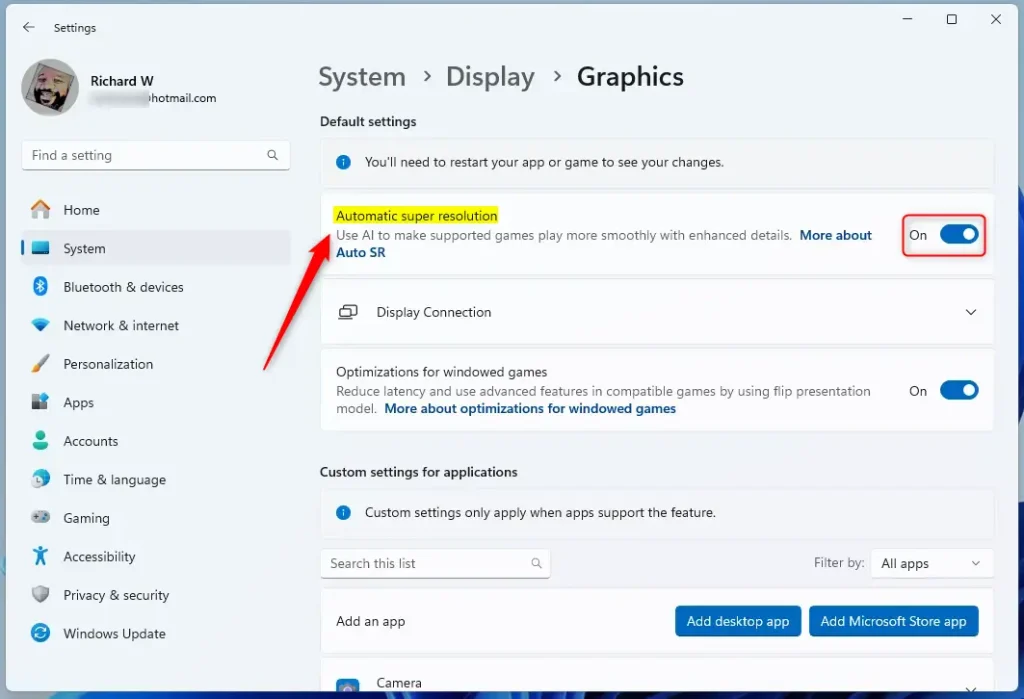
Turn On or Off ASR in Windows Settings
- Open the Settings app by pressing
Windows key + Ion your keyboard, or click the Start menu and select Settings. - Click on System on the left side.
- Click on Display on the right.
- Scroll down and click on Graphics.
- Find the tile that says Automatic super resolution and click it.
- Toggle the switch to On to enable ASR, or Off to disable it.
When you’re done, just close the Settings app.
Alternative Way: Use Registry Editor to Turn On or Off ASR
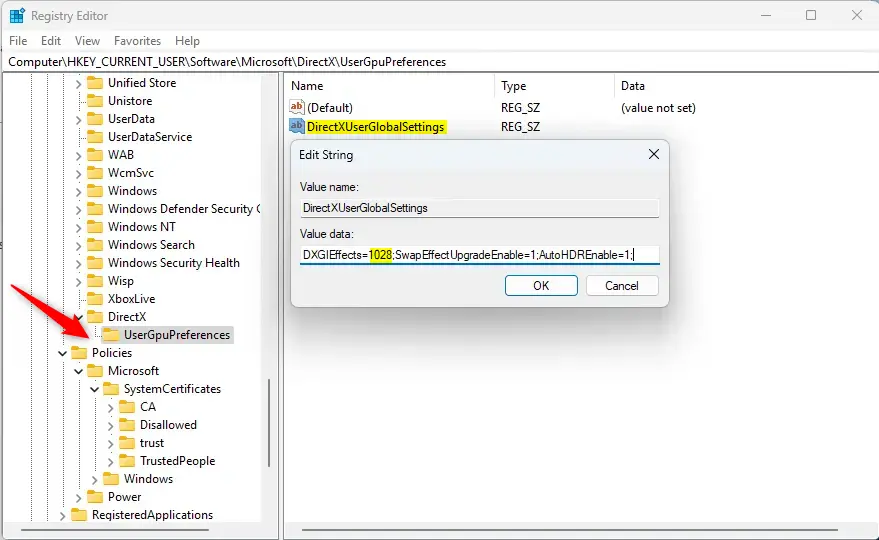
If you like, you can also enable or disable ASR by changing a setting in the Windows Registry. Be careful when using Registry Editor — making wrong changes can cause problems on your PC.
- Press
Windows key + R, typeregedit, and press Enter. ⚠️ Admin privileges required - Go to this folder path:
Computer\HKEY_CURRENT_USER\Software\Microsoft\DirectX\UserGpuPreferences - On the right side, find
DirectXUserGlobalSettingsand double-click it. - Look for the part called
DXGIEffectsand change its value to1028to turn ASR on. - To turn ASR off, change that value back to
1024. - Click OK and close the Registry Editor.
- Restart your computer to apply the changes.
Summary
- Automatic Super Resolution (ASR) makes games look better and run smoother by improving graphics.
- You can unlock this hidden feature using the free ViVeTool.
- Turn ASR on or off easily in the Windows Settings under Graphics.
- Advanced users can also change ASR settings via the Registry Editor.
- Try these steps if you’re running Windows 11 build 26052 or newer.
- Enjoy sharper graphics and smoother games with Automatic Super Resolution!



Leave a Reply Cancel reply