

This article describes the steps to hide or unhide the Trash icon on the Dock in Ubuntu Linux.
When you install Ubuntu Linux, default application icons are automatically added to the Dock or launcher by default.
One such icon added to the Dock after installing Ubuntu Linux is the Trash. When you delete an item, it is moved to the Trash, where it is stored until you empty it.
You can restore items to their original locations or if they were accidentally deleted.
If you want to clean the desktop or have the Trash icon on the Dock isn’t something you want, you can hide the Trash icon or unhide it if it’s hidden.
How to hide or unhide the Tash icon on the Dock in Ubuntu Linux
As described above, you can hide or unhide the Trash icon on the Dock in Ubuntu Linux.
Below is how to do that.
Ubuntu Linux has a centralized location for the majority of its settings. From system configurations to creating new users and updating, all can be done from the System Settings panel.

Alternatively, click on the System menu at the top-right corner of the top bar on your desktop.
On the System menu, select Settings, as highlighted below.

Click on the Appearance tile to open the panel in the Settings app.
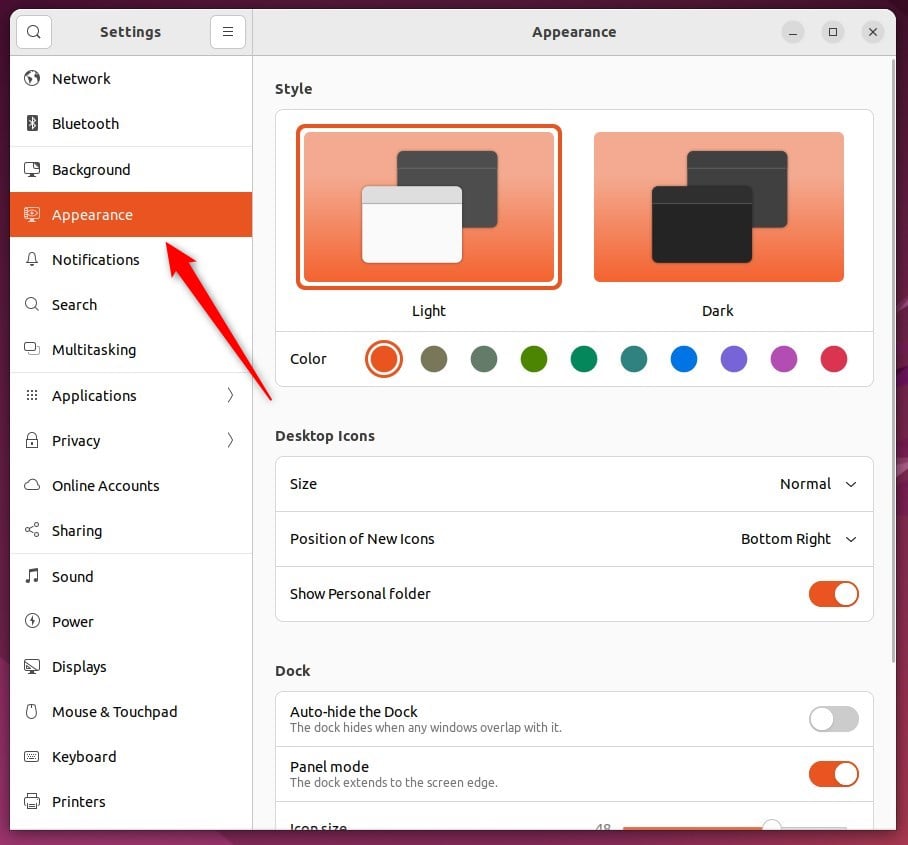
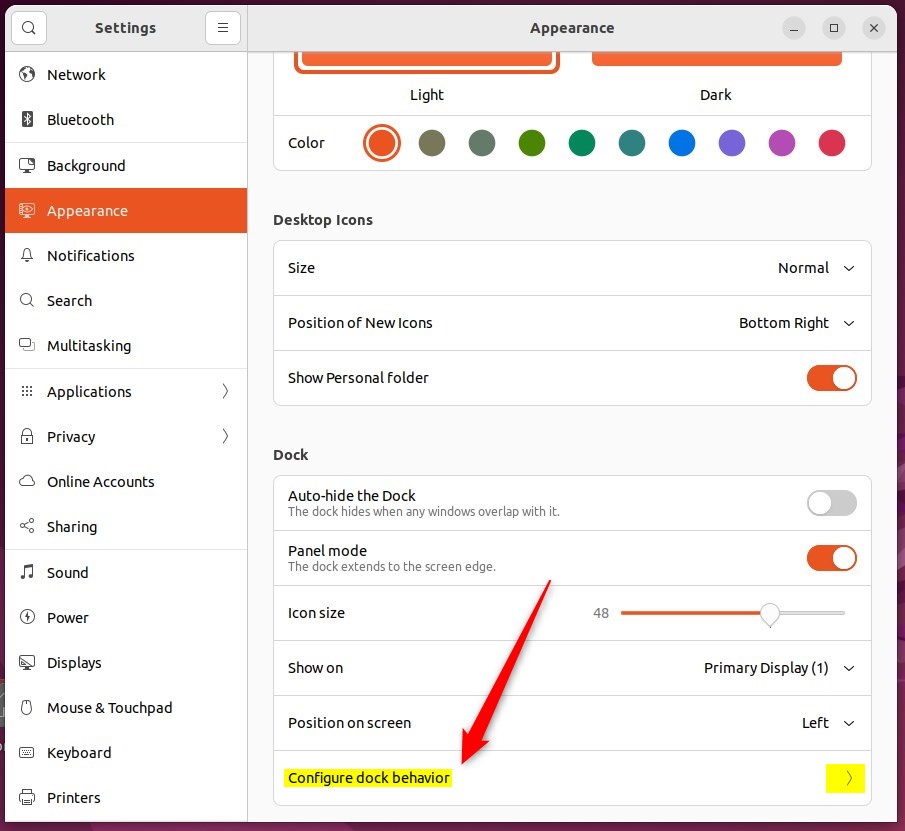
In the System Settings -> Appearance panel, under Dock, select the Configure dock behavior tile to expand.
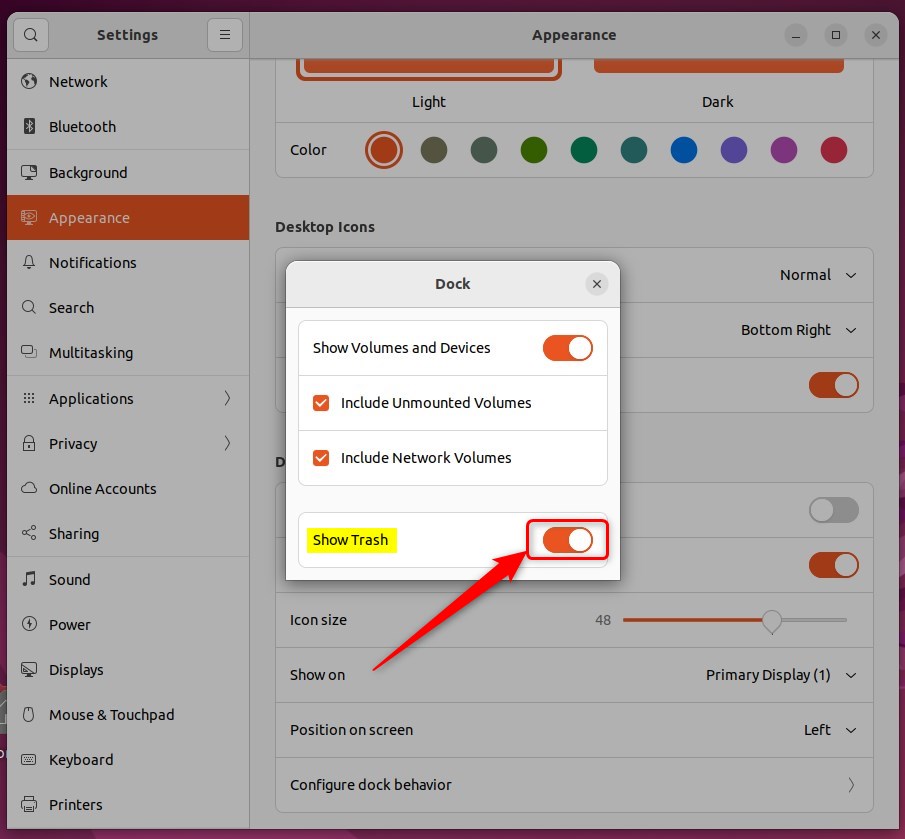
On the pop-up Dock window, toggle the switch button to the On position to show the Trash icon on the Dock.
To hide the Trash icon, toggle the switch button to the Off position.
That should do it!
Conclusion:
This post showed you how to hide or unhide the Trash icon on the Dock in Ubuntu Linux. Please use the comment form below if you find any errors above or have something to add.
- The steps provided are an easy way to manage the visibility of the Trash icon on the Dock in Ubuntu Linux.
- Users can hide or unhide the Trash icon using the System Settings panel or the top-right System menu.
- This feature allows for a personalized desktop, allowing users to keep the Dock clutter-free or retain the Trash icon for convenient access to deleted items.



Leave a Reply