How to Change Backgrounds on Each Monitor in Windows 11

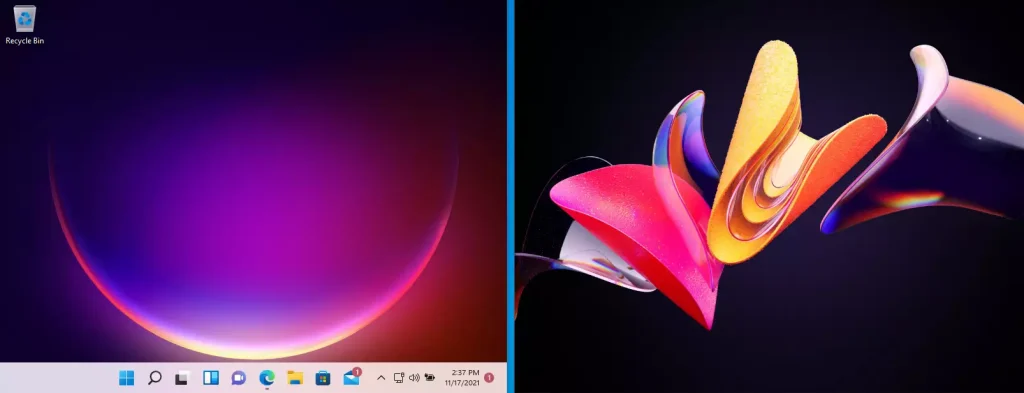
Setting different wallpapers for your Windows 11 multi-monitor setup helps you visually distinguish between your screens. It makes your workspace look organized and professional. What happens when done? Each monitor will feature a unique image, allowing you to categorize your work or simply enjoy a more personalized desktop experience.
Physical Monitors vs. Virtual Desktops
It is important to understand the difference between physical monitors and virtual desktops. A physical monitor is the actual hardware screen on your desk. A virtual desktop is a software feature that lets you create multiple workspaces on the same screen. Why can’t I set different wallpapers for virtual desktops in Windows 11? Windows 11 currently applies the same background settings to all virtual desktops to maintain system performance and consistency. You can only set unique backgrounds for physical monitors connected to your PC.
How to Set Unique Wallpapers
You do not need admin privileges for this task. Follow these steps to configure your display settings:
1. Press Windows key + I to open Settings.
2. Click Personalization in the left menu, then select Background.
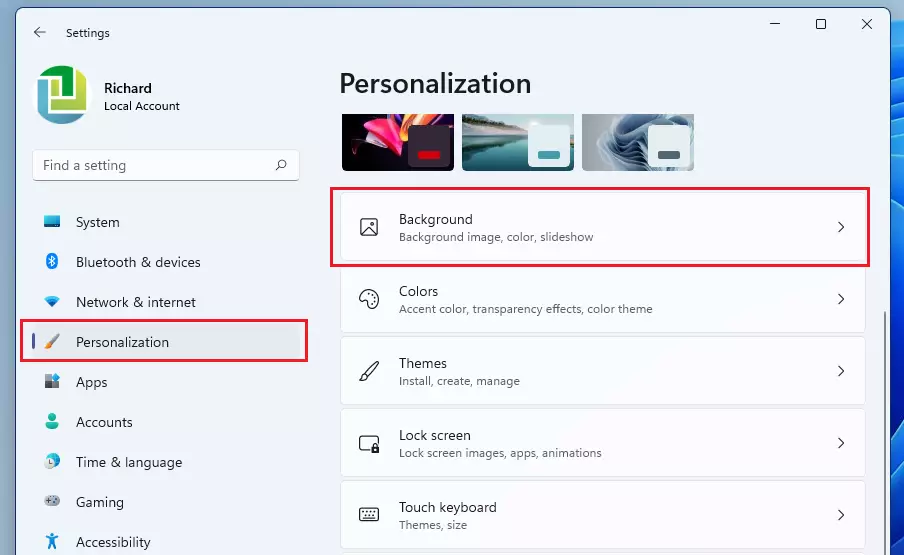
3. Under Personalize your background, choose Picture.
4. Right-click any image in the Recent images list. A menu will appear allowing you to select Set for monitor 1 or Set for monitor 2.
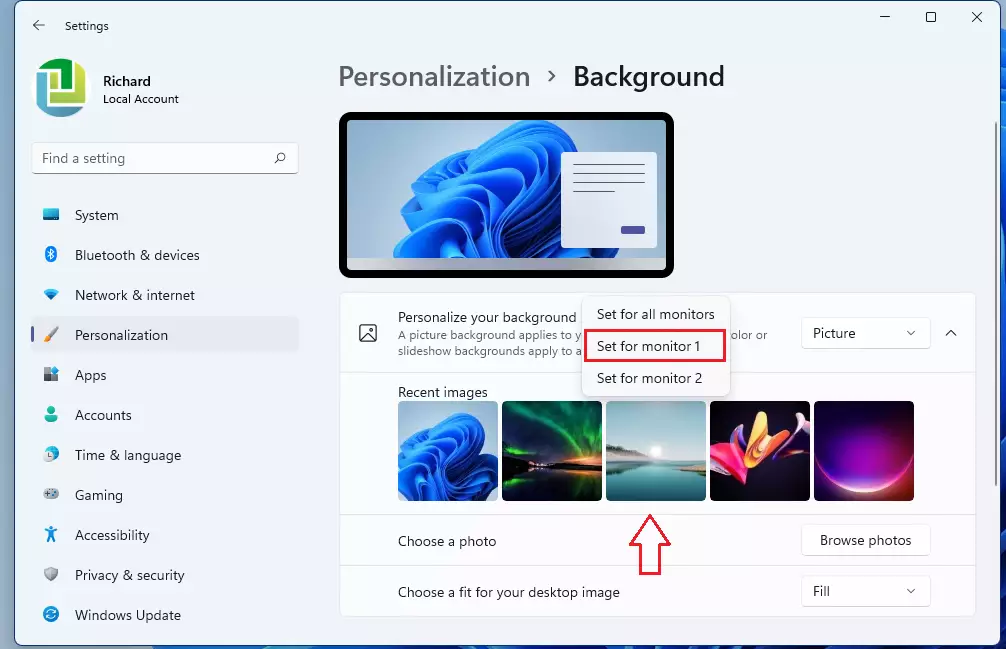
5. Repeat this for each screen until your setup is complete.
Troubleshooting Wallpaper Issues
If your wallpapers are not changing or look stuck, try these steps:
- Check Sync Settings: Go to Settings > Accounts > Windows backup and toggle off Remember my preferences if you do not want your wallpaper to sync across multiple PCs.
- Reset Settings: If the background is frozen, you can reset the registry key. Flag: Requires admin privileges. Open Command Prompt as administrator and run:
reg delete "HKEY_CURRENT_USER\Control Panel\Desktop" /v Wallpaper /f. Then restart your computer. - Verify Display Mode: Ensure you are in Extended mode by pressing Windows key + P.
Third-Party Alternatives
If you want more control, tools like Wallpaper Engine or DisplayFusion offer advanced features. These apps allow for animated backgrounds, multi-monitor spanning, and automatic rotation settings that go beyond standard Windows 11 personalization.
Summary
- Ensure your displays are set to Extended mode.
- Use Settings > Personalization > Background to manage your images.
- Right-click images to assign them to specific physical monitors.
- Windows 11 does not support unique backgrounds for virtual desktops.
- Check your sync settings if you want to prevent your wallpaper from changing on other computers.
- For more information, visit the official Microsoft Support page.
Does Windows 11 sync my wallpaper across multiple PCs?
Yes, if you are signed in with a Microsoft account and have the sync settings enabled in your Windows backup preferences. To stop this, navigate to Settings, select Accounts, and turn off the sync options for your desktop theme and background settings to keep each PC unique.
How do I reset my wallpaper settings if they are stuck?
If your wallpaper is stuck, try changing your background to a solid color first, then switch back to a picture. If that fails, you may need to clear the cached image files located in C:\Users\GenericUser\AppData\Roaming\Microsoft\Windows\Themes\CachedFiles and restart your Windows Explorer process via the Task Manager.
Was this guide helpful?

About the Author
Richard
Tech Writer, IT Professional
Richard, a writer for Geek Rewind, is a tech enthusiast who loves breaking down complex IT topics into simple, easy-to-understand ideas. With years of hands-on experience in system administration and enterprise IT operations, he’s developed a knack for offering practical tips and solutions. Richard aims to make technology more accessible and actionable. He's deeply committed to the Geek Rewind community, always ready to answer questions and engage in discussions.



Option no longer exists in Windows 11 for different settings per monitor for either the background image or slideshow.