How to Send Files Directly through Email in Windows 11

You can send files directly through email in Windows 11 by attaching them to a new email message.
Attaching files to an email is a straightforward method for sharing documents, photos, videos, and other digital content with anyone. This process works seamlessly with your installed email client or web-based email services.
For instance, attaching a file to an email in the default Mail app in Windows 11 is a common task for sending reports or sharing vacation photos.
Sending Files Directly Through Email
This is likely the method you know best for sharing files. If you have an email app on your computer, like Outlook or the Mail app that comes with Windows, you can attach files right from File Explorer. It’s like putting something in an envelope and mailing it, but way faster!
Step 1: Find the File You Want to Send
First, you need to find the file on your computer. Open File Explorer, which is that yellow folder icon on your taskbar. Click it. Then, go through your folders until you find the file you want to share. It might be in your Documents, Downloads, Pictures, or wherever you saved it.
Tip: Can’t remember where you saved the file? Use the search bar at the top of File Explorer. Type the file name, and Windows will try to find it for you.
Step 2: Start the Sharing Process
Once you have the file, tell Windows you want to share it. You can do this in a couple of ways:
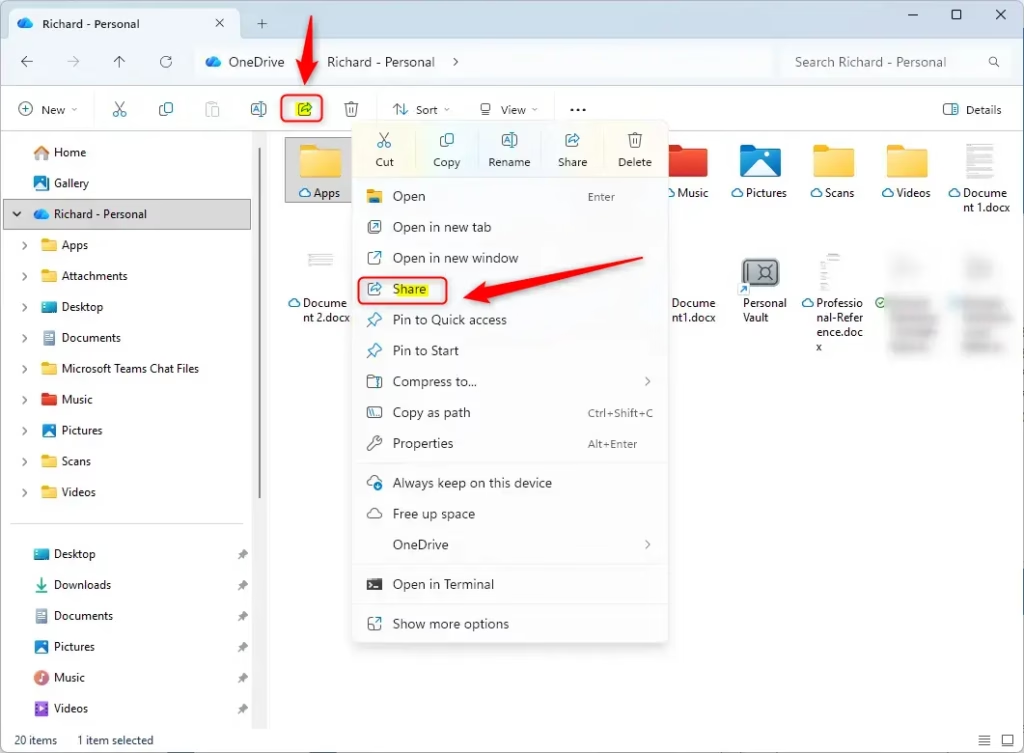
- Using the Ribbon: Click on the file once to select it. Look at the top of the File Explorer window. You’ll see a menu bar. Click on the “Share” tab or button.
- Using the Right-Click Menu: Another easy way is to right-click on the file. A menu will pop up. Look for an option that says “Share” or something similar.
Both ways will show a sharing menu or a box with options. We’re focusing on email, so look for the email option.
Step 3: Pick Your Email App
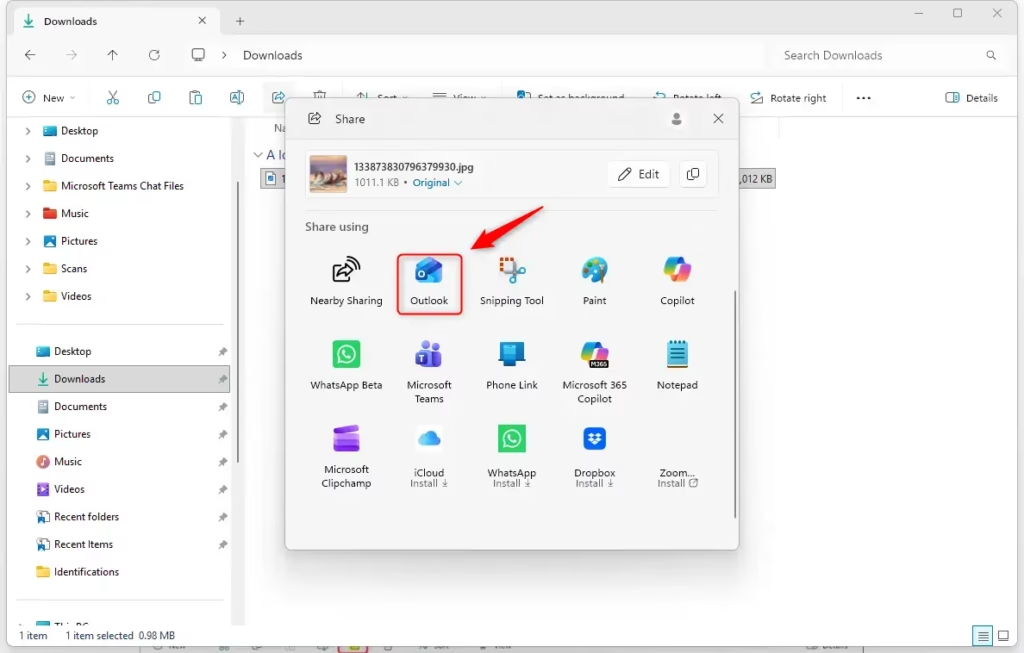
In the sharing menu, you’ll probably see icons for different apps you can use. If you have an email program installed (like Microsoft Outlook, Mozilla Thunderbird, or the Windows Mail app), you should see an option like “Email” or an icon for your email program.
Click the email option for the program you want to use. Windows will then get that app ready to create a new email message for you.
Warning: If you don’t see an email option, you might not have a default email app set up. Or, the file type might not be something you can share this way. You might need to set your default email app in Windows settings.
Step 4: Write and Send Your Email
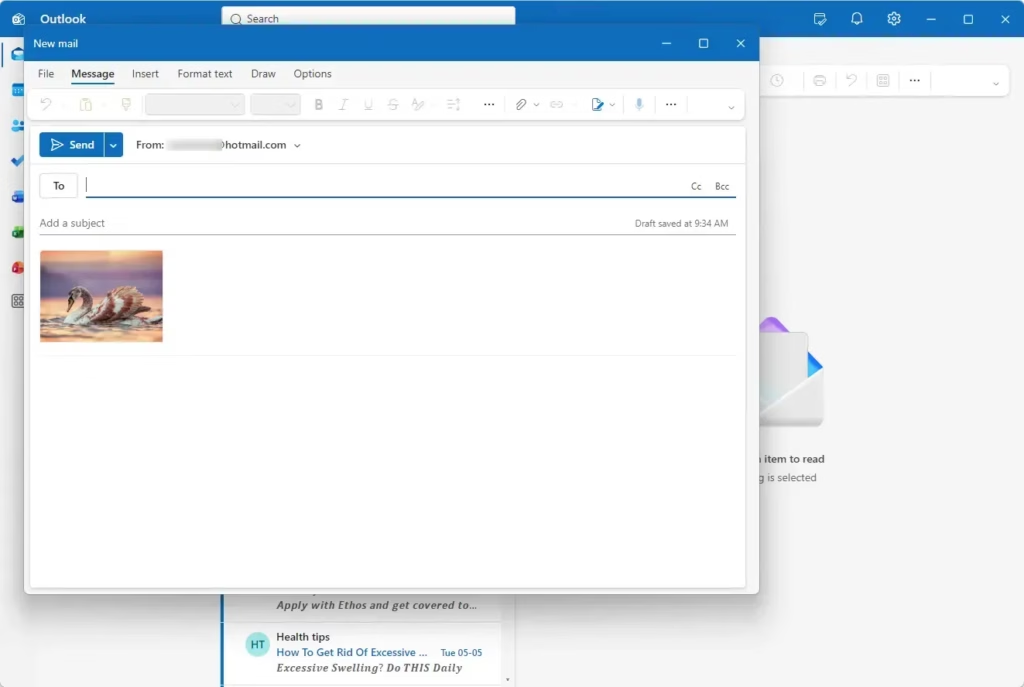
Your email app will now take over. A new email window will open, and the file you chose should already be attached. Pretty cool, right?
Now, fill in the rest of the email details:
- To: Type the email address of the person you want to send the file to.
- Subject: Give your email a clear subject line so the person knows what it’s about.
- Message Body: Add any notes or information you want to include.
When you’re done, click the “Send” button in your email program. Your file is now on its way!
Tip: If you’re sending a very large file, remember that most email services have limits on attachment sizes (usually around 20-25 MB). If your file is too big, you might get an error. In that case, try using a cloud storage service like OneDrive, Google Drive, or Dropbox. These are made for sharing bigger files.
A Note on File Size Limits
As mentioned, email attachments have size limits. This is a basic rule for most email systems. If you’re sending more than a few photos or a medium-sized document, you’ll likely have a problem.
Here’s a quick look:
- Typical Email Limit: Most big email providers (like Gmail, Outlook.com, Yahoo) limit attachments to about 20-25 MB per email.
- Work/School Accounts: These can be different based on your company’s rules. Some might allow bigger files, while others might be stricter.
What to Do If It’s Too Big: This is where cloud storage services like OneDrive, Google Drive, Dropbox, or special file transfer services (like WeTransfer) are useful. They can handle large files and let you share them using a link.
Knowing these limits will save you trouble when sending files. For sending small things regularly, direct email attachments are great. For anything bigger, or if you want more control, using links to cloud files is the best choice.
Reference:
Summary
And that’s how you send files directly through email! Sharing files from your Windows PC is a fundamental skill, and sending them by email is a very common way. Whether you attach a file directly from your email app or send a link to a file stored in OneDrive, Windows gives you several options.
Remember to think about the file’s size and how sensitive the information is when picking how to share. For quick, small shares, direct email is perfect. For larger files or when you need more control, OneDrive is a great option. And for sharing with someone nearby, Windows has a feature called Nearby sharing.
How do I send files via email in 🪟 Windows 11?
To send files via email in Windows 11, open File Explorer, locate the file, right-click it, select 'Send to' and then choose your email client. Alternatively, compose a new email in your email app and use the attachment icon to add files directly from your computer.
Can you send an entire file through email?
Yes, you can send an entire file through email by attaching it to an email message. Most email services and clients allow you to attach files of various types, such as documents, photos, and videos, directly from your computer's storage.
How do I send a file via email?
To send a file via email, open your email client or webmail. Start a new email and look for an 'attach file' icon (often a paperclip). Click it, navigate to the file on your computer, select it, and then send the email with the attached file.
Can you send computer files with an email?
Absolutely. You can send computer files with an email by attaching them. Whether using a desktop email client like Outlook or a web-based service like Gmail, you can easily add documents, images, videos, or any other digital file to your outgoing messages.
Was this guide helpful?
No comments yet — be the first to share your thoughts!