
Do you like having your File Explorer windows open exactly how you left them? Windows 11 can do that for you! When you turn on or restart your computer, it will remember which folders you had open. This guide shows you how to turn this feature on or off.
What is File Explorer?
File Explorer is the app on your Windows PC that helps you find, open, copy, move, and organize your files and folders. Think of it like a digital filing cabinet you can click through.
Why Use “Restore previous folder windows at logon”?
When you enable this feature, Windows remembers all the File Explorer windows and folders you had open. The next time you log in, those same folders open automatically. This saves you time!
How to Turn On or Off “Restore previous folder windows at logon”
Follow these simple steps:
Open File Explorer Options:
- Click the Start button (Windows icon) or press the Windows key.
- Type File Explorer Options and press Enter.
- Or, open File Explorer (folder icon on your taskbar). Click the three dots (More) in the top menu, then choose Options.
Change the Setting:
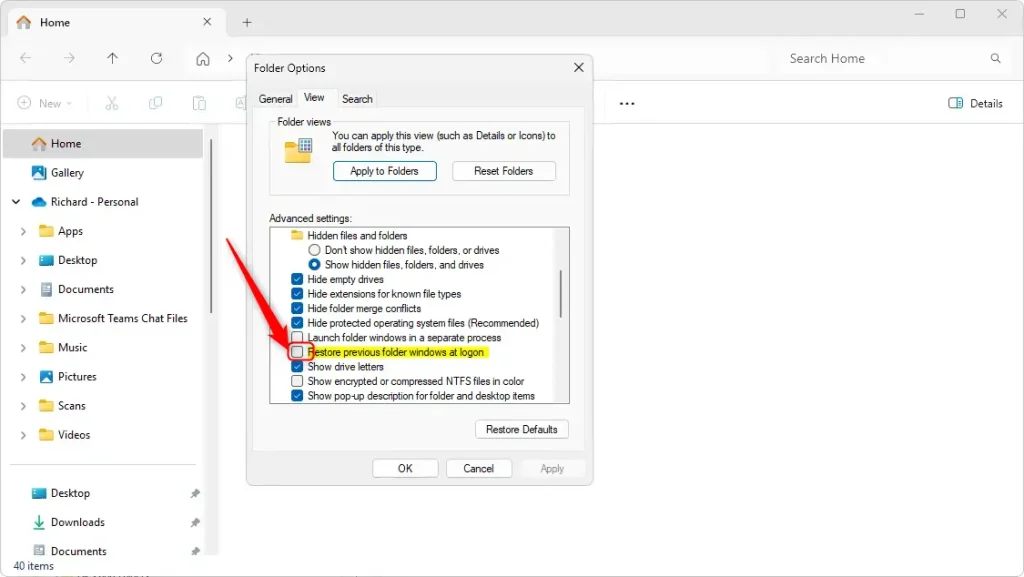
- In the new window, click the View tab at the top.
- Look for the checkbox labeled “Restore previous folder windows at logon”.
- Check the box to turn it ON. Uncheck it to turn it OFF.
- Click OK to save your changes.
How to Use the Registry Editor to Change This Setting (Advanced)
If you want to try a more advanced method, you can change this setting using the Windows Registry Editor. Be careful — changing the registry incorrectly can cause problems. It’s a good idea to back up the registry or create a system restore point first.
⚠️ Admin Privileges Required
Here’s how:
- Open the Registry Editor by typing
regeditin the Start menu search and pressing Enter. - Navigate to this folder in the left panel:
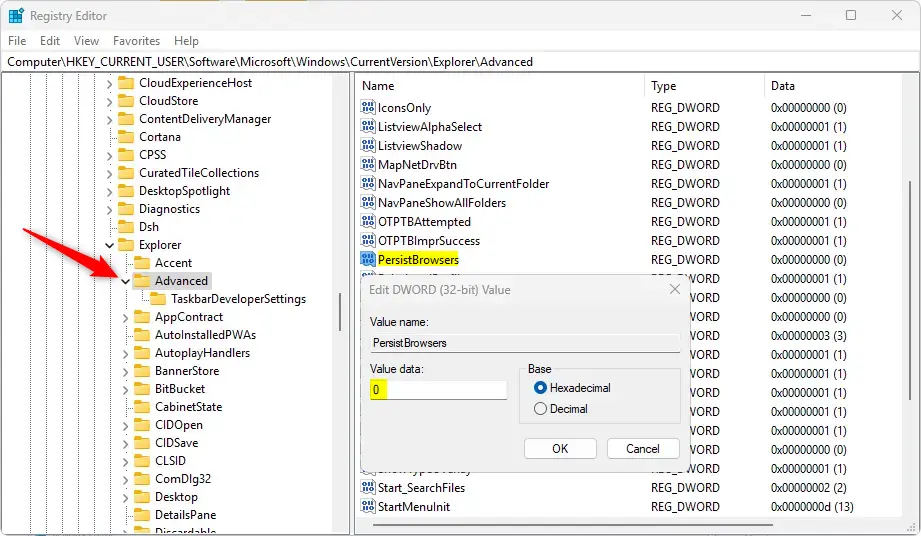
Computer\HKEY_CURRENT_USER\Software\Microsoft\Windows\CurrentVersion\Explorer\Advanced - Right-click on Advanced, then choose New > DWORD (32-bit) Value.
- Name this new DWORD value:
PersistBrowsers - Double-click PersistBrowsers and set the value to:
1to turn ON the folder restore feature0to turn OFF the feature
- Click OK and close the Registry Editor.
- Restart your computer to apply the changes.
Summary
- You can easily turn on or off “Restore previous folder windows at logon” from File Explorer Options.
- The Registry Editor method is for advanced users who want more control.
- Always back up your registry or create a restore point before making changes.
- Restart your PC after changing the settings to make sure they take effect.
- Enjoy having your folders open automatically just like you left them!
If you want to learn more about using File Explorer or other Windows tips, check out these helpful guides:
How to Use File Explorer in Windows 11
How to Copy Files from a USB Drive in Windows 11
How to Delete Files and Folders in Windows 11
Frequently Asked Questions
What is File Explorer?
Why Use "Restore previous folder windows at logon"?

Leave a Reply Cancel reply