How to Quickly Reset Graphics Drivers in Windows 11

You can quickly reset your graphics drivers in Windows 11 using the keyboard shortcut Windows Key + Ctrl+Shift+B.
This action reloads your GPU driver, the essential software that allows Windows to communicate with your graphics card. It’s your go-to fix for frozen screens, black displays, or annoying visual artifacts.
Unlike a full system restart, this shortcut targets only the graphics driver, saving your unsaved work. You’ll be back to normal in seconds, avoiding a complete reboot.
Press Windows Key + Ctrl+Shift+B simultaneously on your keyboard. This action instantly reloads your graphics driver, resolving most display issues like screen freezes or glitches without closing your applications. Your screen will briefly flicker and beep to confirm the reset.
Why reset your graphics driver?
Graphics drivers act as a translator between your hardware and your screen. Sometimes, this translator gets stuck. Resetting it clears out minor errors so your display can start working properly again. This is a common fix for a Windows 11 screen freeze or general display adapter troubleshooting.
What happens when you do this?
When you trigger the reset, your screen will flicker, go black for a second, and you will hear a short beep. This is normal. It means Windows is reloading the software that controls your display. Your open apps and unsaved work will remain safe.
Step 1Verify your computer is on
First, double-check that your computer is actually on. Press the CapsLock or NumLock key. If the little light on the key toggles on or off, your computer’s running, but your screen might have lost its connection.
Step 2Use the keyboard shortcut
If you’ve confirmed the computer is on but the screen is showing nothing, press these four keys at the same time: Windows Key + Ctrl+Shift+B. This command works for NVIDIA, AMD, and Intel graphics cards. You do not need special permissions to use this shortcut.
Advanced Troubleshooting: Clean Reinstallation
If the shortcut does not fix your issue, you may need a clean install of your graphics driver. This gets rid of bad files that can mess with your graphics card driver. You can use Device Manager to uninstall the driver, or use Display Driver Uninstaller (DDU) for a deeper clean in Safe Mode.
Using Device Manager (Requires Admin Privileges)
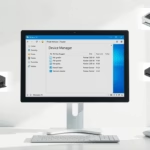
1. Right-click the Start button and select Device Manager.
2. Expand Display adapters.
3. Right-click your graphics card and select Uninstall device.
4. Restart your computer to let Windows reinstall the driver automatically.
C:\Windows\System32\drivers
Manufacturer Software vs. Windows Update
Windows Update often provides stable drivers, but for the best performance, use manufacturer software like NVIDIA GeForce Experience or AMD Software: Adrenalin Edition. You can download the latest versions from the official NVIDIA or AMD websites.
Summary
- Quick Fix: Use Windows Key + Ctrl+Shift+B to refresh your display instantly.
- Universal: Works on all major graphics hardware brands.
- Check First: Use the CapsLock light to ensure your system is responsive.
- Clean Install: Use DDU or Device Manager if the shortcut fails to resolve persistent errors.
- Admin Note: Modifying system files in
C:\Windows\System32or registry paths likeHKEY_LOCAL_MACHINE\SOFTWARErequires administrator privileges.
Will resetting my graphics driver delete my files?
No, resetting your graphics driver using the keyboard shortcut will not delete your files or close your open applications. It only refreshes the communication between your operating system and your graphics hardware to resolve temporary display glitches or screen freezes.
Does resetting the driver fix screen flickering?
Yes, resetting the driver is a primary troubleshooting step for screen flickering. By forcing Windows to reload the display driver, you can often clear out the software errors causing the flicker. If the issue persists, you may need to perform a clean reinstallation of your drivers.
Was this guide helpful?

About the Author
Richard
Tech Writer, IT Professional
Richard, a writer for Geek Rewind, is a tech enthusiast who loves breaking down complex IT topics into simple, easy-to-understand ideas. With years of hands-on experience in system administration and enterprise IT operations, he’s developed a knack for offering practical tips and solutions. Richard aims to make technology more accessible and actionable. He's deeply committed to the Geek Rewind community, always ready to answer questions and engage in discussions.

No comments yet — be the first to share your thoughts!