How to Reset File Explorer Folder View in Windows 11

Resetting File Explorer folder view in Windows 11 restores all your folder display settings to their original defaults.
This process clears out settings that control things like icon size, layout, and the order of columns you see in your folders.
Corrupted data in Windows’ system files, often called Shellbags, can cause File Explorer to behave strangely, like forgetting your chosen view or the sidebar opening on its own.
Fixing these issues usually means resetting how File Explorer remembers your folder preferences, ensuring it correctly saves changes like column widths and sort order.
You can reset File Explorer folder views using Folder Options or the Registry Editor. In Folder Options, click the three dots, select Options, go to the View tab, and click Reset Folders. For the Registry Editor, navigate to 🗝️HKEY_CURRENT_USER\
What happens when you reset?
Method 1Using Folder Options (GUI)
You can reset File Explorer view back to the original Windows defaults using the built-in Folder Options menu. This is the safest way to fix messed up folder layouts, custom column widths, and wrong icon sizes without touching advanced system settings. You just need to open the main folder menu, find the view tab, and click the button that puts everything back the way it was.
- Open File Explorer by pressing the Windows key + E.
- Click the three dots (the ellipse) in the top menu bar.
- Select Options from the dropdown menu.
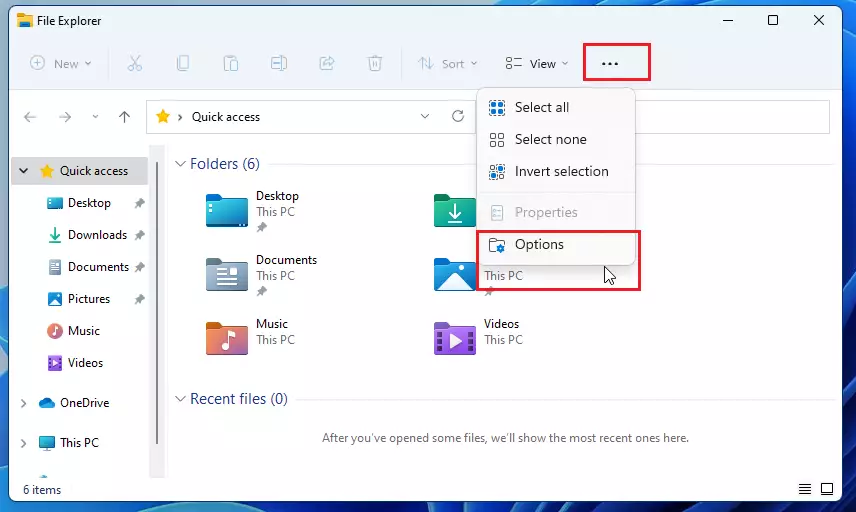
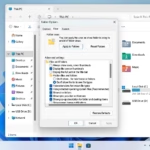
windows 11 select options in file explorer - Click on the View tab in the File Explorer Options window.
- Click the Reset Folders button.
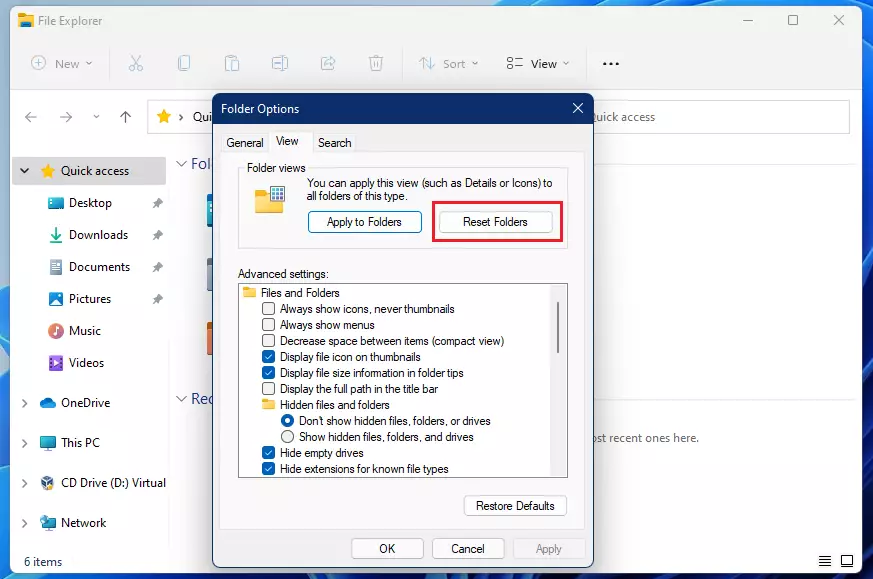
reset file explorer folder view windows 11 - Click Yes in the confirmation box to restore the default view for all folders of this type.
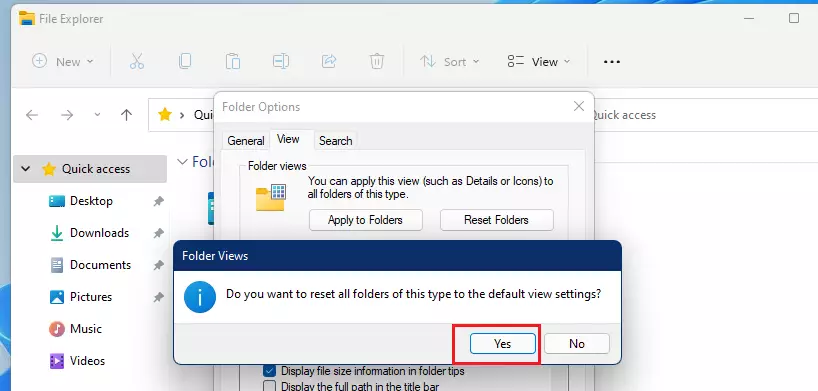
windows 11 reset folder views confirmation
Method 2Using Registry Editor
You can reset File Explorer view by deleting specific registry keys in the Registry Editor when the standard folder settings do not work. This advanced fix clears out saved folder customizations that are stuck or broken. You need to open the registry tool, find the correct system folder path, and delete the saved view keys so Windows has to rebuild them from scratch.
- Press Windows key + R, type regedit, and press Enter.
- Navigate to the following path: HKEY_CURRENT_USER\Software\Classes\Local Settings\Software\Microsoft\Windows\Shell
- Right-click the BagMRU folder and select Delete.
- Right-click the Bags folder and select Delete.
- Restart your computer to apply the changes.
Troubleshooting
Troubleshooting issues when resetting your File Explorer view, especially with the Registry Editor, often involves checking permissions and ownership settings.
Summary
Resetting your File Explorer view is a straightforward process that helps fix display issues and restore default folder layouts without risking your data.
Was this guide helpful?
100% of readers found this helpful (1 votes)

About the Author
Richard
Tech Writer, IT Professional
Richard is a writer at Geek Rewind who turns complex IT tasks into clear, step-by-step guides. He draws on years of hands-on experience in system administration and enterprise IT operations, focusing on Windows, Linux and WordPress: the problems people actually run into, and the fixes that work. His server and WordPress guides come from systems he runs himself. Richard builds and maintains the platform behind Geek Rewind, from its Ubuntu servers and Nginx configuration to its custom WordPress plugins. Many new tutorials start with readers' questions, and he's always glad to answer them in the comments.


No comments yet — be the first to share your thoughts!