How to Rename Your Dropbox Device on Windows 11

You rename your Dropbox device on Windows 11 by changing your computer’s name in Windows settings.
Dropbox automatically labels your synced computers using their Windows system name. If you use multiple PCs, like a desktop and a laptop, and they both have the default name “DESKTOP-ABC123,” it’s hard to know which device is which in your Dropbox account.
Renaming your device helps you easily identify specific machines in the Dropbox cloud, preventing confusion and ensuring you know exactly where your files are syncing from.
This change updates the device identifier in your Dropbox account, making management much clearer, especially if you’re running the latest Dropbox desktop app version.
Open the Dropbox app, click the gear icon, select Preferences, and go to the Backups tab. Click Manage backups, then Rename My PC, enter your new name, and click Save. This process requires migrating from a legacy backup version if applicable.
Legacy vs. New Dropbox Backup
You might not be able to rename your Dropbox device on Windows 11 if you’re still using the older backup system. The newer Dropbox backup tool lets you easily change your device name, but the old one doesn’t. You’ll need to switch to the new system to rename your device.
- Open the Dropbox desktop app by clicking the Dropbox icon in your Windows 11 taskbar.
- Click the gear icon and select Preferences.
- Navigate to the Backups tab and click Manage backups.
- If using a legacy version, click Unlink Backup to remove the old connection.
- Re-enable the backup by selecting My PC within the Sync and backups tab.
- Locate the Rename My PC tile and click the Rename button.
- Enter your new device name and click Save.
Step-by-Step Migration and Renaming
Renaming your Dropbox device on Windows 11 involves moving your current backup to the newer system first, then giving it a fresh name. Open the Dropbox app from your taskbar, click the settings gear, and go to Preferences. Then, head to the Backups tab and click ‘Manage backups’ under ‘This PC’ to start the process.
- Open the Dropbox app from your taskbar. Click the Taskbar overflow icon and select the Dropbox icon.
Windows 11 turn on start Dropbox on system startup - Click the Settings (gear icon) and select Preferences.

Windows 11 turn on start Dropbox on system startup - Go to the Backups tab. Under the ‘This PC’ section, click Manage backups. Visit the official Dropbox Manage Backups page for more details.

Manage backups in Dropbox on Windows 11 - If you are on an old version, click Unlink Backup to remove the legacy connection.
- Re-enable the backup. Select My PC (DeviceName) inside the Sync and backups tab.
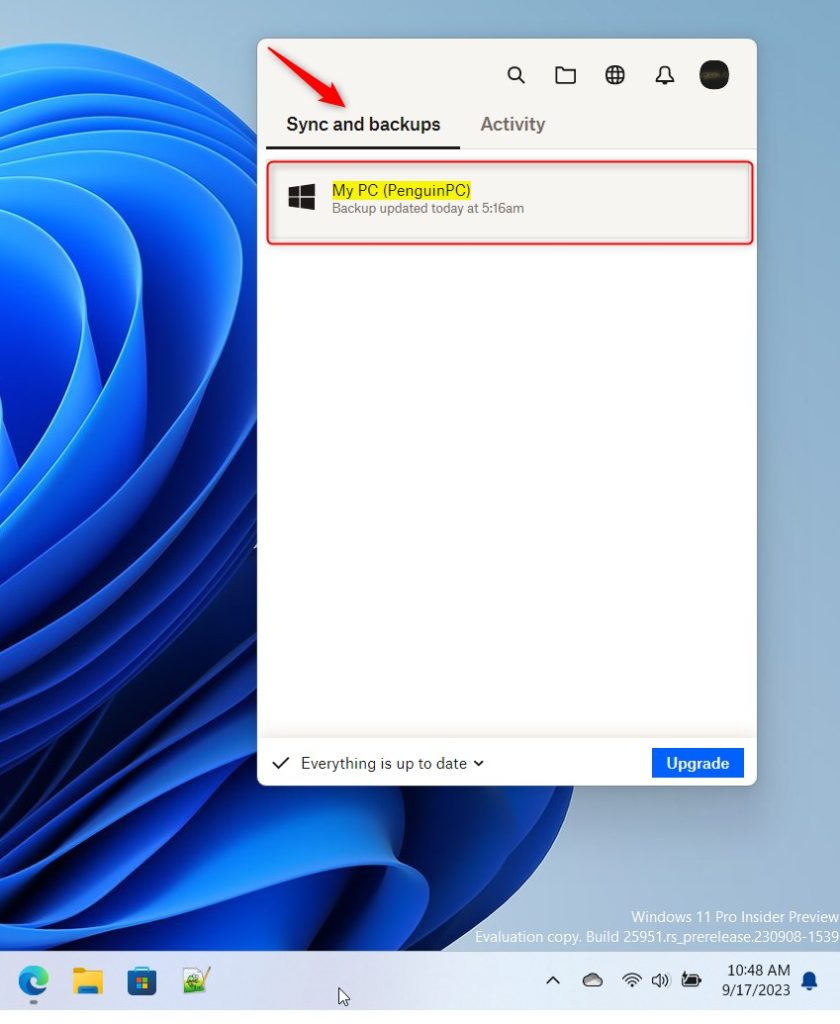
Rename device in the Dropbox app on Windows 11 - Find the Rename My PC tile and click the Rename button.
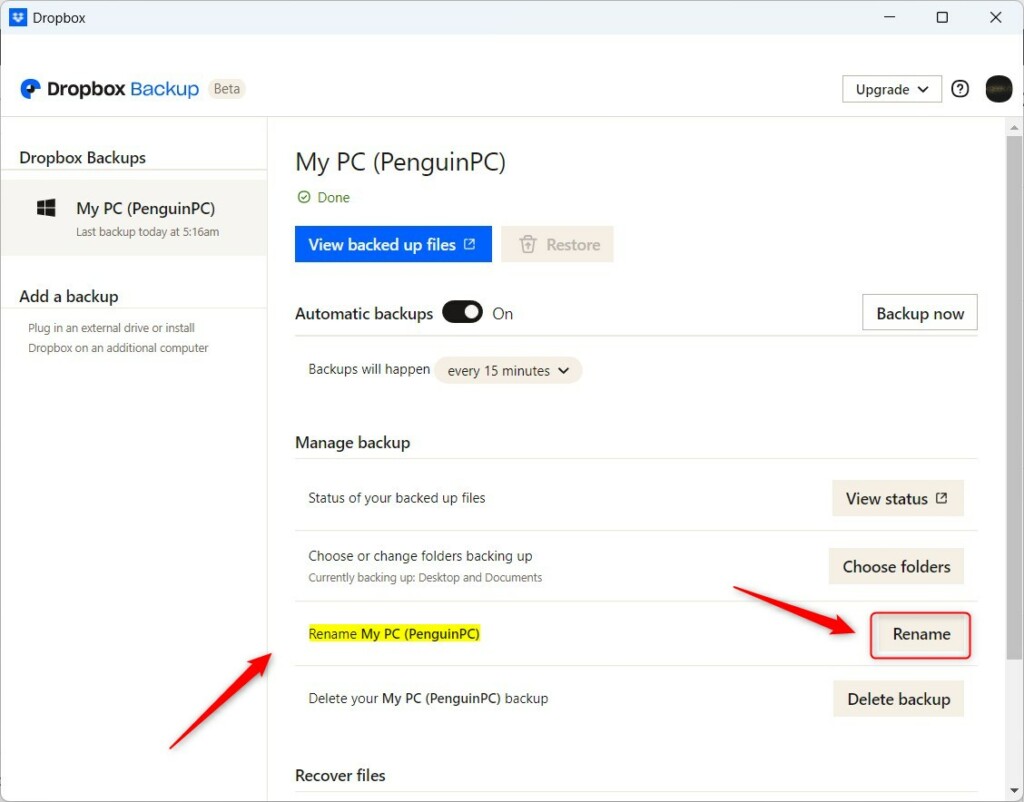
Rename device in the Dropbox app on Windows 11 - Type in your new name and click Save.
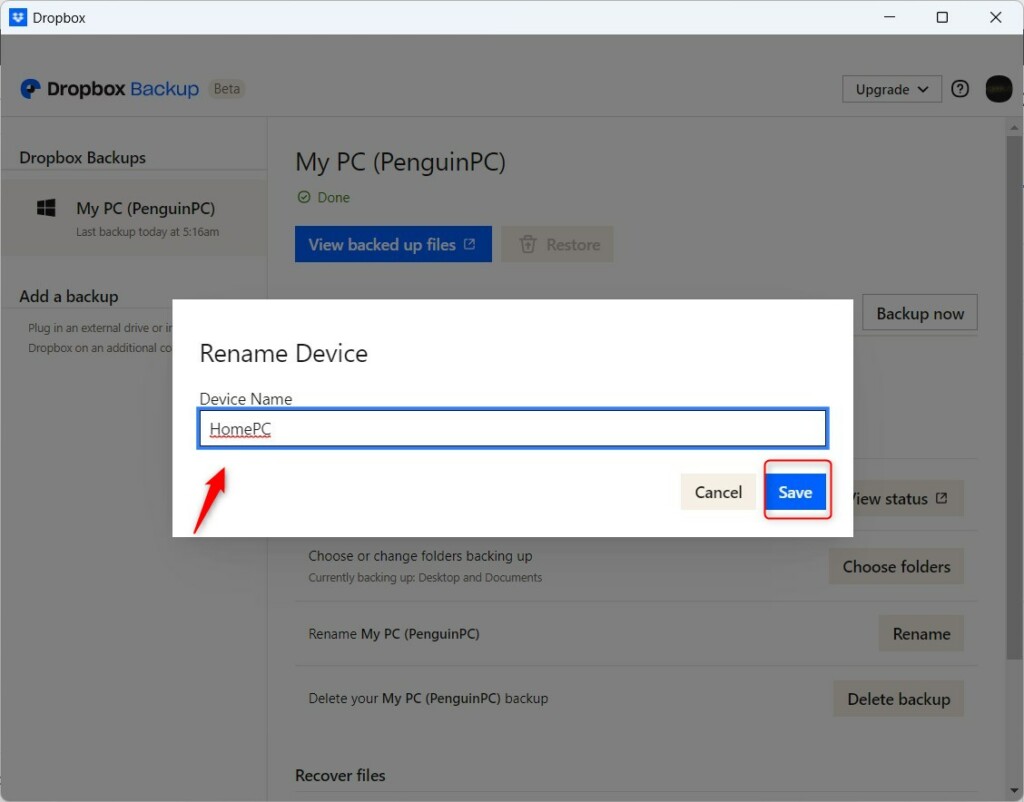
Rename device in the Dropbox app on Windows 11
Summary
Renaming your Dropbox device on Windows 11 is essential for users with multiple computers. By migrating to the latest version of Dropbox Backup and using the Manage Backups menu, you can assign unique names to each machine. This prevents sync conflicts and keeps your cloud storage organized.
Can I rename my backup without unlinking it?
No, you generally cannot rename a backup if you are using the legacy version of Dropbox. You must unlink the current backup and set it up again through the modern Manage Backups menu to enable the renaming feature for your specific Windows 11 device.
What happens to my files if I delete the backup to rename it?
When you unlink a backup, your files remain on your local computer in their original location. They are not deleted from your hard drive. However, they stop syncing to the cloud until you re-enable the backup process and link the folder again.
Does renaming a device affect existing synced files?
Renaming your device within the Dropbox settings does not affect your actual files or their folder structure. It is purely a display change that helps you identify the source of your backups. Your file paths, such as 📁C:\Users\Name\Dropbox, will remain unchanged during this process.
Was this guide helpful?

About the Author
Richard
Tech Writer, IT Professional
Richard, a writer for Geek Rewind, is a tech enthusiast who loves breaking down complex IT topics into simple, easy-to-understand ideas. With years of hands-on experience in system administration and enterprise IT operations, he’s developed a knack for offering practical tips and solutions. Richard aims to make technology more accessible and actionable. He's deeply committed to the Geek Rewind community, always ready to answer questions and engage in discussions.



[…] notifications on or off, managing backups, turning automatic backups on or off, renaming backup device name, changing backup frequency, and […]