
If you use a fingerprint to sign into your Windows 11 PC but want to remove it, this easy guide will help you do that step-by-step.
What is Windows Hello?
Windows Hello is a safe and quick way to sign in using a PIN, face recognition, or fingerprint. When you set up fingerprint sign-in, you also need a PIN as a backup. But you can always sign in just using your PIN if you want.
Using these sign-in methods helps keep your PC secure and makes logging in easier. Your PIN is linked only to your device and is backed up by your Microsoft account.
When Can You Use Fingerprint Sign-in?
If your PC has a fingerprint sensor or a connected fingerprint reader, you can use fingerprint sign-in.
You can also add more than one finger to unlock your device if you want.
How to Remove Fingerprint Sign-in in Windows 11
- Open Settings: Press the Windows key + I on your keyboard to open the Settings app.
- Go to Accounts: On the left menu, click Accounts.
- Select Sign-in options: On the right side, click Sign-in options.
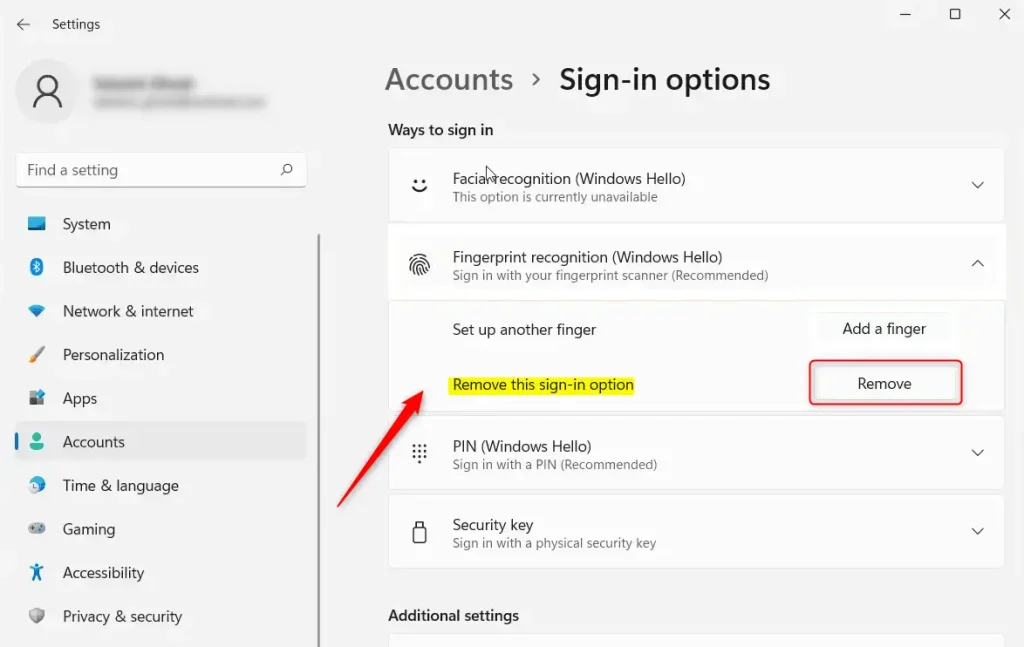
- Find Fingerprint recognition: Under Ways to sign in, click on Fingerprint recognition (Windows Hello) to expand it.
- Remove Fingerprint: Click the Remove button to delete your fingerprint sign-in option.
- Close Settings: You can now close the Settings window. Your fingerprint sign-in is removed.
Click here to open Sign-in options directly
Step-by-step Images

Helpful Links
- More about Windows Hello fingerprint authentication
- Windows Hello biometric requirements
- Windows Hello biometrics in business environments
- Troubleshoot Windows Hello problems
That’s all! Now your fingerprint sign-in is removed, and you can sign in with your PIN or other methods.

Leave a Reply Cancel reply