How to Recover Deleted Mobile Device Files from Windows 11 File Explorer

You can recover deleted mobile device files from Windows 11 File Explorer using the ‘Link to Windows’ feature.
This powerful connection lets your PC access your phone’s storage, and with it, the potential to retrieve accidentally deleted photos, documents, or other data.
Many users accidentally delete files from their Android phones when managing them through File Explorer. Thankfully, Microsoft’s ‘Link to Windows’ integration with Windows 11 offers a direct path to recovery.
This method works by leveraging Windows’ ability to see your phone’s storage as a drive, allowing you to navigate and recover files that were recently removed from your mobile device.
How to recover deleted files from File Explorer
This section helps if you recently deleted a file from your Android phone using File Explorer on your Windows PC. The trick is a special folder on your phone that holds deleted items for a short time.
Access your phone’s “Recycle bin”
When you delete a file from your Android phone through File Explorer on your PC, it doesn’t vanish immediately. Instead, Windows and your phone stash it in a temporary holding area. Think of it as your phone’s own Recycle Bin, specifically for when it’s connected to your computer.
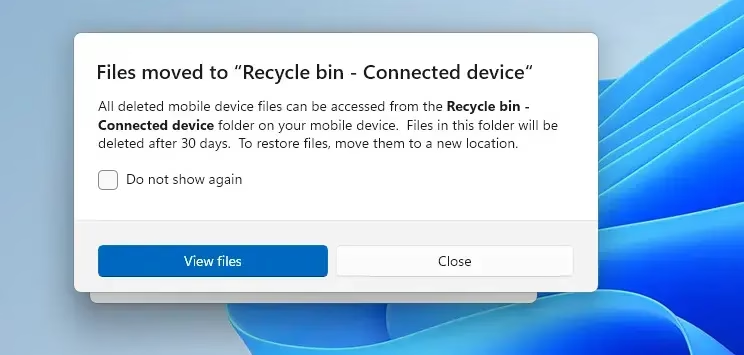
This hidden folder is called “Recycle bin – Connected device.” You won’t typically find it in your phone’s normal file apps, but it appears when you view your phone via File Explorer.
Locate the deleted file within the Recycle Bin
Once you open the “Recycle bin – Connected device” folder, you’ll see a list of files you recently deleted. Look through this list to find the file you want back.
You can usually tell files apart by their names. Sometimes you can also see their type, like .jpg for pictures or .docx for documents.
Restore the file to its original location (or a new one)
Once you find the file you want back, you’ve got a couple of options. You can usually right-click it and select ‘Restore’ or ‘Move to’.
If you choose ‘Restore’, the file will typically return to the folder it was deleted from. If you choose ‘Move to’, you’ll get to pick a new location on your phone for the recovered file. You can even move it back to your PC if that makes more sense for you.
Understand the time limit for recovery
This is important. Files don’t hang out in the “Recycle bin – Connected device” folder forever. Microsoft’s system holds onto them for a while, just in case you have second thoughts.
Right now, files stay in this recycle bin for 30 days. After 30 days, the files are permanently deleted from your device.
So, if you realize you made a mistake, it’s best to act quickly.
Warning: This 30-day limit is your main chance. If you accidentally delete a file and don’t recover it within a month, you probably won’t be able to get it back using this File Explorer method. Always double-check before you hit the delete key!
Reference:
Summary
Losing files can be stressful. But knowing that File Explorer has a built-in way to recover items you deleted from your connected Android device is very helpful.
Remember, the “Recycle bin – Connected device” is the first place to look. It gives you 30 days to get back those accidentally deleted files.
If that doesn’t work, don’t give up! Check your phone’s own recovery options or think about using backups and trusted third-party software. Knowing these different recovery methods can really boost your chances of getting your important data back.
How can I recover permanently deleted files from Mobile?
Recovering permanently deleted mobile files often requires specialized data recovery software. These tools scan your device's storage for remnants of deleted data. For files deleted via File Explorer on Windows 11, check the 'Recycle Bin' on your phone first, as they may be temporarily stored there.
How do I recover deleted files from Windows 11 not in the Recycle Bin?
If files deleted from your mobile device via File Explorer aren't in the phone's temporary recycle bin, you'll need data recovery software. This software can scan your phone's storage for deleted files that haven't been overwritten yet. Ensure your phone is connected to your PC.
How to show mobile device in File Explorer?
To show your mobile device in File Explorer, connect it to your Windows 11 PC using a USB cable. Ensure USB debugging is enabled on your phone. Your PC should then recognize the device, allowing you to access its storage through File Explorer.
How to recover deleted items in File Explorer?
When deleting files from a mobile device via Windows 11 File Explorer, check your phone's specific 'Recycle Bin' or 'Recently Deleted' folder. If the file isn't there, use data recovery software designed for mobile devices to scan your phone's storage for the lost file.
Was this guide helpful?

About the Author
Richard
Tech Writer, IT Professional
Richard, a writer for Geek Rewind, is a tech enthusiast who loves breaking down complex IT topics into simple, easy-to-understand ideas. With years of hands-on experience in system administration and enterprise IT operations, he’s developed a knack for offering practical tips and solutions. Richard aims to make technology more accessible and actionable. He's deeply committed to the Geek Rewind community, always ready to answer questions and engage in discussions.


No comments yet — be the first to share your thoughts!