How to Pair Your Pen with Windows 11

You connect your digital pen to Windows 11 using your PC’s Bluetooth settings.
This connects your pen wirelessly, letting you write, draw, and navigate your computer in Windows 11. Most pens, like the popular Microsoft Surface Pen, connect using Bluetooth.
To start pairing, make sure your pen is in discoverable mode, often shown by a blinking light. Then, open your PC’s Bluetooth settings to find and select your pen from the list of available devices.
Pair your pen by opening Windows 11 Settings, going to Bluetooth & devices, and clicking Add device. Then, put your pen in pairing mode by holding its top button until it blinks, and select your pen from the list to connect.
What is Bluetooth?
Bluetooth is wireless technology that lets devices like pens, keyboards, mice, and speakers connect to your computer without any cables.
Want to learn more about Bluetooth? Check out this simple guide: How to Turn Bluetooth On or Off in Windows 11
Step 1Turn On Bluetooth
To pair your pen with Windows 11, you first need to turn on Bluetooth on your computer, as your pen uses this wireless technology to connect.
What happens? Once Bluetooth is on, your pen can find your computer and pair. Most laptops and tablets have Bluetooth built-in. If yours doesn’t, you can grab a small USB Bluetooth adapter. Plug it into a USB port.
Here’s how to turn on Bluetooth:
- Click the Start button (Windows icon) at the bottom-left corner.
- Select Settings (gear icon).
- Click Bluetooth & devices on the left menu.
- Turn on the switch next to Bluetooth.
Step 2Put Your Pen in Pairing Mode
Next, you’ll need to put your pen into pairing mode so that Windows 11 can discover it and establish a connection.
What happens? A light on your pen will blink. This tells you the pen is ready to connect.
Press and hold the top button on your pen for about 5-7 seconds. Watch for a blinking white light on the pen. This means it’s ready to pair.
Step 3Pair Your Pen with 🪟 Windows 11
Now, you can pair your pen with Windows 11 by adding it through your computer’s Bluetooth settings, which will complete the connection.
What happens? Your pen will appear in your Bluetooth settings. Click on it to complete the connection.
- Go back to Settings > Bluetooth & devices.
- Click Add device.
- Choose Bluetooth from the options.
- Wait a moment. Your pen should appear in the list of available devices.
- Click your pen’s name to connect it.
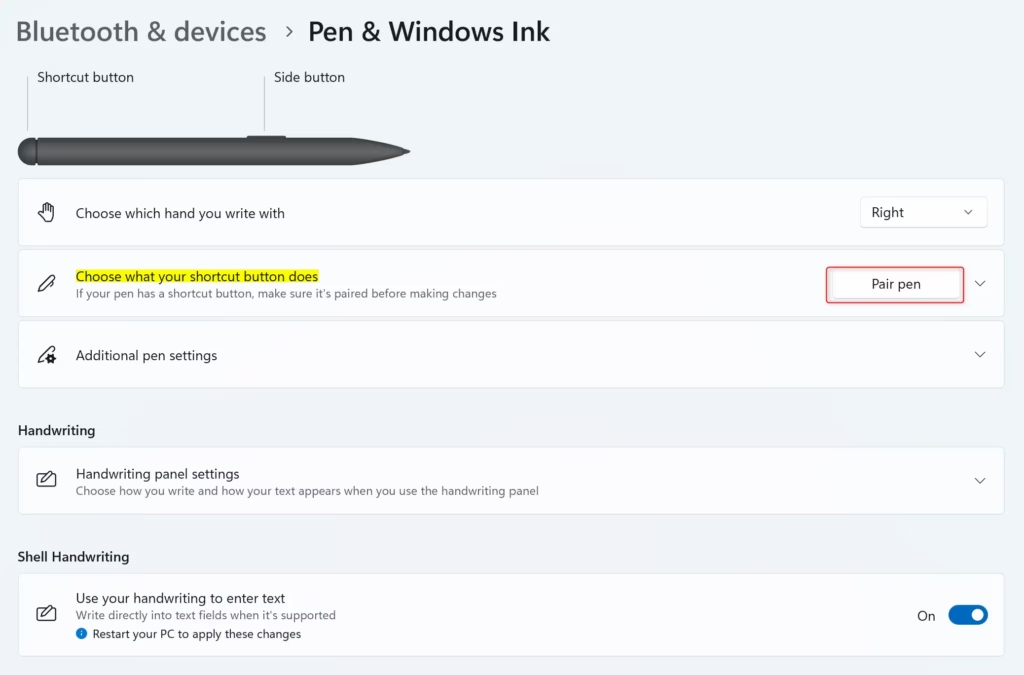
Once connected, your pen is ready to use!
Need More Help?
Check out these official resources for extra tips:
Summary
- Turn on Bluetooth in Windows 11 Settings.
- Put your pen into pairing mode. Hold the top button until you see a blinking light.
- Add your pen in the Bluetooth settings on your computer.
- Once paired, start using your pen with your device.
To pair your pen with Windows 11, start by turning on Bluetooth, then put your pen in pairing mode by holding its top button, and finally, add your pen through the Bluetooth settings on your PC.
How do I connect my pen to 🪟 Windows 11?
In Windows 11, select Start > Settings > Bluetooth & devices > Add device > Bluetooth. Then, press and hold the top button of your pen for 5-7 seconds until the LED light flashes white to turn on Bluetooth pairing mode. Finally, select Surface Slim Pen 2 to pair your pen.
Was this guide helpful?

About the Author
Richard
Tech Writer, IT Professional
Richard, a writer for Geek Rewind, is a tech enthusiast who loves breaking down complex IT topics into simple, easy-to-understand ideas. With years of hands-on experience in system administration and enterprise IT operations, he’s developed a knack for offering practical tips and solutions. Richard aims to make technology more accessible and actionable. He's deeply committed to the Geek Rewind community, always ready to answer questions and engage in discussions.

No comments yet — be the first to share your thoughts!