

Windows Terminal is a smart app on Windows 11 that lets you use command-line tools like Command Prompt, PowerShell, and Linux commands through Windows Subsystem for Linux (WSL).
Windows Terminal is better than older command-line apps because it lets you open many tabs, split the screen into parts, use colorful themes, and it works fast with cool text effects.
Sometimes, you need to run commands as an administrator (with extra permissions). Normally, you would right-click the Terminal icon and choose Run as administrator. But you can also set it up so Windows Terminal always opens with admin rights automatically.
How to Make Windows Terminal Always Open as Admin
Follow these simple steps:
- Open the Windows Terminal app:
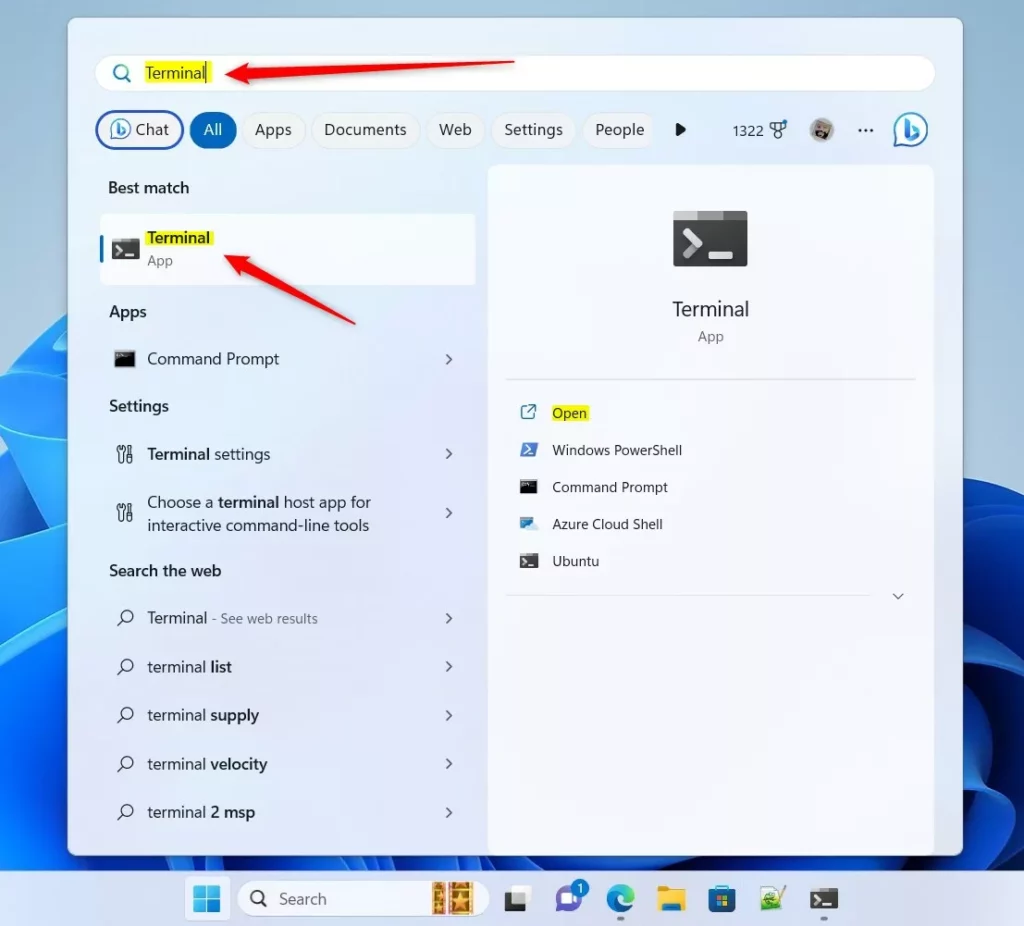
Click the Start menu button, type Terminal in the search box, and then click Windows Terminal from the results. - Go to Settings:
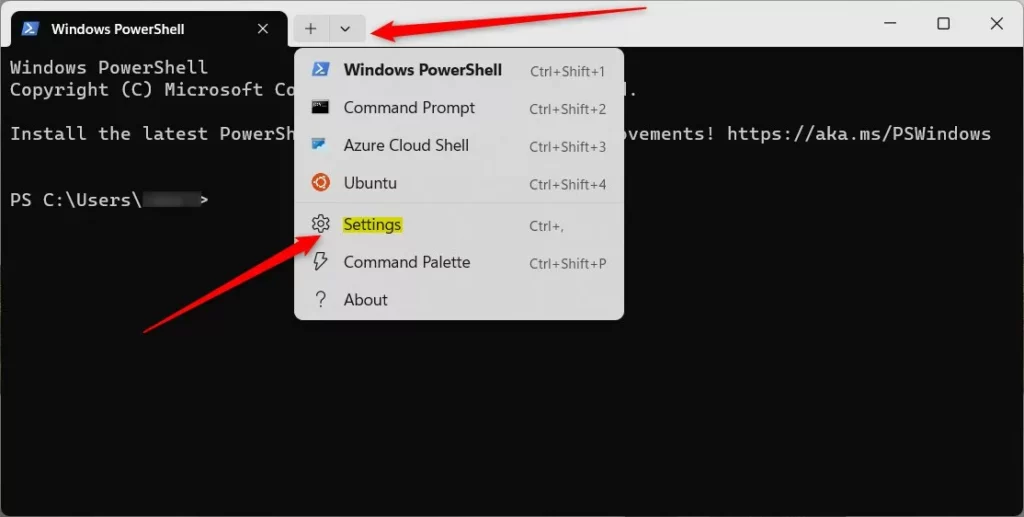
When Windows Terminal opens, click the down arrow next to the tabs at the top. Then click Settings (or press Ctrl + ,).
3. In the Settings window, look for the Profiles section on the left, then click Defaults (this is for all profiles).
4. Find the option that says “Run this profile as Administrator” and turn the switch On.
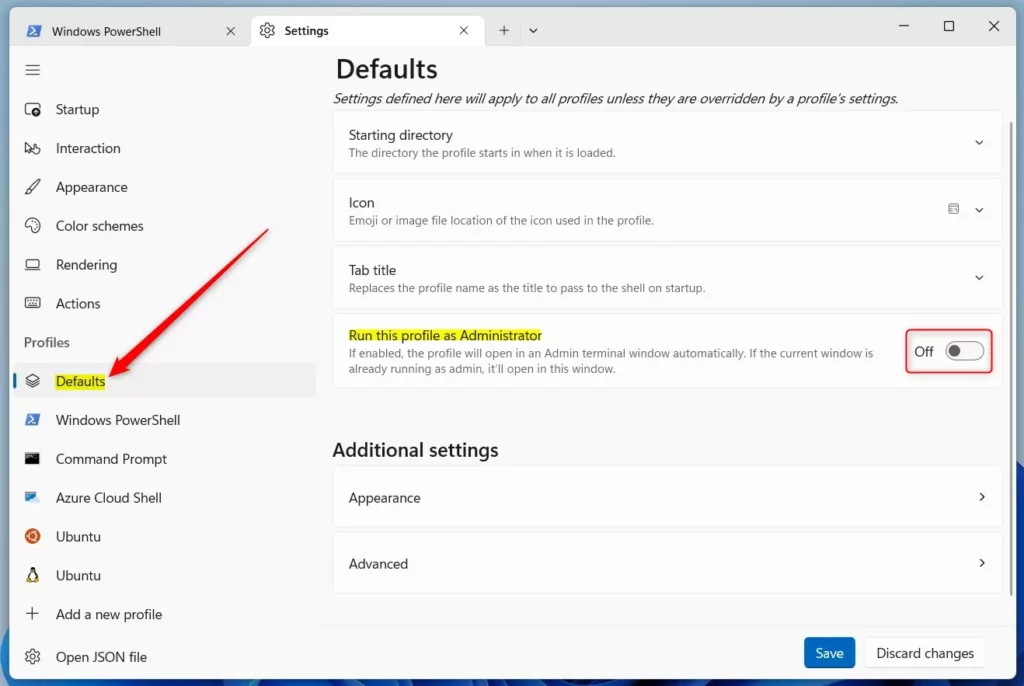
5. Click the Save button at the bottom to keep your changes.
Now, every time you open Windows Terminal, it will automatically run with administrator access.
Another Way: Use the JSON File to Make Terminal Run as Admin
If you like working with text files, you can also set this up by editing Windows Terminal’s settings file (called a JSON file).
Here’s how:
- Open Windows Terminal and click the down arrow on the top bar.
- Click Open JSON file at the bottom left of the Settings screen.
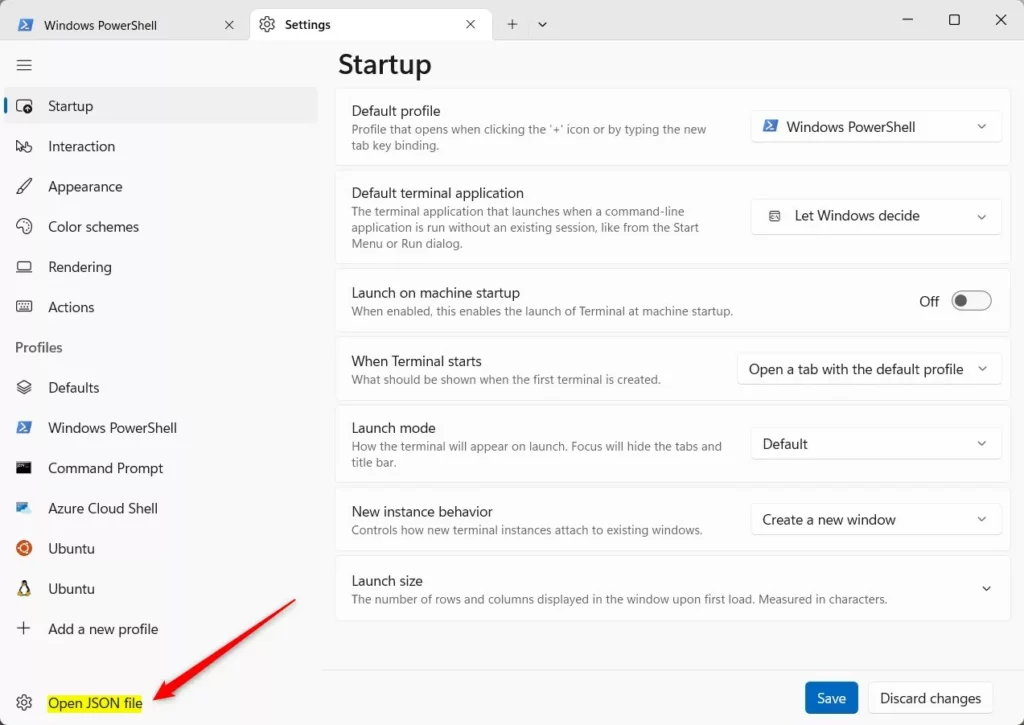
The JSON file will open in a text editor. Look for the section that starts with "defaults": { }.
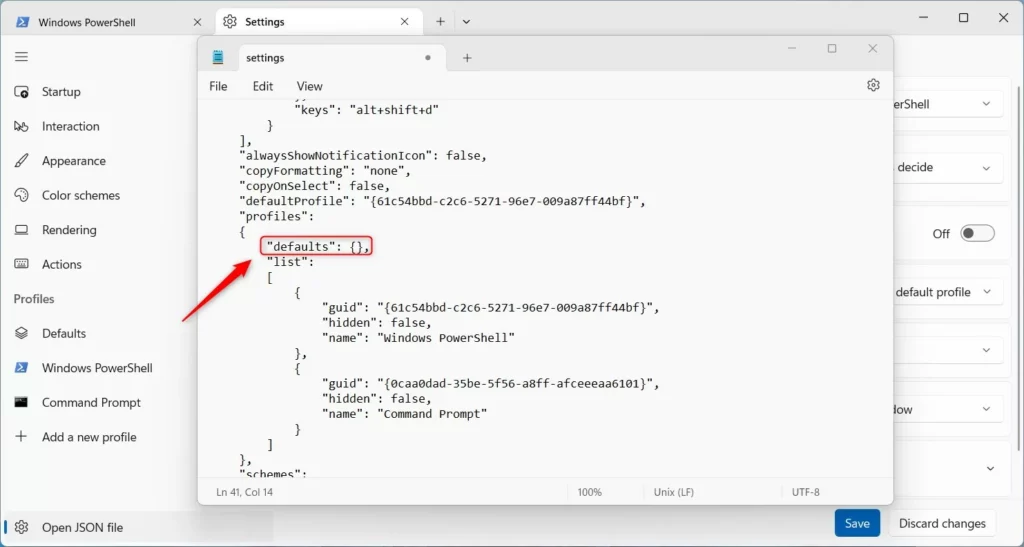
To make Terminal always run as admin, add this line inside the "defaults" block:
"elevate": true,If you want to turn it off later, change it to:
"elevate": false,Example:
"defaults": {
    "elevate": true
},
Save the file and close it. The next time you open Windows Terminal, it will start with admin rights if the line is set to true.
Summary
- Windows Terminal lets you run command-line apps like PowerShell and Command Prompt with cool features.
- You can set it to always open as administrator so you don’t have to right-click every time.
- Just use the Settings menu or edit the JSON file to turn this on or off.
- Running Terminal as admin helps you run commands that need extra permissions.
Want to learn more? Check out the official Windows Terminal guide: https://learn.microsoft.com/en-us/windows/terminal/



Leave a Reply Cancel reply