How to Disable Chrome PDF Viewer

You disable Chrome’s built-in PDF viewer when you want Chrome to use your default application, like Adobe Acrobat Reader, to open PDF files.
Chrome’s internal PDF viewer uses PDF.js to display PDFs directly in a browser tab. By turning it off, you ensure that PDFs either download or automatically launch in your preferred PDF reader, giving you access to advanced features.
This is especially helpful if the built-in viewer causes problems or if you need specific plugins, such as FileOpen for protected documents. After you disable it, Chrome stops rendering PDFs itself, letting your chosen program manage all PDF tasks.
Disable Chrome’s PDF viewer by going to Settings > Privacy and security > Site Settings > Additional content settings > PDF documents and selecting “Download PDFs.” This forces Chrome to use your default external PDF application.
Method 1Using Chrome Settings
You can disable the Chrome PDF viewer right from Chrome’s settings page.
- Open Google Chrome.
- Click the three dots in the top-right corner and select Settings. %📂%LNK0%%
- Click on Privacy and security on the left, then select Site Settings.
google chrome settings options - Scroll down and click on Additional content settings.
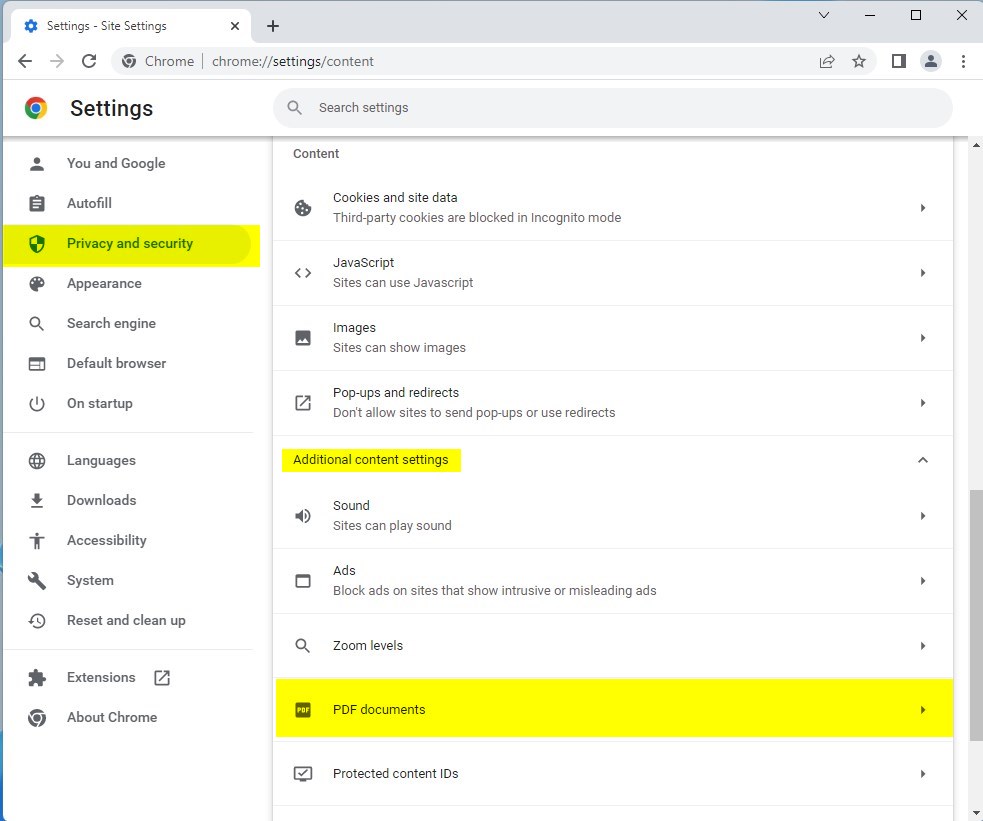
chrome download pdf - Select PDF documents.
- Choose Download PDFs to force Chrome to stop opening them.
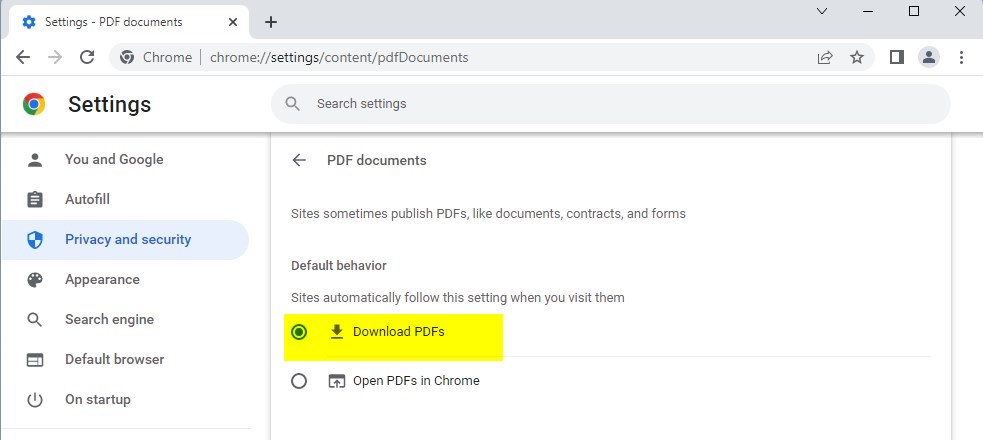
download pdf documents in chrome
Method 2Using the Windows Registry (Admin Required)
Note: This method requires administrator privileges. It is best for IT teams managing many computers.
- Press Windows Key + R, type
regedit, and press Enter.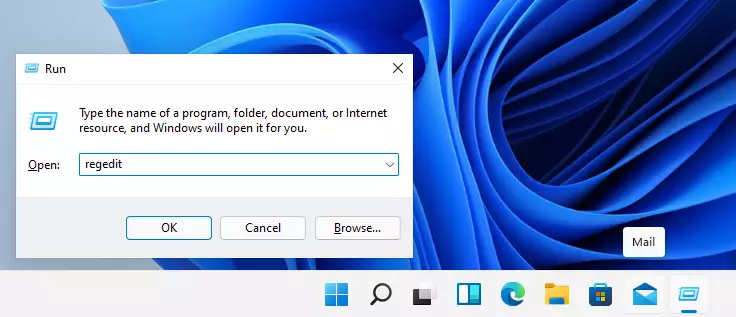
windows registry editor run box - Navigate to:
HKEY_LOCAL_MACHINE\\SOFTWARE\\Policies\\Google\\Chrome.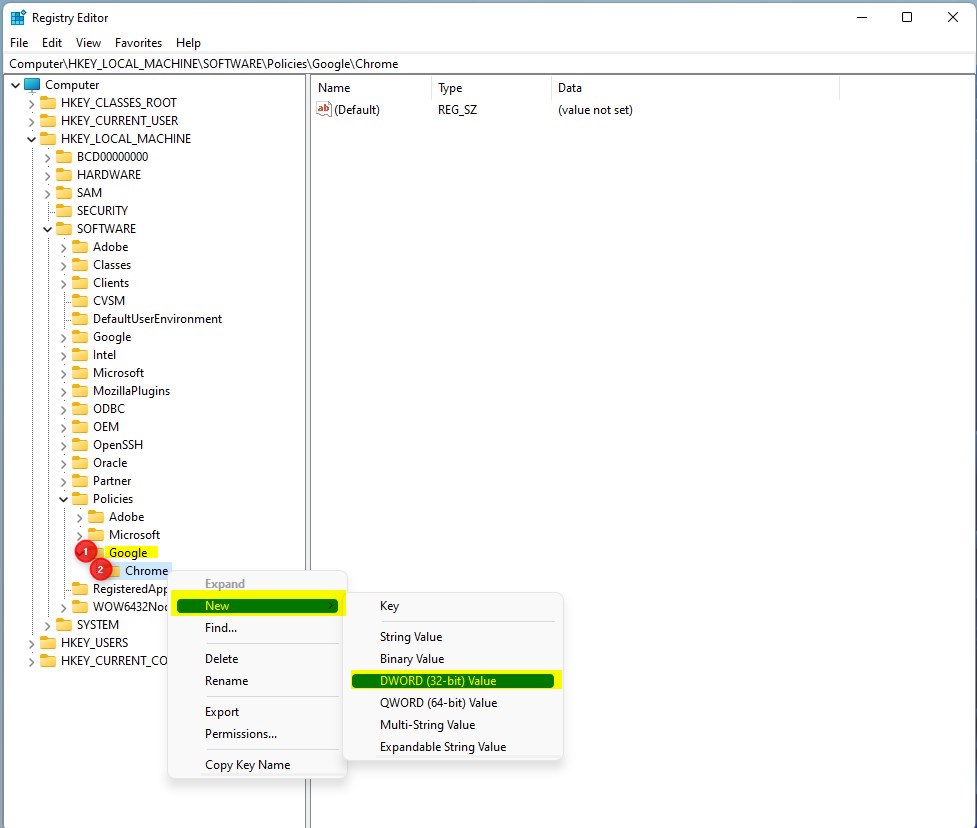
create google chrome key registry - Right-click Chrome, select New > DWORD (32-bit) Value.
- Name it
AlwaysOpenPdfExternally. - Set the value to
1.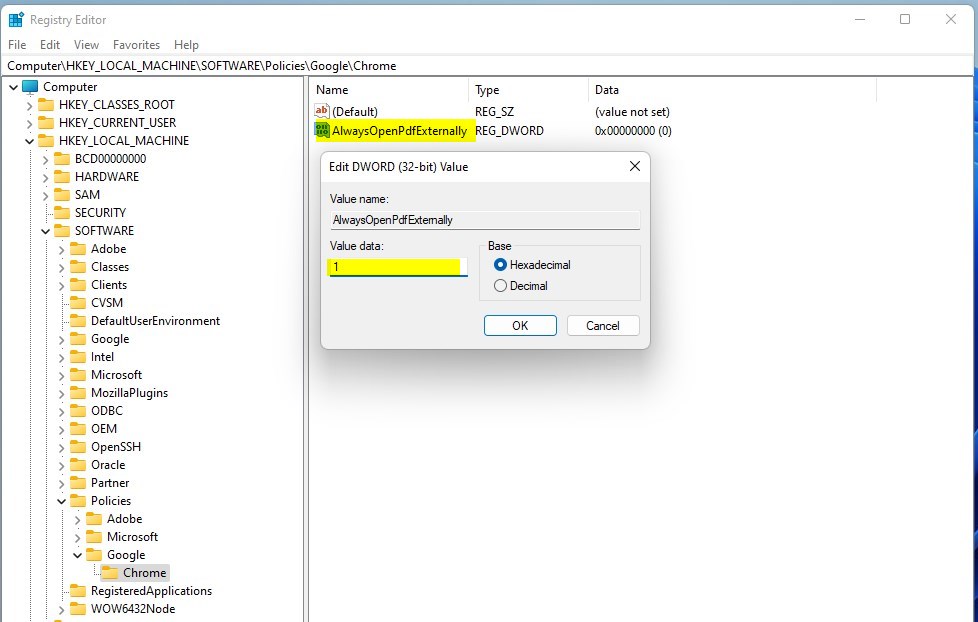
chrome external open pdf in window
Troubleshooting PDF Issues
If you experience a PDF download loop, clear your browser cache. If PDFs stop opening entirely, return to the settings menu and toggle the setting back to ‘Open PDFs in Chrome’. This resets the MIME types for your browser.
Summary
You can disable the Chrome PDF viewer through the standard settings menu or via the Windows Registry for enterprise control. This allows you to use external tools like Adobe Acrobat. Always ensure your external reader is updated to maintain security after disabling the built-in sandboxed viewer.
Does disabling the PDF viewer affect Chrome performance?
Disabling the built-in PDF viewer has a negligible impact on overall browser performance. However, it may slightly improve memory usage by preventing Chrome from loading its internal PDF rendering engine for every document, shifting that resource load to your external PDF application instead.
Can I disable the PDF viewer for specific websites only?
Chrome does not currently offer a native feature to disable the PDF viewer for specific websites only. The setting is a global browser configuration. To achieve site-specific behavior, you would need to use a third-party browser extension that manages MIME types or handles PDF redirection based on URL patterns.
Was this guide helpful?

About the Author
Richard
Tech Writer, IT Professional
Richard, a writer for Geek Rewind, is a tech enthusiast who loves breaking down complex IT topics into simple, easy-to-understand ideas. With years of hands-on experience in system administration and enterprise IT operations, he’s developed a knack for offering practical tips and solutions. Richard aims to make technology more accessible and actionable. He's deeply committed to the Geek Rewind community, always ready to answer questions and engage in discussions.




No comments yet — be the first to share your thoughts!