

This article explains how to mute or unmute people in the Thread app on mobile devices.
The Threads app is a messaging app developed by Facebook for users who want to keep in touch with their closest friends and share their status. It allows users to share photos, videos, messages, stories, and more.
When you use Threads, you can switch between private and public accounts, mute or unmute people, and more.
Muting or unmuting people in Threads can be helpful for various reasons. For example, you may want to mute someone if they are posting too frequently and find it distracting or if you need to take a break from their updates for a while. On the other hand, you may want to unmute someone to start seeing their updates again after muting them.
Mute or Unmute people in Threads
As mentioned above, users can mute or unmute people in the Threads app if they find such people districting.
Here’s how to do it.
When the Threads app opens, select the person you wish to mute. Then click on the profile option button (three horizontal dots).
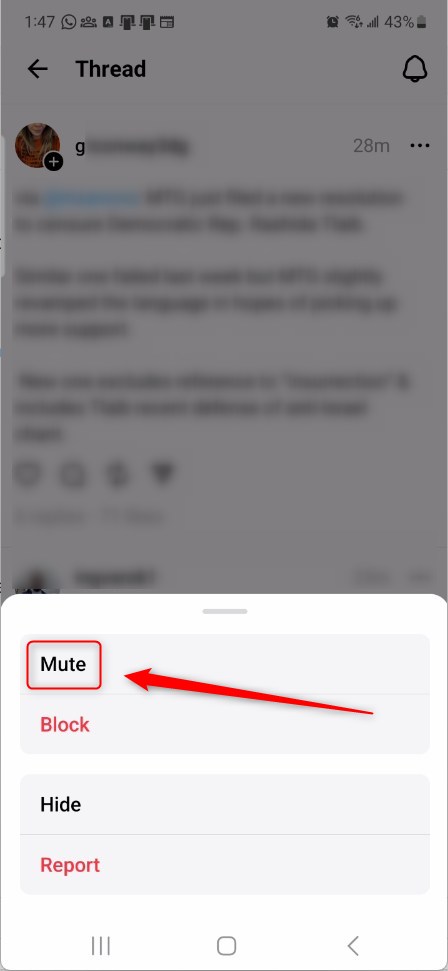
Then click the more option pop-up window, and click the Mute button to mute the person.

Unmute people in Threads
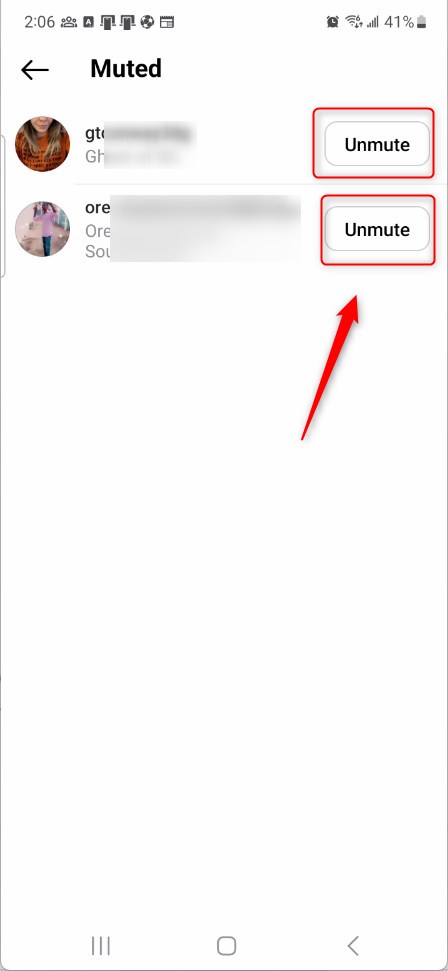
If you want to unmute a person in Threads, select the person’s profile, then click the profile options button.
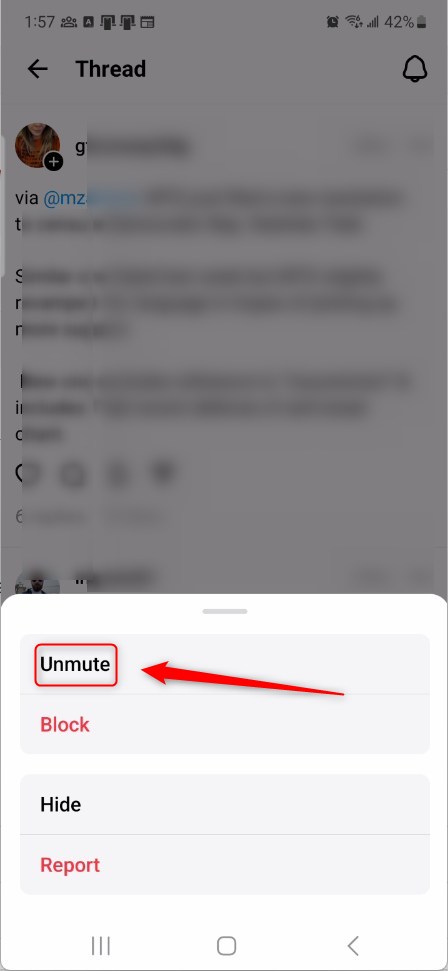
Next, click the Unmute button on the pop-up window.
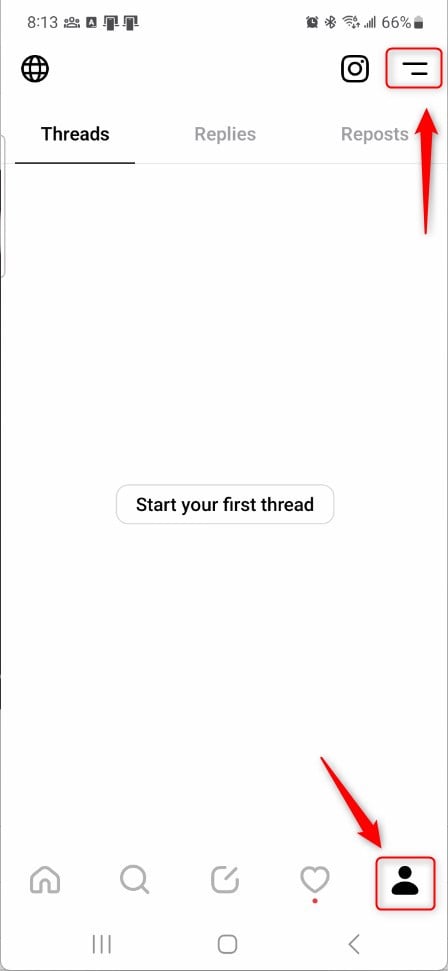
To list all the people muted, click your person image at the bottom right, then select the Settings Menu at the top.
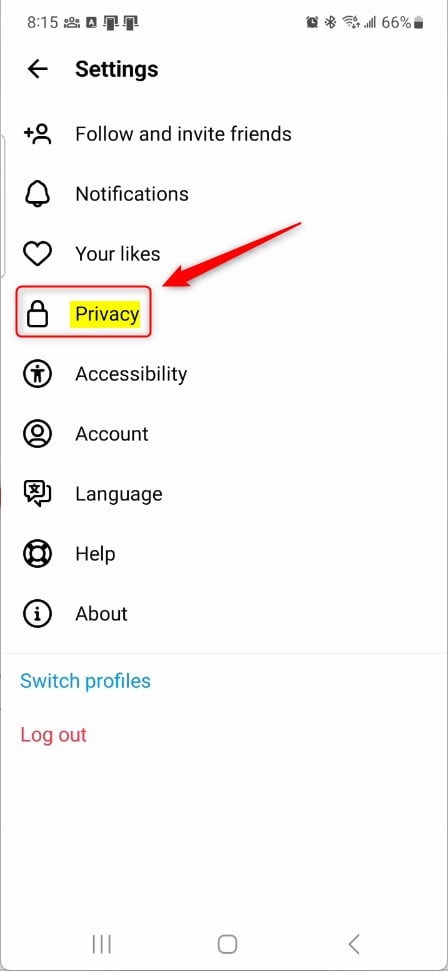
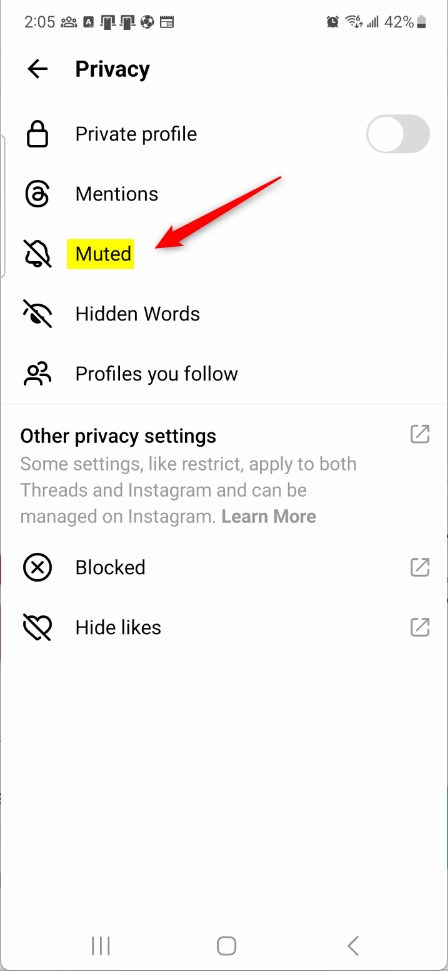
Next, select the Privacy tile on the Settings page to expand it.
On the Privacy settings page, select the Muted tile to expand it.
On the Muted settings page, select the account you want to unmute, then click the Unmute button.
That should do it!
Conclusion:
- Muting or unmuting people in the Threads app can help manage distracting updates and take a break from specific users if needed.
- You can quickly mute or unmute someone by accessing their profile and selecting the appropriate option.
- To manage all muted accounts, access the privacy settings and select the Mud tile to make adjustments as necessary.
- This post has provided step-by-step instructions for muting or unmuting people in Threads, allowing for a more tailored and focused experience within the app.
Leave a Reply