

This guide shows you simple ways to turn your microphone off (mute) or back on (unmute) in Windows 11. You can do this anytime without changing your microphone’s volume or turning the device off completely.
Why would you want to do this? A microphone is the device that picks up your voice or sounds and sends them into your computer. Sometimes you need to mute it for privacy or to stop background noise from being heard.
Some programs like the Snipping Tool have their own mute buttons inside the app. But here, we’ll focus on how to control your microphone from Windows itself.
Option 1: Use the Microphone Key on Your Keyboard
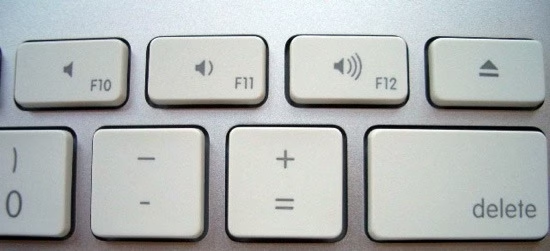
Many keyboards have a special key to mute or unmute the microphone. This key often looks like a microphone icon. Press it once to mute. Press it again to unmute.
Note: Not all keyboards have this key, and sometimes it works only when certain apps are open.
Option 2: Use a Keyboard Shortcut
If your keyboard does not have a microphone key, try this shortcut:
Press Windows + Alt + K keys at the same time to toggle mute or unmute.
Option 3: Use the Game Bar
The Xbox Game Bar is a tool built into Windows 11. It lets you control your microphone easily, especially while gaming.
- Press
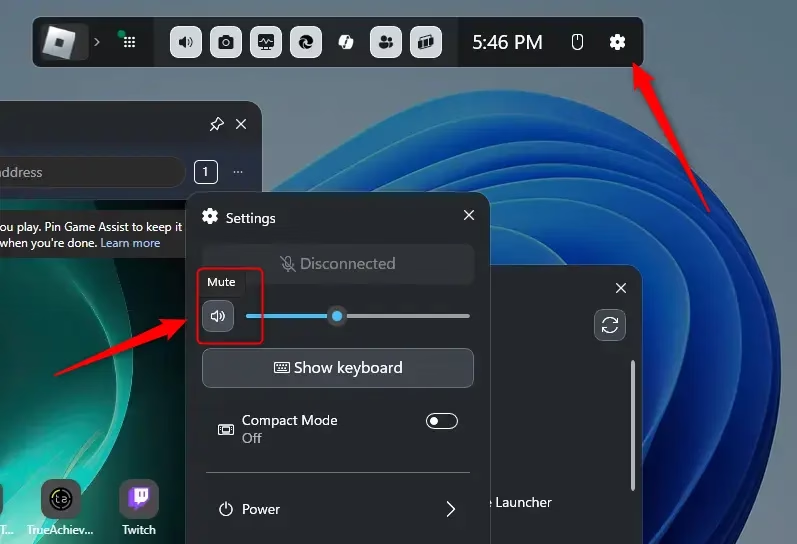
Windows + Gto open the Game Bar. - Click the Settings (gear) icon on the top bar.
- Look for the Mic off or Mic on toggle and click it to mute or unmute your microphone.
Option 4: Mute or Unmute Microphone in Windows Settings
- Open Settings by pressing
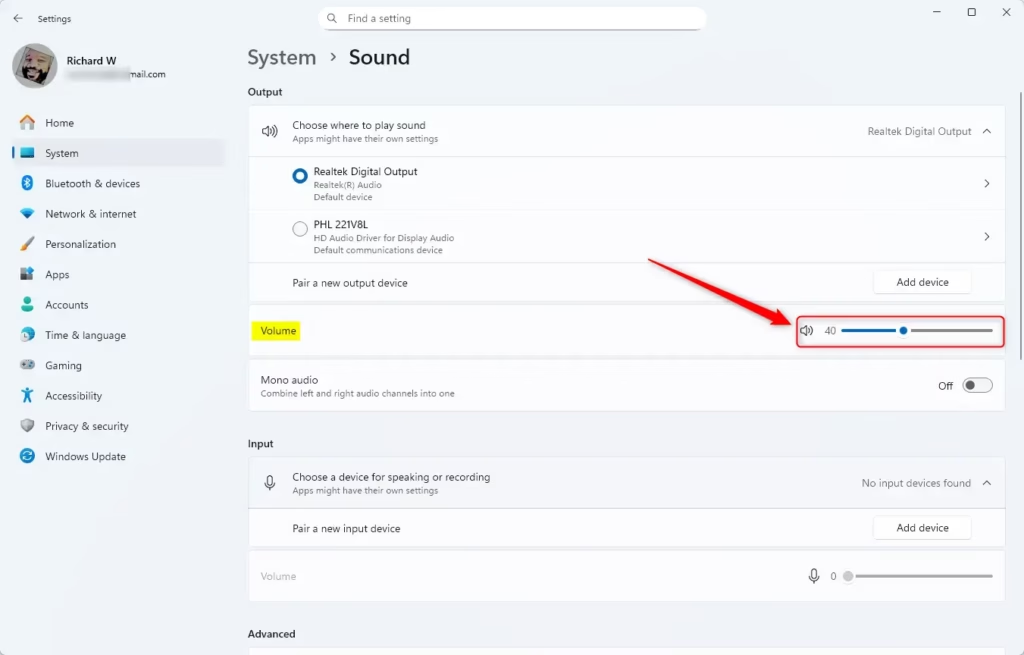
Windows + I. - Click System on the left, then choose Sound on the right.
- Scroll down to the Input section.
- Click the Mute microphone or Unmute microphone button to toggle your mic.
Or you can open Sound settings directly by clicking this link: Open Sound Settings

Windows Sound tile in Windows Settings app
Option 5: Use Advanced Sound Settings
- Open Settings (press
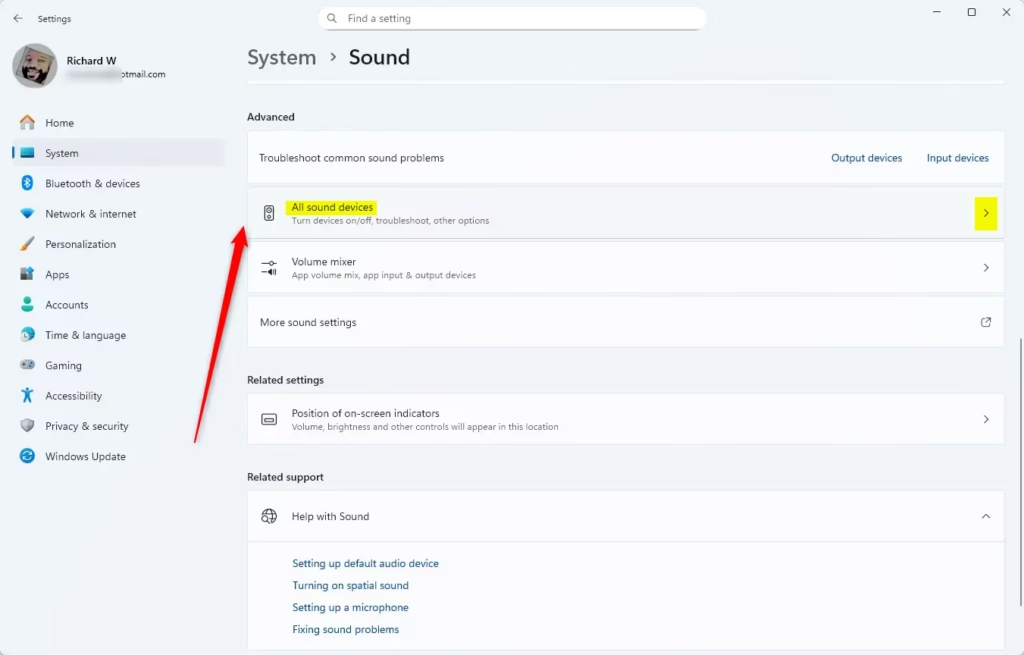
Windows + I). - Click System, then Sound.
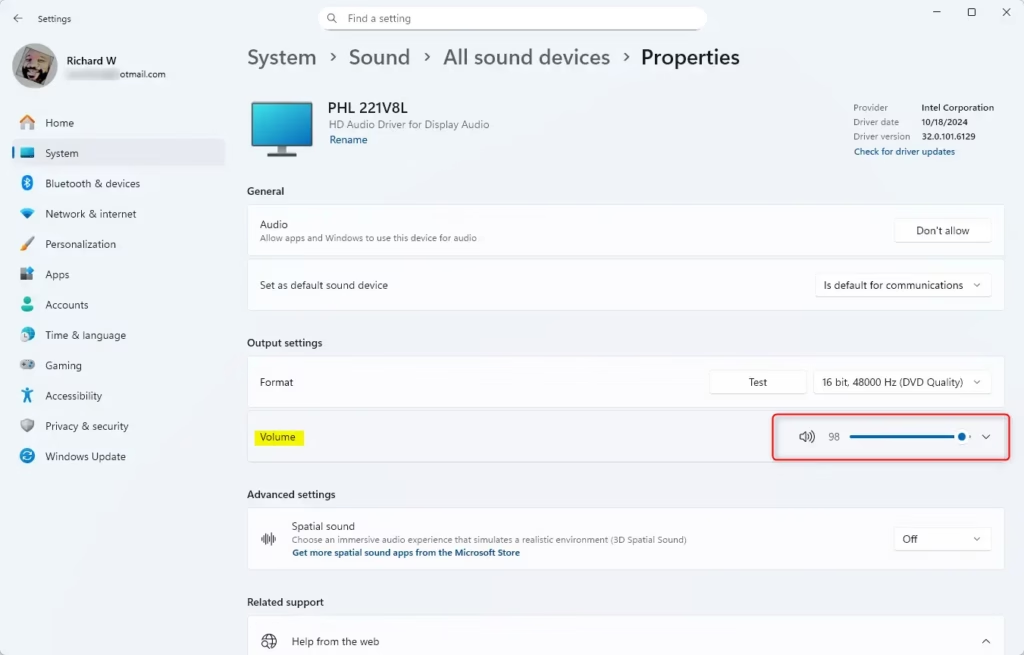
- Under Advanced, click All sound devices.
- Find and select your microphone under Input devices.
- Click the Mute microphone or Unmute microphone button.
Option 6: Use the Control Panel
- Open the Control Panel (search for it in the Start menu) and set the view to Icons.
- Click Sound.
- Go to the Recording tab.
- Double-click your microphone from the list.
- Go to the Levels tab.
- Click the speaker icon next to the volume slider to mute or unmute.
- Click OK to save changes.
Summary
To mute or unmute your microphone in Windows 11, you have six easy options:
- Press the microphone key on your keyboard (if available).
- Use the keyboard shortcut:
Windows + Alt + K. - Open the Game Bar with
Windows + Gand toggle the mic. - Go to Settings > System > Sound to control your mic.
- Use Advanced options in Settings for more control.
- Open Control Panel and adjust mic settings the classic way.
Choose the method that works best for you to quickly control your microphone whenever you need it!



Leave a Reply