
This tutorial will show you how to move an app from the Microsoft Store to a different drive in Windows 11.
Why Move Apps to Another Drive?
In Windows 11, you can move apps from the Microsoft Store to another drive. This is useful if your Windows drive is running out of space. Or you might just prefer to keep apps on a different drive.
By default, Microsoft Store apps install on your C drive in these folders:
%ProgramFiles%\WindowsApps(for the app files)%LocalAppData%\Packages(for your app data)
You can move apps to any internal or external NTFS drive. This includes SD cards and USB drives.
What Happens When You Move an App?
Windows 11 creates new folders on the new drive to store your app. These folders are called WindowsApps and WpSystem. They appear in the root of the drive you select.
Important: If you disconnect the drive where you moved your app, that app will stop working. It will work again once you connect the drive back.
Not all apps support being moved to another drive.
How to Move Your App
- Open Settings by pressing Win+I.
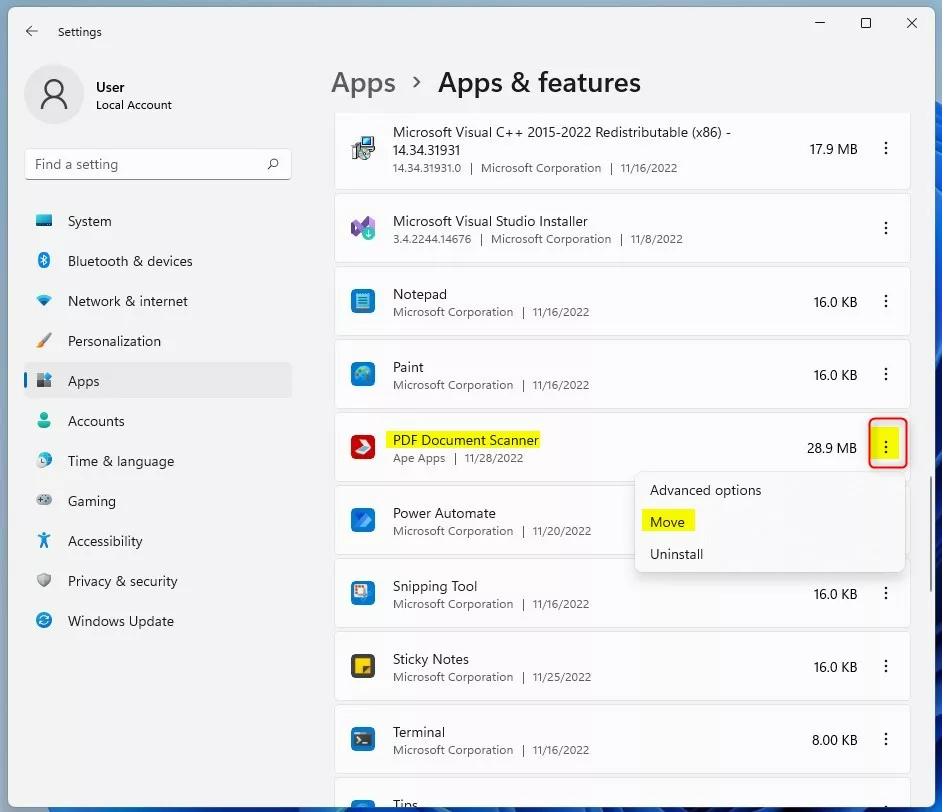
- Click on Apps on the left side. Then click on Installed apps on the right side. Open Installed apps settings Open System components settings
- Find the app you want to move. Click the 3 dots button next to it. Then click Move.
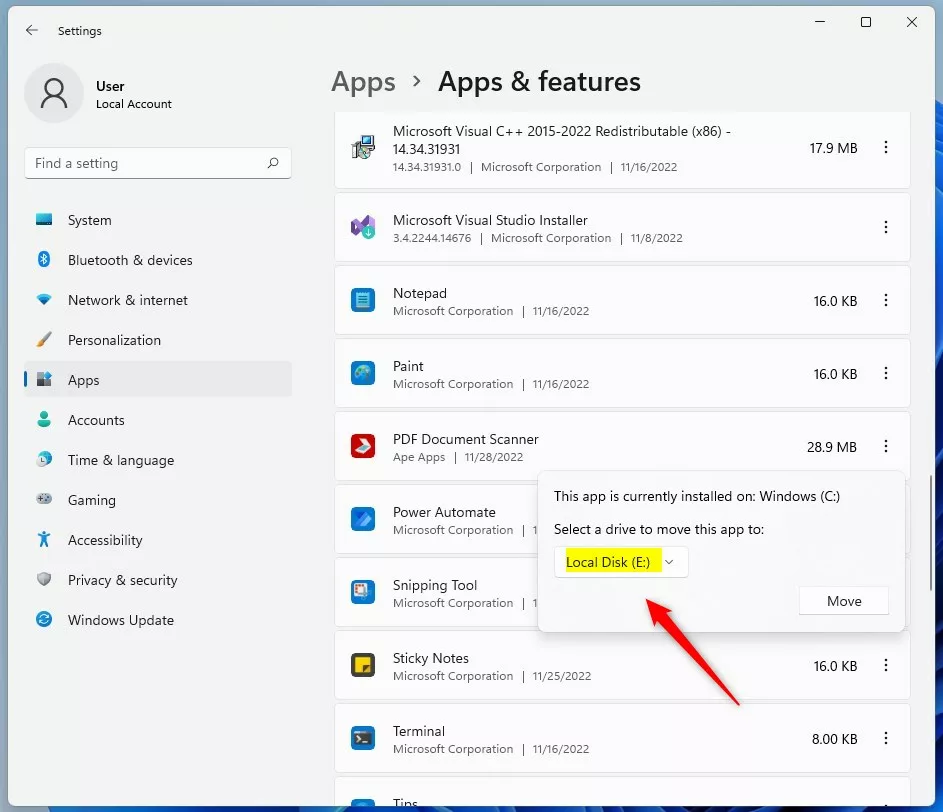
- A dropdown menu will appear. Select the drive you want to move the app to. Then click Move.
- Windows may ask: “Delete other apps?” You have two choices:
- Click Yes to delete apps already on that drive and move your app.
- Click No to cancel the move.
- Windows will now move your app to the new drive. Wait for it to finish.
- When done, you can close Settings.
Summary
Moving Microsoft Store apps to another drive in Windows 11 is simple. It saves space on your C drive and is done through the Settings app. Just open Settings, go to Apps > Installed apps, find your app, and click Move. Select your new drive and confirm. Remember that your app will only work when that drive is connected.

Leave a Reply