How to Move a Hard Drive in Windows 11

You can move a secondary hard drive containing data between Windows 11 PCs by physically disconnecting it from the source machine and connecting it to the destination.
This lets you move your files and programs stored on that drive without reinstalling Windows on the new computer. Crucially, this method applies only to non-OS drives; you cannot move the primary drive housing your Windows 11 installation (typically C: drive) this way.
When connecting the drive to a new PC, ensure you properly shut down both machines beforehand to prevent data corruption or hardware damage. You’ll likely need basic tools like a screwdriver to open your PC cases.
Physically disconnect the secondary hard drive from the old PC after taking it offline in Disk Management and uninstalling it in Device Manager. Then, connect it to the new PC and use Disk Management to rescan disks and import if necessary.
Before You Start
If your disk is external (like a USB drive), you can safely unplug it.
If your disk is inside the computer (internal), turn off your PC before removing the disk.
Make sure your disk is healthy and has no errors before moving it.
Step 1Check Your Disk’s Health and Prepare to Remove It
- Open the Windows Settings app:
- Click the Start menu button and select Settings, or
- Press Windows key + I on your keyboard.
Before you move a hard drive in Windows 11, it’s smart to check if it’s working okay and then prepare it for removal.
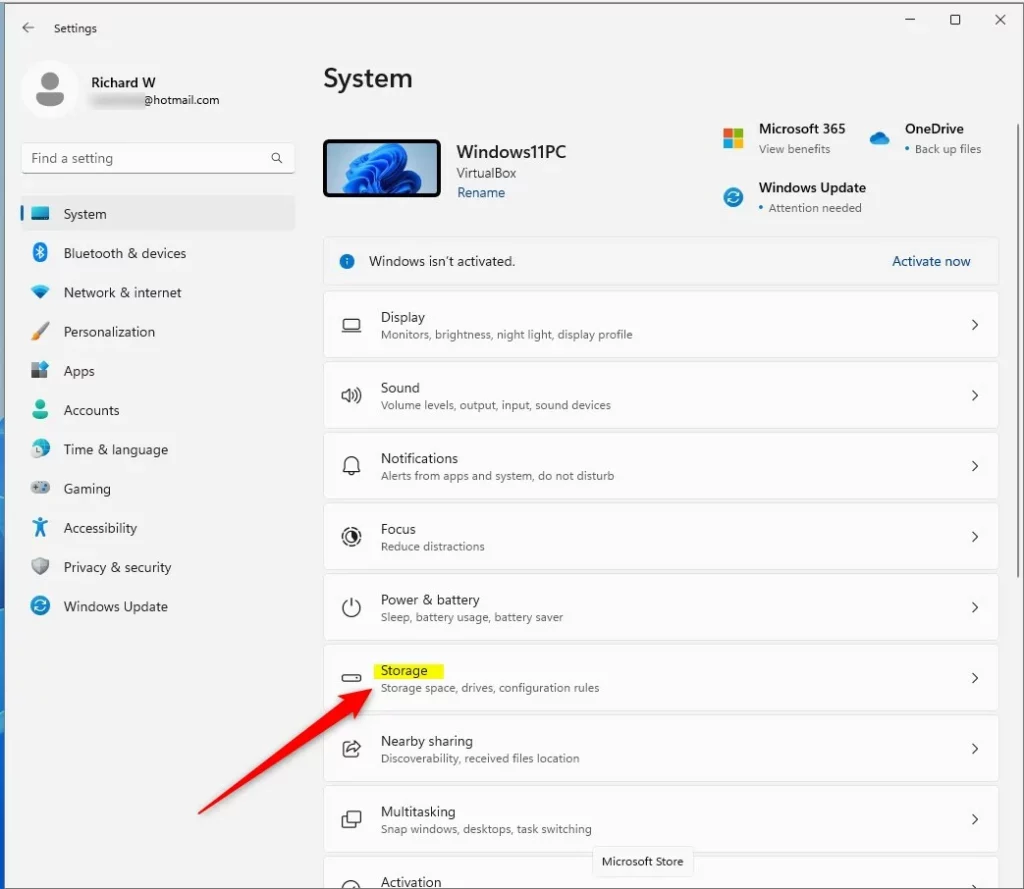
- In Settings, click System on the left, then choose Storage on the right.
Before you move a hard drive in Windows 11, it’s smart to check if it’s working okay and then prepare it for removal.
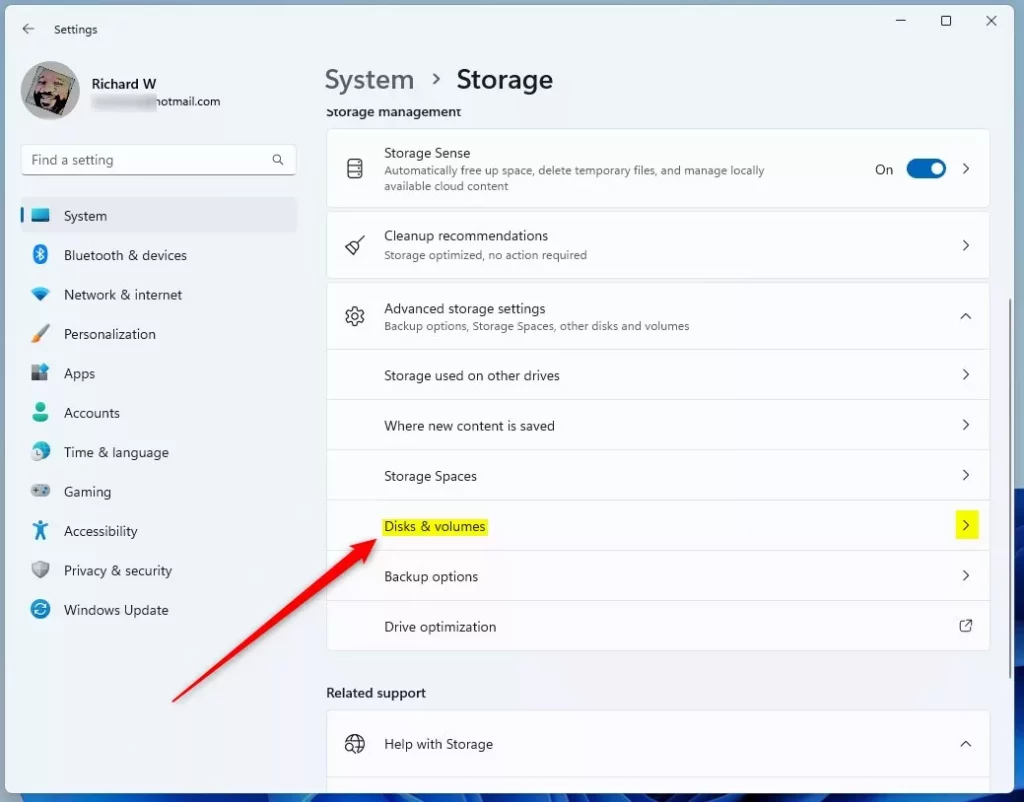
- Scroll down and click Advanced storage settings, then select Disks & volumes.
Before you move a hard drive in Windows 11, it’s smart to check if it’s working okay and then prepare it for removal.
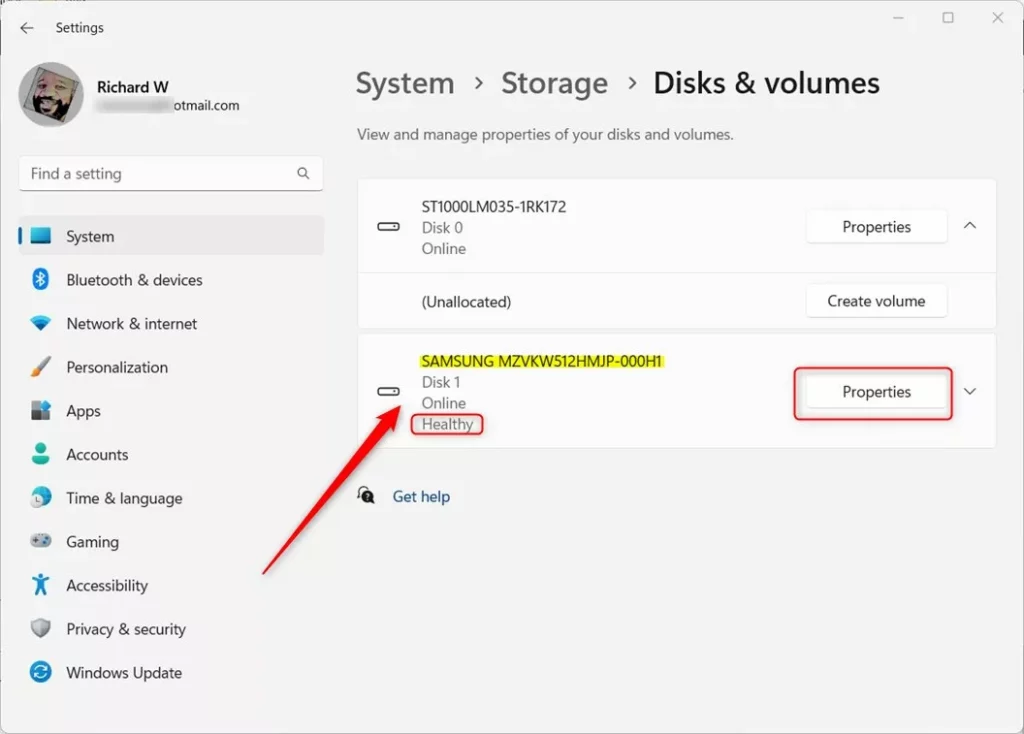
- Find the disk you want to move. Click its Properties button to check the status.
Before you move a hard drive in Windows 11, it’s smart to check if it’s working okay and then prepare it for removal.
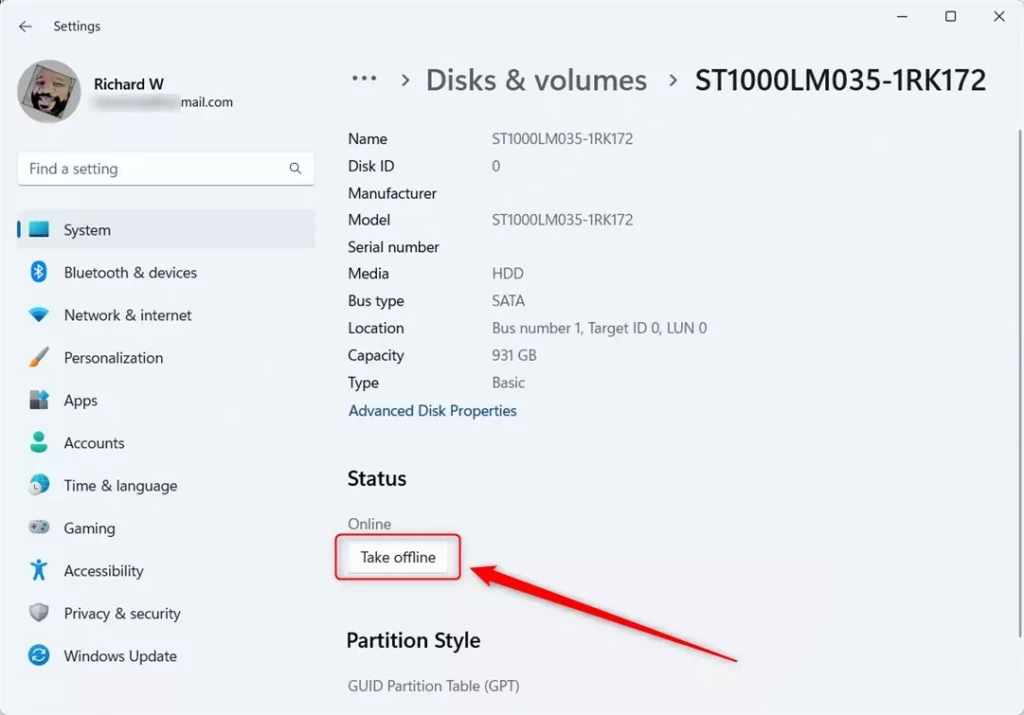
- If the disk looks healthy, click Take offline. This stops the disk from being used so it’s safe to remove.
Before you move a hard drive in Windows 11, it’s smart to check if it’s working okay and then prepare it for removal.
Step 2Remove the Disk from Windows (Uninstall it)
- Open Device Manager by clicking the Start button, typing Device Manager, and selecting it.
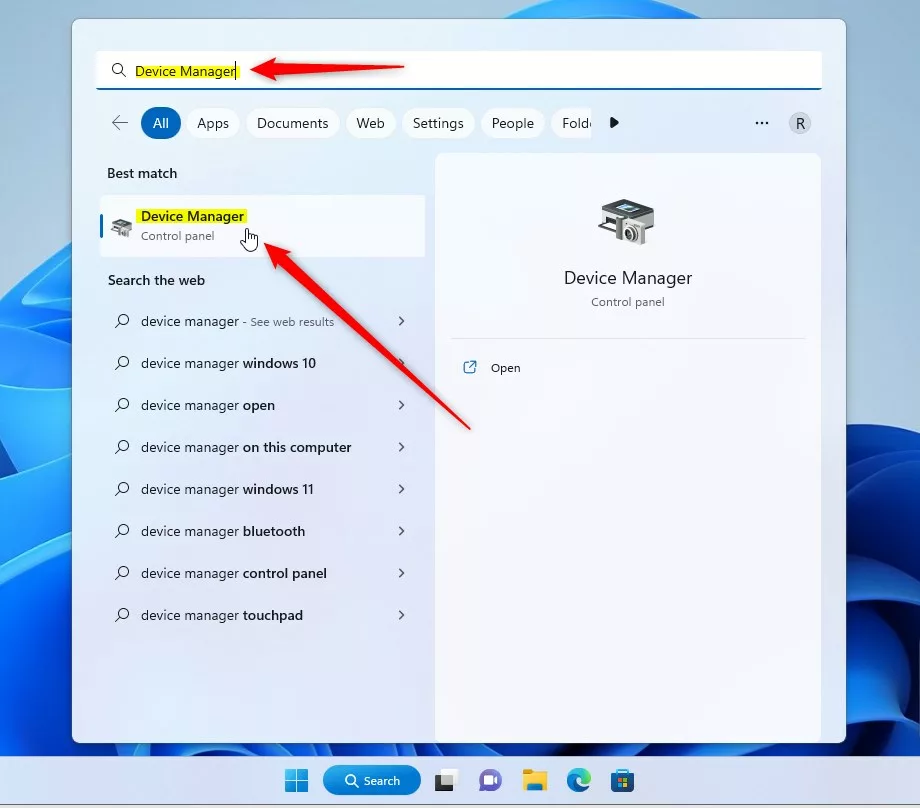
Next, you need to safely remove the hard drive from Windows 11 using Device Manager before physically unplugging it.
- In Device Manager, double-click Disk drives to see your disks.
- Right-click the disk you want to move, and select Uninstall device.
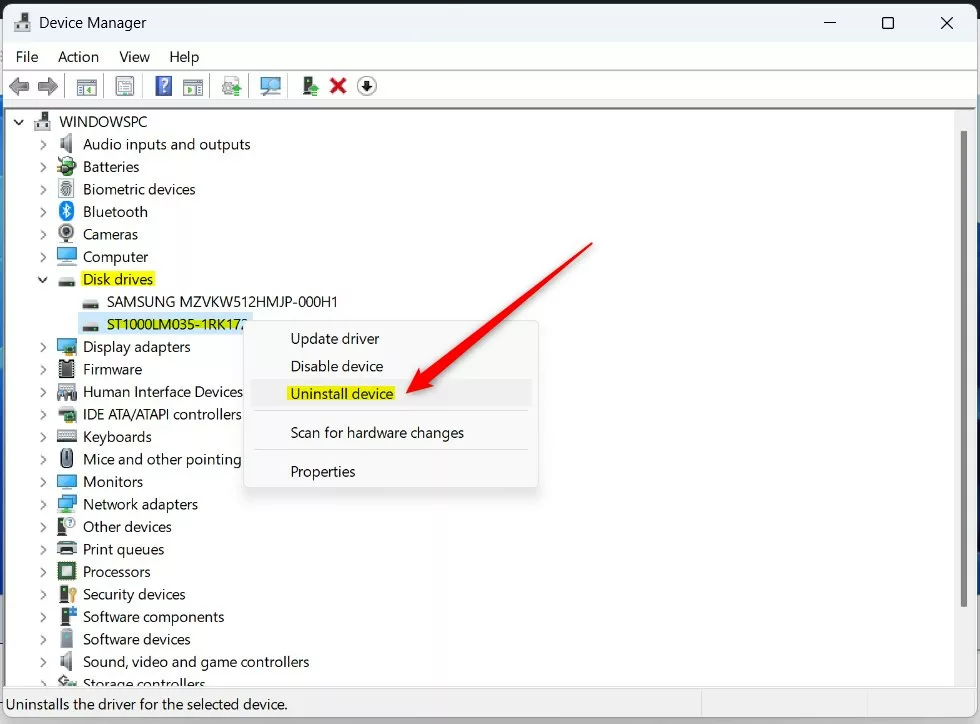
Next, you need to safely remove the hard drive from Windows 11 using Device Manager before physically unplugging it.
- When asked to confirm, click OK.
⚠️ You’ll need admin privileges for this step.
Important: If your disk is a “dynamic disk” – a more complex type of disk setup – open Disk Management, right-click it, and choose Remove Disk before uninstalling.
Step 3Physically Move the Disk to the New Computer
If the disk is external, just plug it into the new computer.
If it’s an internal disk, turn off the new computer, open its case, and carefully connect the disk inside.
Once connected, turn on the new computer.
Step 4Make Windows Recognize the Disk on the New Computer
- Open Disk Management on the new computer by right-clicking the Start menu and selecting it.
- Click Action at the top menu, then click Rescan Disks. This makes Windows look for new drives.
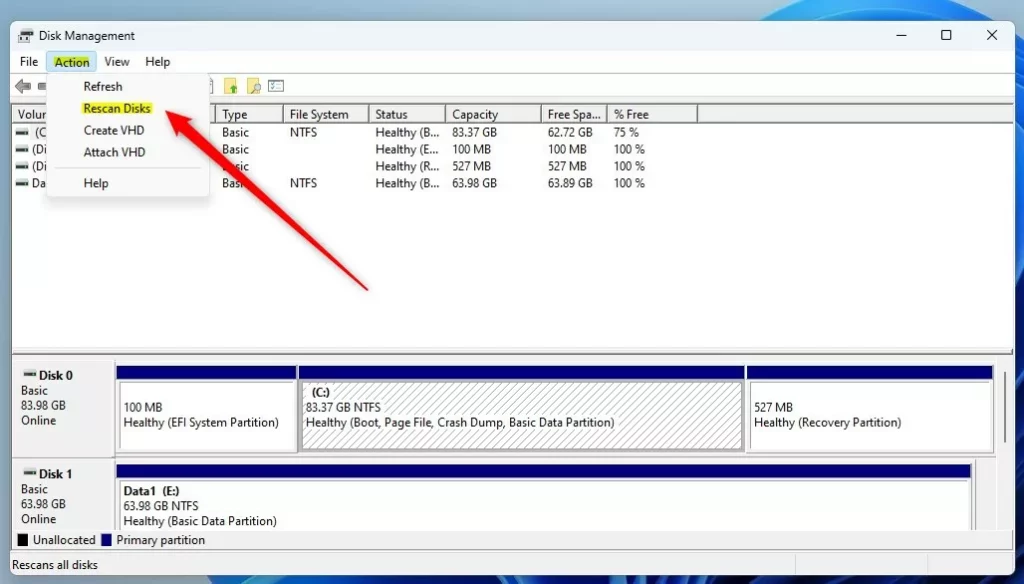
Once the hard drive is in the new computer, you’ll need to make Windows 11 recognize it so you can start using it again.
- If you see any disk marked as Foreign, right-click it and choose Import Foreign Disks. Follow any instructions you see.
That’s it! Your disk should now work on the new computer.
Where to Learn More
For more information, check out the official Microsoft guide: Move disks to another computer (Microsoft.com)
Summary
Moving a hard drive in Windows 11 between computers is straightforward if you follow these steps carefully to ensure everything works correctly.- Moving a second hard drive between Windows 11 computers is easy when done carefully.
- Always make sure the disk is healthy and safely removed before unplugging.
- Use Device Manager and Disk Management to prepare the disk.
- Follow the steps to install it on the new computer.
- Ask questions or share your experience below if you want help!
Can I transfer my 🪟 Windows 11 to a new hard drive?
The best way to move Windows 11 to another SSD is by cloning the system drive. A disk cloning tool can copy everything, including OS, apps, and settings so the new SSD is bootable right away. Using FTK Imager Lite to move Windows 11 to another drive is possible.
Was this guide helpful?

About the Author
Richard
Tech Writer, IT Professional
Richard, a writer for Geek Rewind, is a tech enthusiast who loves breaking down complex IT topics into simple, easy-to-understand ideas. With years of hands-on experience in system administration and enterprise IT operations, he’s developed a knack for offering practical tips and solutions. Richard aims to make technology more accessible and actionable. He's deeply committed to the Geek Rewind community, always ready to answer questions and engage in discussions.


No comments yet — be the first to share your thoughts!