How to Link your Google Account and Microsoft account

You can add your Gmail address as a sign-in alias to your Microsoft account, allowing you to use your Google credentials for easier Microsoft service access.
Linking your Google and Microsoft accounts essentially means associating your Gmail email with your existing Microsoft account. This doesn’t let you log into Windows with your Google password directly, but it offers an alternative way to verify your identity.
For example, when you sign into services like Outlook.com or OneDrive, you can choose to sign in using your Gmail address and its password, alongside your usual Microsoft account credentials.
This feature helps streamline your login process, especially if you primarily use Google services. You can manage this integration through your Microsoft account security settings.
Why Link Your Gmail to Your Microsoft Account?
Before we dive into the steps, let’s talk about why you might want to link your Gmail to your Microsoft account. Adding your Gmail address offers a couple of useful benefits:
- Another Way to Sign In: If you forget your main Microsoft account password, having your Gmail address linked means you have another way to prove who you are. This can be very helpful if you need to get back into your account.
- Things Feel More Connected: This doesn’t merge your emails or services together. But, it does create a connection. You can use your familiar Gmail address to access things linked to your Microsoft account. This can feel more organized for some people.
- Helps Recover Your Account: It gives you an extra way to recover your account. If someone gets into your Microsoft account, having a linked Gmail address can help you prove it’s yours and secure it better.
It’s important to remember that this process doesn’t make your Google and Microsoft services work together. Your emails will stay in their respective inboxes, and your cloud storage will remain separate. You’re simply creating an alternative way to log in using your Gmail address.
What You Need to Get Started
To add your Gmail address to your Microsoft account, you’ll need a few things:
- Your Microsoft Account Details: This is the email address and password you usually use for services like Outlook.com, Xbox Live, or Windows.
- Your Gmail Account Details: You will need to be able to log into your Gmail account, including its password, to prove you own it.
- A Web Browser: Any current web browser like Edge, Chrome, or Firefox will work.
- An Internet Connection: You will need to be online to make these changes.
Make sure you can access both accounts before you begin. Trying to link them without being able to log into one will likely cause issues.
How to Link Your Gmail Address Step-by-Step
Here’s how to add your Gmail address as a sign-in option for your Microsoft account. We’ll go through this carefully.
Step 1: Go to Microsoft Account Management
First, head over to the Microsoft account management page. Open your web browser and go to:
https://account.microsoft.com/
Once it loads, sign in using the email and password for the Microsoft account you want to link your Gmail to.
Tip: If you’re unsure which Microsoft account to use, think about the one tied to your Windows login, Xbox profile, or Microsoft 365 subscription. It’s best to link your Gmail to the account you use most frequently.
Step 2: Find the “Sign-in preferences” Section
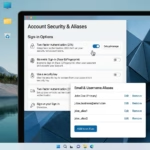
After signing in, you’ll see your Microsoft account dashboard. Look for a menu, usually on the left side or across the top. You need to find the section that deals with how you sign in. This is often labeled “Sign-in preferences” or sometimes “Security” followed by “Sign-in preferences.”
Click on that option. This will take you to a page where you can manage all the ways you sign in to your Microsoft account. You can add alternative sign-in methods here.
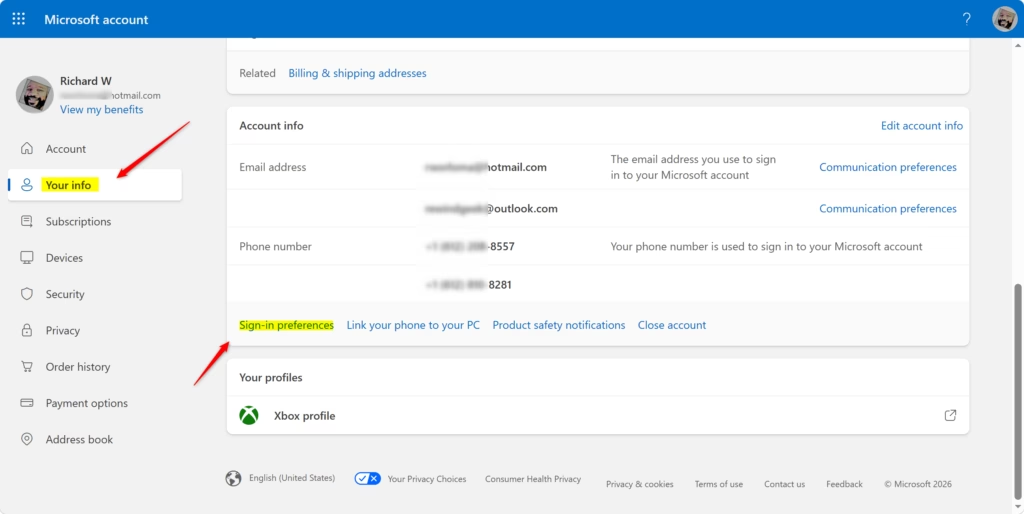
Warning: Be cautious on this page! You can also remove sign-in options here. Ensure you’re adding a new one and not accidentally deleting your primary sign-in method.
Step 3: Add Your Gmail Address as an Alias
On the “Sign-in preferences” page, you should find an option to “Add email” or “Add an alias.” An alias is like having another email address or phone number tied to your main Microsoft account. Click on this option.
You’ll likely see a choice: create a new Outlook.com email address or use an existing email address. Select the option to “Use an existing email address.”
In the box provided, type your full Gmail address (for example, your_email@gmail.com). Then, click “Add alias.”
Practical Tip: An alias can be a different email address or even a phone number. For this guide, we’re focusing on adding your Gmail address, but keep in mind you have other options for later.
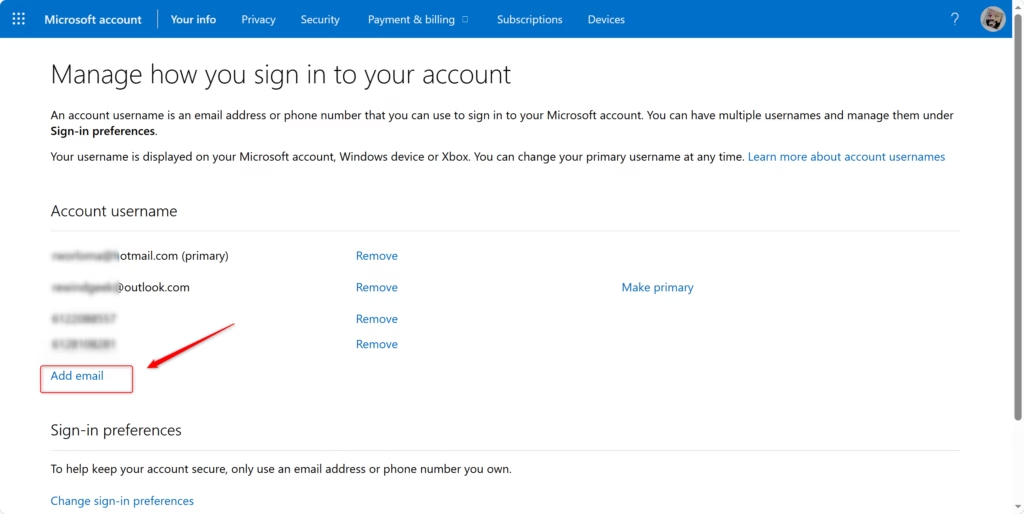
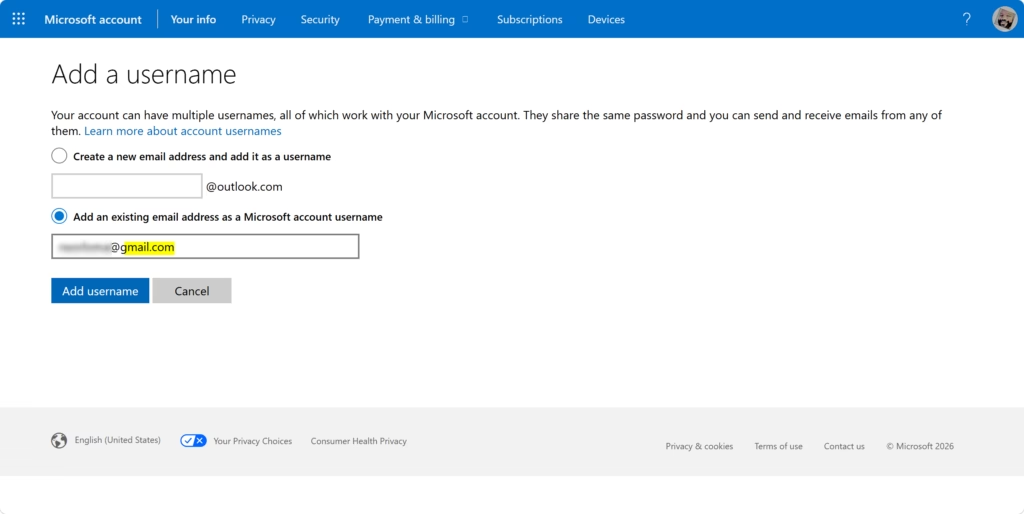
Step 4: Verify Your Gmail Account
Microsoft needs to confirm that you own the Gmail address you’re adding. After you click “Add alias,” Microsoft will send a verification email to your Gmail account. You’ll see a message on the Microsoft account page indicating that a verification email has been sent.
Now, you need to access your Gmail account. Open a new tab or window in your browser and go to:
https://mail.google.com/
Sign in to your Gmail account if you haven’t already. Look for an email from Microsoft. The subject line will probably be something like “Verify your email address” or “Confirm your alias.”
Open this email. Inside, you’ll find a link or a button labeled “Verify.” Click on this link or button.
Important Warning: Never click on links if the email doesn’t seem to be genuinely from Microsoft. Be vigilant against scams.
Step 5: Finish Verification and Make it Primary (Optional)
Clicking the “Verify” link will typically open a new browser tab or window. It will confirm that your Gmail address has been successfully added and verified as an alias for your Microsoft account. You might be prompted to sign in to your Microsoft account again for security purposes.
Now, when you return to your Microsoft account’s “Sign-in preferences,” you should see your Gmail address listed as an alias. You can then decide if you want this Gmail address to be your primary alias.
What’s a Primary Alias? It’s the main email address Microsoft uses for messages and often when you send emails from Outlook.com. You can have multiple aliases, but only one can be primary.
To make your Gmail your primary alias (if you wish), find your Gmail address in the list of aliases on the “Sign-in preferences” page. There should be an option next to it, such as “Make primary.” Click this. You may need to confirm this action.
Tip: Designating your Gmail as your primary alias is beneficial if you prefer using your Gmail address for most activities and sign-ins. However, you can still log in with your original Microsoft account email address even after changing the primary alias.
Using Your Linked Gmail Address
With everything completed, you can now use your Gmail address to sign in to Microsoft services. When you encounter the sign-in screen for Outlook.com, Xbox, or even Windows, you can enter your Gmail address instead of your original Microsoft account email. You’ll then be prompted for your Microsoft account password.
Remember, this doesn’t alter your password for Gmail or your Microsoft account. It simply provides an alternative login method.
Reference:
Summary
Adding your Gmail address as a sign-in option for your Microsoft account is a valuable step. It can enhance your account’s security and aid in recovery if needed. By following these steps, you’ve established another pathway to access your Microsoft services using an email address you’re already familiar with.
Keep in mind, this process links your accounts for sign-in purposes, offering a helpful backup without merging your services. Take a moment to review your “Sign-in preferences” to ensure everything appears correct. You’re now better equipped to manage your online identity across various platforms. Happy computing!
Can I link my Gmail account to Microsoft?
Yes, you can link your Gmail account to your Microsoft account. This allows you to use your Gmail address and password as an alternative sign-in method for your Microsoft services, such as Outlook.com and OneDrive, without changing your primary Microsoft account details.
How to sync Microsoft email with Gmail?
To sync Microsoft email with Gmail, you can add your Gmail address as a sign-in alias to your Microsoft account. This doesn't directly sync emails but allows you to use your Gmail credentials to sign into Microsoft services, offering a streamlined login experience.
Is Gmail POP3 or IMAP for Outlook?
Gmail supports both POP3 and IMAP protocols. For Outlook, IMAP is generally recommended as it synchronizes emails across all your devices, ensuring consistency. POP3 downloads emails to a single device and can remove them from the server.
Is my Microsoft account tied to my Gmail?
Your Microsoft account is not automatically tied to your Gmail. However, you can manually link your Gmail address as an alias to your Microsoft account. This provides an additional way to sign in and recover your account if needed.
Was this guide helpful?

About the Author
Richard
Tech Writer, IT Professional
Richard, a writer for Geek Rewind, is a tech enthusiast who loves breaking down complex IT topics into simple, easy-to-understand ideas. With years of hands-on experience in system administration and enterprise IT operations, he’s developed a knack for offering practical tips and solutions. Richard aims to make technology more accessible and actionable. He's deeply committed to the Geek Rewind community, always ready to answer questions and engage in discussions.


No comments yet — be the first to share your thoughts!