
Device Portal is a web-based tool in Windows 11. It lets developers and advanced users manage and debug their devices from a distance. It gives you access to device settings, performance information, and other useful details. You can use it to fix problems, install apps, and test software.
You can open it through a web browser or use a REST API to connect to it.
Why Restrict Device Portal?
Device Portal can be accessed from other computers on your network when it’s turned on. This is a security risk. If you don’t want remote access, you can limit it to only your own computer. This way, only you can use it locally.
Restricting Device Portal to loopback connections is a smart security move. The loopback address is your device’s local address. By limiting access to this address only, you make sure that only people sitting at your computer can use Device Portal.
How to Restrict Device Portal to Loopback Connections Only
- Open the Settings app. Click the Start menu and select Settings. Or press Windows key + I on your keyboard.
- When Settings opens, click the System button on the left side.
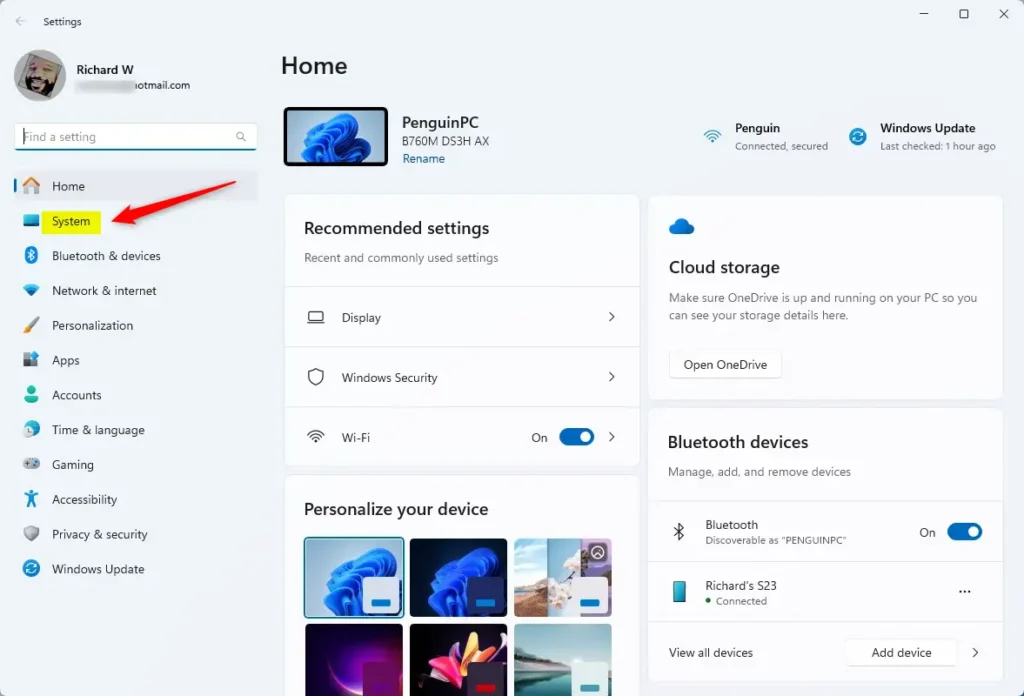
- On the right side, find and select the “For developers” tile to open it.
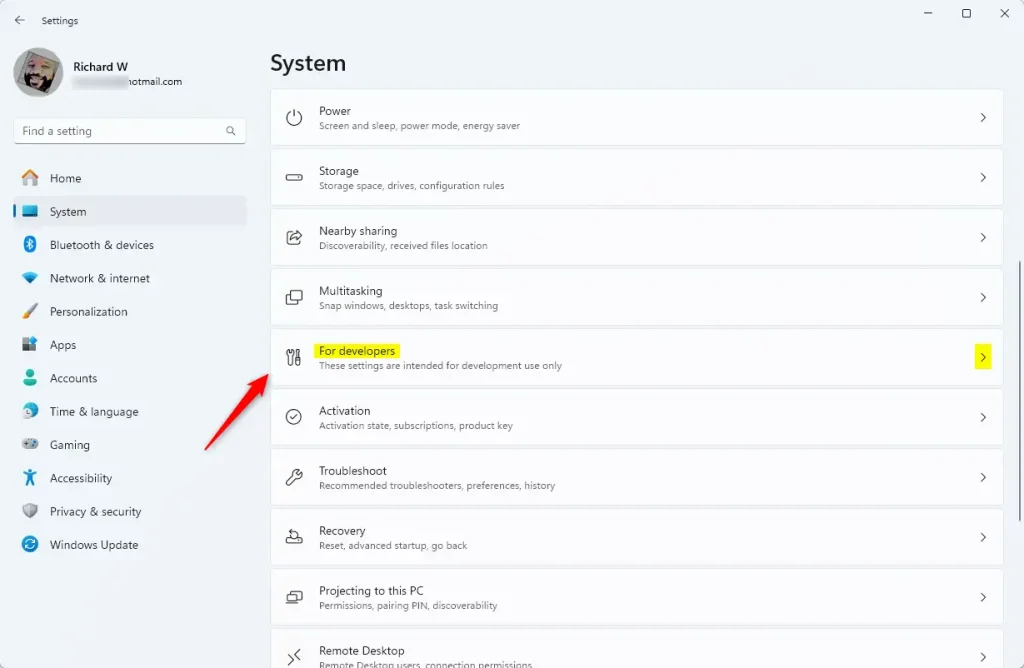
- In the System > For developers section, make sure the “Developer Mode” feature is turned on.
- Find the “Device Portal” tile and turn the switch to the On position. [Admin privileges required]
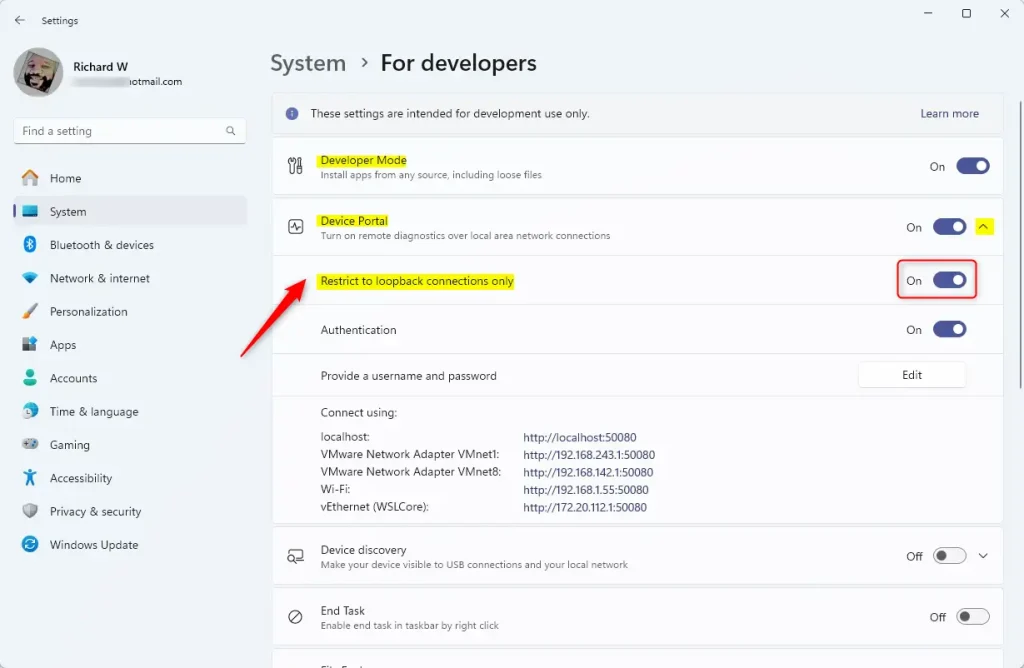
- Once Device Portal is on, look for the “Restrict to loopback connections only” tile.
- Turn the switch to the On position. This stops anyone from connecting remotely.
- Close the Settings app when you’re done.
Restricting Device Portal to loopback connections requires accessing Windows 11’s Developer settings and configuring network restrictions. The process involves opening Settings, navigating to the System > For developers section, enabling Developer Mode, and then locating the Device Portal settings to disable remote access. This configuration limits Device Portal to localhost (127.0.0.1) connections only, allowing access exclusively from your local machine within minutes.
What Happens When Done?
Once you turn on the loopback restriction, only your computer can access Device Portal. No one on your network can connect to it from another device. This keeps your device safe from unauthorized access.
Summary
Restricting Device Portal to loopback connections in Windows 11 is an easy way to protect your device. By limiting access to just your local computer, you prevent remote users from getting in. Following the steps above, you can enable this security feature in just a few minutes. Your device will be much safer from potential threats.



Leave a Reply Cancel reply