How to Keep Printed Documents in the Print Queue on Windows 11

You can keep printed documents in the print queue on Windows 11 to retain a history of your print jobs.
This feature allows you to access recently printed files directly from the queue, saving you the hassle of reprinting or searching for them. It’s particularly useful if you frequently print the same reports or need to quickly verify past printouts.
To enable this, you’ll typically navigate through your printer’s properties in Windows 11. This setting ensures that print jobs don’t automatically clear after completion, providing a convenient archive.
Open Printer properties, go to the Advanced tab, and check the “Keep printed documents” box. This retains a history of your print jobs in the queue for easy reprinting or verification.
Why Use This Feature?
Keeping printed documents in your queue helps you:
- Print the same document again without finding the file
- Keep a backup of what you’ve sent to the printer
- Check your print history
Method 1Using the Settings App
This is the easiest way to turn this feature on or off.
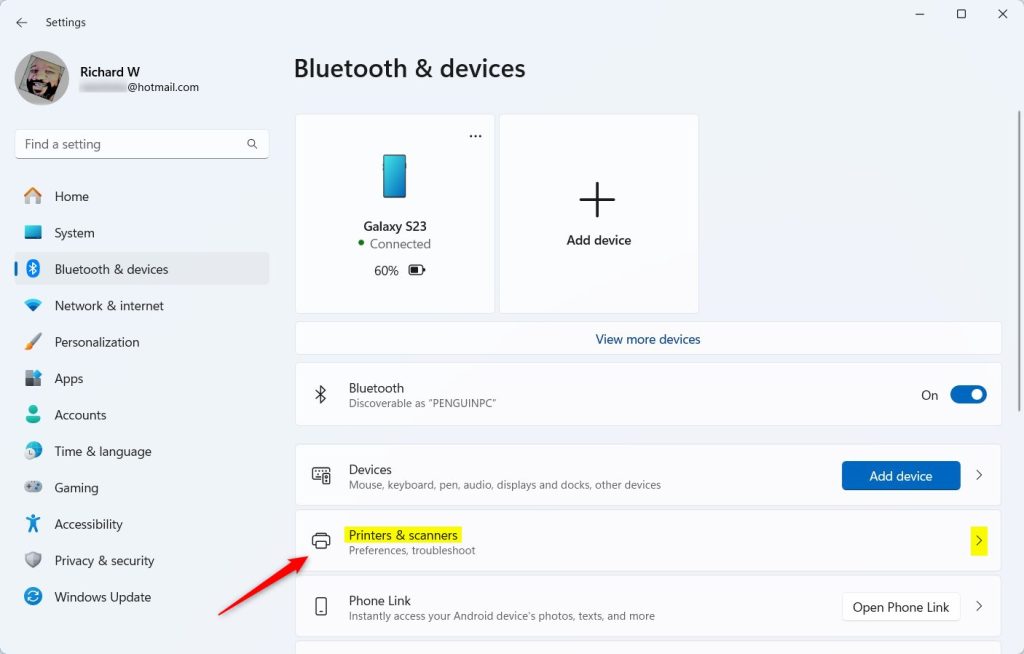
- Open the Settings app by clicking the Start menu and selecting Settings. Or press
Windows key + Ion your keyboard. - In the Settings window, click on Bluetooth & devices on the left side.
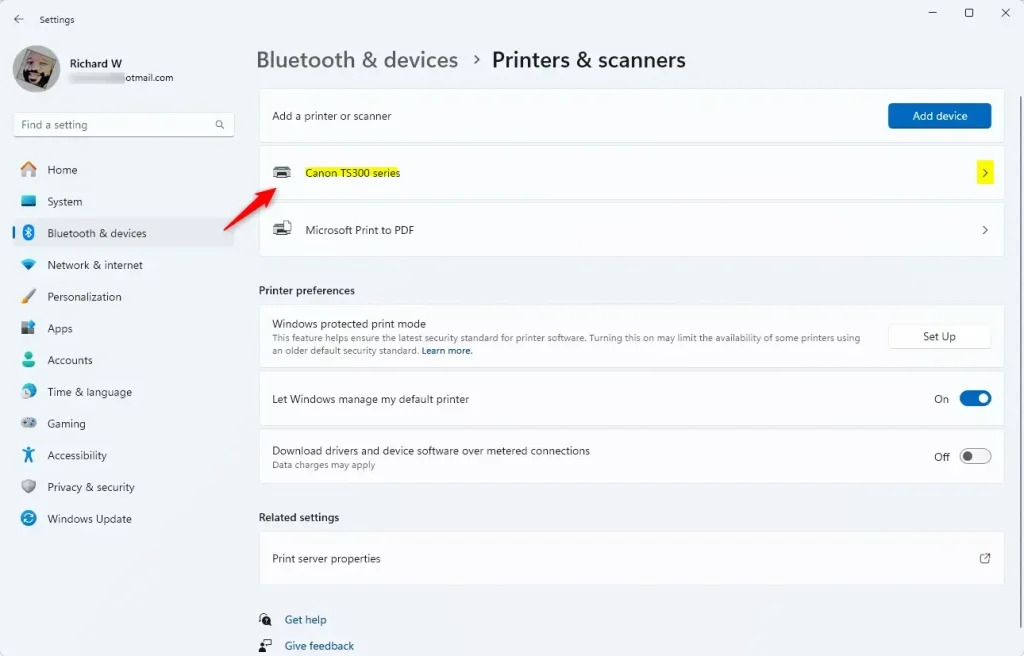
- On the right side, click on Printers & scanners.
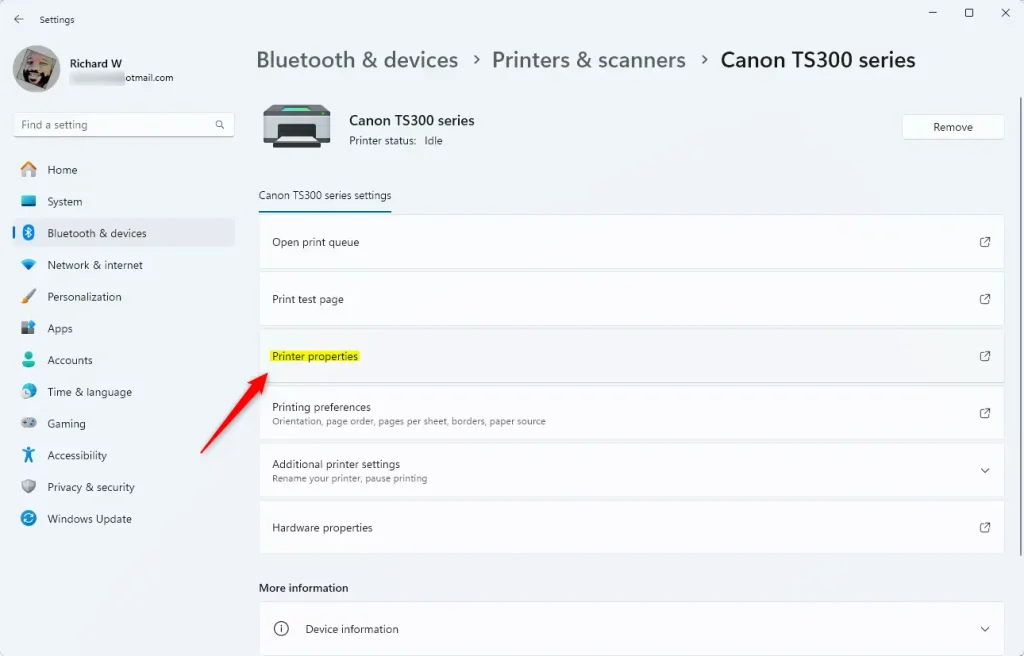
- Select the printer you want to change from the list.
- Click on Printer properties.
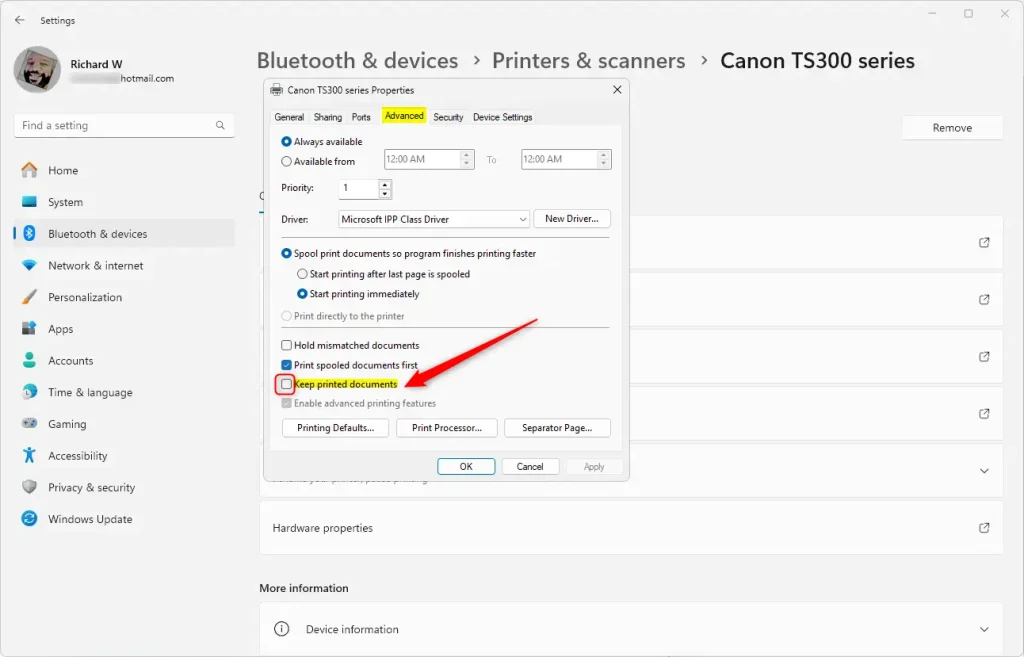
- In the new window, click on the Advanced tab.
- Check the box for Keep printed documents to turn it on. Uncheck it to turn it off.
- Click OK or Apply to save your changes. Then close the Settings app.
Method 2Using Print Management
Here’s another way to make this change using the Print Management tool:
- Press
Windows key + Rto open the Run window. - Type
printmanagement.mscand press Enter. This opens Print Management. ⚠️ Admin privileges may be required - In the left panel, expand Custom Filters and click on All Printers.
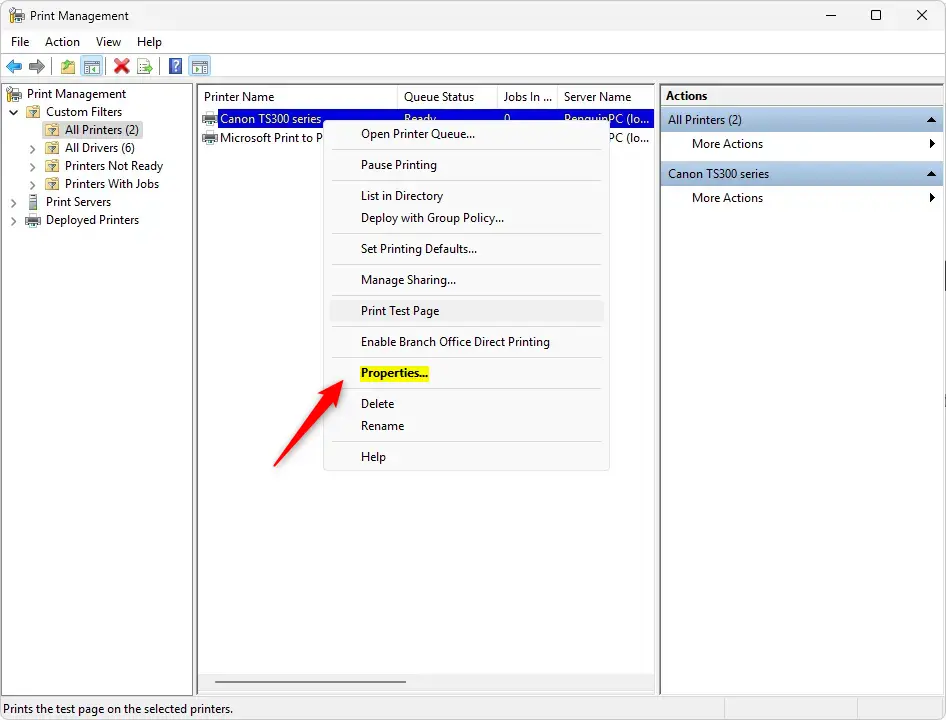
- Find your printer in the list. Right-click it and select Properties.
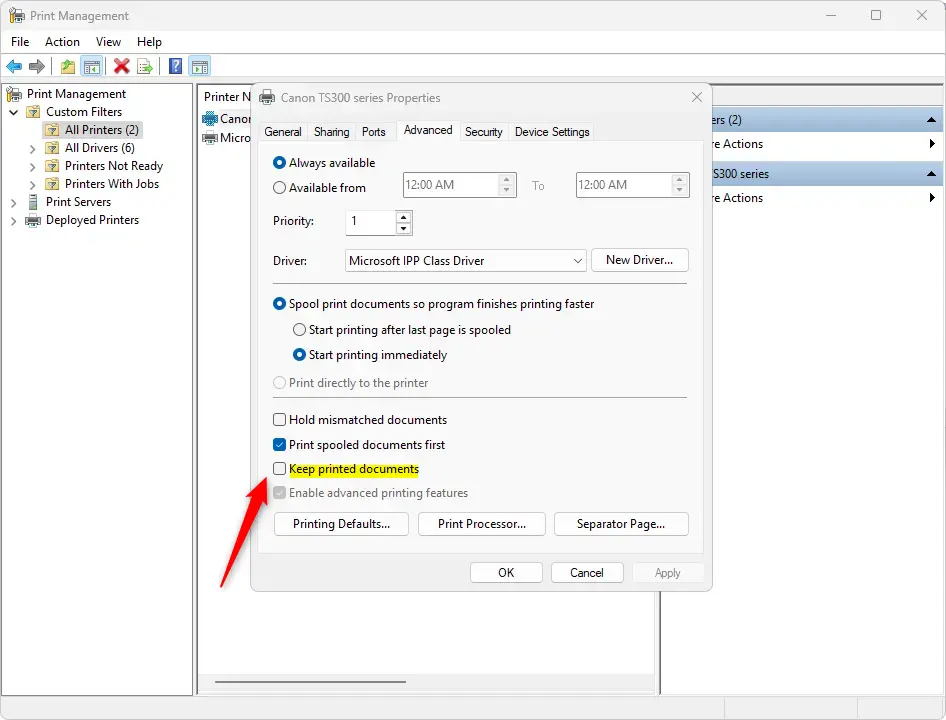
- Go to the Advanced tab.
- Check or uncheck the box for Keep printed documents.
- Click OK and close Print Management.
Summary
The “Keep printed documents” feature saves a copy of your printed files in the print queue. This is useful if you need to print the same document multiple times or want a backup of what you’ve sent to the printer.
You can turn this feature on or off easily through either the Settings app or Print Management. Just visit your printer’s properties and go to the Advanced tab to change the setting.
Now you know how to keep your printed documents in the queue on Windows 11. This can help you print more efficiently and keep track of your print jobs!
Why does my printer keep documents in queue?
Print jobs get stuck in the queue when a device stops printing in the middle of a job. This can happen for a variety of reasons, from a sudden power outage, low ink, no paper, a paper jam to interference by third-party firewall software.
Was this guide helpful?

About the Author
Richard
Tech Writer, IT Professional
Richard, a writer for Geek Rewind, is a tech enthusiast who loves breaking down complex IT topics into simple, easy-to-understand ideas. With years of hands-on experience in system administration and enterprise IT operations, he’s developed a knack for offering practical tips and solutions. Richard aims to make technology more accessible and actionable. He's deeply committed to the Geek Rewind community, always ready to answer questions and engage in discussions.



No comments yet — be the first to share your thoughts!