How to Connect to Wi-Fi on Windows 11

This article explains how to join or connect to a Wi-Fi network using Windows 11.
Why Connect to Wi-Fi?
Wi-Fi lets your computer connect to the internet wirelessly. You don’t need cables. It’s fast and convenient.
What Changed in 🪟 Windows 11?
Windows 11 removed the old Wi-Fi icon from the Taskbar. Instead, it uses a new feature called settings-in-windows-11/" class="sal-link" rel="noopener" target="_blank" data-sal-id="24266">Quick Settings. This combines Wi-Fi, sound, and battery controls in one place on the right side of your Taskbar.
Method 1Connect Using Quick Settings
What is Quick Settings? Quick Settings is a fast way to access Wi-Fi and other controls. It’s located in the bottom right corner of your Taskbar.
Step 1Open Quick Settings
Click any icon on the right side of your Taskbar. This opens the Quick Settings pop-up window.
Step 2Find the Wi-Fi Option
Look for the Wi-Fi symbol in the upper part of the Quick Settings box. Click the arrow next to it that points to the right.
Step 3Turn On Wi-Fi (If Needed)
Make sure the Wi-Fi switch is turned On. Windows will now show you all available Wi-Fi networks nearby.
Step 4Select Your Network
Find your Wi-Fi network name in the list. Click on it to select it.
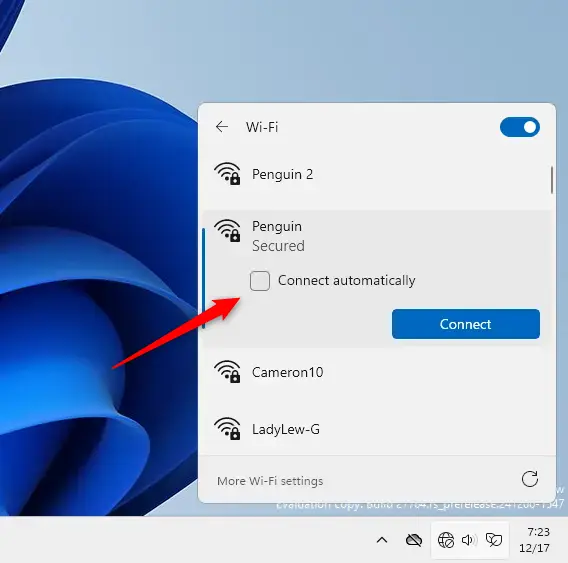
Step 5Enter Your Password
Type your Wi-Fi password carefully. Make sure uppercase and lowercase letters are correct.
Step 6Connect
Click Connect. Your computer will connect to the network.
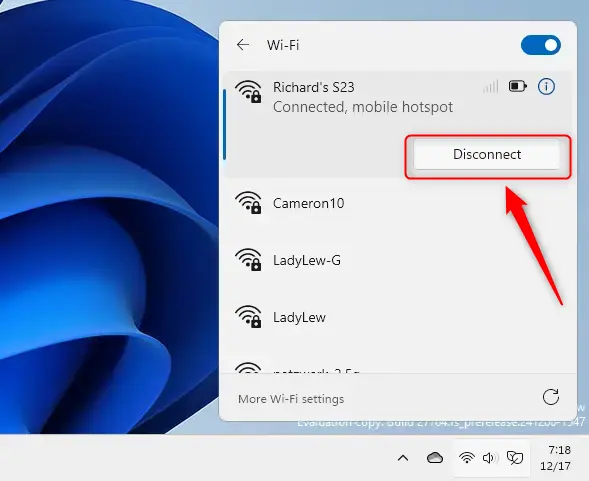
Success! You are now connected to Wi-Fi.
Method 2Connect Using Windows Settings
Why use Windows Settings? Settings gives you more control and options. It’s a centralized place for all your computer adjustments.
Step 1Open Windows Settings
Use the keyboard shortcut Windows key + I. Or click Start and then Settings.

Alternatively, click the search box on your Taskbar. Type Settings and open it.
Step 2Go to Network Settings
Click Network & Internet on the left side. Then click Wi-Fi on the right side of your screen.
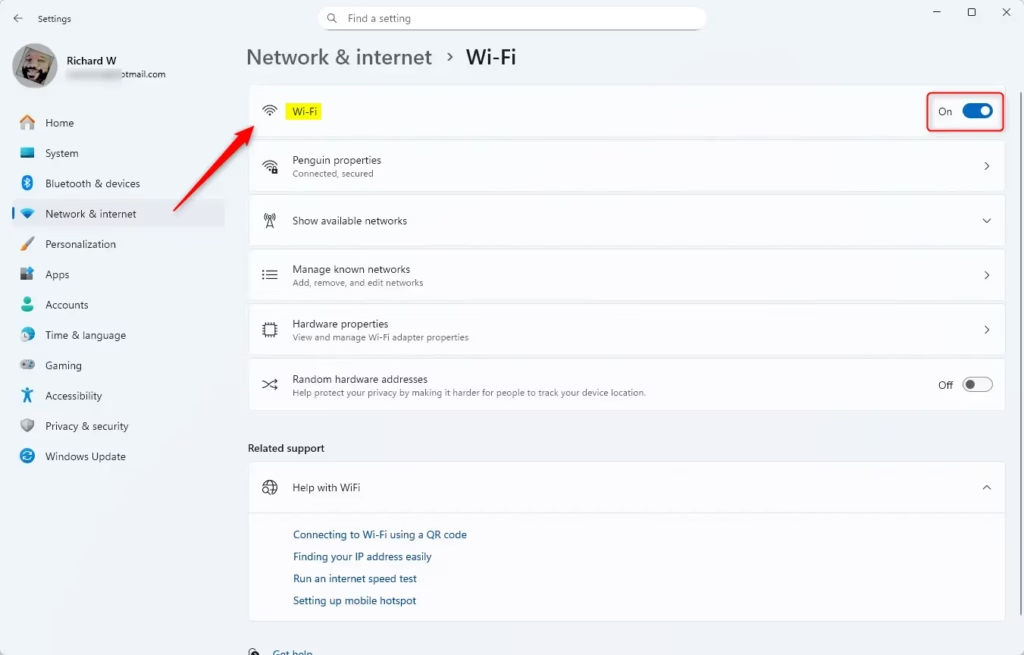
Step 3Turn On Wi-Fi
Make sure the Wi-Fi switch shows On. Then click Show available networks.
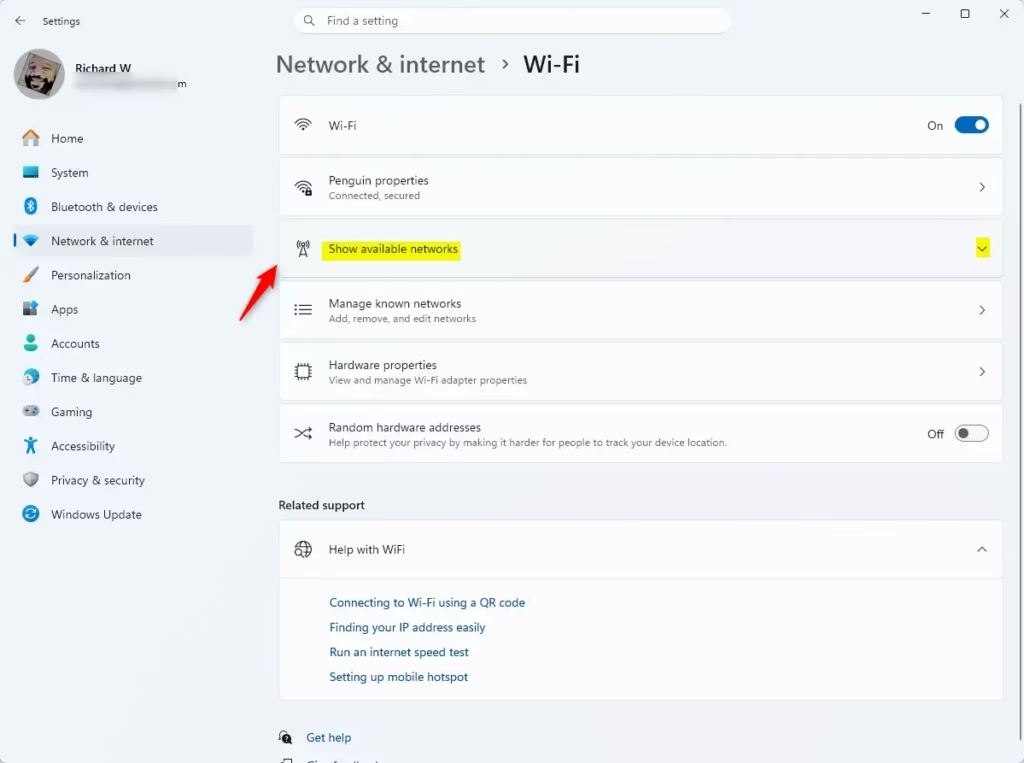
Step 4Select Your Network
Windows displays all nearby wireless networks. Find your network name and click on it.
Step 5Enter Your Password
Type your Wi-Fi password in the password field. Be careful with uppercase and lowercase letters.
Step 6Connect
Click Next or Connect. Your computer will connect to the network.
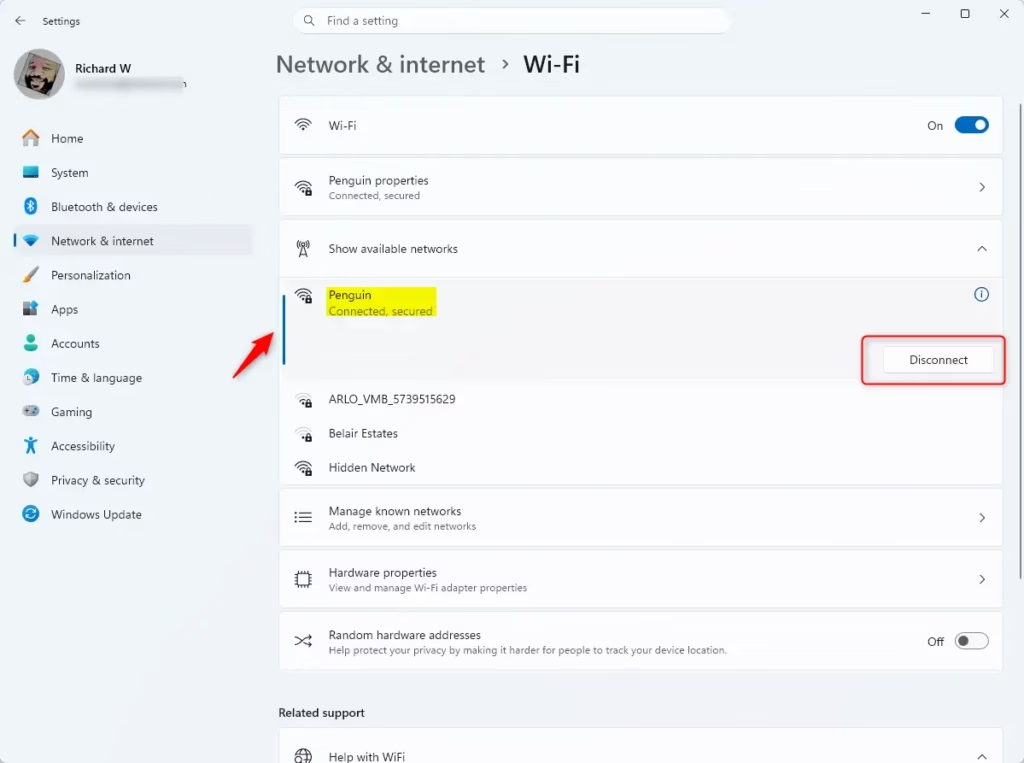
You’re now connected to Wi-Fi!
Summary
Connecting to Wi-Fi on Windows 11 is simple. You have two easy ways to do it:
- Quick Settings: Click the icons on the bottom right of your Taskbar. Find Wi-Fi. Select your network. Enter your password. Done.
- Windows Settings: Press
Windows key + I. Go to Network & Internet. Click Wi-Fi. Select your network. Enter your password. Done.
Both methods take just a few clicks. Once you enter your password correctly, Windows connects automatically. You’ll then have wireless internet on your computer.
Was this guide helpful?

About the Author
Richard
Tech Writer, IT Professional
Richard, a writer for Geek Rewind, is a tech enthusiast who loves breaking down complex IT topics into simple, easy-to-understand ideas. With years of hands-on experience in system administration and enterprise IT operations, he’s developed a knack for offering practical tips and solutions. Richard aims to make technology more accessible and actionable. He's deeply committed to the Geek Rewind community, always ready to answer questions and engage in discussions.



No comments yet — be the first to share your thoughts!