How to Install VMware Workstation Pro on Ubuntu Linux

You install VMware Workstation Pro on Ubuntu Linux by downloading the installer file and running it using the terminal.
VMware Workstation Pro is desktop virtualization software enabling you to create and run multiple operating systems as isolated virtual machines on your Ubuntu host system.
This tutorial focuses on installing the latest version, VMware Workstation Pro 17.5, on your Ubuntu machine.
Remember, VMware Workstation Pro requires a paid license for all uses.
Download the installer from VMware’s website. Then, install necessary packages using `sudo apt update` and `sudo apt install wget gcc build-essential linux-headers-generic linux-headers-$(uname -r)`. Finally, make the downloaded bundle executable with `sudo chmod +x` and run it with `./VMware-Workstation-*.bundle`.
How to install packages on Ubuntu Linux
To install VMware Workstation Pro on Ubuntu, you must install supporting packages and build dependencies.
To do that, run the commands below:
sudo apt update
sudo apt install wget gcc build-essential linux-headers-generic linux-headers-$(uname -r)
How to download and install VMware Pro on Ubuntu Linux
After installing the packages above, go and download VMware Workstation Pro from its download page and install it. The link below gets you there.
https://www.vmware.com/go/getworkstation-linux
Alternatively, run the commands below to download the latest version of VMware Workstation Player on the terminal console.
At the time of this writing, the latest version of VMware Workstation Pro is 16.1.2.
cd /tmp
wget https://download3.vmware.com/software/wkst/file/VMware-Workstation-Full-16.1.2-17966106.x86_64.bundle
After downloading the above, run the commands below to make the package executable and install VMware Workstation Pro.
sudo chmod +x VMware-Workstation-*.bundle
sudo ./VMware-Workstation-*.bundle
In Ubuntu, the installation will be run non-interactively. This means you won’t have to complete an installation wizard.
After a brief moment, the installation should complete with a success message similar to the one below. Once you see the message below, you’re done.
Extracting VMware Installer…done.
Installing VMware Workstation 16.1.2
Configuring…
[######################################################################] 100%
Installation was successful.
After the installation above, launch VMware Workstation Pro from the Activities Dashboard. Click the Show Application button at the bottom left.
On the app’s dashboard, search for and select VMware Workstation.
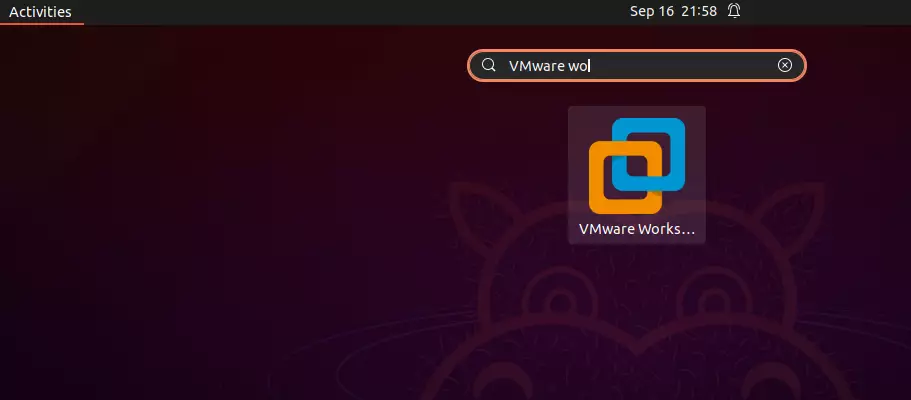
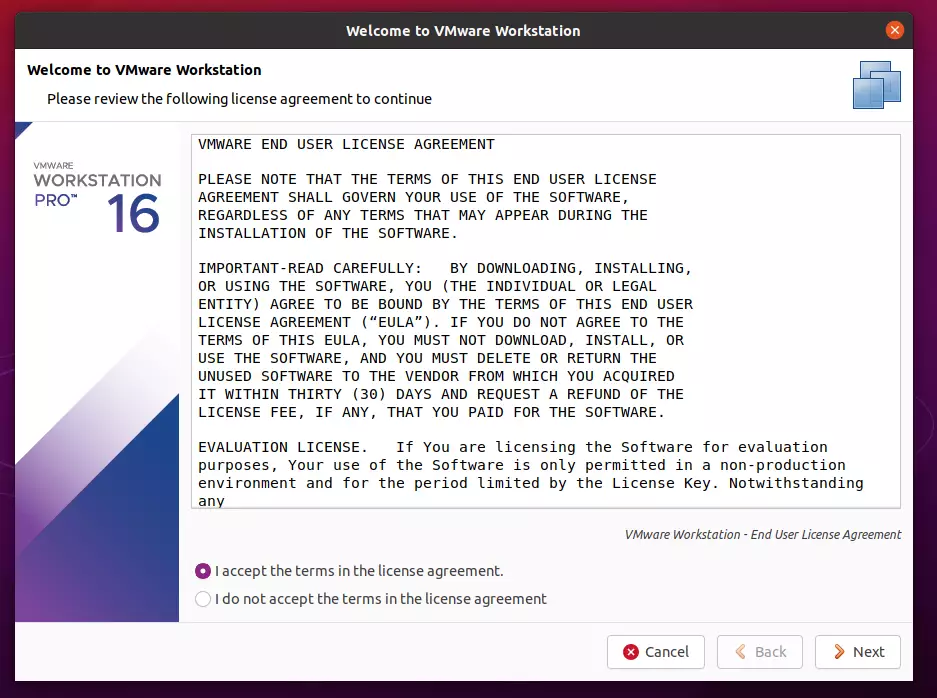
Once you click on the app, it will open its Welcome wizard. Accept the license terms to continue.
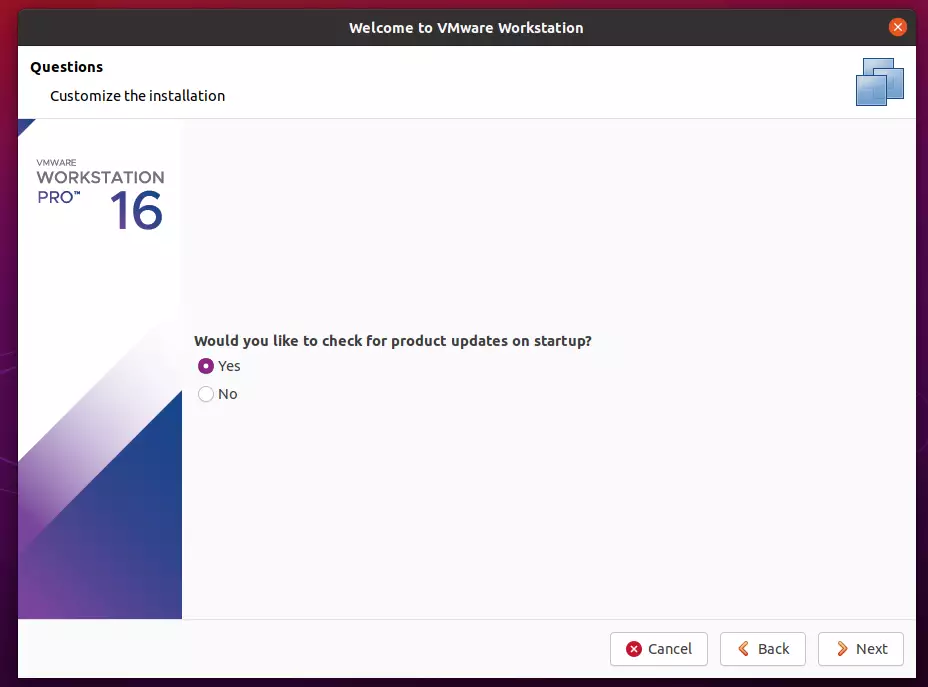
Accept to check for product updates on startup and continue
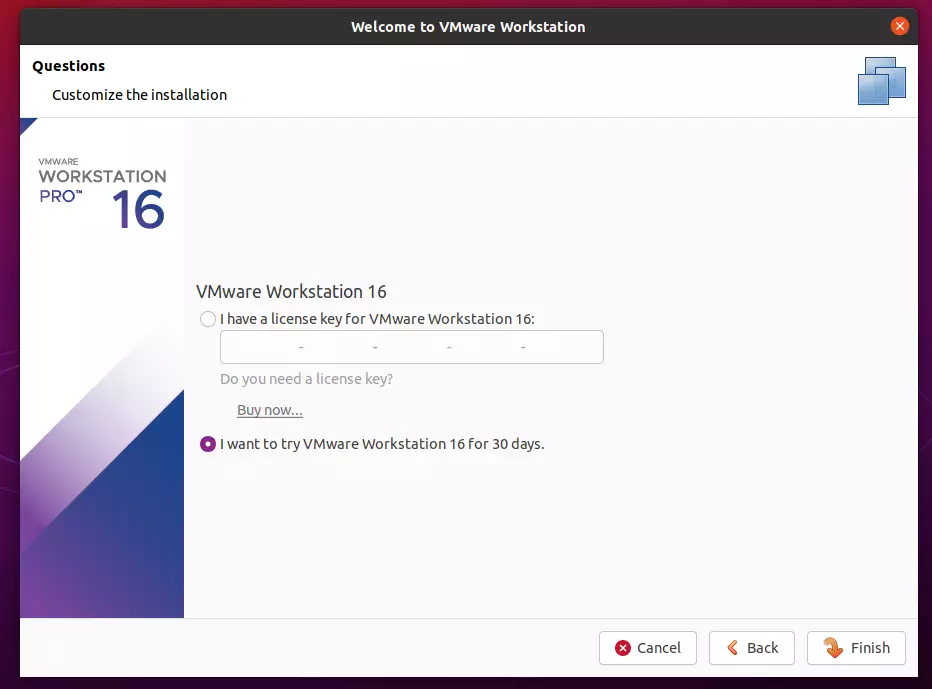
Skip the license key page for a 30-day trial period. After the 30-day trial period, you’ll be forced to purchase a license to use after that time.
Finally, click Install to begin the installation.
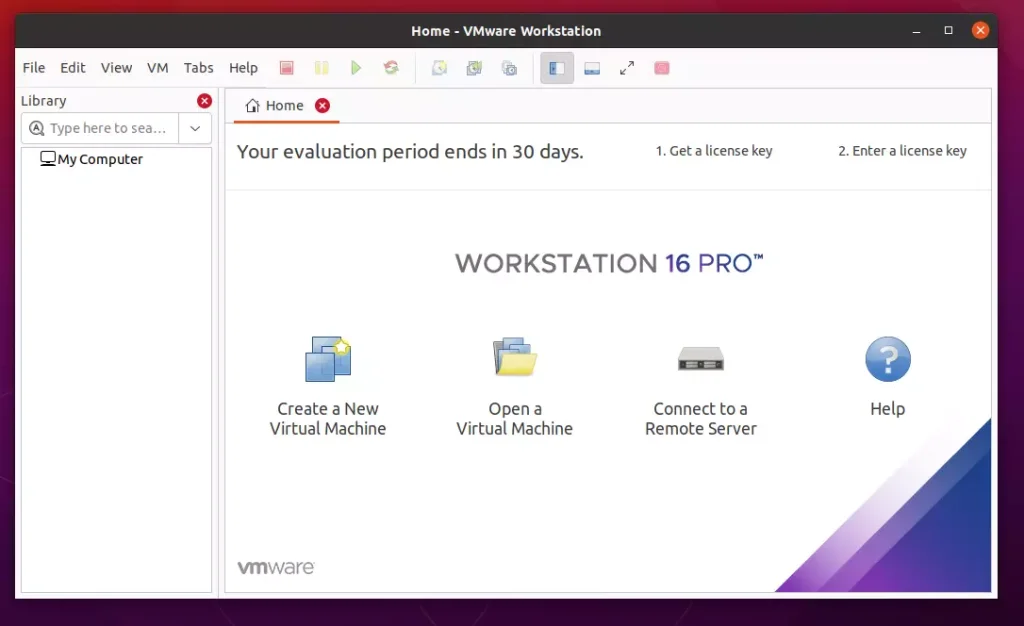
When you finish the wizard, VMware Workstation Home should open up.
That should do it!
Conclusion:
This post showed you how to install and use VMware Workstation Pro on Ubuntu Linux. Please use the comment form below if you find any errors above or have something to add.
Was this guide helpful?

About the Author
Richard
Tech Writer, IT Professional
Richard, a writer for Geek Rewind, is a tech enthusiast who loves breaking down complex IT topics into simple, easy-to-understand ideas. With years of hands-on experience in system administration and enterprise IT operations, he’s developed a knack for offering practical tips and solutions. Richard aims to make technology more accessible and actionable. He's deeply committed to the Geek Rewind community, always ready to answer questions and engage in discussions.




No comments yet — be the first to share your thoughts!