How to Install sysPass Password Manager on Ubuntu

You can install the sysPass password manager on Ubuntu 24.04 LTS by following specific steps to set up its web-based interface and database.
sysPass is a free, open-source password manager that provides a secure, private portal for storing and organizing your credentials.
This tool helps you avoid password reuse and protects your sensitive data with robust encryption, ensuring your online accounts remain secure.
Once installed, you’ll have your own web portal ready to manage passwords for yourself or your team.
Install Apache, MariaDB, and PHP 8.3 using apt. Clone sysPass from GitHub to /var/www/html/syspass, then run composer install. Create a database in MariaDB and configure Apache with a new virtual host for sysPass. Finally, visit your domain to complete the web-based setup.
Install the Apache HTTP server
Apache is a web server that shows websites, and you can install it on Ubuntu by first updating your package list with ‘sudo apt update’, then running ‘sudo apt install apache2’.
sudo apt update
sudo apt install apache2
Next, enable Apache to start automatically when your system boots up:
sudo systemctl enable --now apache2
Open your web browser and navigate to your server’s IP address to check that Apache is running correctly.
Install the MariaDB database server
sysPass needs a database to store your information. We’ll use the MariaDB database server for this:
sudo apt install mariadb-server
sudo systemctl enable --now mariadb
Run the following command to set a root password and remove insecure default settings:
sudo mysql_secure_installation
Install PHP
sysPass 2026 requires PHP 8.2 or 8.3. Run these commands to install the necessary modules:
sudo apt install php8.3 php8.3-mysql php8.3-xml php8.3-mbstring php8.3-curl php8.3-gd php8.3-intl php8.3-bcmath libapache2-mod-php8.3 git
General: Composer and SSL Configuration
Composer is a tool that helps install extra bits sysPass needs, and you can install it on Ubuntu by downloading the installer script and running it with PHP.
php -r "copy('https://getcomposer.org/installer', 'composer-setup.php');"
sudo php composer-setup.php --install-dir=/usr/local/bin --filename=composer
Securing your connection: It’s crucial to never use a password manager over an unencrypted HTTP connection. Let’s install Certbot to get a free SSL certificate:
sudo apt install certbot python3-certbot-apache
sudo certbot --apache
Follow the on-screen prompts to secure your domain. This sets up an encrypted ‘Virtual Host’ for your site, which is like a dedicated space for your website on the server.
Create a database for sysPass
Log into MariaDB to create the storage area for sysPass:
sudo mysql -u root -p
Once you’re at the MariaDB prompt, run the following commands:
CREATE DATABASE syspassdb;
CREATE USER 'syspassdbuser'@'localhost' IDENTIFIED BY 'your_password';
GRANT ALL ON syspassdb.* TO 'syspassdbuser'@'localhost';
FLUSH PRIVILEGES;
EXIT;
Install sysPass
Now it’s time to install sysPass on your Ubuntu system by first downloading the files using Git, then changing file ownership, and finally running Composer to get the rest of the needed software.
git clone https://github.com/nuxsmin/sysPass.git /var/www/html/syspass
sudo chown -R www-data:www-data /var/www/html/syspass
cd /var/www/html/syspass
sudo composer install --no-dev
Now, create the Apache configuration file for sysPass:
sudo nano /etc/apache2/sites-available/syspass.conf
Add your server details here. Then, enable the site and restart Apache:
sudo a2ensite syspass
sudo systemctl restart apache2
Finally, visit your domain in your web browser to complete the setup through the sysPass web portal.
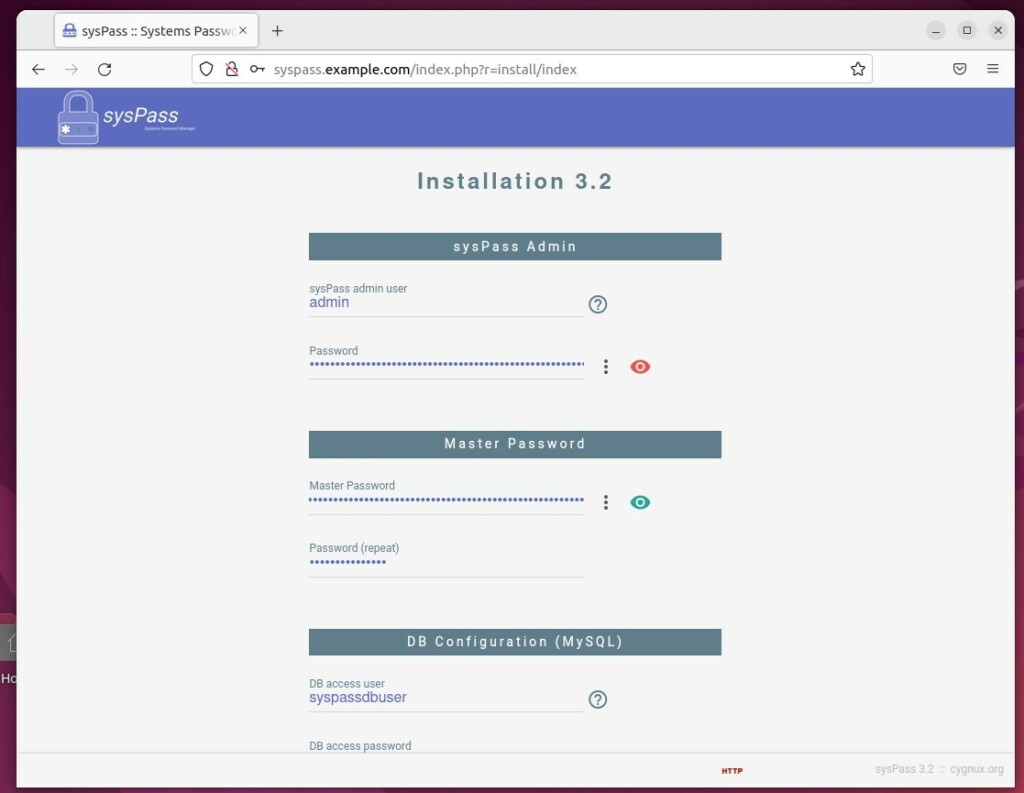
Enter your database credentials, create an administrator account, and click Install. You’re now all set to manage your passwords securely.
[Y/n] [Y/n] [Y/n] [Y/n] [Y/n] [Y/n]
What is the password for Ubuntu installation?
In Ubuntu 24.04 server, the default username and password is ubuntu, but it is only accessible (at least by default) through the command line, and it has to be changed as soon as the user is logged in.
How to reset BIOS password in Ubuntu?
And then we're going to go to recovery mode. Now what we're going to do is go to root. So drop to a root shell prompt i'm going to press Enter for maintenance. Notice I've got a root prompt.
Was this guide helpful?

About the Author
Richard
Tech Writer, IT Professional
Richard, a writer for Geek Rewind, is a tech enthusiast who loves breaking down complex IT topics into simple, easy-to-understand ideas. With years of hands-on experience in system administration and enterprise IT operations, he’s developed a knack for offering practical tips and solutions. Richard aims to make technology more accessible and actionable. He's deeply committed to the Geek Rewind community, always ready to answer questions and engage in discussions.



No comments yet — be the first to share your thoughts!