Install MySQL and MariaDB on Ubuntu: A Step-by-Step Guide

You install MySQL and MariaDB on Ubuntu using the APT package manager.
These are powerful open-source relational database management systems (RDBMS). MariaDB is a community-driven fork of MySQL, engineered for compatibility.
This guide will get you running with either database on Ubuntu 22.04 LTS. You will add the correct repositories and install the essential packages.
Install MySQL or MariaDB on Ubuntu using the APT package manager. Update package lists with ‘sudo apt update’, then install either with ‘sudo apt install mariadb-server’ or ‘sudo apt install mysql-server’.
How to install MariaDB on Ubuntu Linux
You can install MariaDB on Ubuntu using the apt package manager, which is already included on your system.
MariaDB packages are available in Ubuntu repositories. So it can simply be installed using the apt package management.
To install MariaDB, run the commands below.
sudo apt update
sudo apt install mariadb-server
After installing, you can run the commands below to view the MariaDB service status.
sudo systemctl status mariadb
After running the command above, it should output similar lines.
mariadb.service - MariaDB 10.3.31 database server
     Loaded: loaded (/lib/systemd/system/mariadb.service; enabled; vendor preset: enabled)
     Active: active (running) since Wed 2021-09-15 16:40:20 CDT; 22s ago
       Docs: man:mysqld(8)
             https://mariadb.com/kb/en/library/systemd/
   Main PID: 3007 (mysqld)
     Status: "Taking your SQL requests now..."
      Tasks: 31 (limit: 4651)
     Memory: 65.6M
     CGroup: /system.slice/mariadb.service
             └─3007 /usr/sbin/mysqld

Sep 15 16:40:20 ubuntu2004 /etc/mysql/debian-start[3045]: mysql
Sep 15 16:40:20 ubuntu2004 /etc/mysql/debian-start[3045]: performance_schema
To check which versions of MariaDB are running, run the commands below.
mysql -V
That should output similar lines as below.
mysql Ver 15.1 Distrib 10.3.31-MariaDB, for debian-linux-gnu (x86_64) using readline 5.2
How to install the latest versions and update MariaDB
To get the newest features and security updates for MariaDB on Ubuntu, you’ll need to add the official MariaDB repositories to your system.
MariaDB – Setting up MariaDB Repositories – MariaDB
To there, select the version of Ubuntu you’re installing for, then select the latest version of MariaDB. As of this writing, the latest version of MariaDB is 10.6.
Run the commands to add the 10.6 version to Ubuntu 20.04.
sudo apt-key adv --fetch-keys 'https://mariadb.org/mariadb_release_signing_key.asc'
sudo add-apt-repository 'deb [arch=amd64,arm64,ppc64el] http://sfo1.mirrors.digitalocean.com/mariadb/repo/10.6/ubuntu focal main'
Then install MariaDB
sudo apt update
sudo apt install mariadb-server
How to install MySQL on Ubuntu Linux
Installing MySQL on Ubuntu is straightforward because it’s available directly in the Ubuntu software sources, so you can use the apt command.
sudo apt update
sudo apt install mysql-server
After installing MySQL, you can check its service status by running the commands below.
sudo systemctl status mysql
That should output similar lines as below.
mysql.service - MySQL Community Server
     Loaded: loaded (/lib/systemd/system/mysql.service; enabled; vendor preset: enabled)
     Active: active (running) since Wed 2021-09-15 16:46:30 CDT; 8s ago
   Main PID: 3040 (mysqld)
     Status: "Server is operational"
      Tasks: 38 (limit: 4651)
     Memory: 353.1M
     CGroup: /system.slice/mysql.service
             └─3040 /usr/sbin/mysqld

Sep 15 16:46:29 ubuntu2004 systemd[1]: Starting MySQL Community Server...
Sep 15 16:46:30 ubuntu2004 systemd[1]: Started MySQL Community Server.
How to install the latest version of MySQL on Ubuntu Linux
If you need the absolute latest version of MySQL on your Ubuntu server, you should add the official MySQL repository to ensure you get the newest releases.
The link below takes you to the repository file.
https://dev.mysql.com/downloads
Visit the download page and look for Ubuntu / Debian (Architecture Independent), DEB Package. Click the Download button to get the repository package…
You can run the commands below, updating the version number (0.8.15-1) at the time of this writing with the latest from the file above.
cd /tmp
wget https://dev.mysql.com/get/mysql-apt-config_0.8.15-1_all.deb
sudo dpkg -i mysql-apt-config_0.8.15-1_all.deb
When you run the commands above, you should get a config prompt
Simply select OK, as shown in the image below.
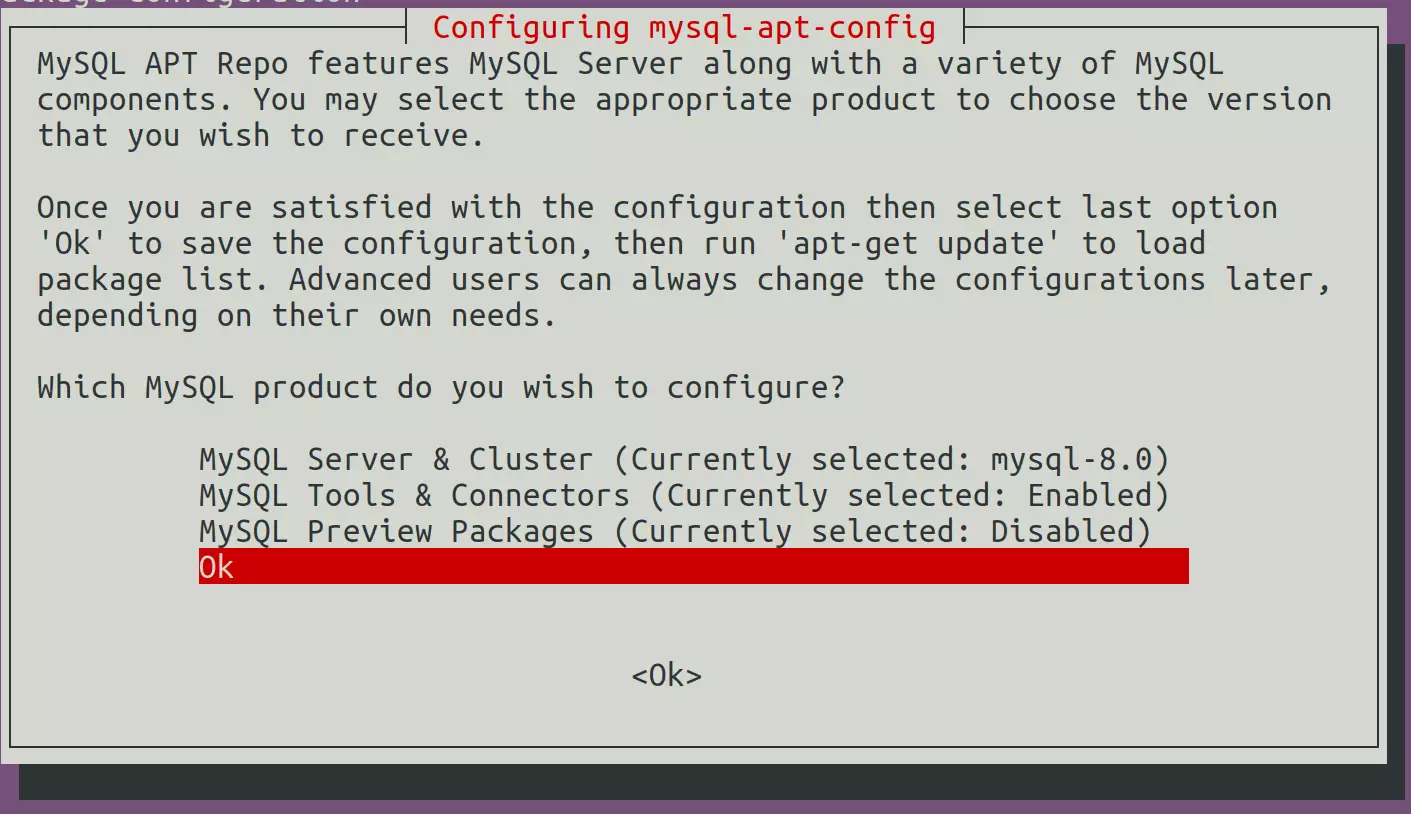
Now that the repository is installed run the commands below to install
sudo apt update
sudo apt upgrade
How to secure MariaDB and MySQL
Securing your MariaDB and MySQL installations on Ubuntu is important, and you can do this easily using the built-in security script.
Run the commands below to invoke the script and perform some recommended tasks to secure the database.
sudo mysql_secure_installation
MariaDB and MySQL servers have the root user set to use the auth_socket authentication method by default.
The auth_socket plugin authenticates users that connect from the local host through the Unix socket file. You can’t authenticate as a root by providing a password.
Simply run the command below to log on to MariaDB and MySQL servers as root. You don’t need a password since it’s using the auth_socket method.
sudo mysql
The server console should come up.
elcome to the MySQL monitor.  Commands end with ; or g.
Your MySQL connection id is 8
Server version: 8.0.26-0ubuntu0.20.04.2 (Ubuntu)

Copyright (c) 2000, 2021, Oracle and/or its affiliates.

Oracle is a registered trademark of Oracle Corporation and/or its
affiliates. Other names may be trademarks of their respective
owners.

Type 'help;' or 'h' for help. Type 'c' to clear the current input statement.

mysql>
That should do it!
Conclusion:
This post showed you how to install MariaDB or MySQL on Ubuntu Linux. Please use the comment form below if you find any errors above or have something to add.
Was this guide helpful?

About the Author
Richard
Tech Writer, IT Professional
Richard, a writer for Geek Rewind, is a tech enthusiast who loves breaking down complex IT topics into simple, easy-to-understand ideas. With years of hands-on experience in system administration and enterprise IT operations, he’s developed a knack for offering practical tips and solutions. Richard aims to make technology more accessible and actionable. He's deeply committed to the Geek Rewind community, always ready to answer questions and engage in discussions.



When I run sudo mysql after installation of mysql in parrot, there is an error “Can’t connect to local MySQL server through socket ‘/run/mysqld/mysqld.sock’ (2)”.
[…] How to install MariaDB on Ubuntu Linux […]
[…] How to install MariaDB on Ubuntu Linux […]
[…] How to install MariaDB on Ubuntu Linux […]
[…] How to install MariaDB on Ubuntu Linux […]
[…] How to install MariaDB on Ubuntu Linux […]
[…] How to install MariaDB on Ubuntu Linux […]
[…] How to install MariaDB on Ubuntu Linux […]
[…] How to install MariaDB on Ubuntu Linux […]
[…] How to install MariaDB on Ubuntu Linux […]
[…] How to install MariaDB on Ubuntu Linux […]
[…] How to install MariaDB on Ubuntu Linux […]
[…] How to install MariaDB on Ubuntu Linux […]
[…] How to install MariaDB on Ubuntu Linux […]
[…] How to install MariaDB on Ubuntu Linux […]
[…] How to install MariaDB on Ubuntu Linux […]
[…] How to install MariaDB on Ubuntu Linux […]
[…] How to install MariaDB on Ubuntu Linux […]
[…] How to install MariaDB on Ubuntu Linux […]
[…] How to install MariaDB on Ubuntu Linux […]
[…] How to install MariaDB on Ubuntu Linux […]
[…] How to install MariaDB on Ubuntu Linux […]
[…] How to install MariaDB on Ubuntu Linux […]
[…] How to install MariaDB on Ubuntu Linux […]
[…] How to install MariaDB on Ubuntu Linux […]
[…] How to install MariaDB on Ubuntu Linux […]
[…] How to install MariaDB on Ubuntu Linux […]
[…] How to install MariaDB on Ubuntu Linux […]
[…] How to install MariaDB on Ubuntu Linux […]
[…] How to install MariaDB on Ubuntu Linux […]
[…] How to install MariaDB on Ubuntu Linux […]
[…] How to install MariaDB on Ubuntu Linux […]
[…] How to install MariaDB on Ubuntu Linux […]
[…] How to install MariaDB on Ubuntu Linux […]
[…] How to install MariaDB on Ubuntu Linux […]
[…] How to install MariaDB on Ubuntu Linux […]
[…] How to install MariaDB on Ubuntu Linux […]
[…] How to install MariaDB on Ubuntu Linux […]
[…] When prompted during the installation, type and confirm a root password. Leave it blank to enable passwordless login using UNIX socket based authentication. […]
[…] How to install MariaDB on Ubuntu Linux […]
[…] How to install MariaDB on Ubuntu Linux […]
[…] How to install MariaDB on Ubuntu Linux […]
[…] How to install MariaDB on Ubuntu Linux […]
[…] How to install MariaDB on Ubuntu Linux […]
[…] How to install MariaDB on Ubuntu Linux […]
[…] How to install MariaDB on Ubuntu Linux […]
[…] How to install MariaDB on Ubuntu Linux […]
[…] How to install MariaDB on Ubuntu Linux […]
[…] How to install MariaDB on Ubuntu Linux […]
[…] How to install MariaDB on Ubuntu Linux […]
[…] How to install MariaDB on Ubuntu Linux […]
[…] How to install MariaDB on Ubuntu Linux […]
[…] How to install MariaDB on Ubuntu Linux […]
[…] How to install MariaDB on Ubuntu Linux […]
[…] How to install MariaDB on Ubuntu Linux […]
[…] How to install MariaDB on Ubuntu Linux […]
[…] How to install MariaDB on Ubuntu Linux […]
[…] How to install MariaDB on Ubuntu Linux […]
[…] How to install MariaDB on Ubuntu Linux […]
[…] How to install MariaDB on Ubuntu Linux […]
[…] How to install MariaDB on Ubuntu Linux […]
[…] Run the command below to list MySQL self-signed SSL certificate files with MySQL installed. […]
[…] How to install MariaDB on Ubuntu Linux […]
[…] How to install MariaDB on Ubuntu Linux […]
[…] How to install MariaDB on Ubuntu Linux […]
[…] How to install MariaDB database server on Ubuntu Linux […]
[…] How to install MySQL or MariaDB on Ubuntu Linux […]
[…] How to install MariaDB on Ubuntu Linux […]
[…] How to install MariaDB on Ubuntu Linux […]
[…] How to install MariaDB on Ubuntu Linux […]
[…] How to install MariaDB on Ubuntu Linux […]
[…] How to install MariaDB on Ubuntu Linux […]