How to Install Shopware with Nginx on Ubuntu 24.04

You install Shopware with Nginx on Ubuntu 24.04 by configuring Nginx as your web server and then setting up the Shopware application itself.
Shopware is a popular open-source e-commerce platform designed for building scalable online stores, offering robust features for managing products, payments, and customizations through its plugin system.
Nginx, known for its high performance and efficiency, excels at handling numerous concurrent connections with low resource overhead, making it a top choice for demanding web applications like e-commerce platforms.
This guide walks you through the essential steps to get Shopware running on Ubuntu 24.04 using Nginx, providing a fast and reliable foundation for your online business. A correctly configured Nginx server can slash page load times, directly improving your customers’ shopping experience.
Install Nginx and MariaDB using `apt install nginx mariadb-server`. Create a Shopware database and user with `CREATE DATABASE` and `GRANT` commands in the MariaDB console. Finally, install PHP and configure Nginx to serve your Shopware files.
Install Nginx HTTP server on Ubuntu
To install Shopware with Nginx on Ubuntu, you first need to install the Nginx web server, which will handle requests for your Shopware site.
To do that, open the Ubuntu terminal and run the commands below to install the Nginx web server.
sudo apt update
sudo apt install nginx
Once Nginx is installed, the commands below can start, stop, and enable the Nginx web server to start automatically when your server boots up.
sudo systemctl stop nginx
sudo systemctl start nginx
sudo systemctl enable nginx
You can test the Nginx web server by opening your web browser and browsing to the server’s localhost or IP address.
http://localhost
When you see the Welcome to nginx!, it means the Nginx HTTP server is successfully installed.
Additional help on installing Nginx on Ubuntu is in the link below.
Install the MariaDB database server on Ubuntu
Your Shopware installation needs a database, so the next step is to install the MariaDB database server on your Ubuntu system.
To install and use the MariaDB database server, use the instructions below.
Open the Ubuntu terminal and run the commands below to install the MariaDB database server.
sudo apt update
sudo apt install mariadb-server
Once the MariaDB database server is installed, use the commands below to stop, start, and enable the MariaDB server to start automatically when the server boots.
sudo systemctl stop mariadb
sudo systemctl start mariadb
sudo systemctl enable mariadb
Run the following commands to validate and test if the MariaDB database server is installed successfully.
sudo mariadb
Once you run the commands above, it will log you onto the MariaDB console and display a message similar to the one below.
Welcome to the MariaDB monitor.  Commands end with ; or g.
Your MariaDB connection id is 32
Server version: 10.11.2-MariaDB-1 Ubuntu 23.04

Copyright (c) 2000, 2018, Oracle, MariaDB Corporation Ab and others.

Type 'help;' or 'h' for help. Type 'c' to clear the current input statement.

MariaDB [(none)]>
The message tells you that the server is installed successfully.
Additional help on installing MariaDB.
- How to install MariaDB on Ubuntu Linux
- MariaDB without password prompt
Create a Shopware database
After setting up MariaDB, you’ll need to create a dedicated database for Shopware, including a user and password for it.
As part of the setup, we will create a shopwaredb database and a user account called shopwaredbuser.
Finally, we’ll grant the shopwaredbuser full access to the shopwaredb database.
All the database steps above can be done using the commands below:
But first, log on to the MariaDB database server:
sudo mariadb
Then run the commands below to complete the steps:
CREATE DATABASE shopwaredb CHARACTER SET utf8mb4 COLLATE utf8mb4_general_ci;
CREATE USER shopwaredbuser@localhost IDENTIFIED BY 'type_your_password_here';
GRANT ALL ON shopwaredb.* TO shopwaredbuser@localhost WITH GRANT OPTION;
FLUSH PRIVILEGES;
exit
Ensure to replace ‘type_your_password_here ‘with your password.
Install PHP on Ubuntu Linux
Shopware is built using PHP, so you need to install the necessary PHP components on your Ubuntu system to run it.
Then, run the commands below to install the latest PHP version.
sudo apt install php-fpm php-intl php-mysql php-curl php-cli php-zip php-xml php-gd php-common php-mbstring php-xmlrpc php-bcmath php-json php-sqlite3 php-soap php-zip
Additional help on installing PHP
Download Shopware files
Now it’s time to get the Shopware application files onto your Ubuntu server and set up the main folder for them.
To always install the latest version, check the download page for Shopware. Get the download link and download the archived package to your computer. Then, extract it.
First, create a Shopware root folder and download the Shopware files.
The final step is to change the permissions. This will allow the Nginx web server to interact safely with the files, ensuring a secure environment for your Shopware installation.
sudo mkdir -p /var/www/shopware
cd /var/www/shopware
sudo wget https://github.com/shopware/web-recovery/releases/latest/download/shopware-installer.phar.php
sudo chown -R www-data:www-data /var/www/shopware/
Once you have completed all the above steps, continue configuring the Nginx web server below to serve the Shopware content.
Run the commands below to create a Nginx virtual host file for Shopware.
sudo nano /etc/nginx/sites-available/shopware.conf
Then, copy and paste the content block below into the Nginx server block.
server {
    listen 80;
    listen [::]:80;
    root /var/www/shopware;
    index  index.php;
    server_name  shopware.example.com;

    access_log /var/log/nginx/example.com.access.log;
    error_log /var/log/nginx/example.com.error.log;

    # Shopware install / update
    location /shopware-installer.phar.php {
    try_files $uri /shopware-installer.phar.php$is_args$args;
    }

    location ~ ^/shopware-installer.phar.php/.+.(?:css|js|png|svg|woff)$ {
     try_files $uri /shopware-installer.phar.php$is_args$args;
    }

    # Deny access to . (dot) files
    location ~ /. {
        deny all;
    }

    # Deny access to .php files in public directories
    location ~ ^/(media|thumbnail|theme|bundles|sitemap).*.php$ {
        deny all;
    }

    location /recovery/install {
        index index.php;
        try_files $uri /recovery/install/index.php$is_args$args;
    }

    location /recovery/update/ {
        location /recovery/update/assets {
        }
        if (!-e $request_filename){
            rewrite . /recovery/update/index.php last;
        }
    }

    location / {
        try_files $uri /index.php$is_args$args;
    }

    location ~ .php$ {
         include snippets/fastcgi-php.conf;
         fastcgi_pass unix:/var/run/php/php8.3-fpm.sock;
         fastcgi_param SCRIPT_FILENAME $document_root$fastcgi_script_name;
         include fastcgi_params;
    }

}
Save the file.
Then, run the commands below to enable the virtual host and restart the Nginx server.
sudo ln -s /etc/nginx/sites-available/shopware.conf /etc/nginx/sites-enabled/
sudo systemctl restart nginx.service
Setup Let’s Encrypt SSL/TLS for Shopware
To make your Shopware site secure, you should set up an SSL/TLS certificate using Let’s Encrypt with your Nginx web server.
Please read the post below for additional resources on installing and creating Let’s Encrypt SSL certificates for Nginx.
How to set up Let’s Encrypt SSL certificate for Nginx on Ubuntu Linux
Once you have restarted the Nginx web server, open your browser and browse to the server hostname or IP address defined in the Nginx server block.
http://shopware.example.com/shopware-installer.phar.php
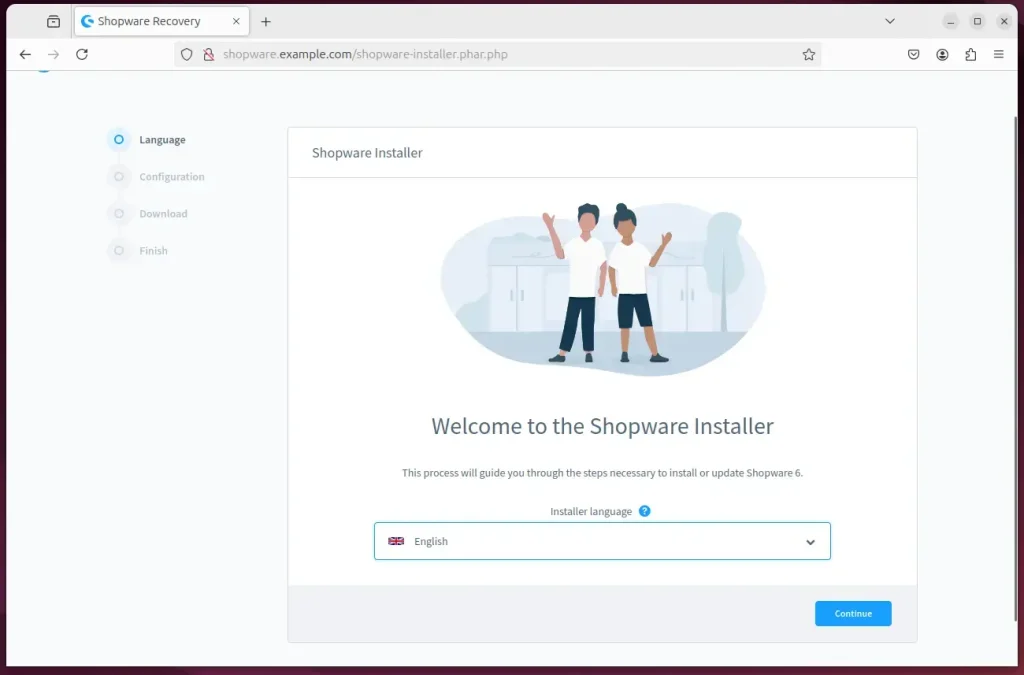
Shopware installation wizard should appear.
Select the installation language and continue.
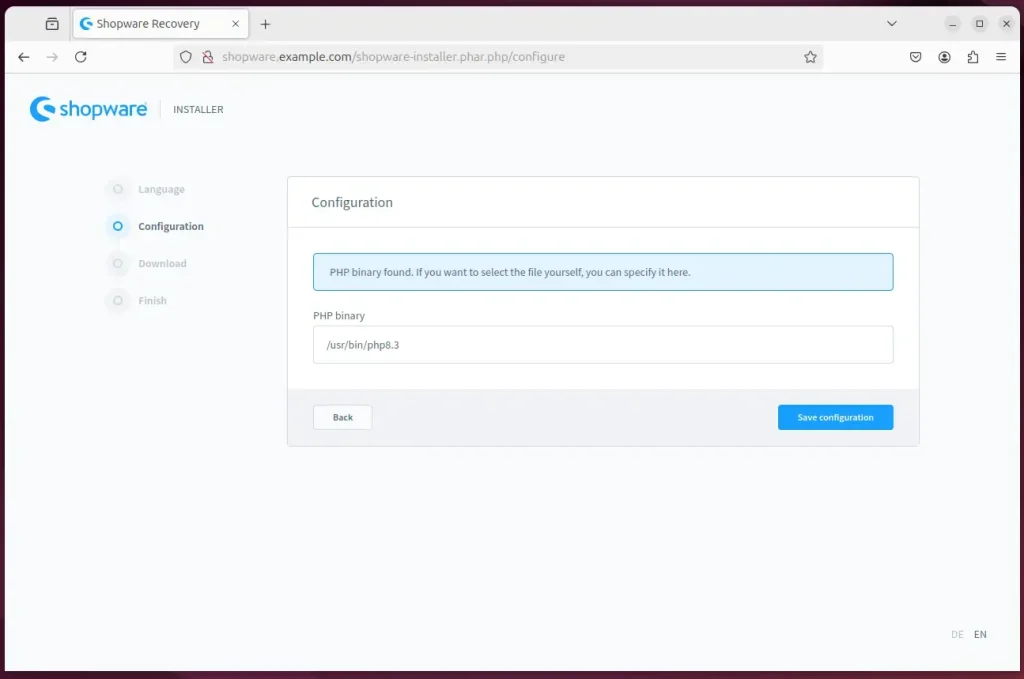
Select the default PHP library path and continue.
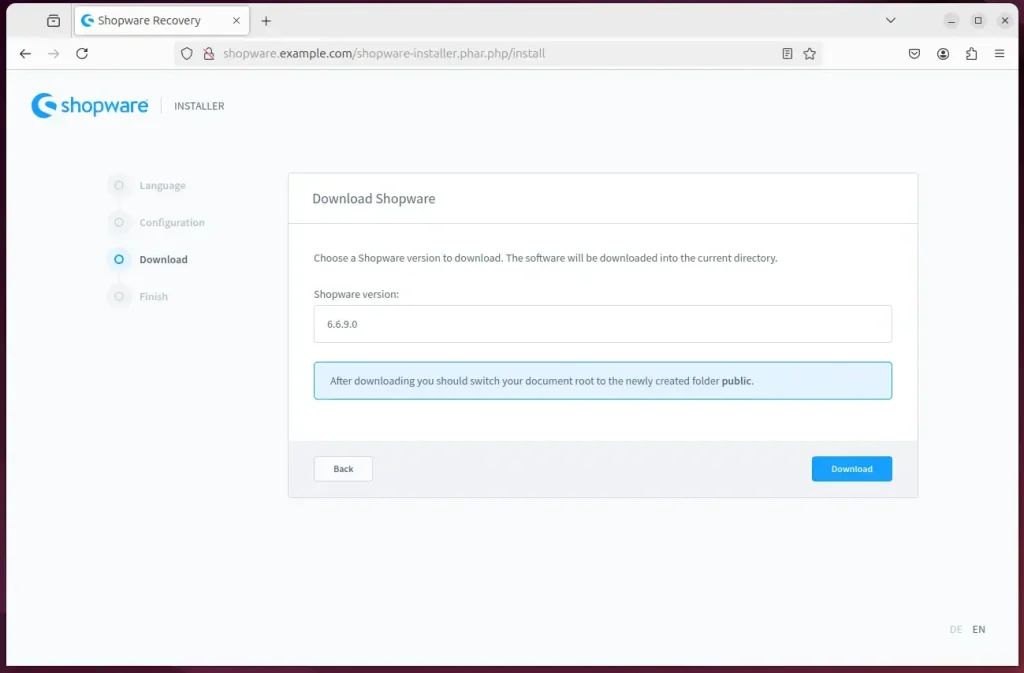
Download the latest version.
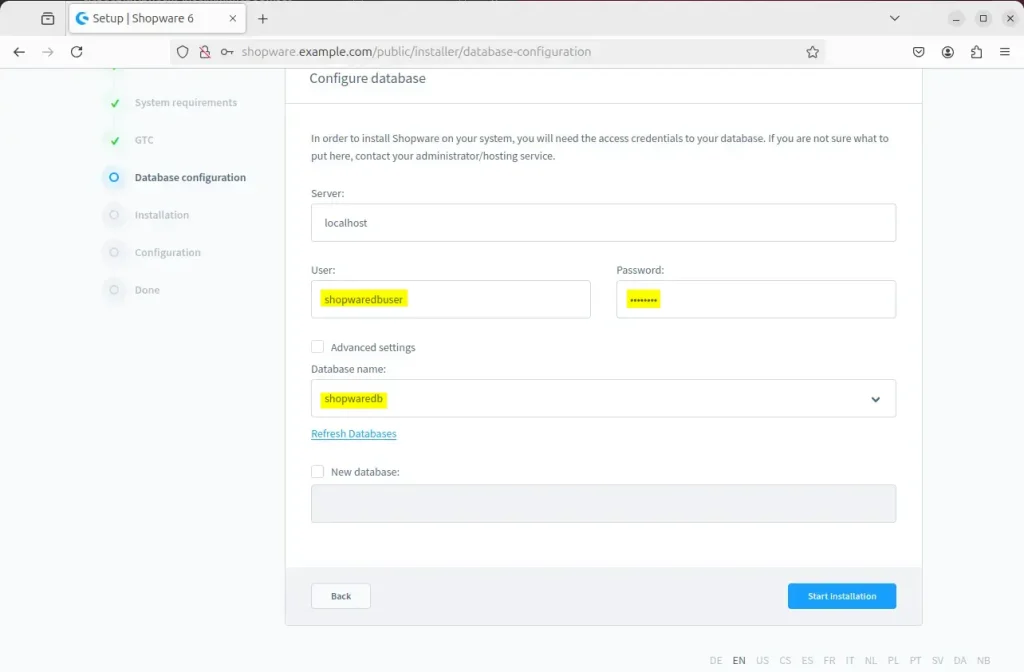
After downloading, start the installation and type in the database details created above.
Next, configure your store name and create an admin account.
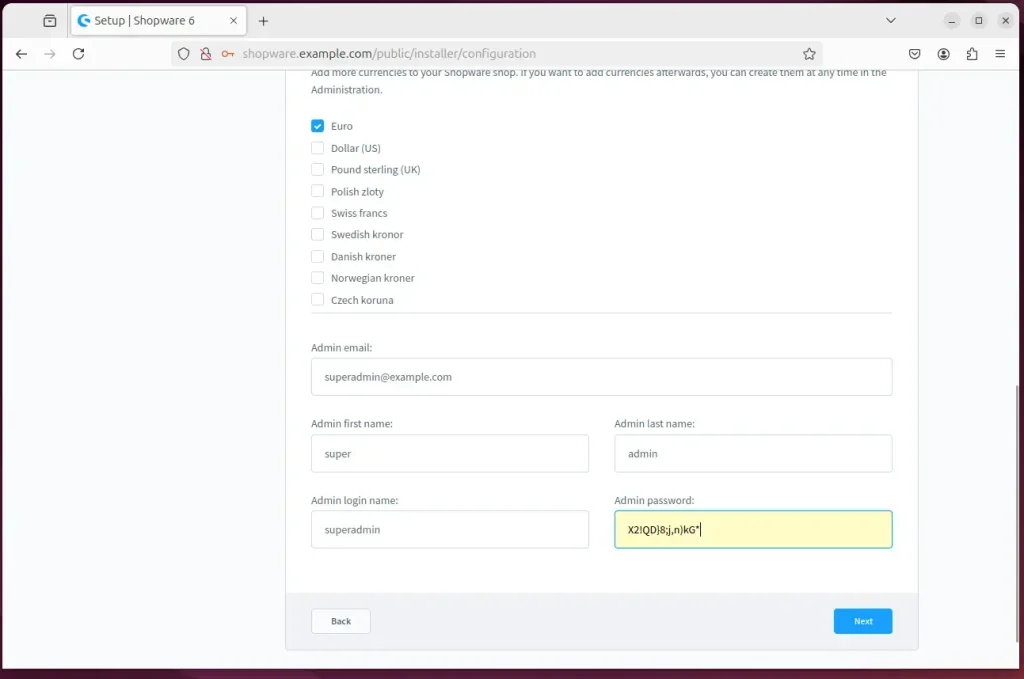
Shopware should be installed and ready to use.
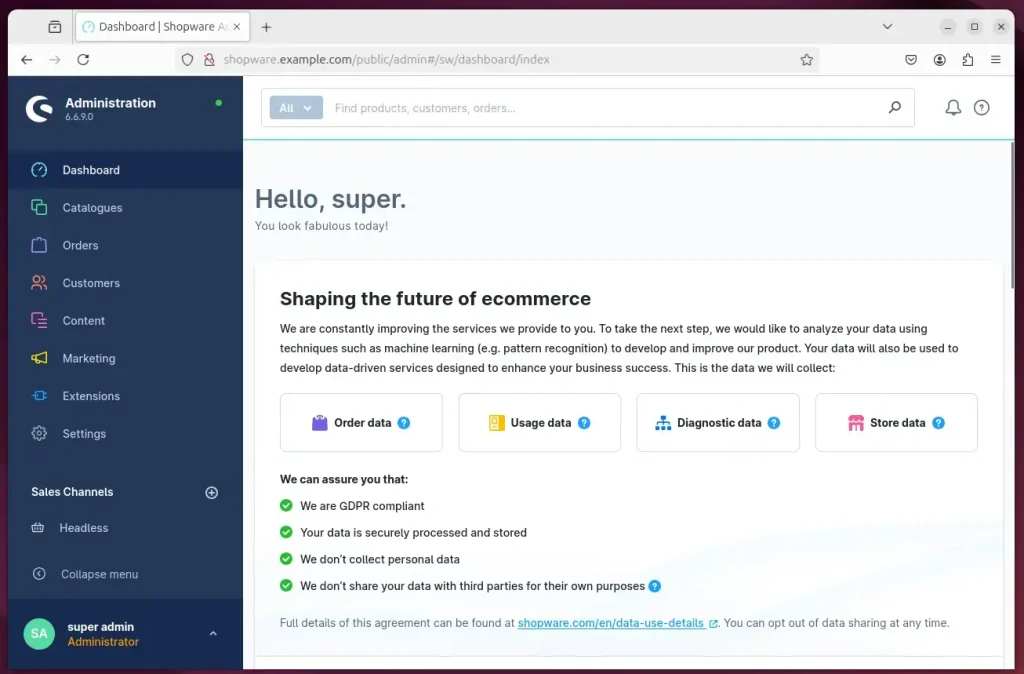
After the installation, reopen the Nginx virtual host file and change the root path from /var/www/shopware to /var/www/shopware/public.
Reload Nginx to apply the changes.
sudo nano /etc/nginx/sites-available/shopware.conf
sudo systemctl reload nginx
That should do it!
Conclusion:
Installing Shopware with Nginx on Ubuntu 24.04 can enhance your e-commerce platform’s performance and security. Here are the key takeaways:
- Efficient Setup: The combination of Nginx and Ubuntu provides a robust environment for Shopware.
- Database Management: MariaDB is a powerful database solution for handling e-commerce data.
- PHP Compatibility: Ensuring that the latest PHP version is installed provides optimal functionality for Shopware.
- Safe Environment: Proper configuration and permission settings enhance the security of your installation.
- SSL Security: Implementing Let’s Encrypt SSL/TLS certificates secures your site and builds customer trust.
- User-Friendly Installation: The installation wizard simplifies the process, making it accessible even for those with limited technical expertise.
Following these steps, you can fully leverage Shopware’s capabilities to create a successful online store.
Was this guide helpful?

About the Author
Richard
Tech Writer, IT Professional
Richard, a writer for Geek Rewind, is a tech enthusiast who loves breaking down complex IT topics into simple, easy-to-understand ideas. With years of hands-on experience in system administration and enterprise IT operations, he’s developed a knack for offering practical tips and solutions. Richard aims to make technology more accessible and actionable. He's deeply committed to the Geek Rewind community, always ready to answer questions and engage in discussions.




No comments yet — be the first to share your thoughts!