How to Install Pure-FTPd on Ubuntu 24.04

You install Pure-FTPd on Ubuntu 24.04 by first updating your package list and then installing the Pure-FTPd package.
Pure-FTPd is a secure, efficient, and user-friendly open-source FTP server. It offers features like virtual users and SSL/TLS encryption.
This setup is ideal for creating secure FTP access, especially for managing multiple users without needing separate system accounts. You can configure it to support virtual users with specific access levels, enhancing security and simplifying management.
Install Pure-FTPd
First, install Pure-FTPD. To install Pure-FTPD on Ubuntu Linux, run the commands below.
sudo apt update
sudo apt-get install pure-ftpd
After installing Pure-FTPD, the commands below can be used to stop, start, and enable the server service to always start up when the server boots.
sudo systemctl stop pure-ftpd.service
sudo systemctl start pure-ftpd.service
sudo systemctl enable pure-ftpd.service
The main configuration file is at [/etc/pure-ftpd/pure-ftpd.conf].
The basic configuration is secure and appropriate for most environments, so there’s nothing to do.
Users with accounts on Ubuntu can access Pure-FTPd. Add accounts to the [/etc/ftpusers] file to prevent access to the FTP server.
At this point, you should be able to access Pure-FTPd using any FTP client. All user accounts not included in the ftpusers file will be granted access.
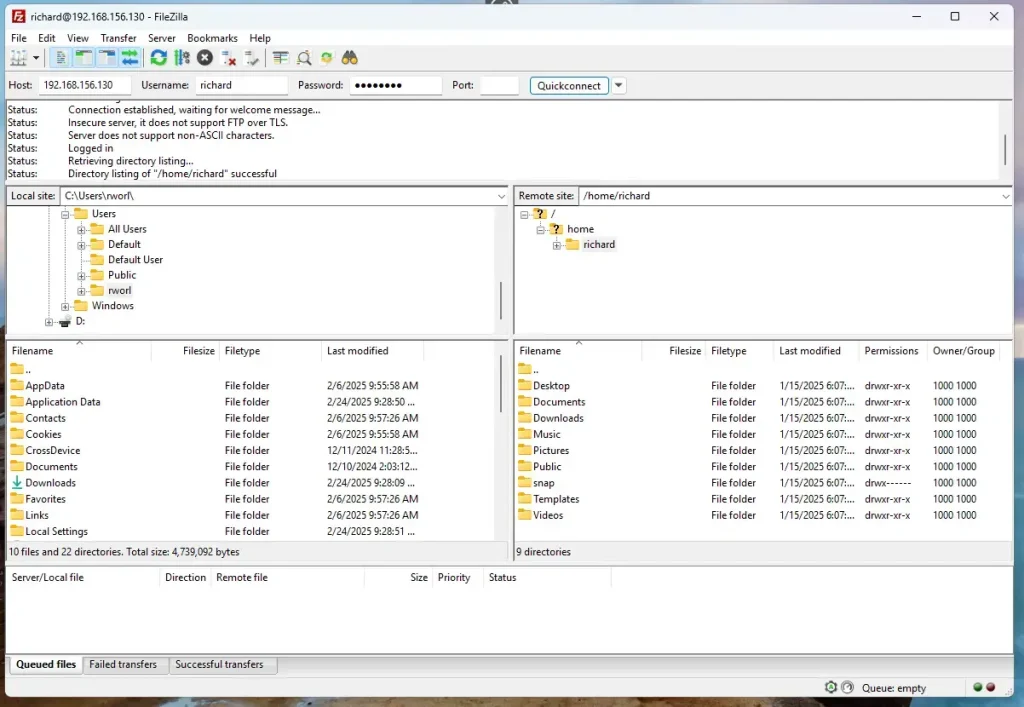
Access Pure-FTPd over SSL/TLS
Although Pure-FTPd is accessible, it’s not secure. You should configure Pure-FTPd communication over SSL/TLS.
Use a public certificate like Let’s Encrypt or a self-signed on your server.
For this post, we’ll create a self-signed certificate for Pure-FTPd.
Run the command below to generate a self-signed certificate with Pure-FTPd.
sudo openssl req -x509 -nodes -newkey rsa:3072 -keyout pure-ftpd.pem -out pure-ftpd.pem -days 3650
When prompted, enter the certificate details.
Country Name (2 letter code) [AU]:US
State or Province Name (full name) [Some-State]:NY
Locality Name (eg, city) []:Brooklyn
Organization Name (eg, company) [Internet Widgits Pty Ltd]:GeekRewind
Organizational Unit Name (eg, section) []:IT
Common Name (e.g. server FQDN or YOUR name) []:pureftpd.example.com
Email Address []:
After generating the certificates, copy them into the [/etc/ssl/private] directory.
sudo cp pure-ftpd.* /etc/ssl/private
sudo chmod 600 /etc/ssl/private/pure-ftpd.pem
Once you’ve generated the server private key and certificate files, configure Pure-FTPD to use the SSL/TLS certificate created above.
To do that, run the commands below as root (sudo bash) to force Pure-FTPD to communicate over TLS.
sudo bash
echo "2" > /etc/pure-ftpd/conf/TLS
After adding the highlighted lines to the file, save it. Then, run the commands below to restart the Pure-FTPD server.
sudo systemctl restart pure-ftpd
With SSL/TLS configured, open your FTP client and set up the sites to use SSL/TLS.
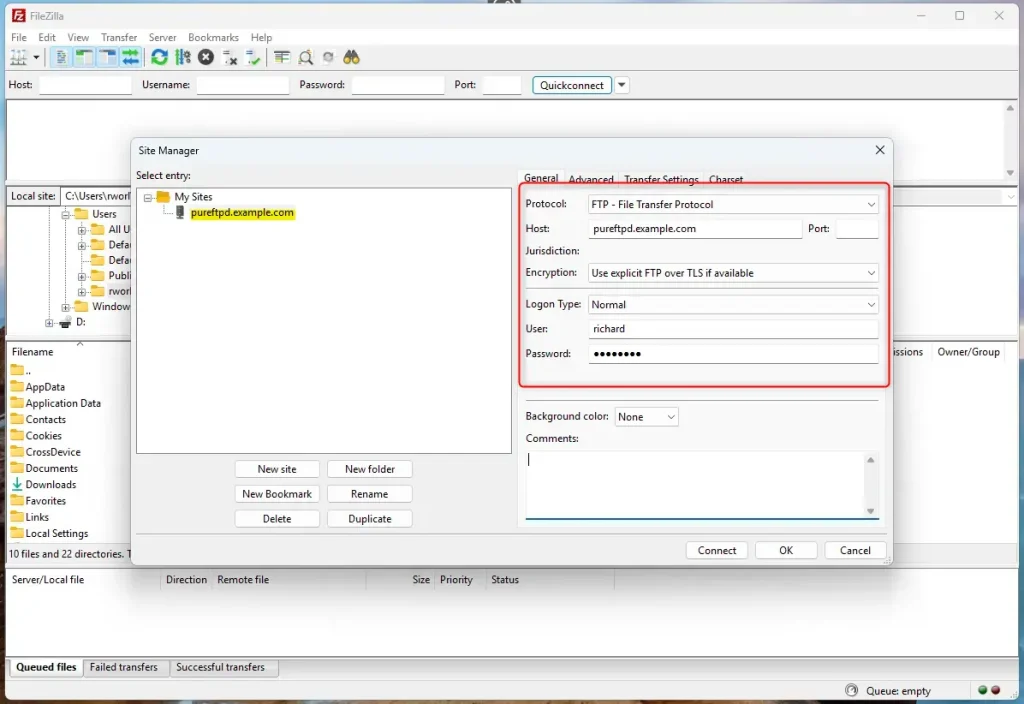
Since we used a self-signed certificate when prompted to trust it, OK.

Now, Pure-FTPd is communicating over SSL/TLS.

That should do it!
Conclusion:
- Installing Pure-FTPd on Ubuntu 24.04 provides a secure and efficient FTP server solution.
- The process includes creating virtual users, allowing for better management in shared hosting scenarios.
- Configuring SSL/TLS enhances security, ensuring encrypted data is transmitted over the FTP channel.
- Generating a self-signed certificate is a straightforward way to secure your FTP connections.
- Regular server updates and maintenance are essential for ongoing security and performance optimization.
Following these steps, you can effectively manage your FTP needs while prioritizing security and efficiency.
Frequently Asked Questions
How do I install Pure-FTPd on Ubuntu 24.04?
How can I configure Pure-FTPd to use SSL/TLS?
What is the purpose of the '/etc/ftpusers' file?
Can I create virtual users with Pure-FTPd?
How do I start or stop the Pure-FTPd service?
Was this guide helpful?

About the Author
Richard
Tech Writer, IT Professional
Richard, a writer for Geek Rewind, is a tech enthusiast who loves breaking down complex IT topics into simple, easy-to-understand ideas. With years of hands-on experience in system administration and enterprise IT operations, he’s developed a knack for offering practical tips and solutions. Richard aims to make technology more accessible and actionable. He's deeply committed to the Geek Rewind community, always ready to answer questions and engage in discussions.




No comments yet — be the first to share your thoughts!