Install Microsoft Teams on Ubuntu: A Step-by-Step Guide

You install Microsoft Teams on Ubuntu by downloading the official .deb package from Microsoft. Microsoft Teams is a collaboration platform that provides chat, video calls, and file sharing.
This guide shows you how to get the official Linux version running, ensuring you can connect with your team from your Ubuntu desktop. It works well on recent Ubuntu versions like 22.04 LTS.
Download the .deb package from the Microsoft Teams website. Open the downloaded file and select “Software Install” to open the Ubuntu Software Center, then click “Install.” You will need to enter your password to complete the installation.
Download and install Microsoft Teams on Ubuntu Linux
Microsoft provides Teams’.DEB installer files for Debian and Ubuntu-based distributions and.RPM for Red Hat and other Red Hat-related based platforms.
You can download these files and install Microsoft Teams by running the files for your operating system.
It should be easy on Ubuntu and others since installing Linux applications is intuitive.
To install, go to Teams’ download site below using your favorite web browser in Ubuntu:
https://teams.microsoft.com/downloads#allDevicesSection
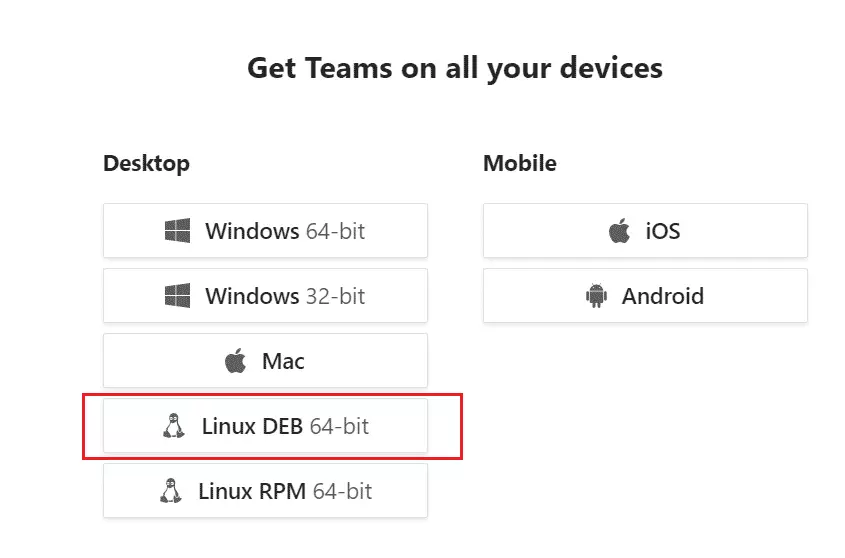
Then, select Linux DEB 64-bit for Ubuntu systems.
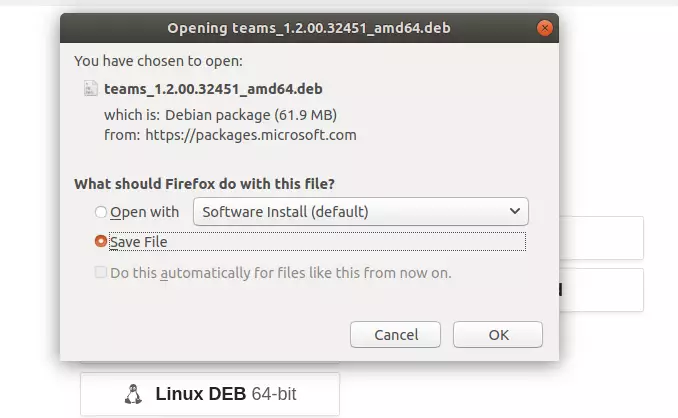
When prompted, choose Save the file.
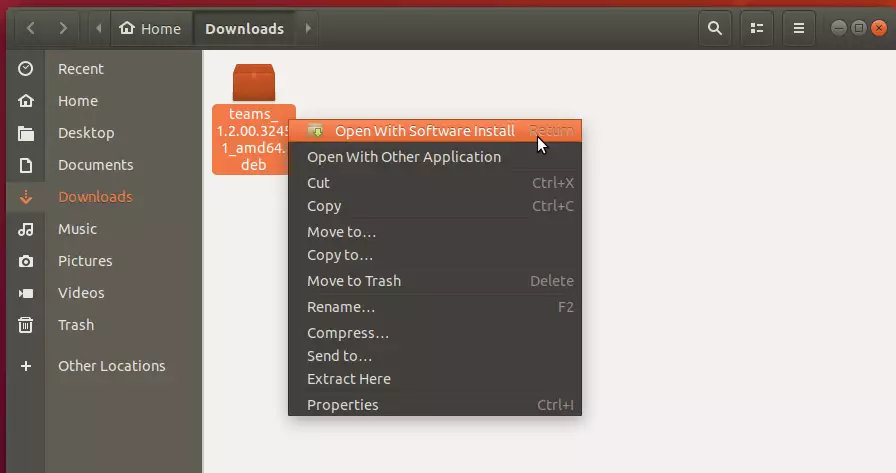
After downloading the installer, go to your Downloads folder in your home directory and right-click the downloaded file.
Then select Open With Software Install.
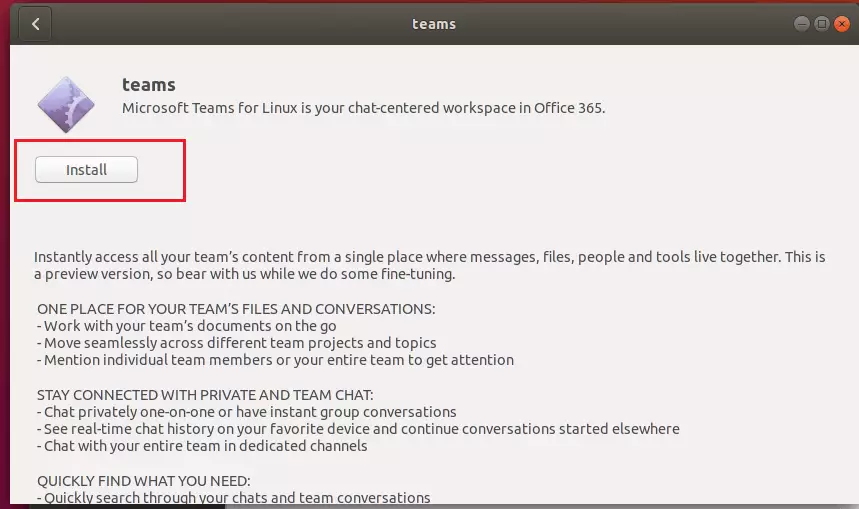
That will open the Ubuntu Software Center. From there, click Install to begin the installation.
You will be prompted for your password to complete the installation. When you’re done, Teams should be installed and ready to use…
To launch it, go to the Activities Overview and search Teams and launch it.
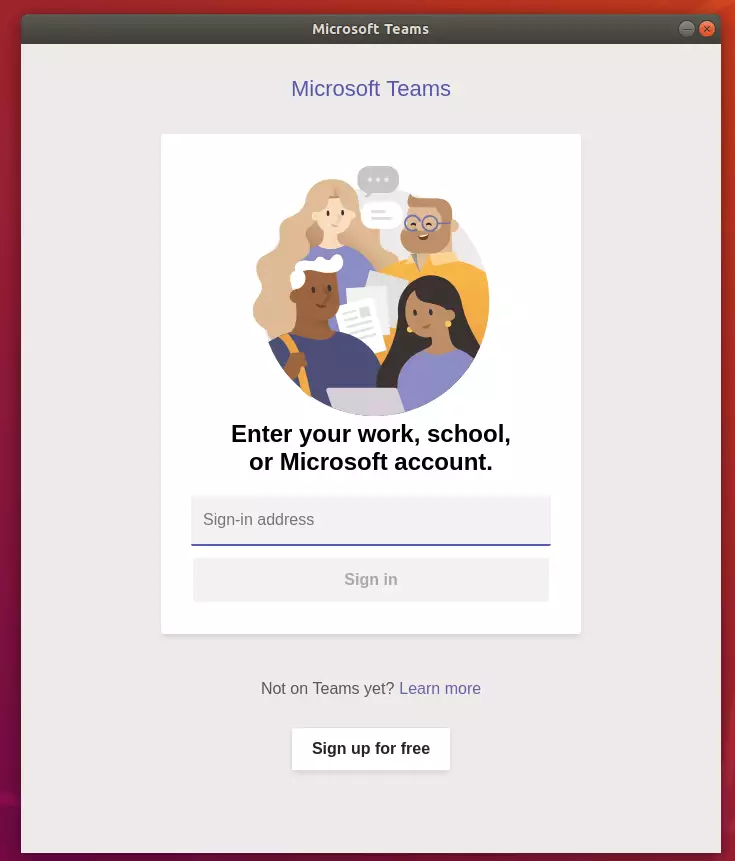
When it opens, type in your Team’s email address and password to log on.
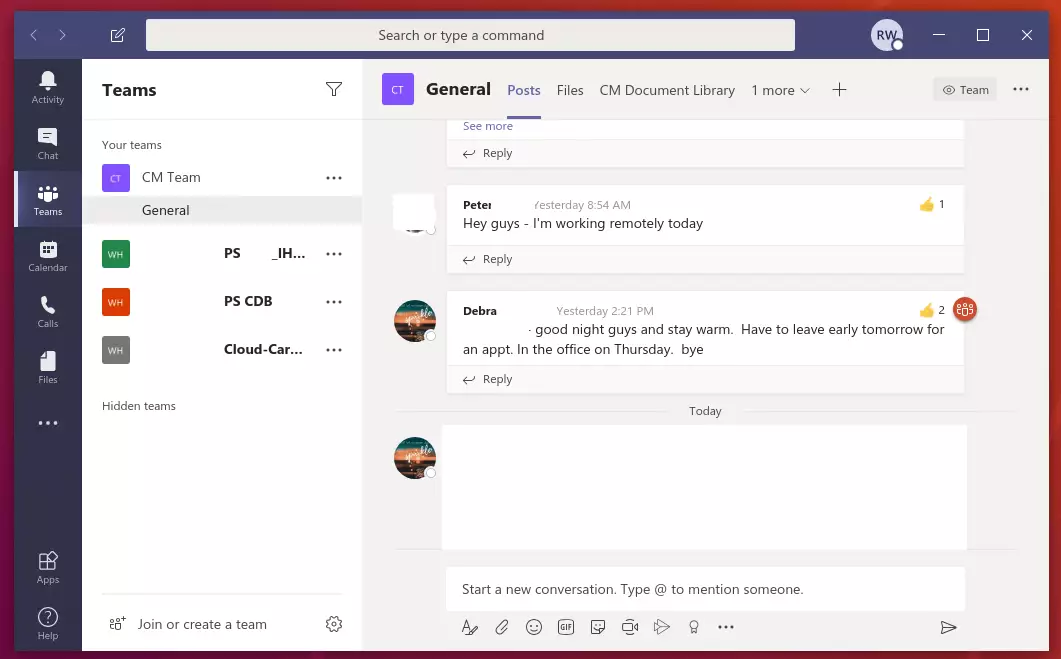
Install Microsoft Teams via the command terminal
Instead of downloading and installing the Teams file described above, you can use the command terminal console to install Teams quickly.
The command console is typically for advanced users and involves running commands. If you are a user starting with Linux, the above steps should work great.
If you feel the command line is easy, run the commands below to add Teams’ repository GPG key.
curl https://packages.microsoft.com/keys/microsoft.asc | sudo apt-key add -
Next, run the commands below to create the Teams repository file.
sudo sh -c 'echo "deb [arch=amd64] https://packages.microsoft.com/repos/ms-teams stable main" > /etc/apt/sources.list.d/teams.list'
Finally, update Ubuntu package indexes and install Microsoft Teams.
sudo apt update
sudo apt install teams
That’s it!
Conclusion:
Installing Microsoft Teams on Ubuntu is straightforward and provides numerous user benefits. Here are the key takeaways:
- Microsoft Teams is available for Linux, making it accessible to Ubuntu users.
- Installation can be done easily through the graphical interface or the command line.
- Teams support communication, collaboration, and file sharing among team members.
- Using Teams enhances workflow between Linux and other operating systems.
- Users can join meetings and collaborate seamlessly, no matter their chosen OS.
With these steps, you’re now ready to leverage Microsoft Teams for enhanced productivity in your work and collaborations.
Was this guide helpful?

About the Author
Richard
Tech Writer, IT Professional
Richard, a writer for Geek Rewind, is a tech enthusiast who loves breaking down complex IT topics into simple, easy-to-understand ideas. With years of hands-on experience in system administration and enterprise IT operations, he’s developed a knack for offering practical tips and solutions. Richard aims to make technology more accessible and actionable. He's deeply committed to the Geek Rewind community, always ready to answer questions and engage in discussions.



Website like this is very much helpful for students like me.
Thank you for your help.
Downloaded in my linux but Error in logging in. It always says “We couldn’t sign you in. Please try again.” How to solve this issue. Many thanks.
This looks nice, THX. I did try it too because somebody wanted this and couldn’t use Zoom. The .deb does download and install, but slows my i9 down to boot times 5 times longer than usual. And if you then want to register, it turns out they want everything up to the name of your nan, and conclude that you have to buy a license (so far for that part of free) or better use skype. In the end we used the phone. Landline. That worked within seconds. After deinstall my i9 returned to its former speed BTW. So no thanks. Never again.
How can i uninstall it ?
double click the deb file then click remove
where is the command line instruction for linux ?
Linux users are not like windoze users, they tend to have some brain.
Sudo apt-get
apt search microsoft teams its not that hard all you have to do then is dpkg -i microsoft.deb and your good to go
On Ubuntu, you can now just use snap:
…$ snap install teams
i face this problem while login to teams
we couldnt connect to internet.try checking your connections.
You should know that it is only for organizational and school account before you download it!
Uninstall: “sudo dpkg –purge teams”
For some reason I don’t have the option “Join or create a team”. I only have the option to organize the teams to which I have been invited. How can I change that in Ubuntu? The Microsoft pages only say, that one has to do that in Microsoft 365 but I can’t believe that since that doesn’t exist for Ubuntu and the pictures in the article above imply that it is very well possible to have the option “join or create a team” with Ubuntu.
Unfortunately this only works if you have a Work/School Teams account. Logging in with a personal account, you will receive a notification for the same.