How to Hide or Show Account Name and Profile Picture on Start Menu in Windows 11

You can hide or show your account name and profile picture on the Windows 11 Start menu by adjusting a simple setting.
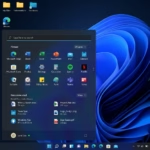
The Start menu is your central hub for launching apps and accessing system features. For privacy or aesthetic reasons, you might want to remove your personal account details from its default display.
This option allows you to declutter your Start menu, especially if you use a shared PC. The ability to customize this element became more widely available in later Windows 11 updates.
Even when hidden on the Start menu itself, your account details remain accessible by clicking your profile icon.
Option 1Using Settings
This is a good way to change the setting.
- Open Settings. You can do this by pressing the Windows key + I on your keyboard.
- On the left side, click on Personalization.
- On the right side, click on Start.
- Look for the section called Other settings.
- You will see an option called Hide your name and profile picture on Start.
- Turn this setting On to hide your name and picture.
- Turn this setting Off to show them. The default setting is Off, which shows your information.
- You can now close the Settings window.
Option 2Using the Registry Editor
This next method is a bit more technical and requires careful steps. Before you begin, it’s a good idea to back up your registry.
Why do this? This method changes a setting directly in Windows. It’s helpful if the Settings option isn’t working or if you prefer managing settings this way.
What happens when done? Your account name and picture will either be hidden or shown on the Start menu, depending on the change you make.
To Hide Account Name and Profile Picture on Start Menu:
- Press Windows key + R to open the Run box.
- Type
regeditand press Enter. Click Yes if a User Account Control prompt appears. (Requires administrator privileges) - In the Registry Editor, go to this location:
HKEY_LOCAL_MACHINE\SOFTWARE\Microsoft\Windows\CurrentVersion\Personalization\StartMenu - Right-click on the Personalization key in the left pane.
- Select New, then select DWORD (32-bit) Value.
- Name the new value
HideUserInformation. - Double-click on the new
HideUserInformationvalue. - Set the Value data to
1. - Click OK.
To Show Account Name and Profile Picture on Start Menu (Default):
- Follow steps 1-6 from the “Hide” section above to create or find the
HideUserInformationvalue. - Double-click on the
HideUserInformationvalue. - Set the Value data to
0. - Click OK.
You might need to restart your computer or sign out and sign back in for the changes to show up.
Reference:
Summary
You can change this through the Settings app under Personalization > Start. If you’re comfortable with more advanced options, the Registry Editor also lets you make this change by modifying the HideUserInformation DWORD value.
Was this guide helpful?

About the Author
Richard
Tech Writer, IT Professional
Richard, a writer for Geek Rewind, is a tech enthusiast who loves breaking down complex IT topics into simple, easy-to-understand ideas. With years of hands-on experience in system administration and enterprise IT operations, he’s developed a knack for offering practical tips and solutions. Richard aims to make technology more accessible and actionable. He's deeply committed to the Geek Rewind community, always ready to answer questions and engage in discussions.
No comments yet — be the first to share your thoughts!