
This article describes steps to resolve the removal of the PIN sign-in option button when grayed out in Windows 11.
Windows 11 has a Windows Hello feature that provides a more personal and secure way to sign into Windows. With Windows Hello, one can use a PIN, facial recognition, or fingerprint to sign into their devices securely.
When you set up an account PIN, you can also reset or remove it when you want to sign into your Account with a password.
An account protected with a PIN is more secure than one set up with a password. In addition, your PIN helps make it easier and safer to sign into your PC because a PIN is associated with one device and backed up for recovery with your Microsoft account.
While using a PIN is safer and more accessible than traditional passwords, you can permanently remove the account PIN from your Account and use a regular password if necessary.
How to remove a PIN when the button grayed out in Windows 11
An account PIN is safer and easier to remember and provides better security than a traditional password. If you instead use a password and then an account PIN, the steps below show you how to do that.
First, open the Windows Settings app.
You can do that by clicking the Start menu and selecting the Settings app. Alternatively, press the keyboard shortcut (Windows key + I) on your keyboard to launch the Settings app.

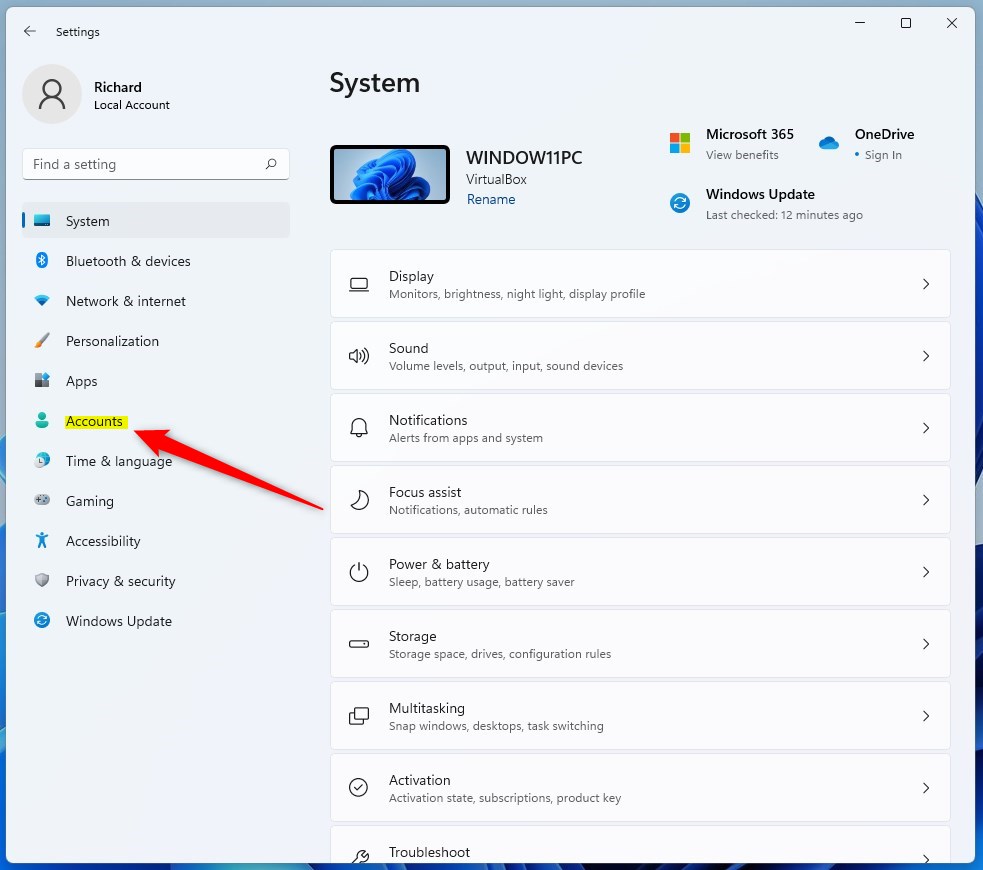
When the Settings app opens, click the Accounts button on the left.
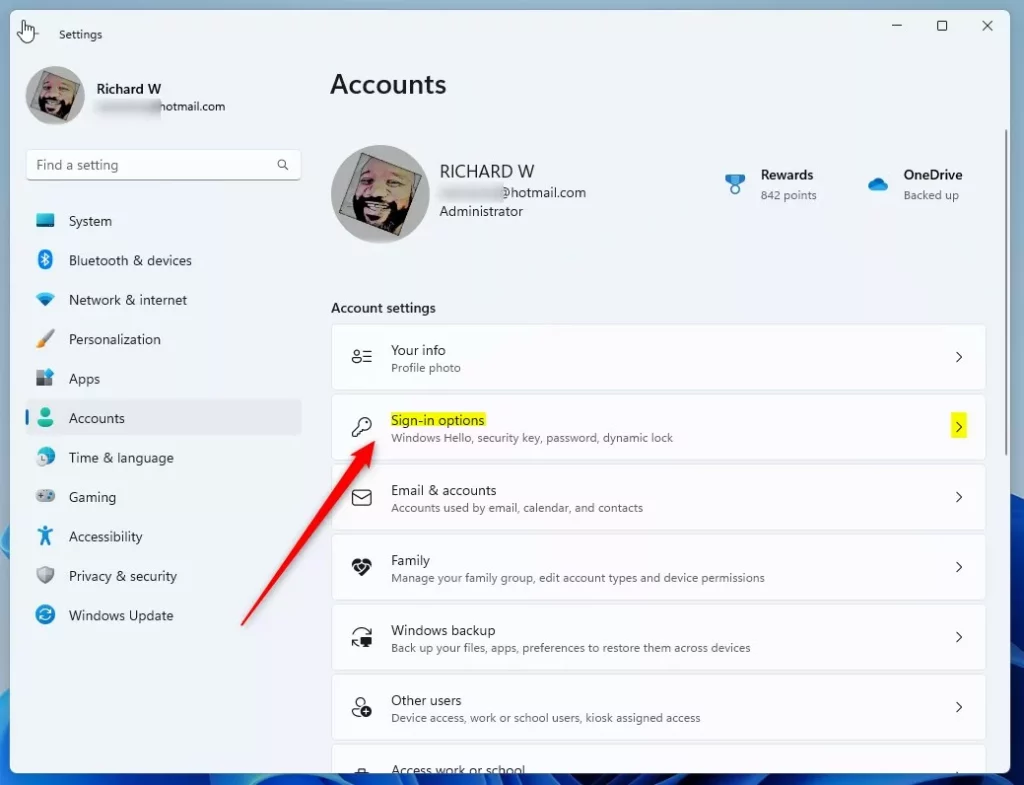
On the right, select the Sign-in options tile to expand.
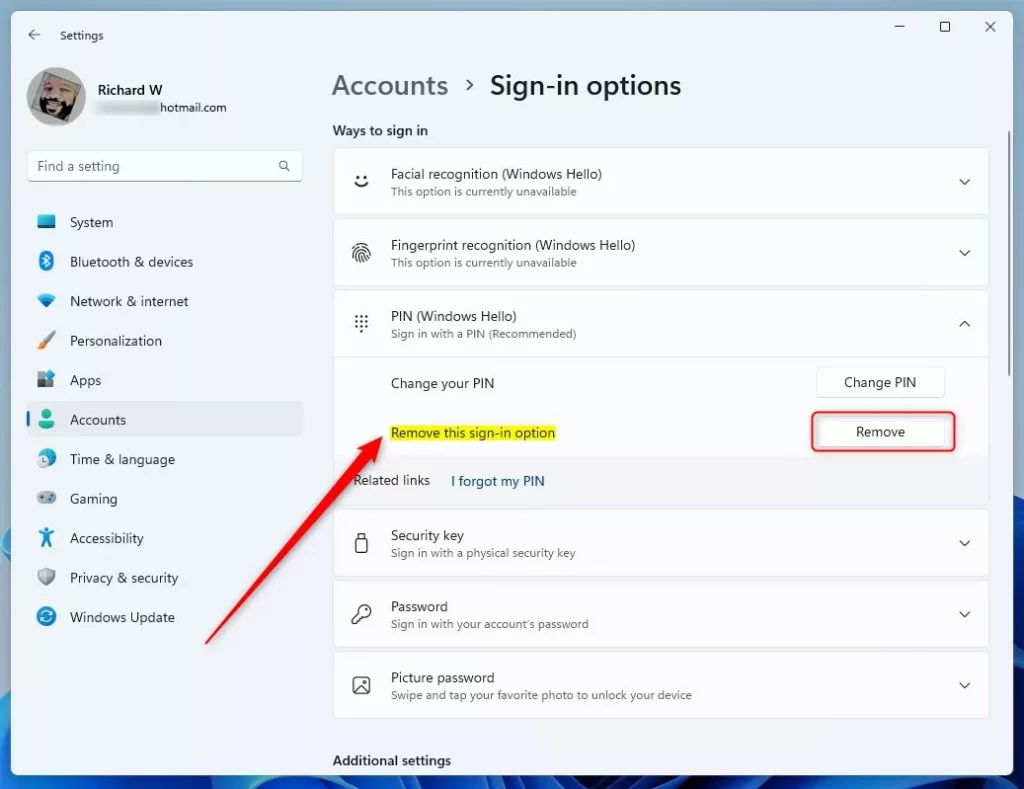
On the Account -> Sign-in options settings pane, select the PIN (Windows Hello) tile to expand. Next, verify that the “Remove this sign-in options” button is grayed out on the expanded tile.
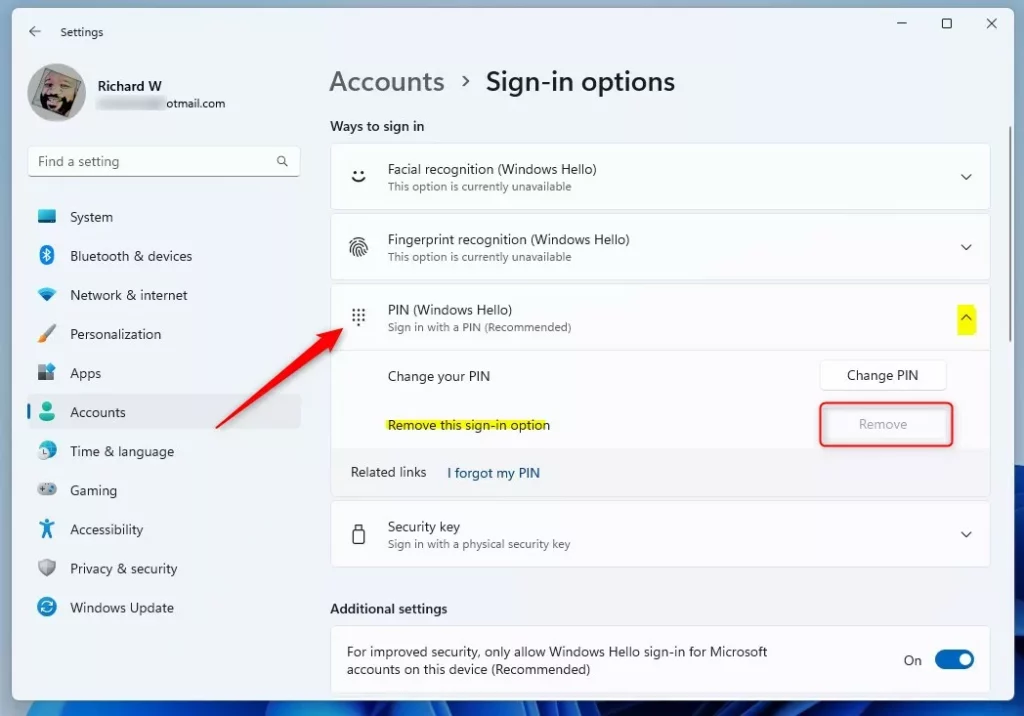
To fix the remove PIN button being grayed out, turn Off the tile under the Additional settings that say, “For improved security, only allow Windows Hello sign-in for Microsoft account on this device.”
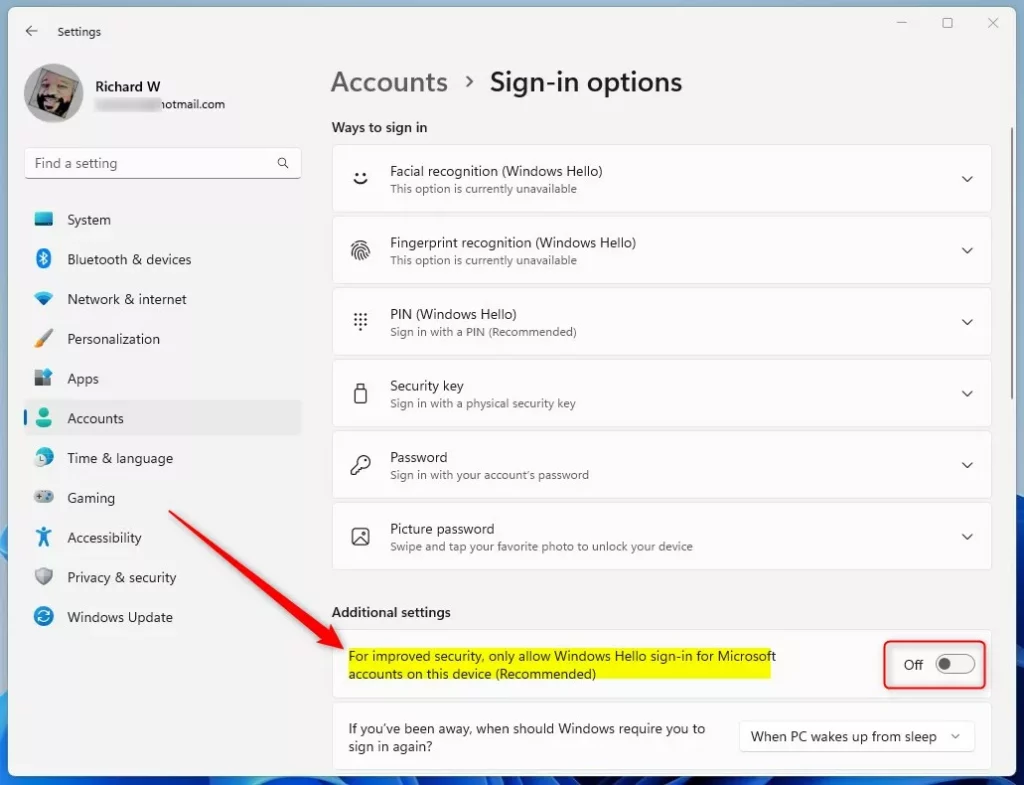
Once it’s off, return to the PIN (Windows Hello) tile again; this time, the remove PIN button should not be grayed out.
That’s it!
Conclusion:
- Resolved the issue of the grayed-out “Remove PIN” button in Windows 11
- Enabled the “Remove PIN” button by turning off the “For improved security, only allow Windows Hello sign-in for Microsoft account on this device” setting
- Provided a step-by-step guide for fixing the grayed-out “Remove PIN” button issue in Windows 11



Leave a Reply Cancel reply