

This article describes steps one can take to find printer details in Windows 11
You may want to know the details of a printer connected to your Windows device. The manufacturer, model number, drivers supported, and many other details can be accessed directly from Windows.
Many of these details are printed on the back of the printer; if the printer has a digital display, they can also be accessed there.
Windows 11 also makes it easier to identify particular details of devices connected. For example, not just printers, devices connected to Windows usually have drivers that provide details to help users identify them.
How to identify printer details in Windows 11
As mentioned above, you may sometimes want to know the details of a printer connected to your Windows device. Details include the manufacturer, model number, supported drivers, and many others.
Below is how to identify the details of the printer connected to the Windows device.
Windows 11 has a Settings app that lets you configure many settings for your device. For example, you can change the time zone, add and remove devices, and rename your computer.
To get to the Settings app, click the Start menu -> Settings.

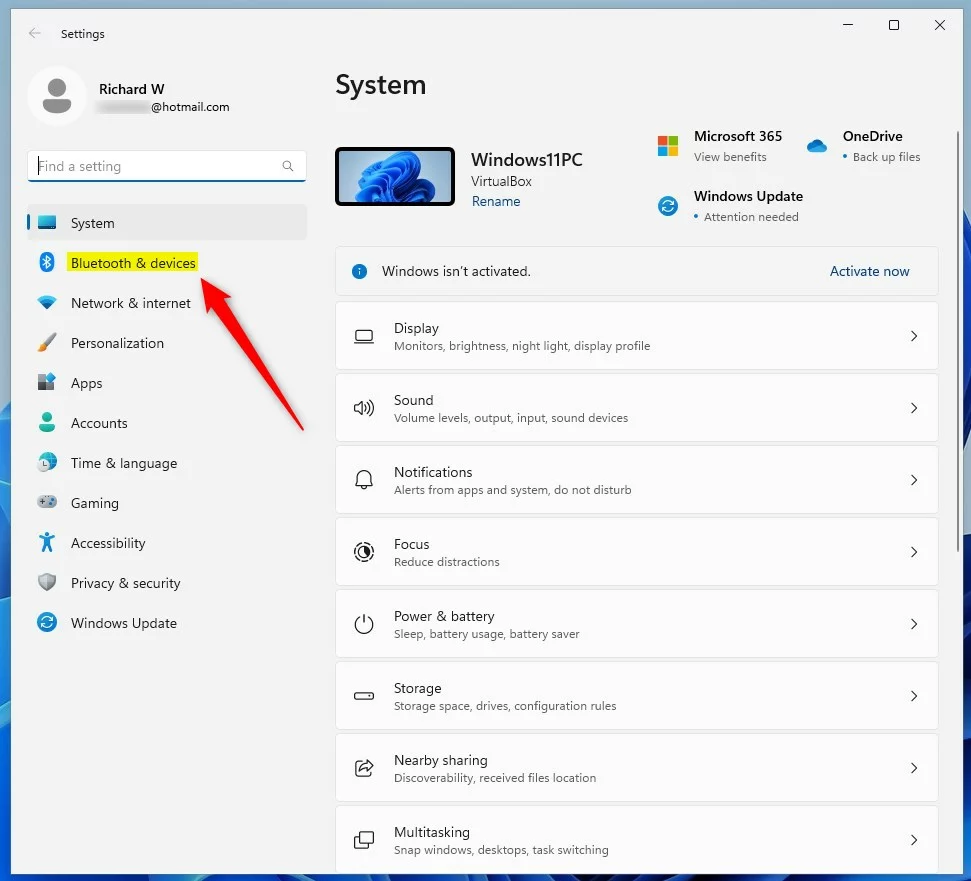
Within the Settings app, select Bluetooth & devices button on the left.
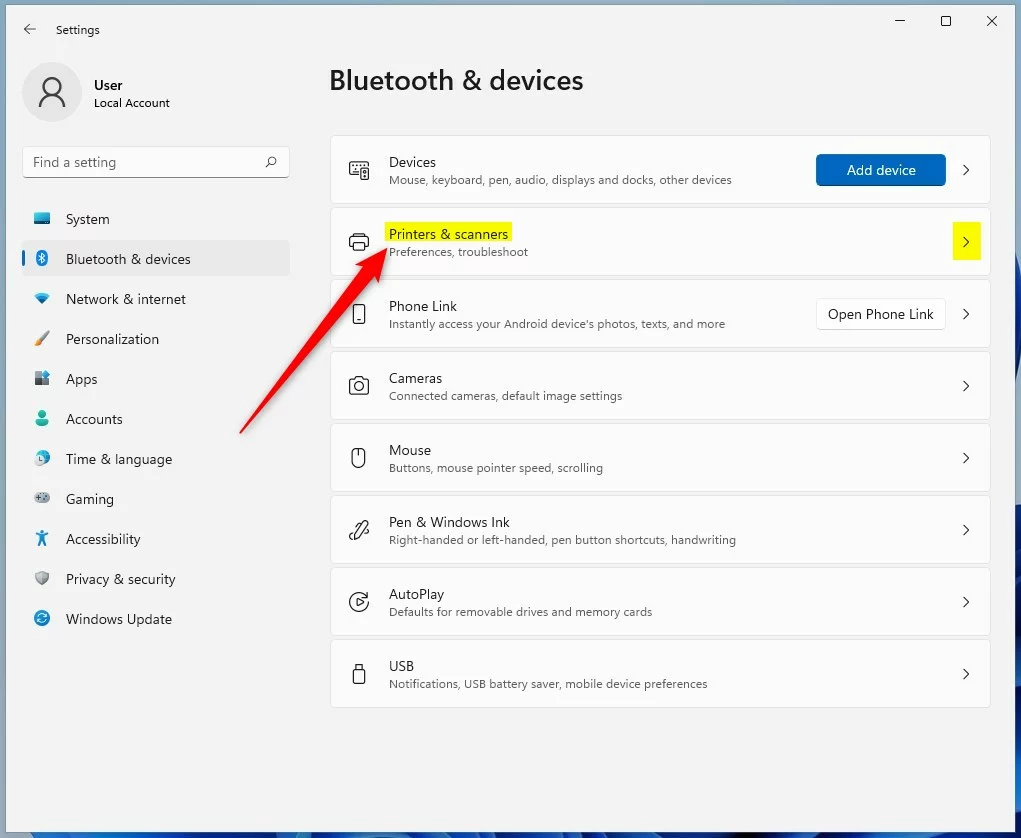
On the right, click on the Printers & scanner tile to expand.
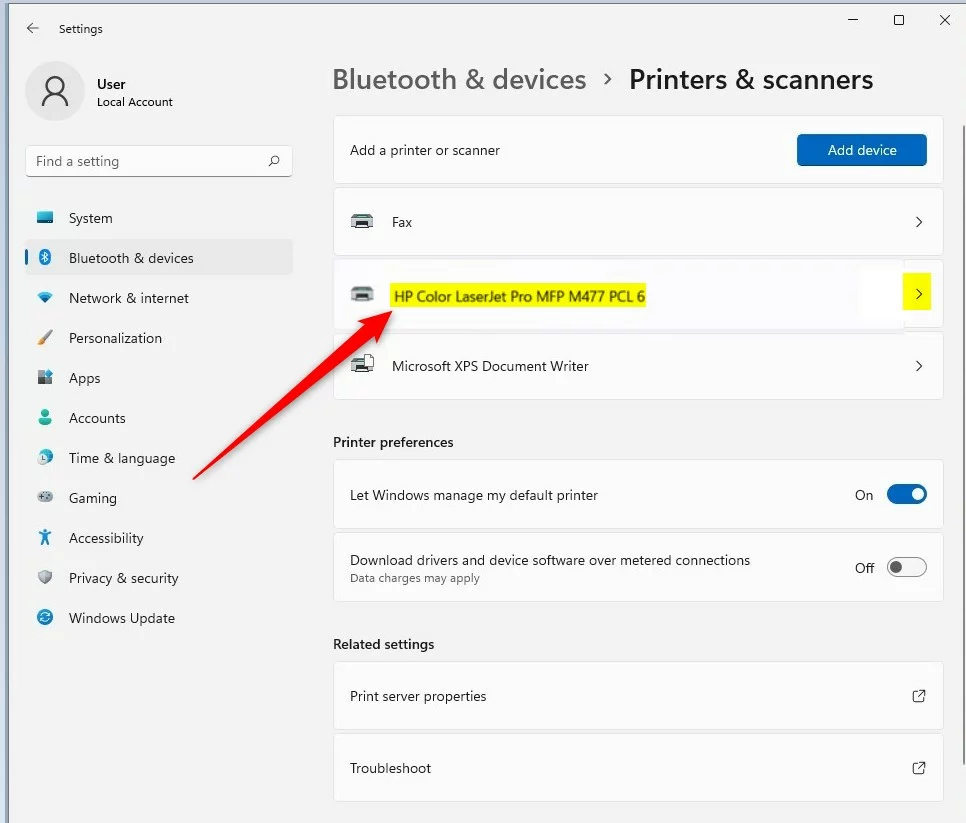
On Bluetooth & devices -> Printers & scanners settings pane. Select a specific printer tile to expand and go to this properties pane.
Under the More information section, expand the Device information setting pane to see the printer details.
You will find everything you need about the printer, including the manufacturer’s name, printer model, and other details.
That should do it!
Conclusion:
- Finding printer details in Windows 11 can be easily achieved through the Settings app.
- Accessing the “Printers & scanners” settings pane allows users to expand the specific printer tile and view detailed information.
- The “More information” section within the “Device Information” setting pane provides comprehensive details, including the manufacturer’s name and printer model.
- Utilizing these steps simplifies obtaining essential printer information on a Windows 11 device.



Leave a Reply Cancel reply