

This post shows students and new users steps to find and use Microsoft WordPad in Windows 11. Microsoft Wordpad is a free, rich text editor app to create and edit files, include text with different fonts and colors, insert pictures, and add links to other files.
WordPad offers more features than Windows Notepad but is less advanced than Microsoft Word. You can use WordPad to open and save text files (.txt), rich text files (.rtf), Word documents (.docx), and OpenDocument text files (.odt).
Files in other formats will open as plain text files and might not appear as expected. You might get by with WordPad if you don’t have Microsoft Word installed.
Some features—like headers, footers, and annotations—aren’t supported in WordPad.
Below are steps to find and use Microsoft WordPad on Windows 11 computers.
How to open WordPad on Windows 11
As mentioned above, Microsoft WordPad offers more features than Windows Notepad but is less advanced than Microsoft Word. If you don’t have Microsoft Word installed, you may get by with WordPad for less advanced users.
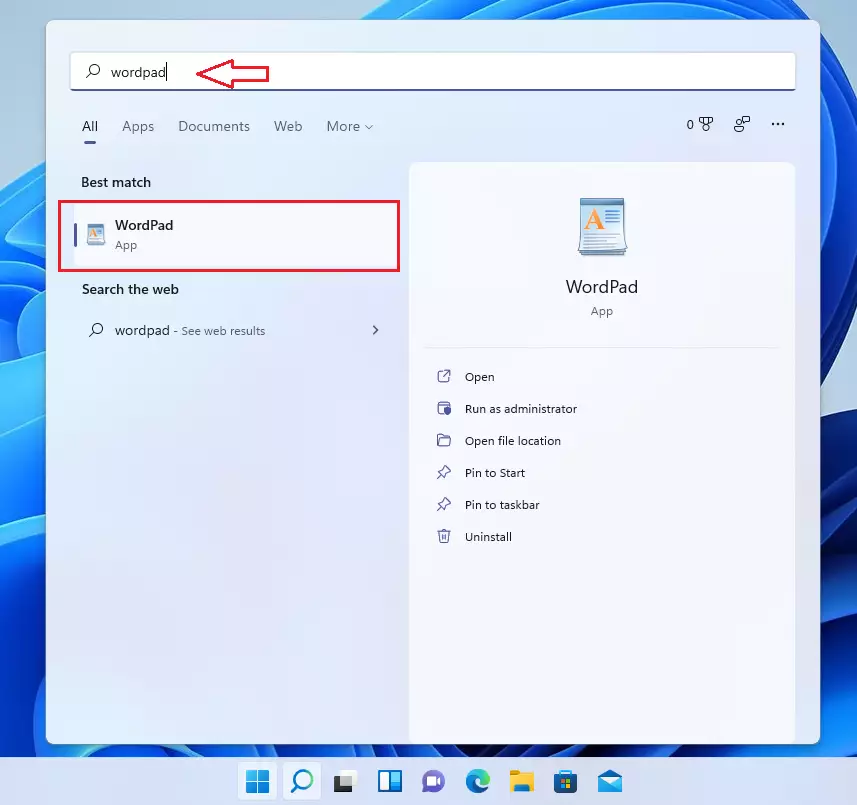
To use the WordPad in Windows 11, click on the Start menu, then search Wordpad in the search box. Under Best Match, select the WordPad app to open.
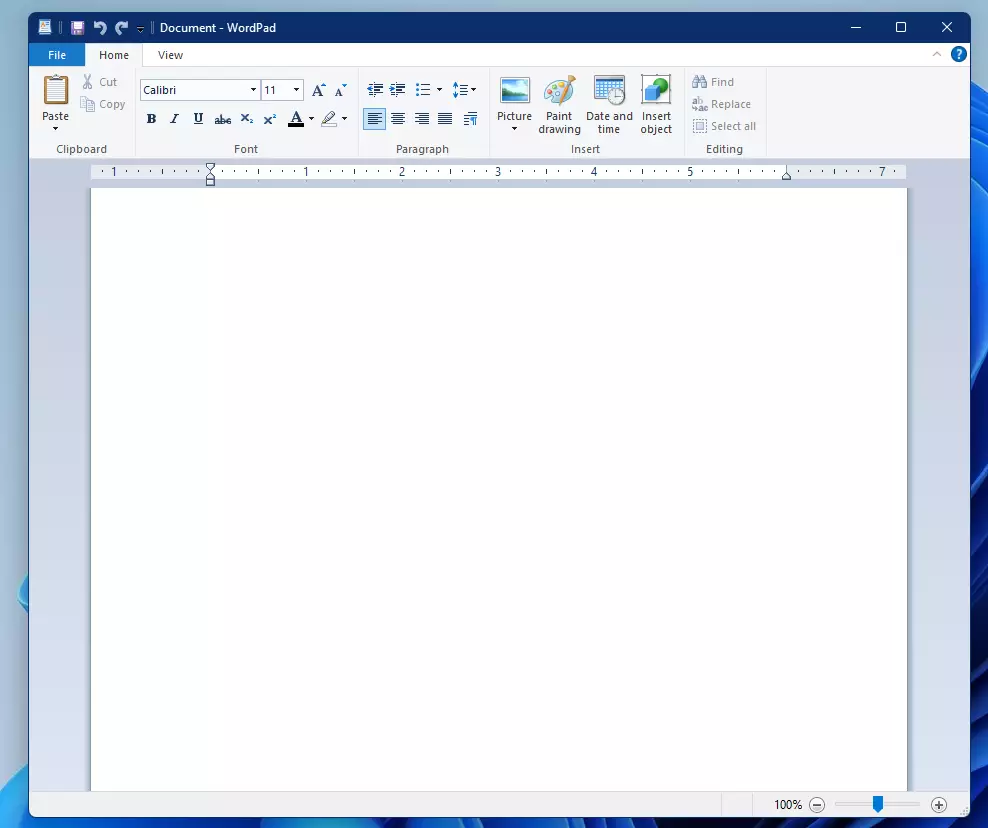
That will open WordPad app.
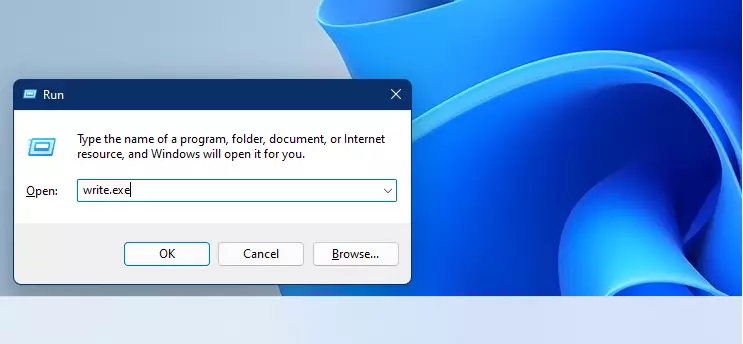
Alternatively, one can use the Run command box to open WordPad in Windows 11.
Press the Windows key + R on your keyboard, then type writes or Wordpad and press the ENTER key.
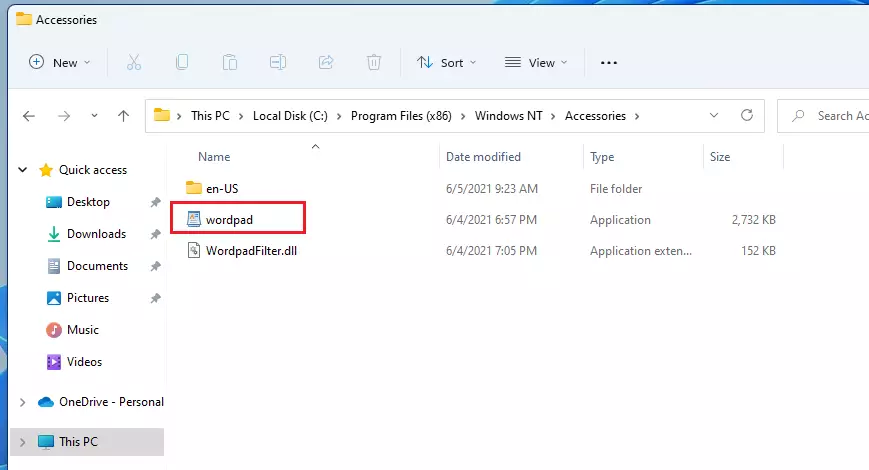
In File Explorer, browse the path below to find the WordPad application (wordpad.exe).
C:Program FilesWindows NTAccessorieswordpad
The shortcut is available at the path below:
C:ProgramDataMicrosoftWindowsStart MenuProgramsAccessories
Again, for basic usage, WordPad might be just enough. However, suppose you want to create advanced documents with mail merges, spellchecker, styles, tables, headers & footers, columns, margins, and more. In that case, Microsoft Word or an alternative productivity suite should be considered.
Below is a basic table on creating, opening, and saving files with WordPad.
| Create a new file | Tap or click File, and then tap or click New. |
| Open a file | Tap or click File, and then tap or click Open. |
| Save a file | Tap or click File, and then tap or click Save. |
| Save a file under a different name or format | Tap or click Save as. |
That should do it!
Conclusion:
This post shows you how to find and use WordPad in Windows 11. Please use the comment form below if you find any errors above or have something to add.





Leave a Reply