How to Encrypt USB Drives in Windows 11 with BitLocker

This guide explains how to use BitLocker to protect your USB flash drives with a password in Windows 11.
Why use BitLocker? If you lose your USB drive, someone else could easily view your private files. BitLocker scrambles your data so that only people with the correct password can open it.
What happens when done? Your USB drive will be locked. Every time you plug it into a computer, you must type in your password to see your files.
Note: You will need administrative privileges to perform these steps.
Understanding Windows 11 Home vs. Pro
BitLocker is a powerful security feature, but it is not available in all versions of Windows. If you are using Windows 11 Home, you will not find the BitLocker option in your settings. This is a common limitation for home users.
If you have Windows 11 Pro, Enterprise, or Education, you can use BitLocker To Go. If you are on Home, you will need third-party alternatives like VeraCrypt or 7-Zip AES-256 encryption to password protect your USB flash drive.
How to Encrypt USB Drives in Windows 11 Pro
You can manage your drives through the Windows Settings menu. To open it, press the Windows key + I on your keyboard or click Start > Settings.

In the Settings window, click System and then select Storage.
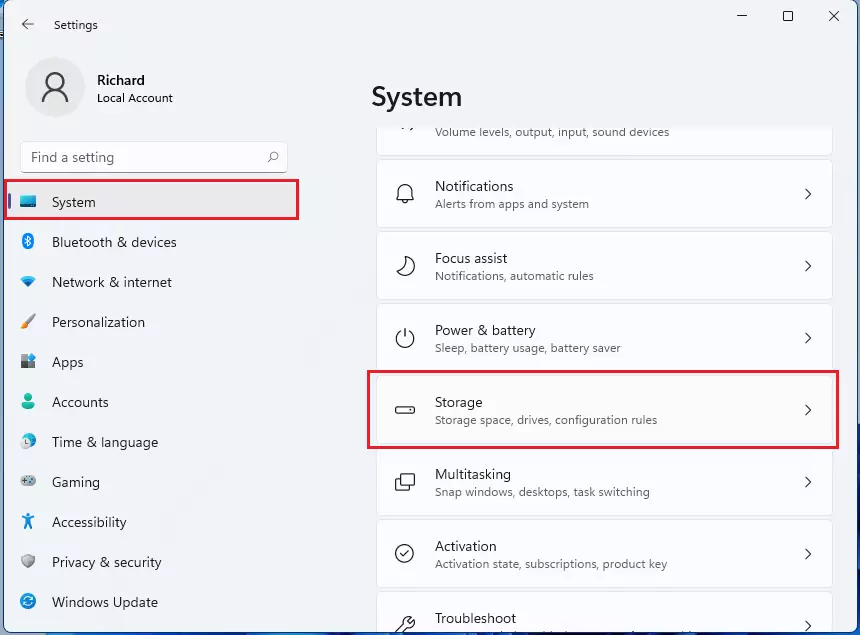
Find Advanced storage settings and click it to see more options.
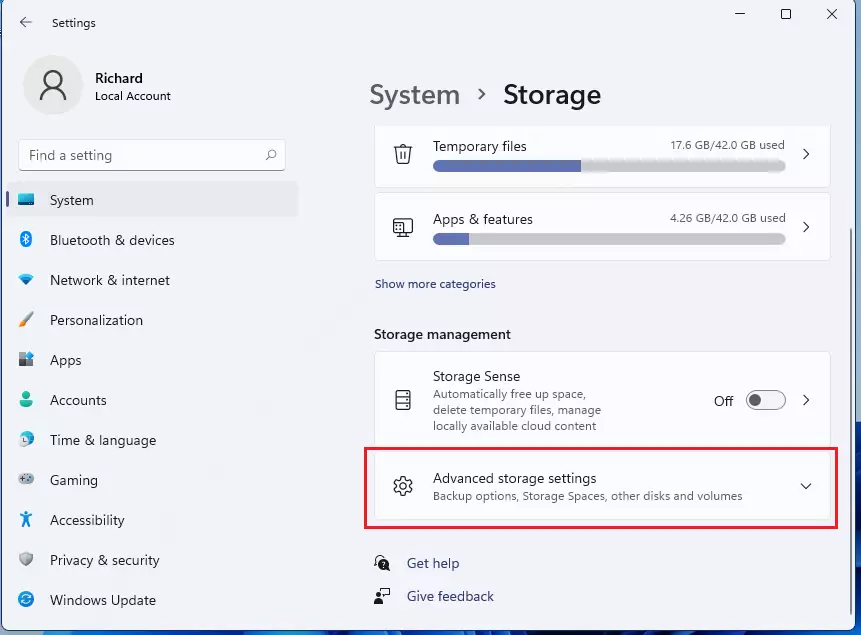
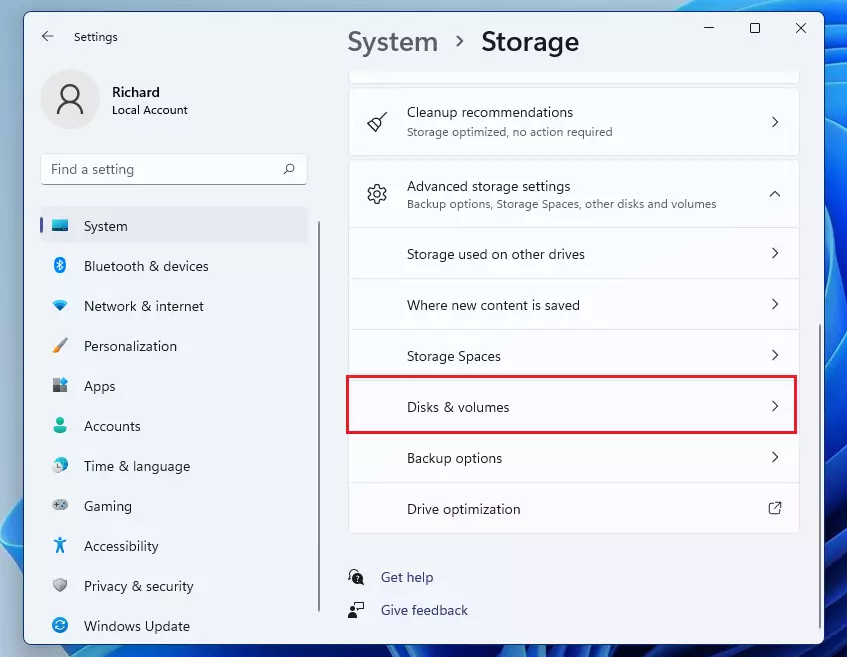
Next, click on Disks & volumes.
Find your USB drive in the list. Click the small arrow to expand it, then click Properties.
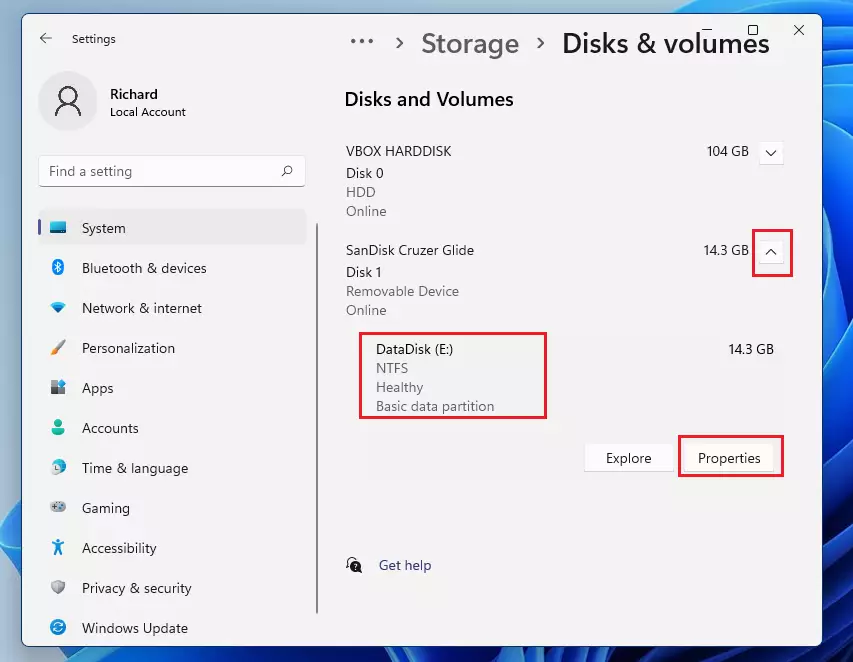
On the properties page, click the link to Turn on BitLocker.
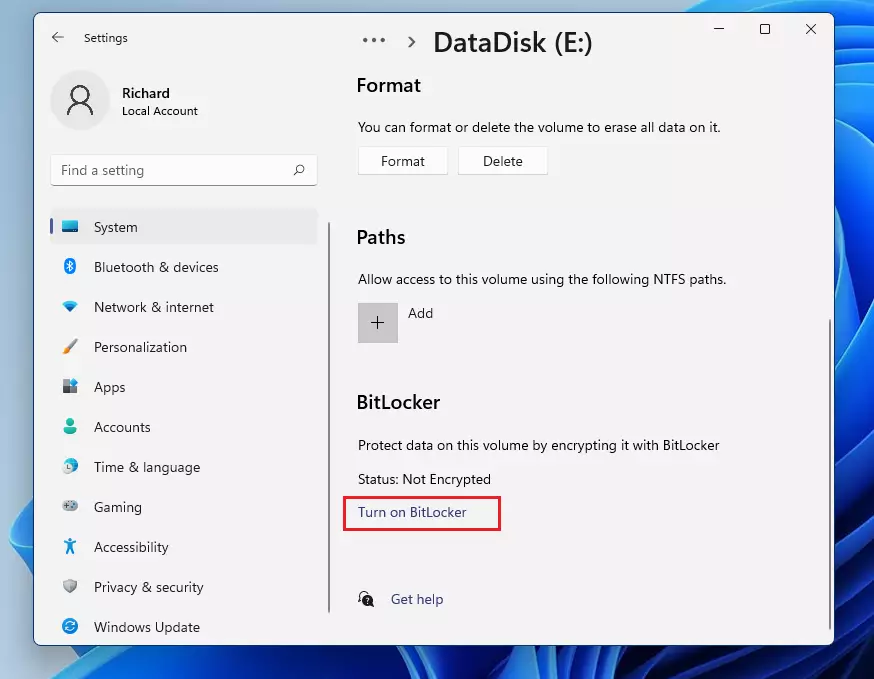
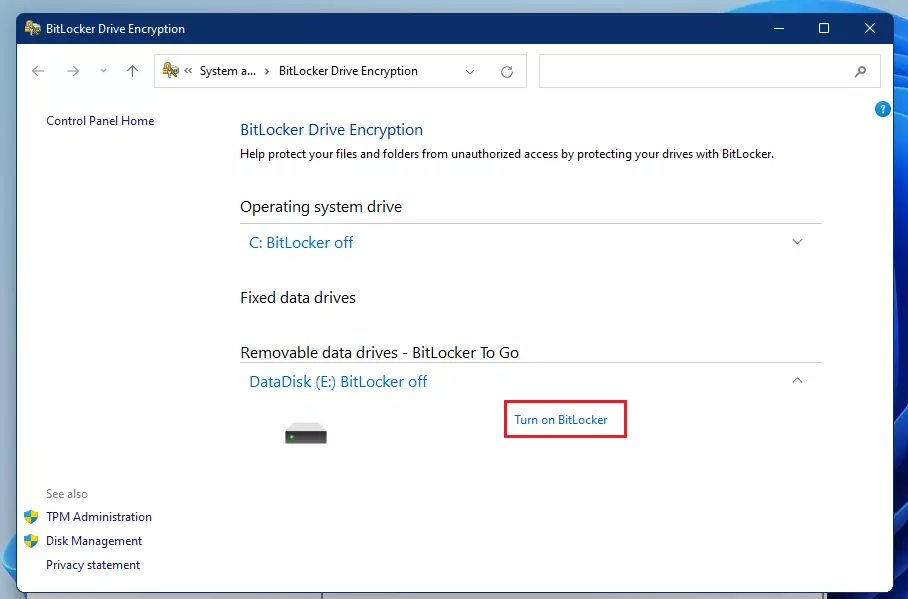
A new window will appear. Look for your drive under Removable data drive – BitLocker To Go and click Turn on BitLocker.
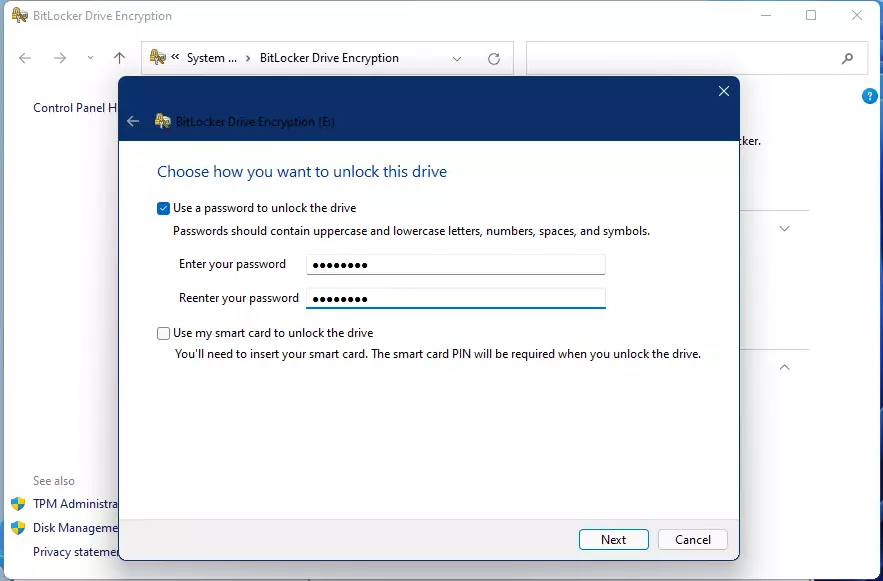
Type in a strong password and confirm it. You will need this password every time you use the drive.
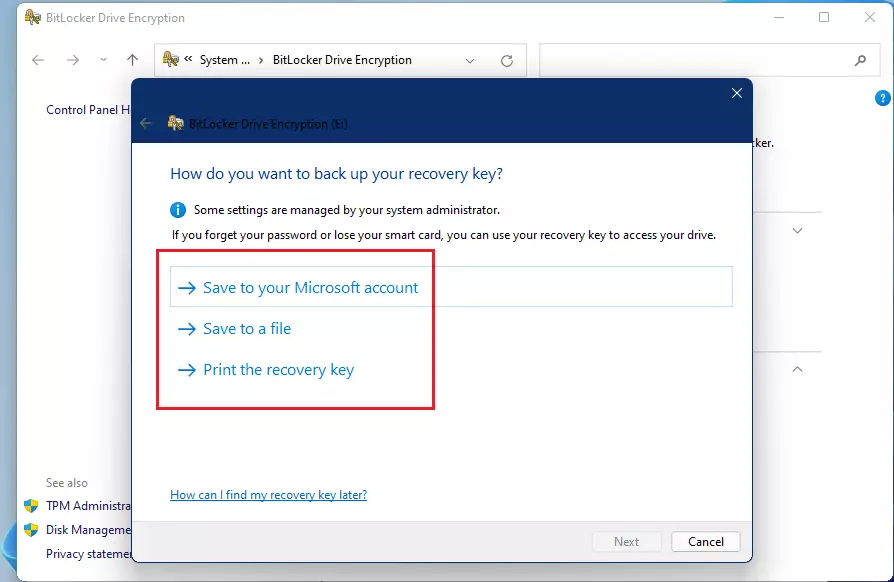
Windows will ask you to save a recovery key. This is very important! If you forget your password, this key is the only way to get your data back. Save it in a safe place, such as your Microsoft account.
Follow the on-screen prompts and click Next.
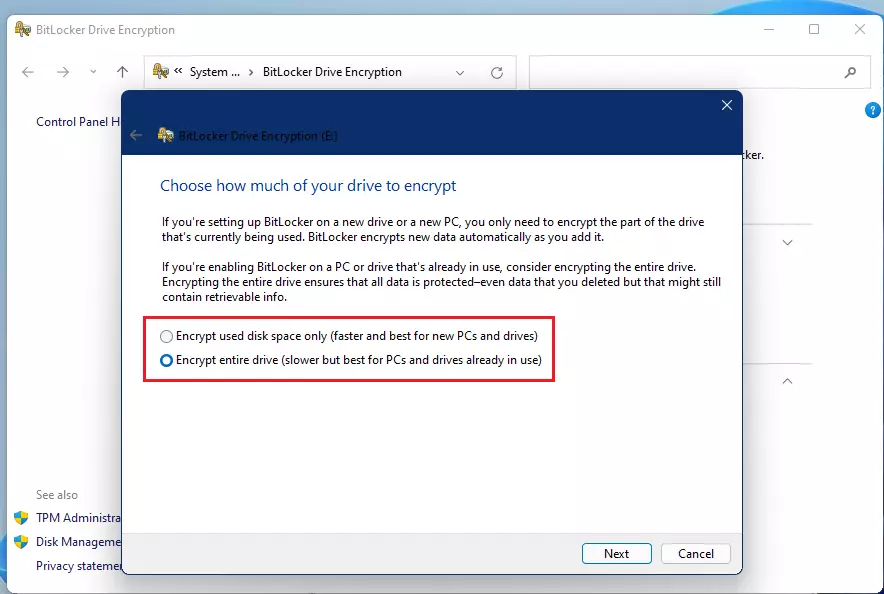
Choose the encryption method that fits your needs, then click Start Encrypting.
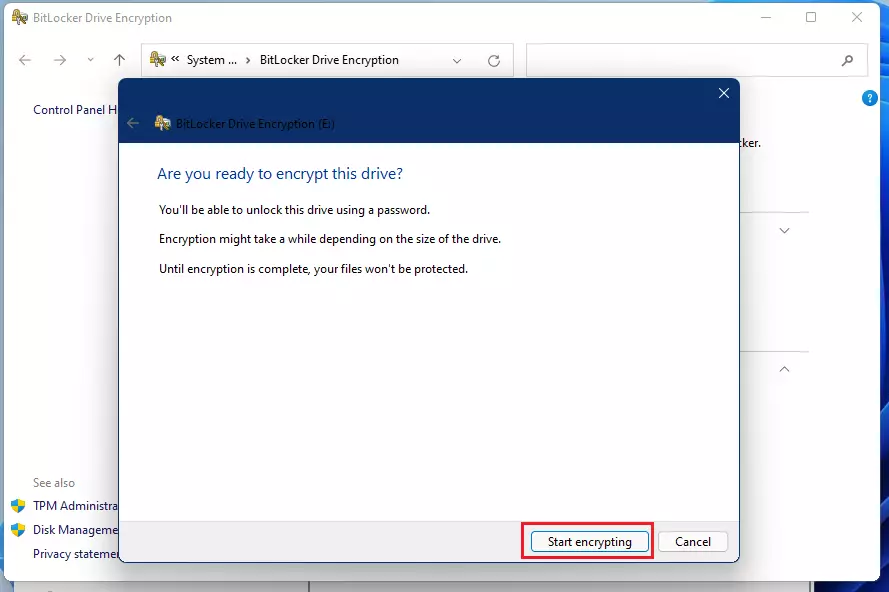
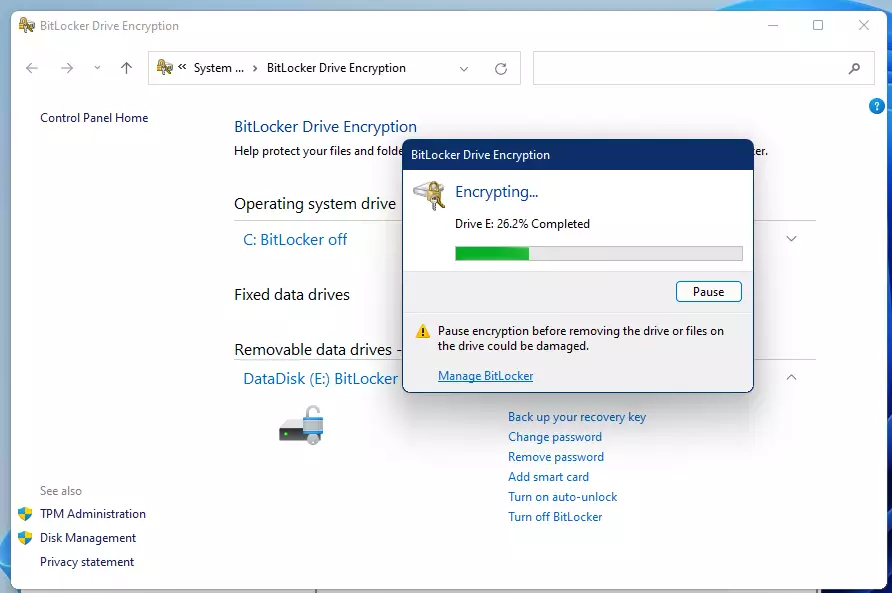
Wait for the process to finish. This might take a few minutes depending on how large your drive is.
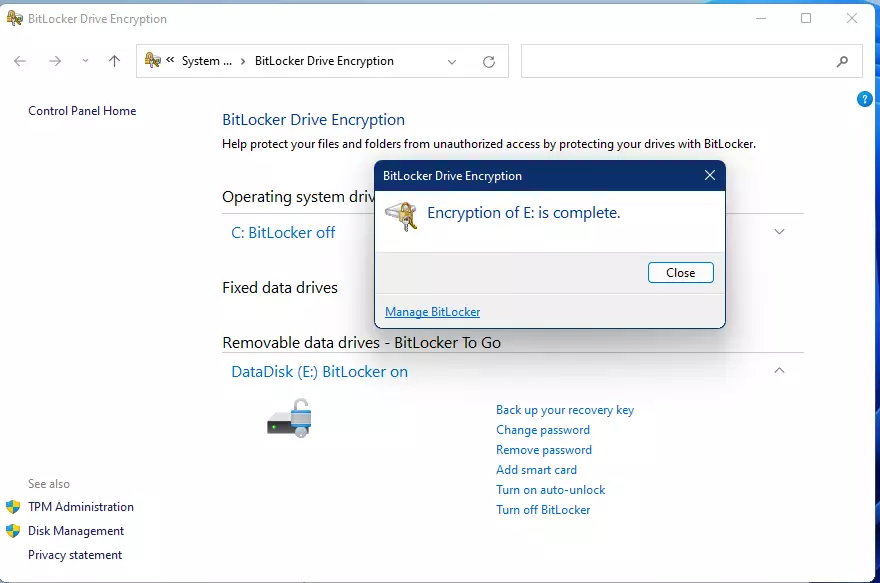
Once you see the message that encryption is complete, your drive is secure.
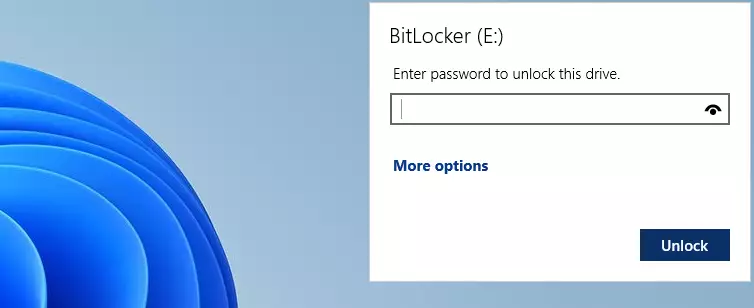
The next time you plug your drive into a computer, a box will pop up asking for your password.
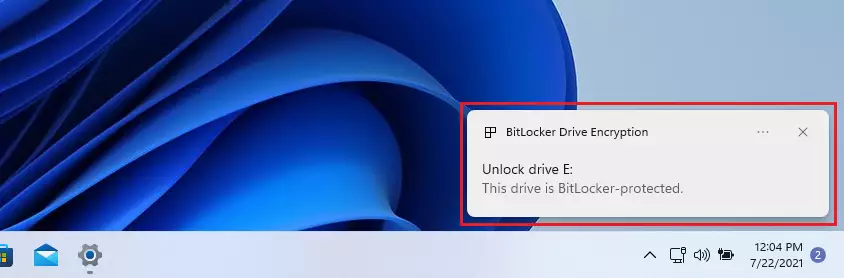
Type your password to unlock the drive and access your files.
Best Practices for USB Encryption
Before you start, it is often better to format the USB drive to NTFS or exFAT if you plan to store large files. FAT32 has a 4GB file size limit which can cause issues. Regarding speed, encryption does add a small amount of overhead to the processor, but on modern computers, you will likely not notice any significant slowdown in transfer speeds.
Summary
BitLocker To Go is a built-in Windows tool that keeps your USB files safe from prying eyes. By setting a password, you ensure that only you can access your data. Remember to store your recovery key somewhere safe, as you will need it if you ever forget your password. If you are on Windows 11 Home, consider using free tools like VeraCrypt to achieve similar results.
Can I use BitLocker on Windows 11 Home?
No, BitLocker is not included in Windows 11 Home. It is a feature exclusive to Pro, Enterprise, and Education editions. If you use the Home edition, you must use third-party software like VeraCrypt or 7-Zip to encrypt your files and protect your data security.
What happens if I lose my BitLocker password?
If you lose your password, you must use the recovery key you saved during the initial setup. If you do not have the recovery key, your data will be permanently inaccessible. Always store your recovery key in a secure location, such as your Microsoft account or a printed document.
Was this guide helpful?


[…] can protect external, fixed, and operating system drives using BitLocker. When you enable BitLocker to protect the […]
[…] can protect external, fixed, and operating system drives using BitLocker. When you enable BitLocker to protect the […]
[…] can protect external, fixed, and operating system drives using BitLocker. When you enable BitLocker to protect the […]
[…] can protect external, fixed, and operating system drives using BitLocker. When you enable BitLocker to protect the […]
[…] can protect external, fixed, and operating system drives using BitLocker. When you enable BitLocker to protect the […]
[…] can protect external, fixed, and operating system drives using BitLocker. When you enable BitLocker to protect the […]
[…] can protect external, fixed, and operating system drives using BitLocker. When you enable BitLocker to protect the OS […]
[…] can protect external, fixed, and operating system drives using BitLocker. When you enable BitLocker to protect the […]
[…] can protect external, fixed, and operating system drives using BitLocker. When you enable BitLocker to protect the […]
[…] External drives like USB sticks […]
[…] External drives like USB sticks […]