How to Choose BitLocker Encryption Type on Windows 11 Drives

To keep your data safe on Windows 11, you can choose how BitLocker encrypts your drives.
BitLocker is a built-in Windows feature that encrypts your entire drive or specific data, protecting it from unauthorized access. This ensures that even if your device is lost or stolen, your sensitive files remain inaccessible.
When setting up BitLocker on a Windows 11 drive, you’ll see two main encryption options: “Used space only” and “Full drive encryption.” The “Used space only” option encrypts only the data currently on your drive. This is quicker, but it doesn’t fully protect against recovering old, deleted files. “Full drive encryption,” on the other hand, scrambles every part of the drive, offering the highest level of security.
You choose between “Used space only” and “Full drive encryption” when setting up BitLocker. “Full drive encryption” encrypts all sectors for maximum security, while “Used space only” encrypts only existing data for faster setup.
What is BitLocker?
BitLocker is a Windows tool that keeps your files safe by scrambling them, so only you can read them.
- External drives like USB sticks
- Fixed drives inside your computer
- Your main Windows system drive
When you use BitLocker on your main Windows drive, it can unlock automatically when your computer starts. This happens thanks to a special security chip called the Trusted Platform Module (TPM).
Encryption Types for Fixed Drives
When you set up BitLocker on a drive inside your computer, you can pick how it encrypts your data: either the whole drive or just the parts that have files on them.
- Full Encryption: Encrypts the entire drive — even empty space. This takes longer but is the safest choice.
- Used Space Only Encryption: Encrypts only the space where your files are stored. This is faster but less complete.
How to Make Windows Always Use One Encryption Type
You can tell Windows to always use your preferred BitLocker encryption type, so you don’t have to choose it every time you encrypt a new drive.
When you set this preference, Windows will automatically pick one encryption type for you without asking.
If you want Windows to always pick one encryption type, you can set a rule using Windows tools. Here are two ways to do it.
Method 1Using Local Group Policy Editor
- Press the Start button and type
Edit group policy, then open the Local Group Policy Editor. - In the window that opens, go to this folder:
Computer Configuration > Administrative Templates > Windows Components > BitLocker Drive Encryption > Fixed Data Drives - Find
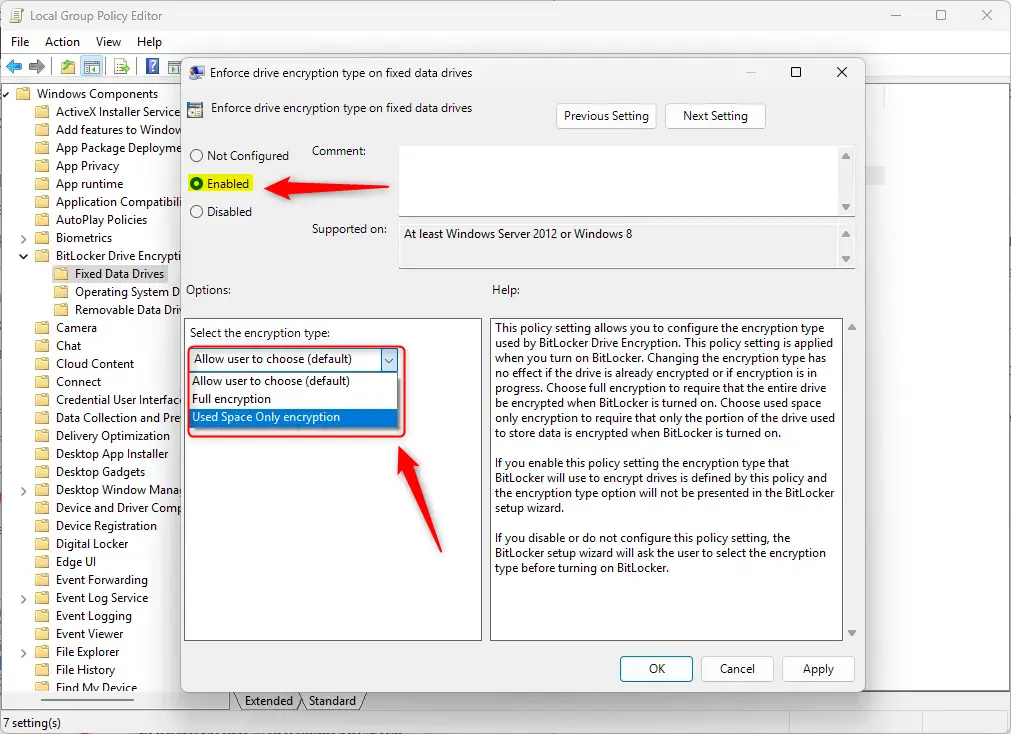
Enforce drive encryption type on fixed data driveson the right and double-click it. - Choose one of these options:
Not Configured(default): Windows will ask you every time which encryption type to use.Enabled: You pick the encryption type below, and Windows will use it automatically without asking.Disabled: Same as Not Configured — Windows asks you each time.
- If you selected
Enabled, choose either:- Full encryption
- Used space only encryption
- Click
OKto save. - Restart your computer to apply the changes.
To set a default BitLocker encryption type using the Group Policy Editor, first open the tool by searching for ‘Edit group policy’ in the Start menu.
And here are the options you can pick:
Method 2Using Windows Registry Editor
You can also set a default BitLocker encryption type using the Registry Editor, but be very careful as mistakes can cause problems with Windows.
- Open the Windows Registry Editor as administrator. Search for
regeditin Start, then right-click and chooseRun as administrator. ⚠️ Requires admin privileges - Go to this folder in the Registry Editor:
HKEY_LOCAL_MACHINE\SOFTWARE\Policies\Microsoft\FVE - Look for a value named
FDVEncryptionTypein the right pane. - If it’s not there, right-click on the right side, pick
New > DWORD (32-bit) Value, and name itFDVEncryptionType. - Double-click
FDVEncryptionTypeand set its value to:1for Full encryption2for Used space only encryption
- Click
OKand close the Registry Editor. - Restart your computer to apply changes.
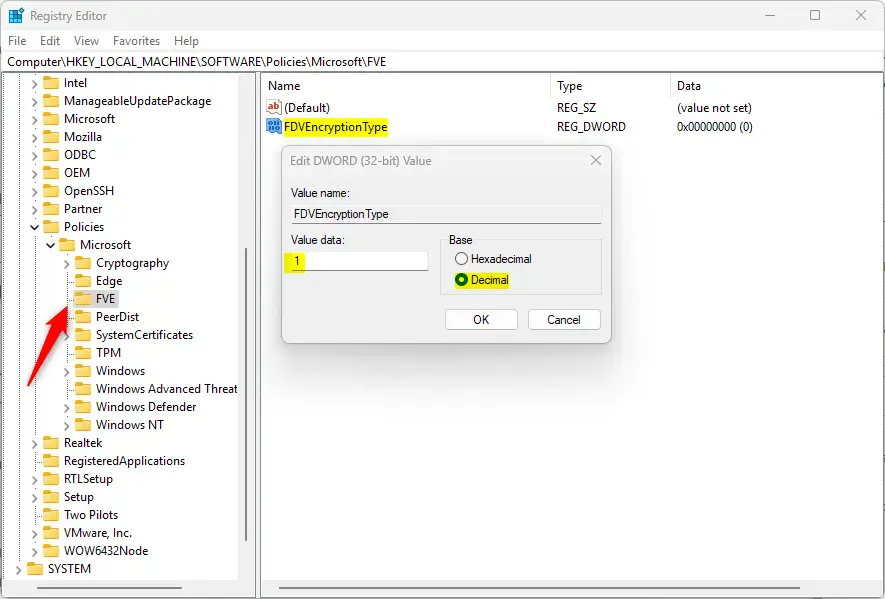
If you want to go back to letting Windows ask which encryption type to use, delete the FDVEncryptionType value from the registry.
Summary
- BitLocker protects your drives by encrypting them so only authorized users can access your data.
- You can choose how BitLocker encrypts fixed drives: full drive or used space only.
- Using the Group Policy Editor or Registry Editor, you can force Windows to always use one encryption type without asking.
- Remember to restart your computer after making these changes.
BitLocker is a Windows feature that encrypts your drives to keep your data private, and you can choose between full or used-space encryption for fixed drives.
How do I select the encryption type in BitLocker?
Open the Start Menu and search for Edit group policy to open the program. Navigate to Computer Configuration > Administrative Templates > Windows Components > BitLocker Drive Encryption. Double-click Choose drive encryption method and cipher strength (Windows 10 [Version 1511] and later).
Was this guide helpful?

About the Author
Richard
Tech Writer, IT Professional
Richard, a writer for Geek Rewind, is a tech enthusiast who loves breaking down complex IT topics into simple, easy-to-understand ideas. With years of hands-on experience in system administration and enterprise IT operations, he’s developed a knack for offering practical tips and solutions. Richard aims to make technology more accessible and actionable. He's deeply committed to the Geek Rewind community, always ready to answer questions and engage in discussions.
📚 Related Tutorials




No comments yet — be the first to share your thoughts!