How to Enable Single Click to Open Items in Windows 11

This guide shows you how to change your Windows 11 settings so you can open your files and folders with a single click instead of two.
Why use single-click?
Windows 11 is set to double-click by default. This prevents you from opening files by accident. However, clicking twice can be tiring for some users. If you want to move faster, a single-click is much quicker. It makes your computer feel like a web browser.
What happens when you are done?
Once you change this setting, your computer will react differently. A single click will open any file or folder instantly. To select an item without opening it, you simply hover your mouse pointer over it for a second. You will also notice that file and folder names become underlined, similar to links on a website.
How to enable single-click in 🪟 Windows 11
Follow these steps to change your File Explorer settings:
- Open File Explorer by pressing Windows key + E.
- Click the three dots (the menu button) on the top toolbar.
- Select Options from the menu that appears.
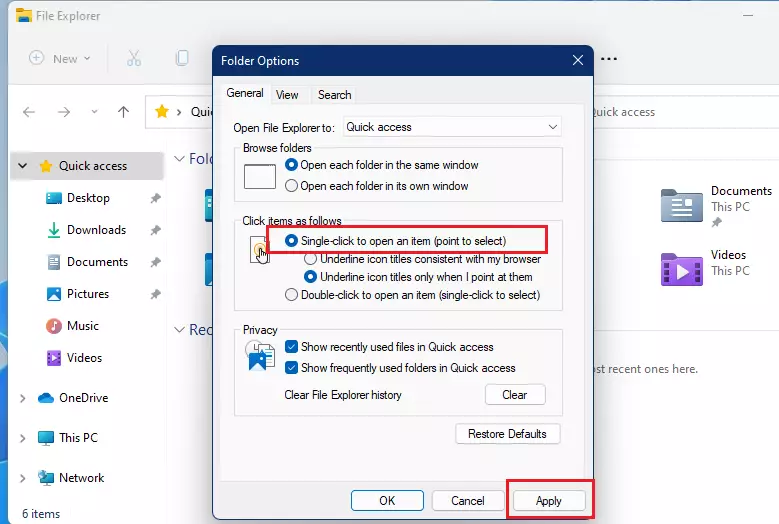
- In the Folder Options window, stay on the General tab.
- Look for the section called Click items as follows.
- Select the bubble that says Single-click to open an item (point to select).
- Click Apply and then OK to save your new settings.
Accessibility and Visual Differences
Using single-click activation is a great Windows 11 accessibility feature. It reduces the physical effort required for users with limited mobility. When enabled, you can choose to underline icon titles consistent with the browser, or only when you point at them. This visual cue helps you identify which item is currently selected.
Troubleshooting and Limitations
Does this setting affect third-party applications? Generally, this setting only changes how File Explorer behaves. Most third-party programs will continue to use their own internal click settings. If you find yourself accidentally opening files, you can turn on Item check boxes in the same Folder Options menu to make selecting files easier. Learn more about how to turn on check boxes in File Explorer.
Summary
Switching to single-click mode is a fast way to speed up your daily work in Windows 11. By following the steps above, you can open folders and files with one tap instead of two. Remember that you can still select items by hovering your mouse over them or by turning on checkboxes for better control. This simple change makes managing your files much smoother and more accessible. For more details, visit the official Microsoft support documentation.
Does single-click work on the Desktop and File Explorer?
Yes, once you enable this setting in the Folder Options menu, it applies globally to both your Windows 11 Desktop and all folders within File Explorer. This provides a consistent experience across your entire operating system, allowing you to open shortcuts and files with just one click.
How do I select a file without opening it when single-click is enabled?
When single-click is active, you can select a file without opening it by simply hovering your mouse pointer over the icon for a brief moment. Alternatively, you can enable the ‘Item check boxes’ feature in the View menu of File Explorer to click a checkbox instead of the file name.
Can I revert to double-click if I change my mind?
Yes, you can easily revert these changes at any time. Simply navigate back to the Folder Options menu in File Explorer, select the ‘Double-click to open an item’ option, and click Apply. Your computer will immediately return to the default behavior of requiring two clicks to open files.
Was this guide helpful?

About the Author
Richard
Tech Writer, IT Professional
Richard, a writer for Geek Rewind, is a tech enthusiast who loves breaking down complex IT topics into simple, easy-to-understand ideas. With years of hands-on experience in system administration and enterprise IT operations, he’s developed a knack for offering practical tips and solutions. Richard aims to make technology more accessible and actionable. He's deeply committed to the Geek Rewind community, always ready to answer questions and engage in discussions.



In my previous OS I could go to the very lower right of a file and click on an up or down arrow to move exactly one full page. Windows 11 does not have that. Can i add it somehow?