How to Enable Picture-in-Picture in Microsoft Edge

You enable Picture-in-Picture (PiP) in Microsoft Edge by right-clicking a video and selecting “Enter Picture-in-Picture mode.”
This handy feature lets you detach a video from its browser tab, creating a small, floating window that stays on top of all other applications.
It’s perfect for multitasking, allowing you to continue watching a YouTube tutorial or a video call while working on something else on your PC. Microsoft Edge, built on the Chromium engine like Google Chrome, provides this functionality natively.
You can easily activate PiP for virtually any video playing in the browser, giving you a seamless way to keep content visible.
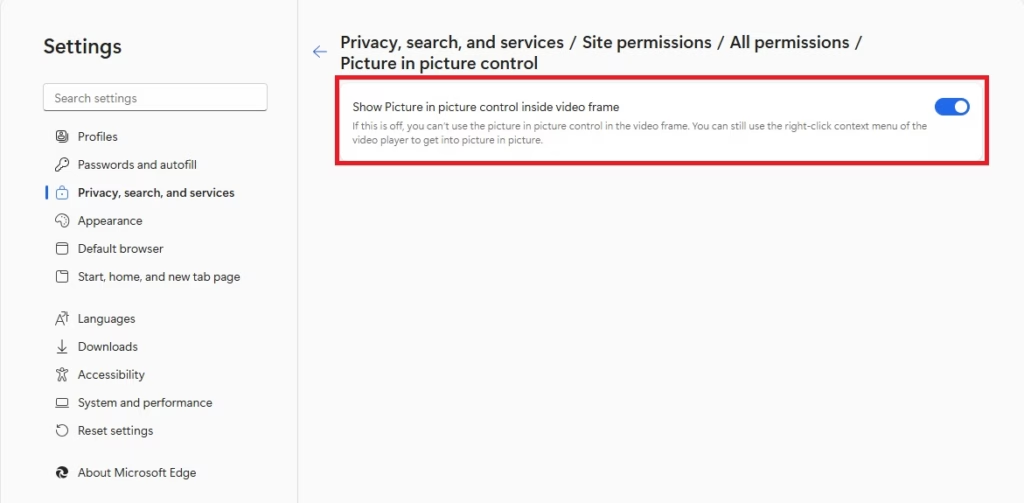
To enable Picture-in-Picture in Microsoft Edge, go to Settings > Privacy, search, and services > Site permissions > Automatic picture-in-picture and toggle the switch to On. This allows videos to float in a small window over other applications.
Enable or Disable Picture-in-Picture in Edge Settings
You can turn Picture-in-Picture on or off directly in the Microsoft Edge settings to control how videos play when you’re browsing other pages.
- Open the Microsoft Edge browser.
- Click the three horizontal dots in the top right corner and select Settings.
- Click Privacy, search, and services on the left side.
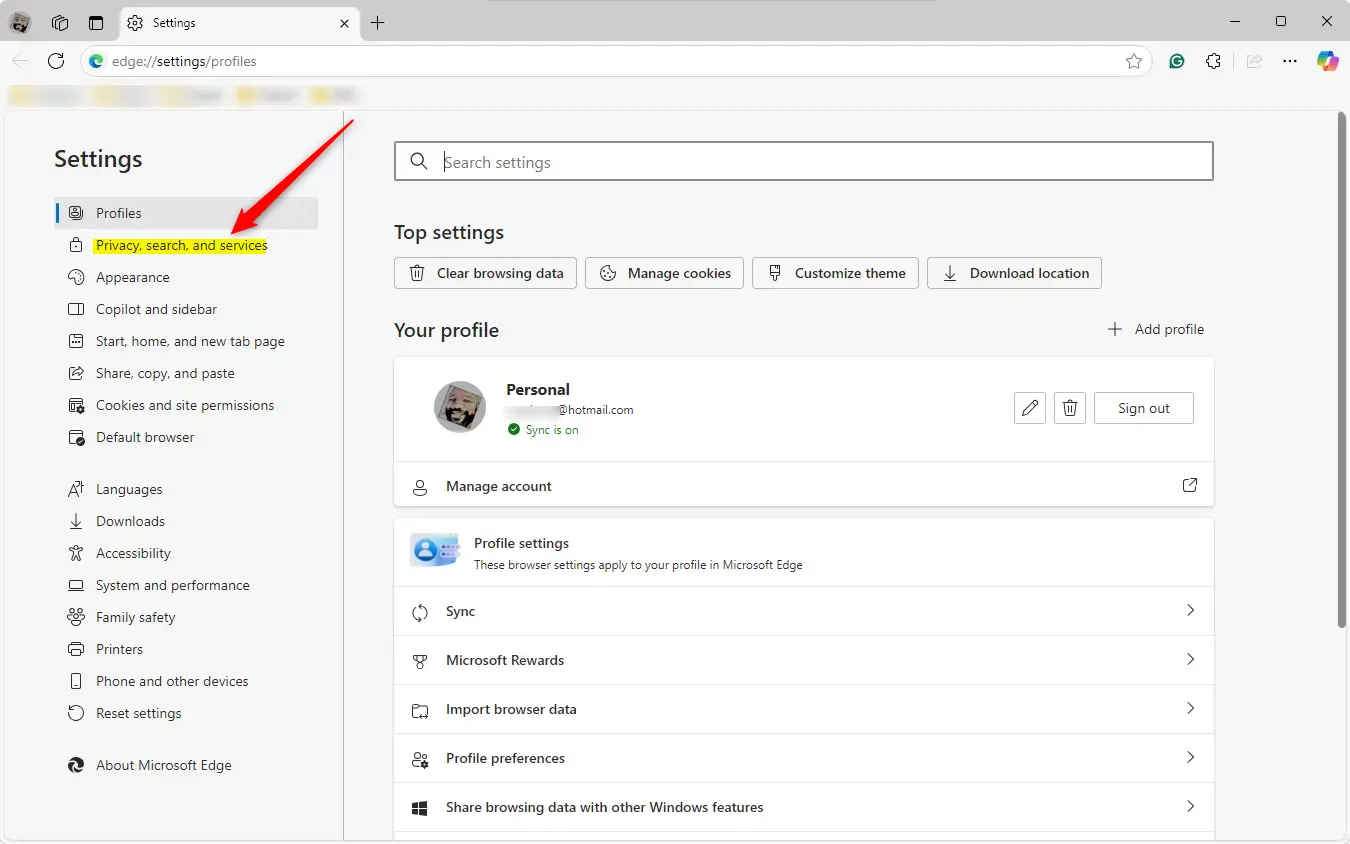
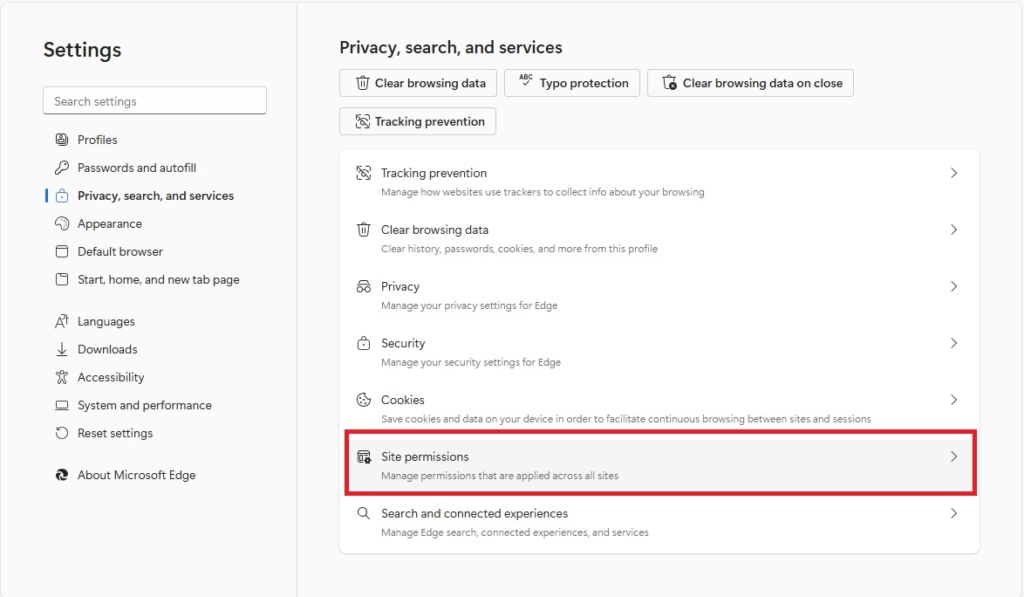
- Find the Site permissions section and click it.
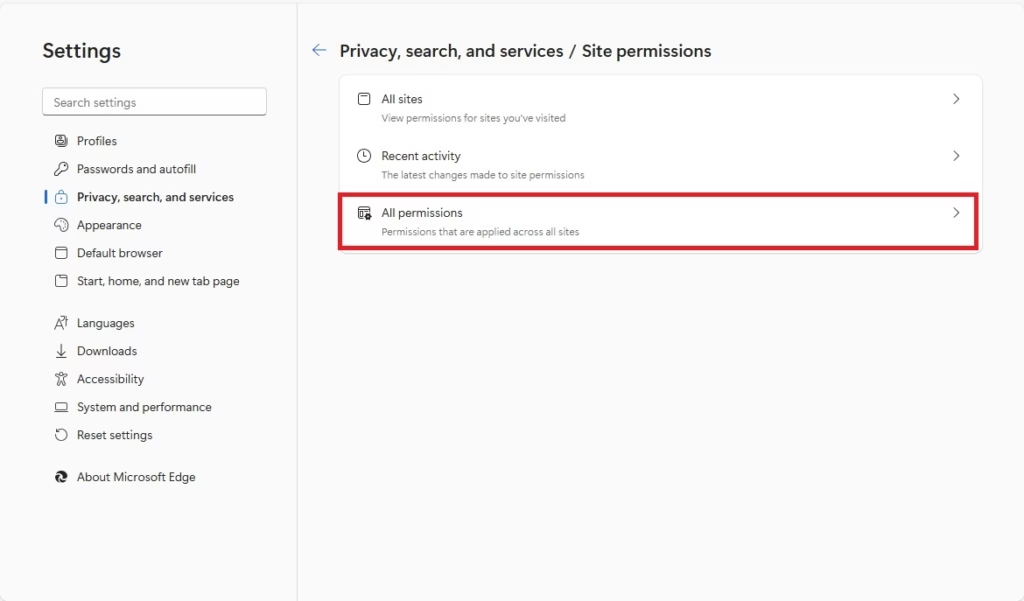
- Click All permissions to see more options.
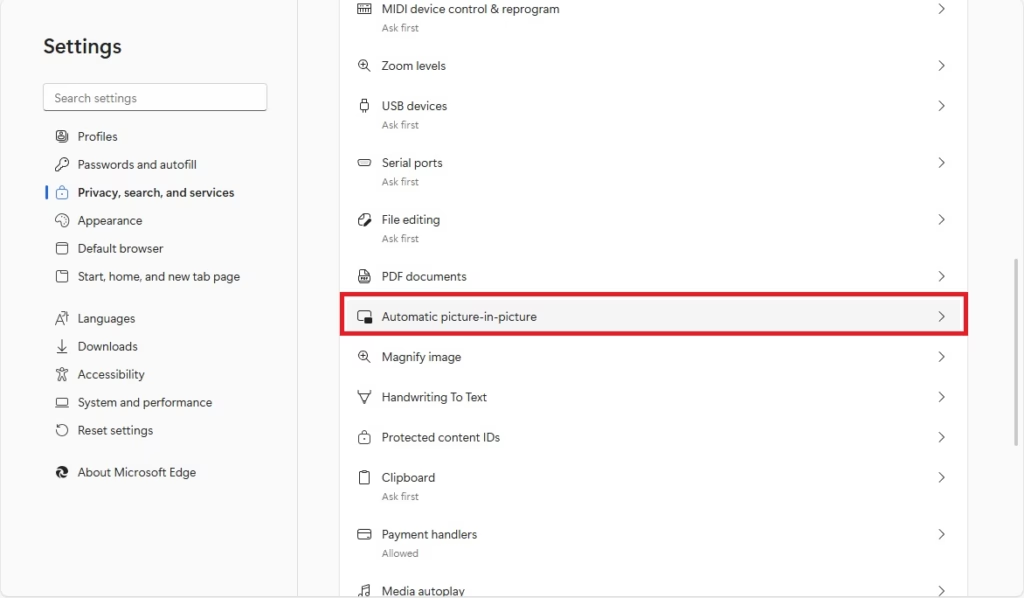
- Click Automatic picture-in-picture.
- Toggle the switch to On or Off.
Enable or Disable Picture-in-Picture via Registry
If you’re okay with advanced computer settings, you can change Picture-in-Picture for Edge using the Windows Registry, but it’s a good idea to back up your computer first.
1. Open the Windows Registry (a database of low-level settings for Windows) and navigate to this path:
Computer\HKEY_LOCAL_MACHINE\SOFTWARE\Policies\Microsoft\Edge
2. Right-click in the empty space, then choose New > DWORD (32-bit) Value and name it PictureInPictureOverlayEnabled.
3. Double-click the new file to change its value:
Set it to 1 to turn on the overlay, or 0 to turn it off for all users.
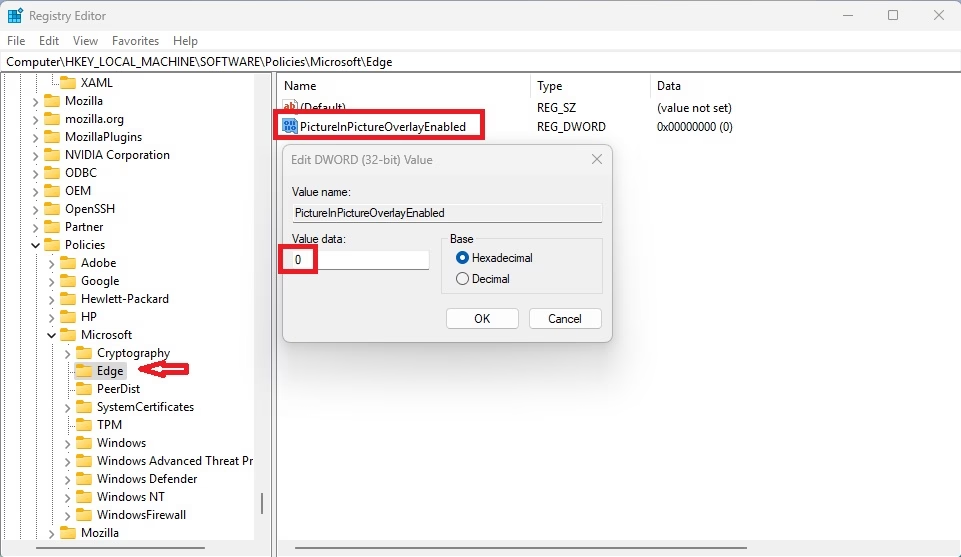
4. To revert to the original settings, delete the PictureInPictureOverlayEnabled file:
PictureInPictureOverlayEnabled
You may need to restart your computer to see the changes.
Summary
Picture-in-Picture in Edge is a handy tool for multitasking, letting you watch videos while you do other things online, and you can manage it through browser settings or the Windows Registry.
How to enable picture in picture mode in Edge?
You can pop videos out into picture-in-picture. You can also hover over any supported video in Microsoft Edge and select the picture-in-picture icon that appears to open it in a floating window.
What is the shortcut for picture in picture in Edge?
The keyboard shortcut for PiP mode is Alt+P.
Was this guide helpful?

About the Author
Richard
Tech Writer, IT Professional
Richard, a writer for Geek Rewind, is a tech enthusiast who loves breaking down complex IT topics into simple, easy-to-understand ideas. With years of hands-on experience in system administration and enterprise IT operations, he’s developed a knack for offering practical tips and solutions. Richard aims to make technology more accessible and actionable. He's deeply committed to the Geek Rewind community, always ready to answer questions and engage in discussions.



No comments yet — be the first to share your thoughts!