

This tutorial will show you how to turn Typing Insights on or off in Windows 11.
Windows 11 shows you information about how it helps you type more efficiently. If you use the software keyboard (like Touch Keyboard or On-Screen Keyboard), Windows uses AI technology to help you type faster. This includes fixing your spelling mistakes, predicting the next word you’ll type, and suggesting words as you start typing. You can also swipe over letters on the software keyboard to type words faster.
Windows keeps track of statistics for these features. Right now, these stats cover software keyboard usage and hardware keyboard prediction features.
Option One
Turn Typing Insights On or Off in Settings
- Open Settings by pressing
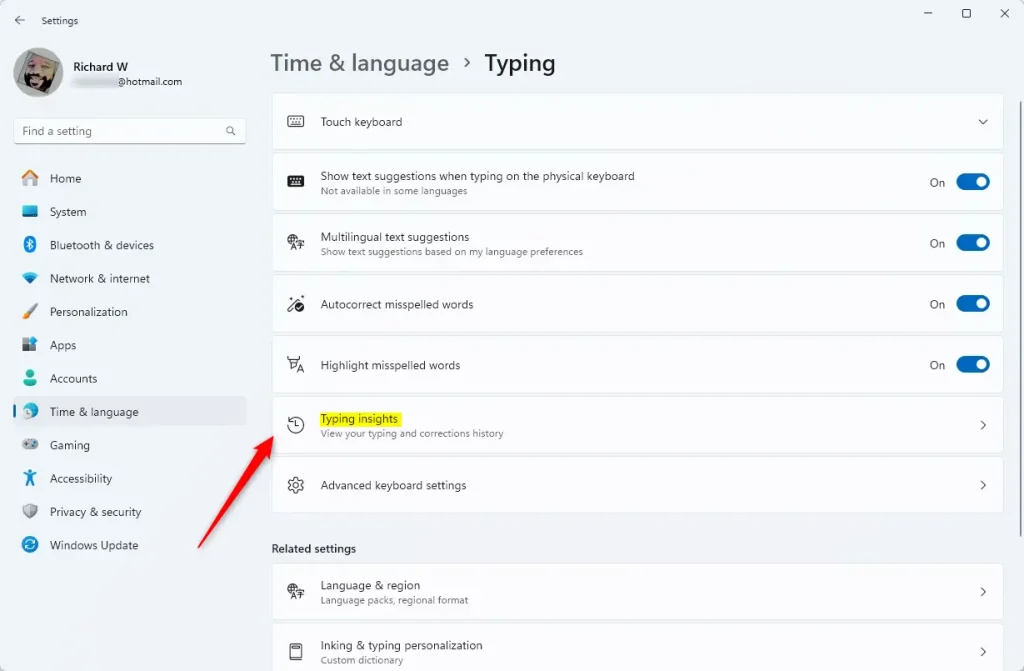
Win+I. - Click on Time & language on the left side, then click on Typing on the right side.
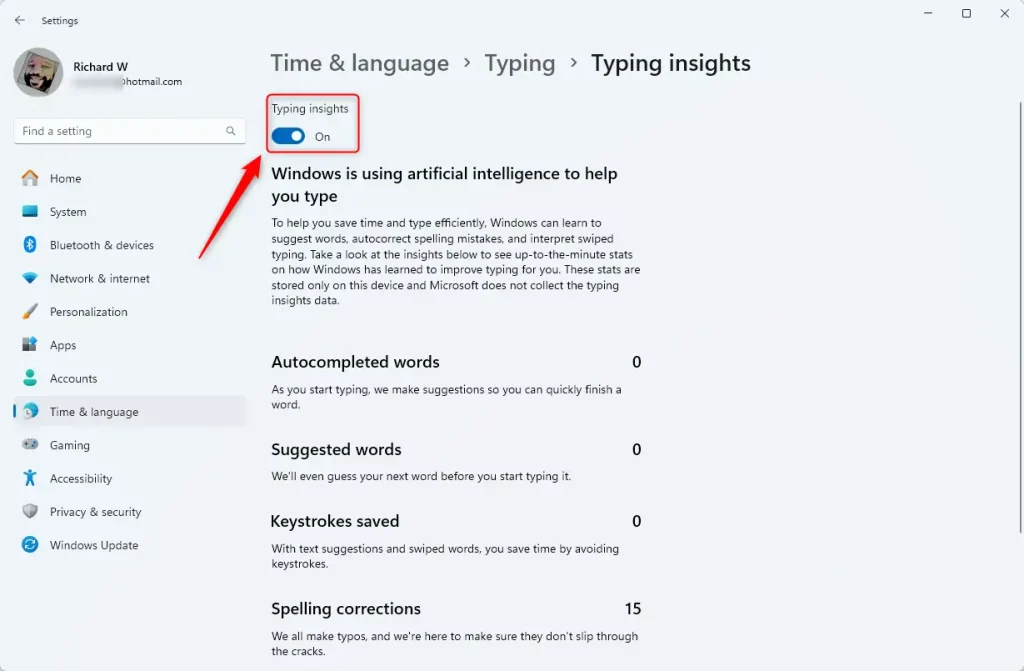
Open Typing settings - Click on Typing insights.
- Turn Typing insights On (this is the default) or Off depending on what you want.
- You can close Settings now if you’d like.
Option Two
Turn Typing Insights On or Off Using Registry
Turn On Typing Insights
This is the default setting.
reg add "HKEY_CURRENT_USER\Software\Microsoft\Input\Settings" /v InsightsEnabled /t REG_DWORD /d 1 /f
Turn Off Typing Insights ⚙️ Requires admin privileges
reg add "HKEY_CURRENT_USER\Software\Microsoft\Input\Settings" /v InsightsEnabled /t REG_DWORD /d 0 /f
Summary
Typing Insights in Windows 11 helps you see how AI features are making your typing faster and easier. You can turn this feature on or off using two simple methods. The first method uses the Settings app, which is the easiest way. The second method uses the Registry Editor if you prefer working with the system registry directly. Both methods work the same way—you just enable or disable the feature based on your preference.
Leave a Reply